


 Sign in to Every with your email and password, or with a passkey. Reset a forgotten password from the sign-in screen, or email support@every.io if you lose access to your authenticator.
If you are already signed in, use My account to change your password or manage passkeys.
Sign in to Every with your email and password, or with a passkey. Reset a forgotten password from the sign-in screen, or email support@every.io if you lose access to your authenticator.
If you are already signed in, use My account to change your password or manage passkeys.
Before you begin
- You need an Every account. No company role is required to sign in.
- Have the email address you use for Every.
- Keep your authenticator app or password manager nearby. Every can ask for a 6-digit code from it when you sign in, as part of .
Sign in
1
Enter your email
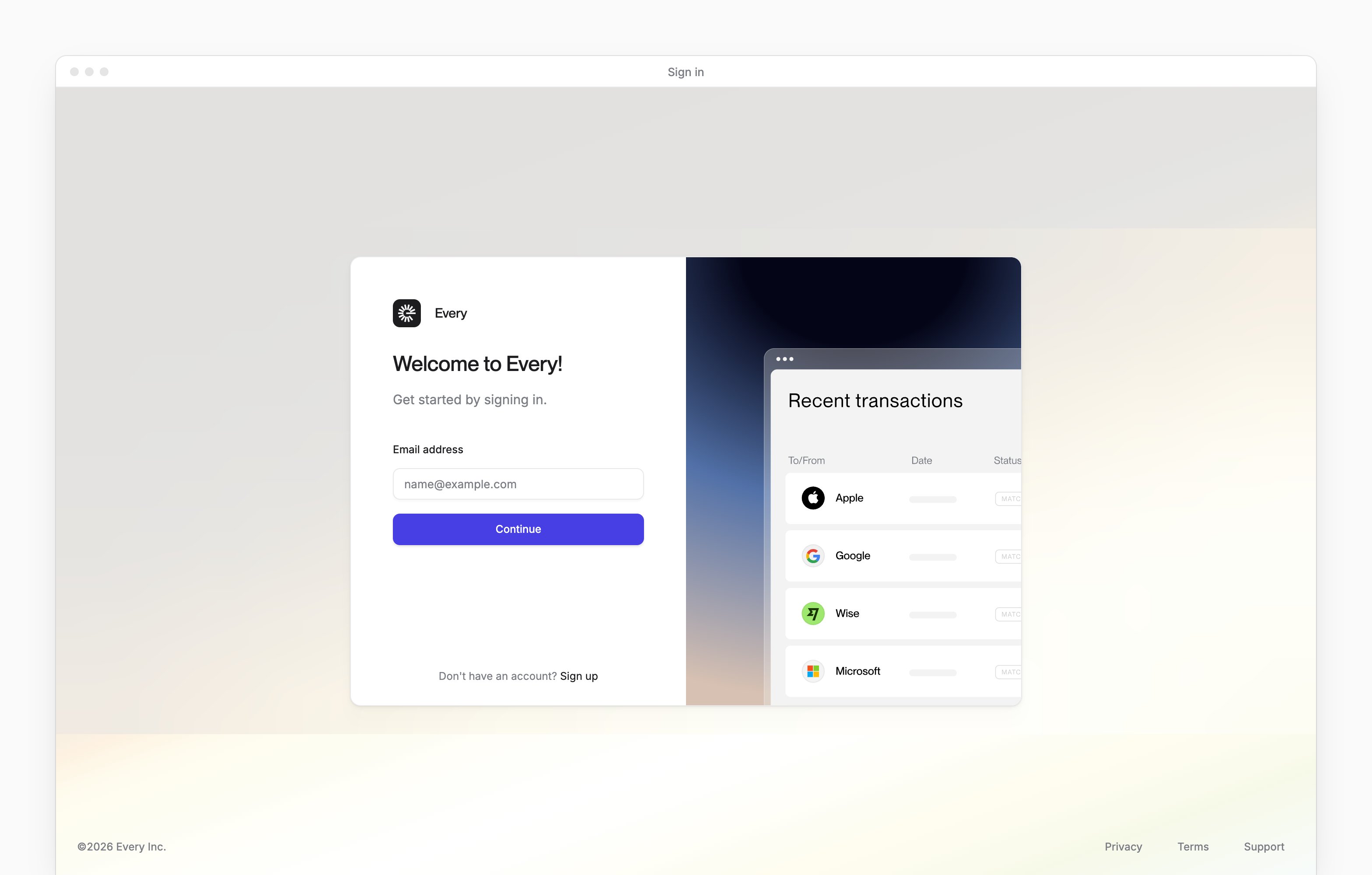
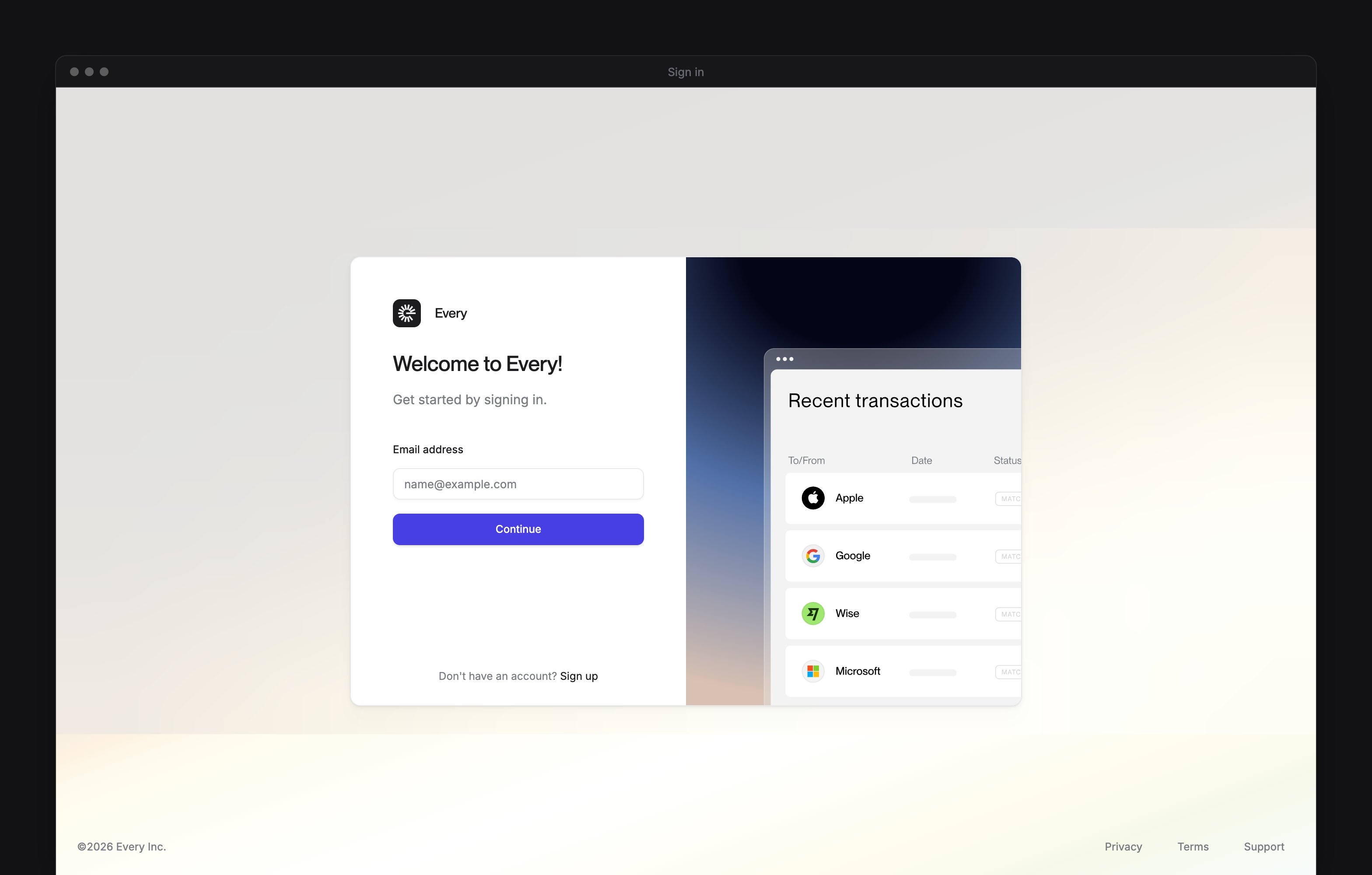
On the sign-in screen, enter your email in Email address.
2
Continue to your password
Select Continue.
3
Enter your password
In Password, enter your password.
4
Continue signing in
Select Continue.
5
Enter an authenticator code when asked
If Enter multi-factor authentication code appears, enter the code from your authenticator app or password manager.
6
Submit an authenticator code when asked
On Enter multi-factor authentication code, select Continue.
Sign in with a passkey
When your account has a passkey and your browser supports it, Continue on the email step starts passkey sign-in. Your browser then asks for your saved passkey. To use your password instead, select Sign in with password. On the password step, Sign in with Passkey switches back. When you have a passkey and sign in with your password instead, Every emails you a 6-digit code:- On We sent you a code via email, enter the code from your email.
- Select Continue.
Set up an authenticator app
When you have no passkey and haven’t set up an authenticator, Every shows Enable multi-factor authentication after your password.1
Add Every to your app
Scan the QR code with your authenticator app, or enter the setup code shown under it.
2
Enter your authenticator code
Enter the 6-digit code the app gives you.
3
Finish setup
Select Continue.
Reset your password
1
Enter your account email
On the sign-in screen, enter your email in Email address.
2
Continue to the password step
Select Continue.
3
Open the reset page
On the password step, select Forgot password?.
4
Enter the email for the reset
In Email address, enter your account email.
5
Request a code
Select Send reset code.
6
Enter the code
On the Create new password screen, enter the code from your email in Verification code.
7
Enter a new password
In Enter password, enter a new password. It needs at least 8 characters, with a lowercase letter, an uppercase letter, a number and a symbol.
8
Confirm the password
In Confirm the password, enter the same password again.
9
Save the password
Select Confirm & Save.
Recover access to your authenticator
If you lose access to your authenticator app, you can get help without signing in:- On the code prompt, under Lost access to your MFA?, select See more.
- Select Contact Support to email support@every.io.