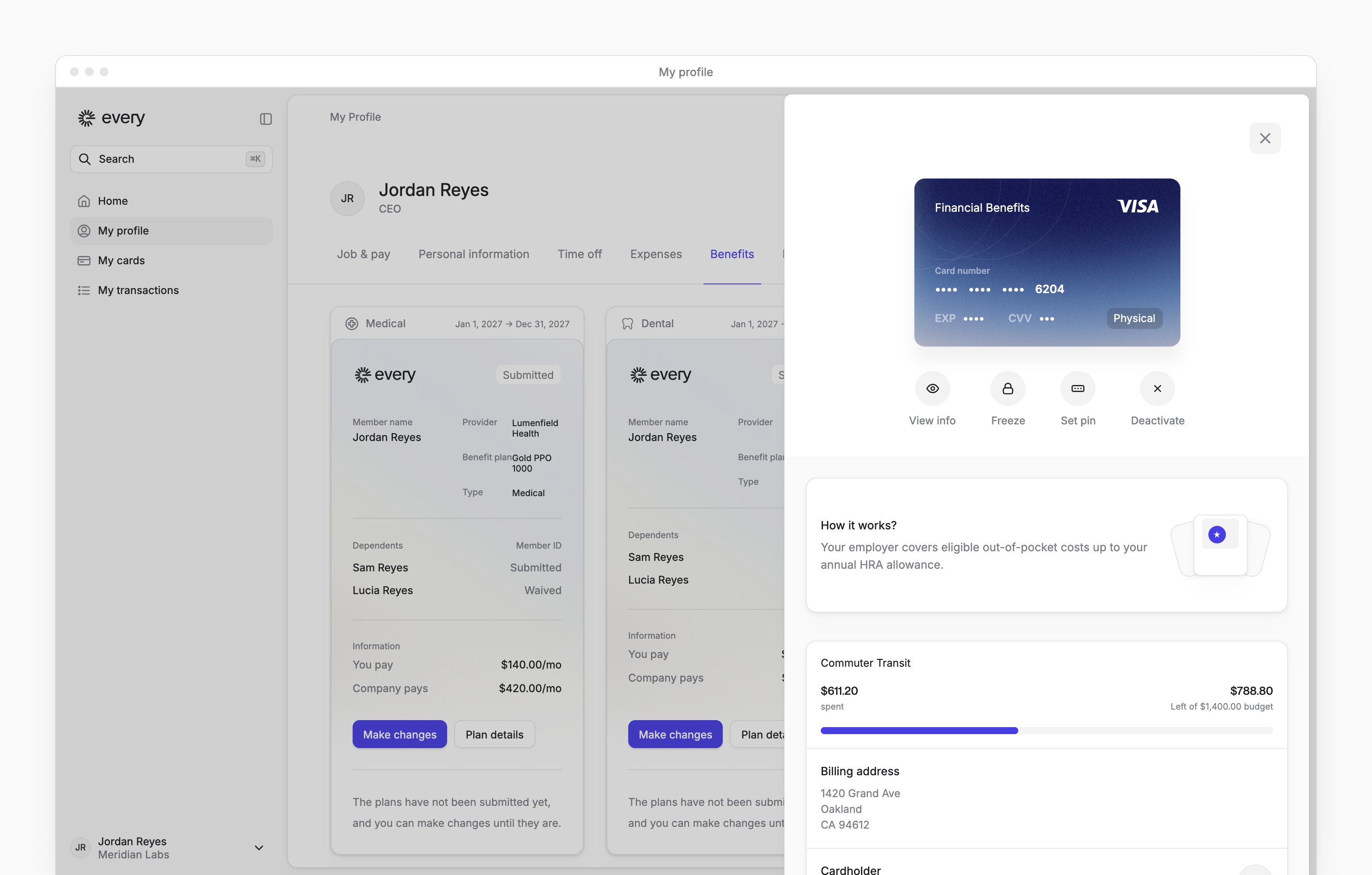
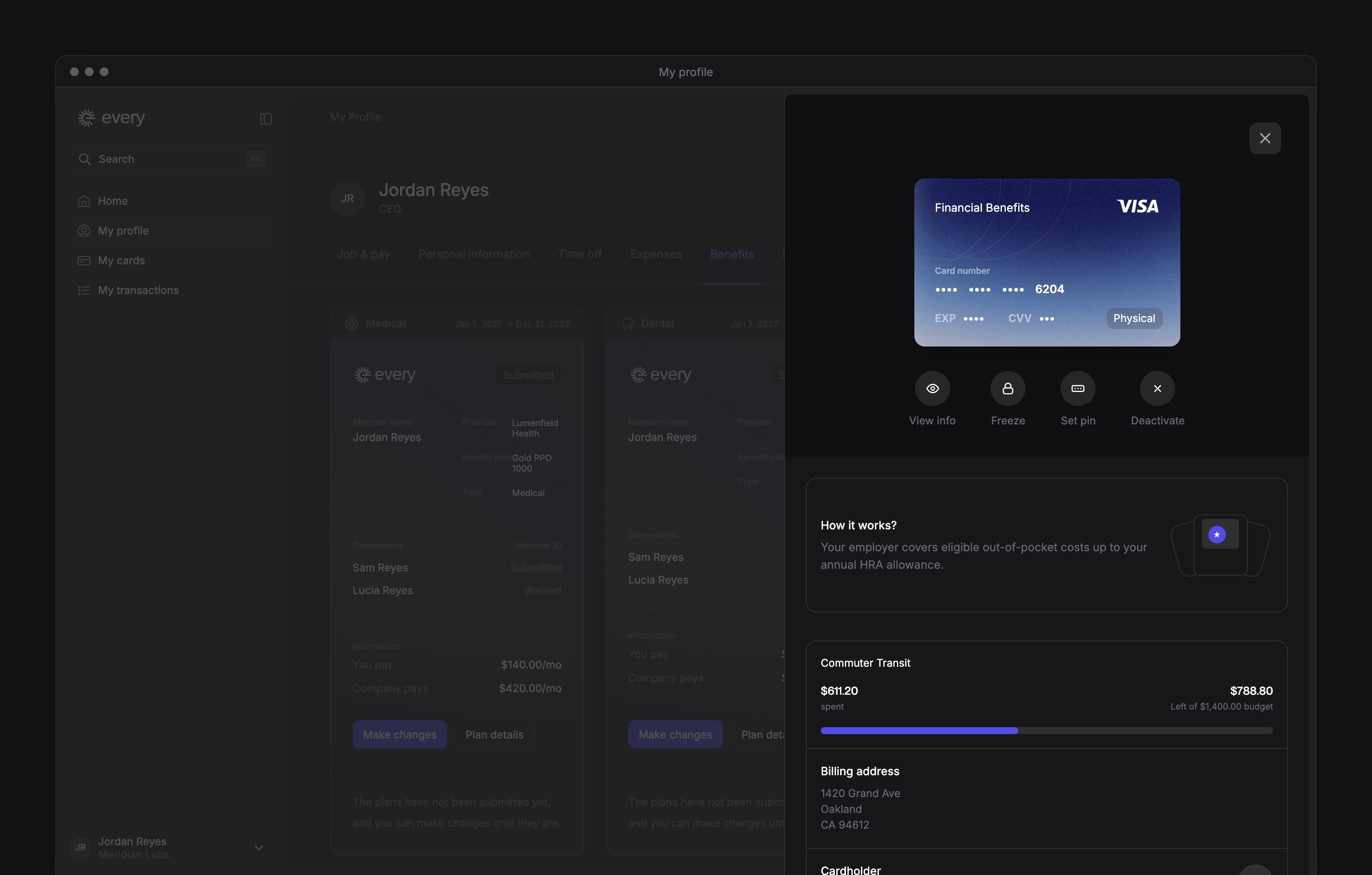
Choose health coverage from Home → Things to do → Enroll in health benefits. On My profile → Benefits, review your plans, contributions and benefit cards after your company finishes onboarding.
Employees manage their own benefits here. Contractors don’t have a Benefits tab on My profile.
Choose health coverage from Home → Things to do → Enroll in health benefits. On My profile → Benefits, review your plans, contributions and benefit cards after your company finishes onboarding.
Employees manage their own benefits here. Contractors don’t have a Benefits tab on My profile.
Every turns on benefit card replacement company by company. If you don’t see it, email support@every.io to ask about it.
Before you begin
The health enrollment task appears once you’ve finished joining your company, when your company has coverage for you to choose, such as during . While you join, choose your coverage in the Benefits step instead (see Join your company).Choose your coverage
1
Confirm your details
On Personal Details, confirm Sex and Marital status, then continue.
2
Choose who to cover
For each type of coverage, select Enroll in medical coverage or the dental or vision option. Turn on the switch for each dependent you want covered. To add someone, select Add another dependent.
3
Choose a plan
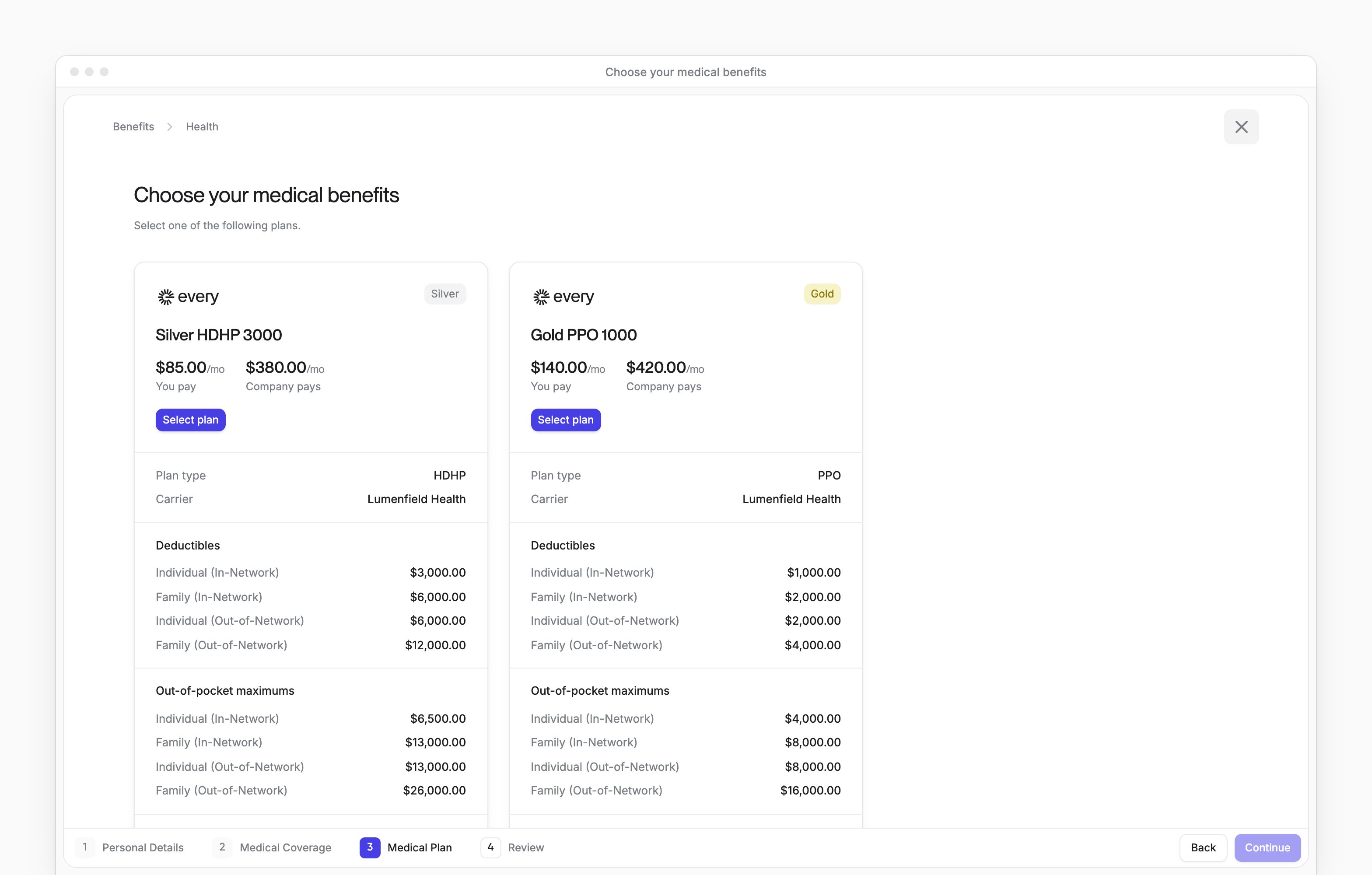
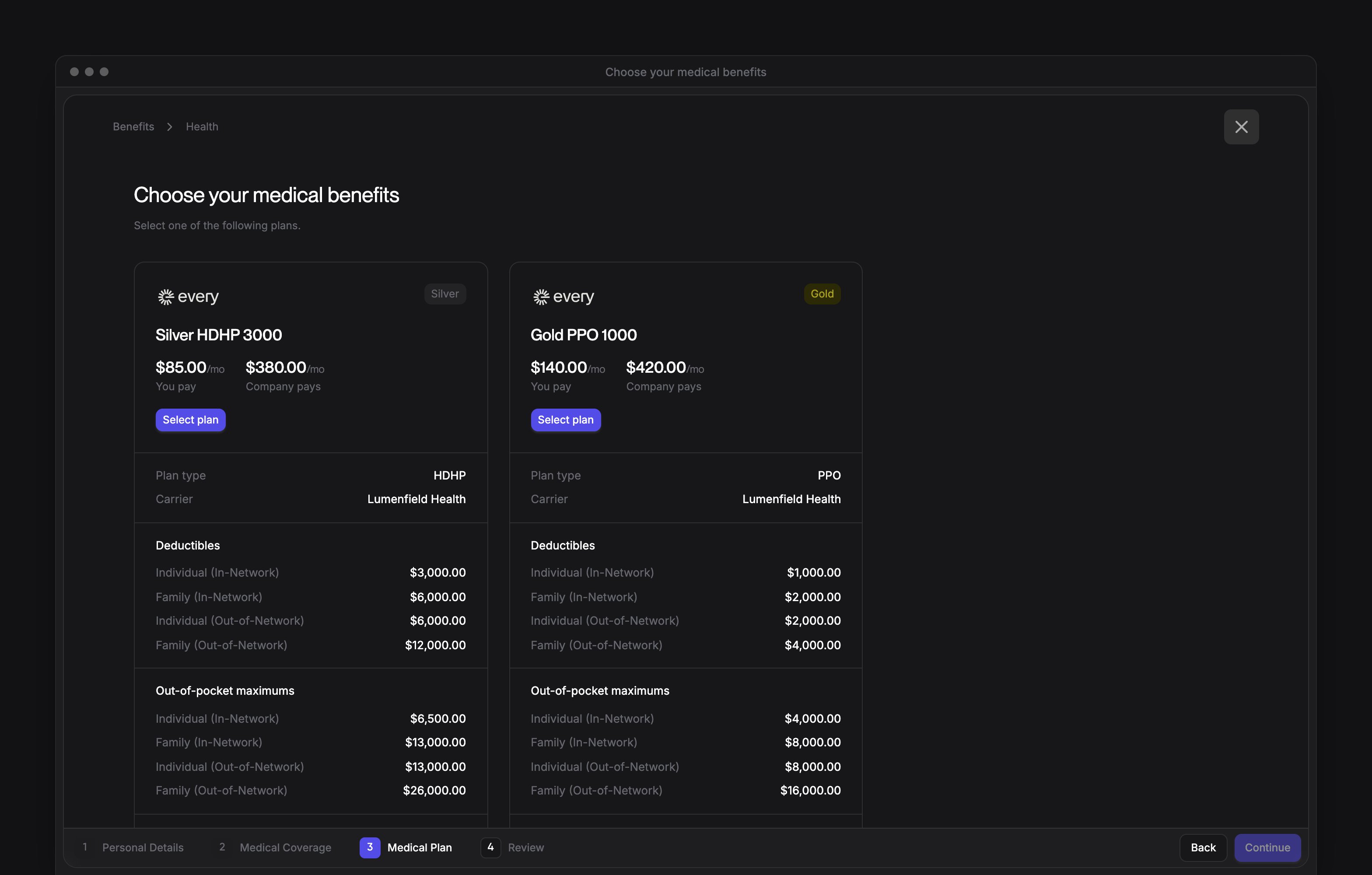
Compare the available plans, including You pay and Company pays, and select a plan. Continue through the other coverage types shown.
4
Review your choices
At the Review step, the page is titled Confirm & enroll. Check your plans, covered people and costs.
5
Sign documents when requested
If Legal appears on Review, enter your full name for each document and select I agree to electronically sign this document.
6
Add card delivery details when requested
If Card delivery appears on Review, enter the address where you want your benefit card mailed.
7
Confirm your choices
Select Confirm. During onboarding, finish the remaining onboarding steps too.
Waive coverage
1
Waive the coverage
Select Waive medical coverage or the dental or vision option.
2
Give a reason
Under Choose reason why you waive, select a reason. For Other (please explain), enter it under Please explain.
3
Finish your choices
Continue through the remaining coverage choices and the Review step, including any Legal signatures requested. Then select Confirm. Waived coverage shows as Declined coverage.
Change a health selection
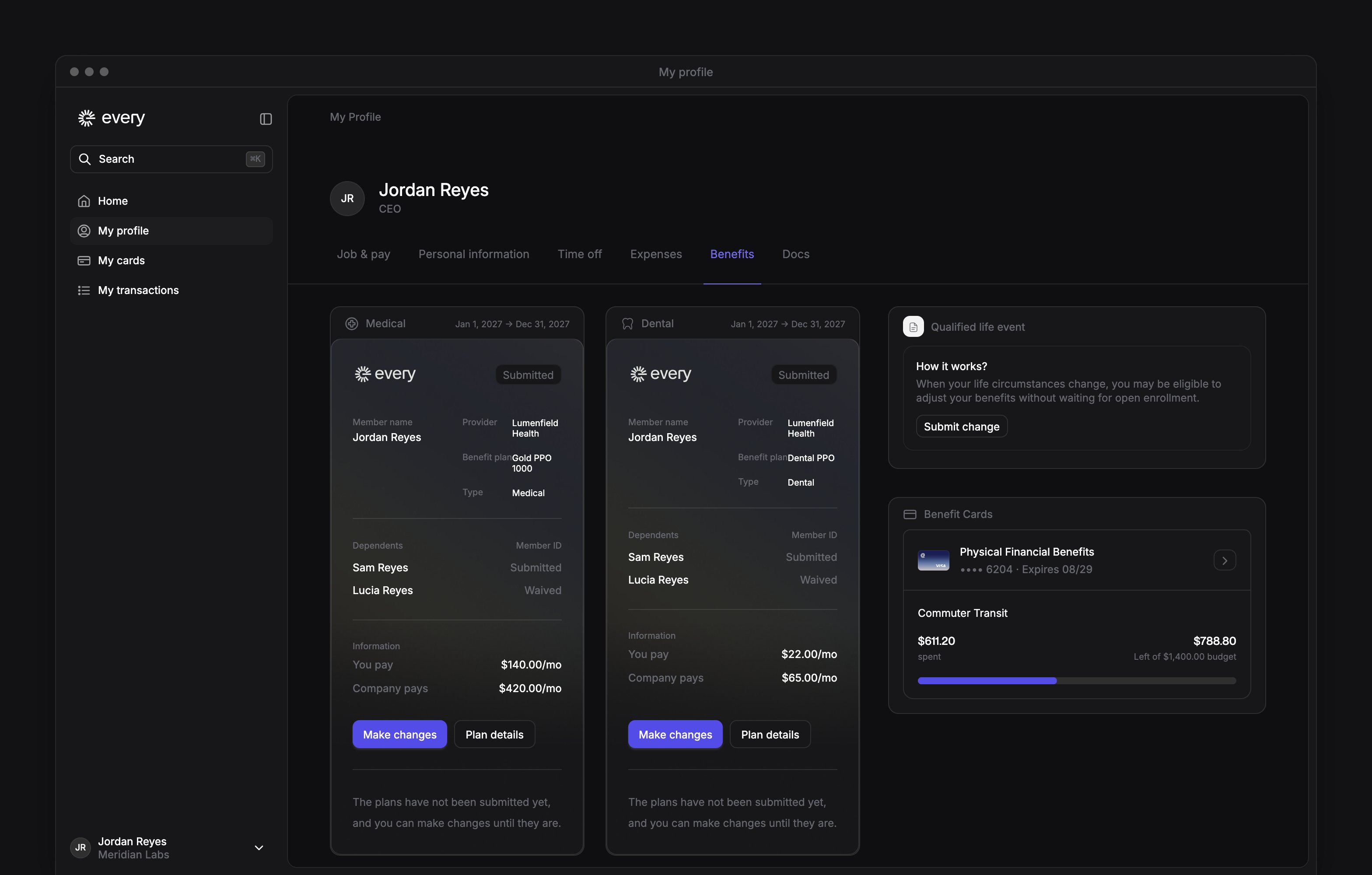
During enrollment, open Edit your health benefit selection on Home to reopen a submitted choice. On My profile → Benefits, use Make changes when it appears on the plan’s card. Select Plan details to review the plan.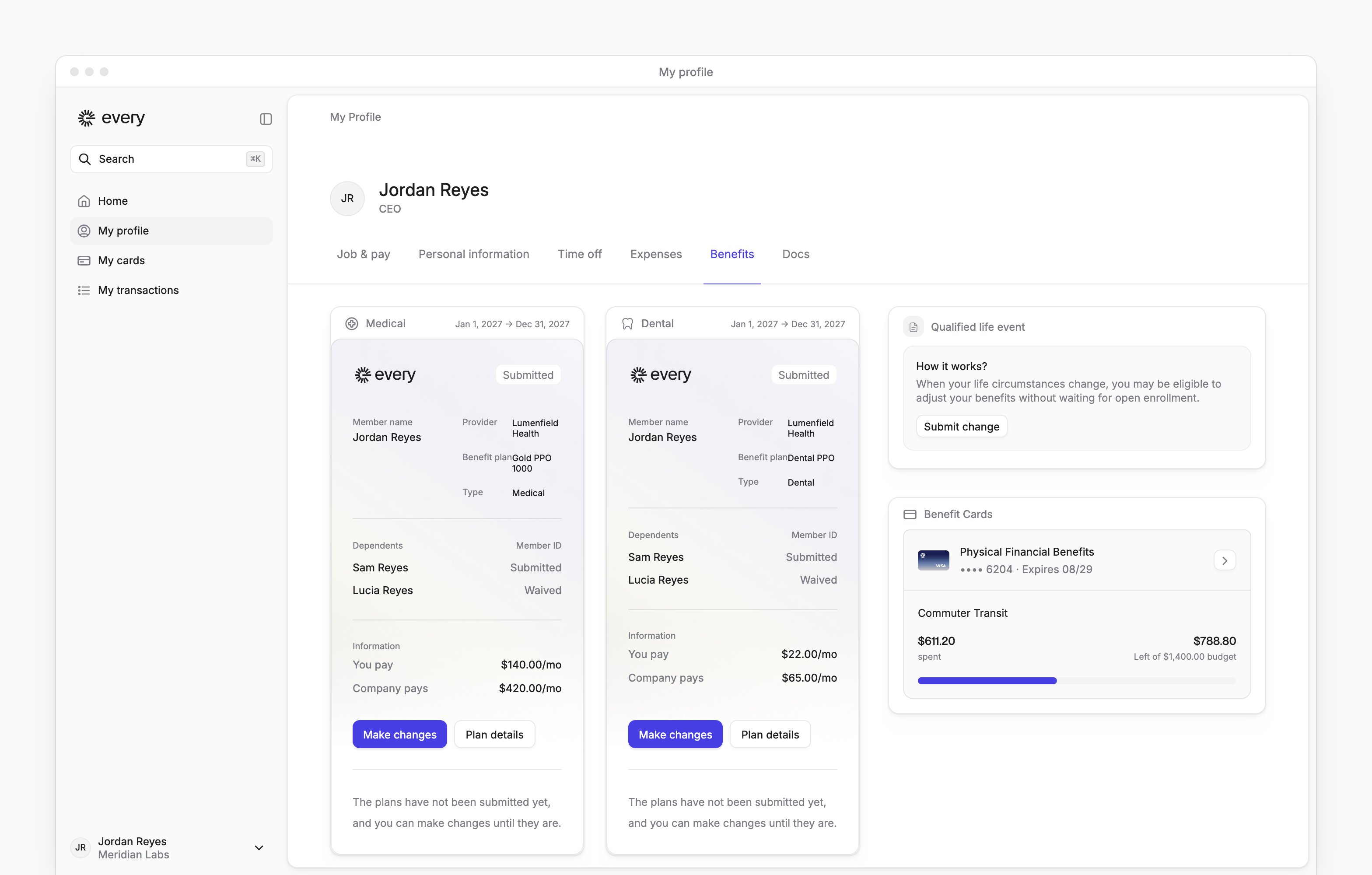
Enroll in financial benefits
My profile → Benefits also offers and commuter elections for available health care, dependent care, transit and parking plans.1
Open the benefit
On the benefit’s card, select Get started.
2
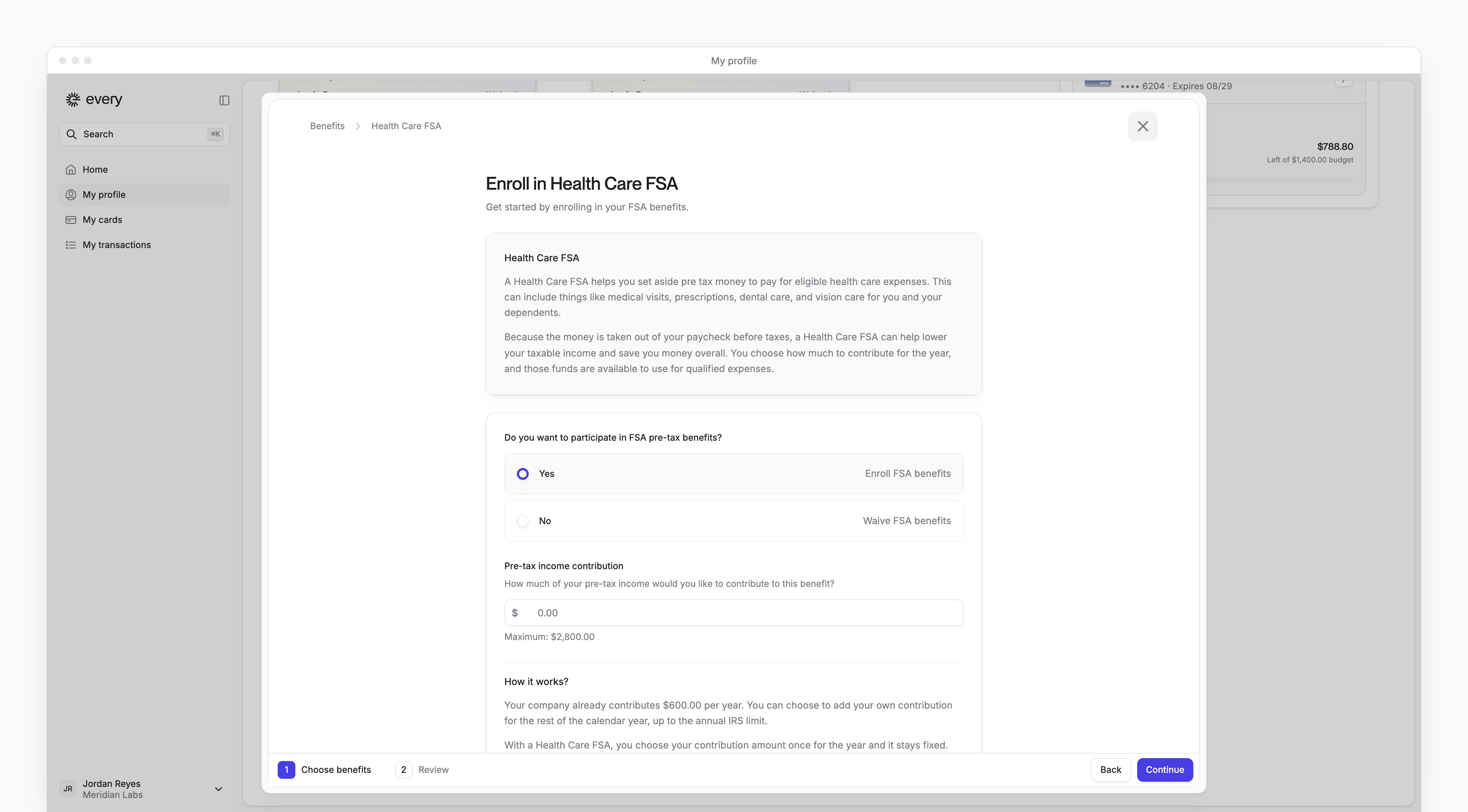
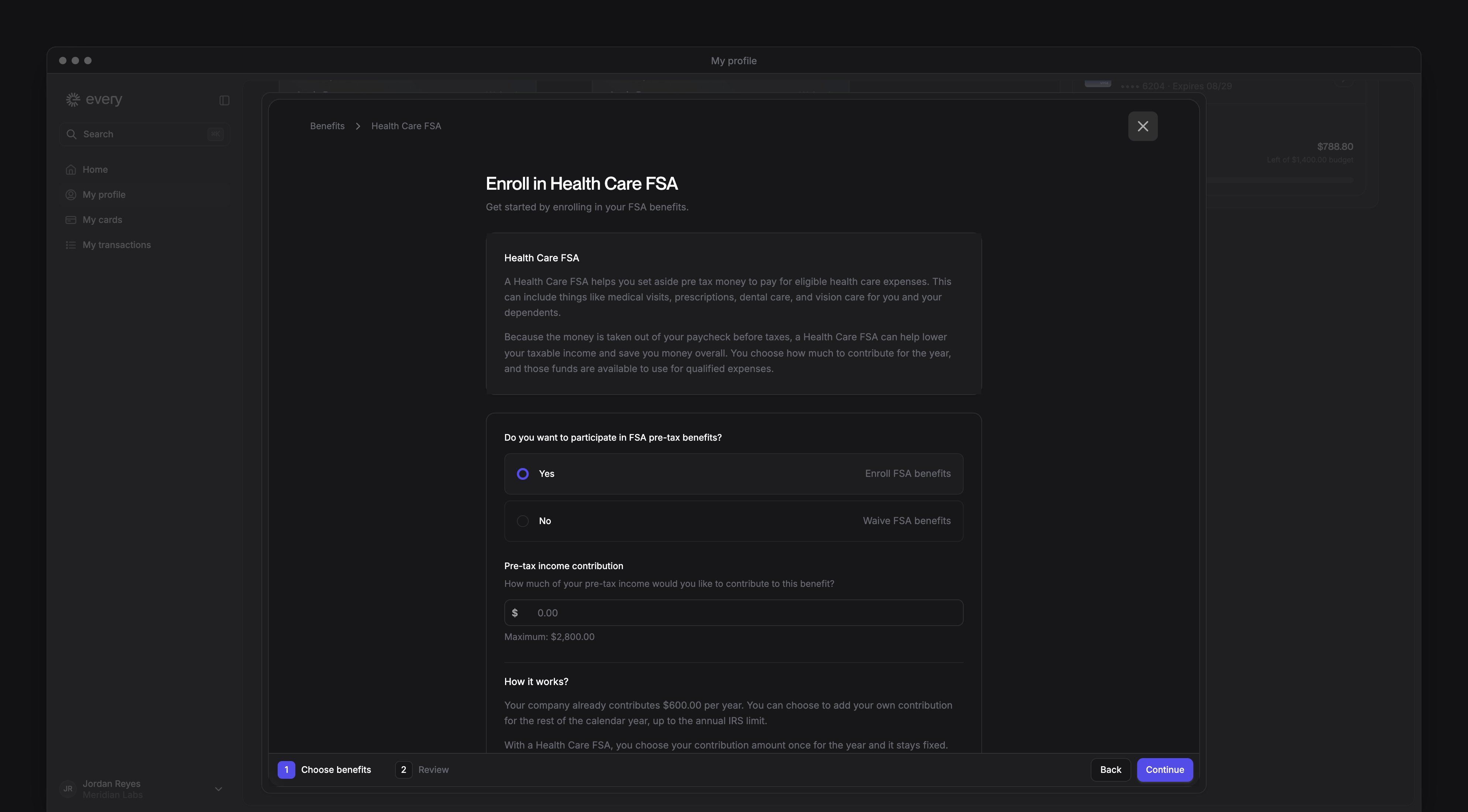
Choose whether to participate
Select Yes to enroll or No to waive.
3
Enter your contribution
If you enroll, enter your amount in Pre-tax income contribution. Use the limit displayed on the form.
4
Confirm the mailing address
If the form requests an address for your benefit card, complete it.
5
Review the election
Select Continue to review the contributions, coverage period and any mailing address. When a Plan Summary appears, open it and select the acknowledgment after reading it.
6
Finish the election
Select Confirm & enroll, or Confirm waiver if you declined participation.
Change a commuter contribution
1
Open the commuter benefit
On My profile → Benefits, select Make changes on the commuter benefit’s card.
2
Change the contribution
In Pre-tax income contribution, enter the new amount.
3
Review the change
Select Continue to review the contribution.
4
Confirm the change
Select Confirm.
Request a change after a life event
Start on My profile → Benefits while you’re eligible and still employed.1
Start the change
Under Qualified life event, select Submit change.
2
Choose the event
In Select a Qualifying Life Event, select the event that applies to you.
3
Enter the date
Enter the date requested for your selected event.
4
Provide supporting proof
Upload one of the listed acceptable documents in QLE Document. If the form offers a confirmation that you don’t have a document now, you can select it instead.
5
Choose an approver
In Select Approver, select the administrator to review your request.
6
Complete the coverage choices
Complete the coverage steps shown.
7
Finish the coverage choices
Select Complete enrollment or Save when shown.
8
Sign documents when requested
If Review & sign appears, enter your full name for each document.
9
Agree to sign when requested
On Review & sign, select I agree to electronically sign this document for each document.
10
Confirm the signatures when requested
On Review & sign, select Confirm.
Use your benefit card
Under Benefit Cards, select a card to see its allowances, spending and Recent transactions. When Activate card appears for your physical card, select it and follow Activate a physical card. To replace a lost or undelivered card:- In the card’s details, select Order new card when available.
- Confirm the Delivery address, then select Order card.