These steps cover hourly employees and contractors with an assigned timesheet task. On Home, under Things to do, select Submit your timesheets, then open the pay period you want to complete.
Before you begin
A timesheet task is hidden until the pay period has started and your start date has arrived. Your form asks for daily entries or total hours by job. Follow the steps for the form you see.Enter daily hours
1
Add an entry
In the pay period’s sheet, select Add new entry.
2
Enter the work details
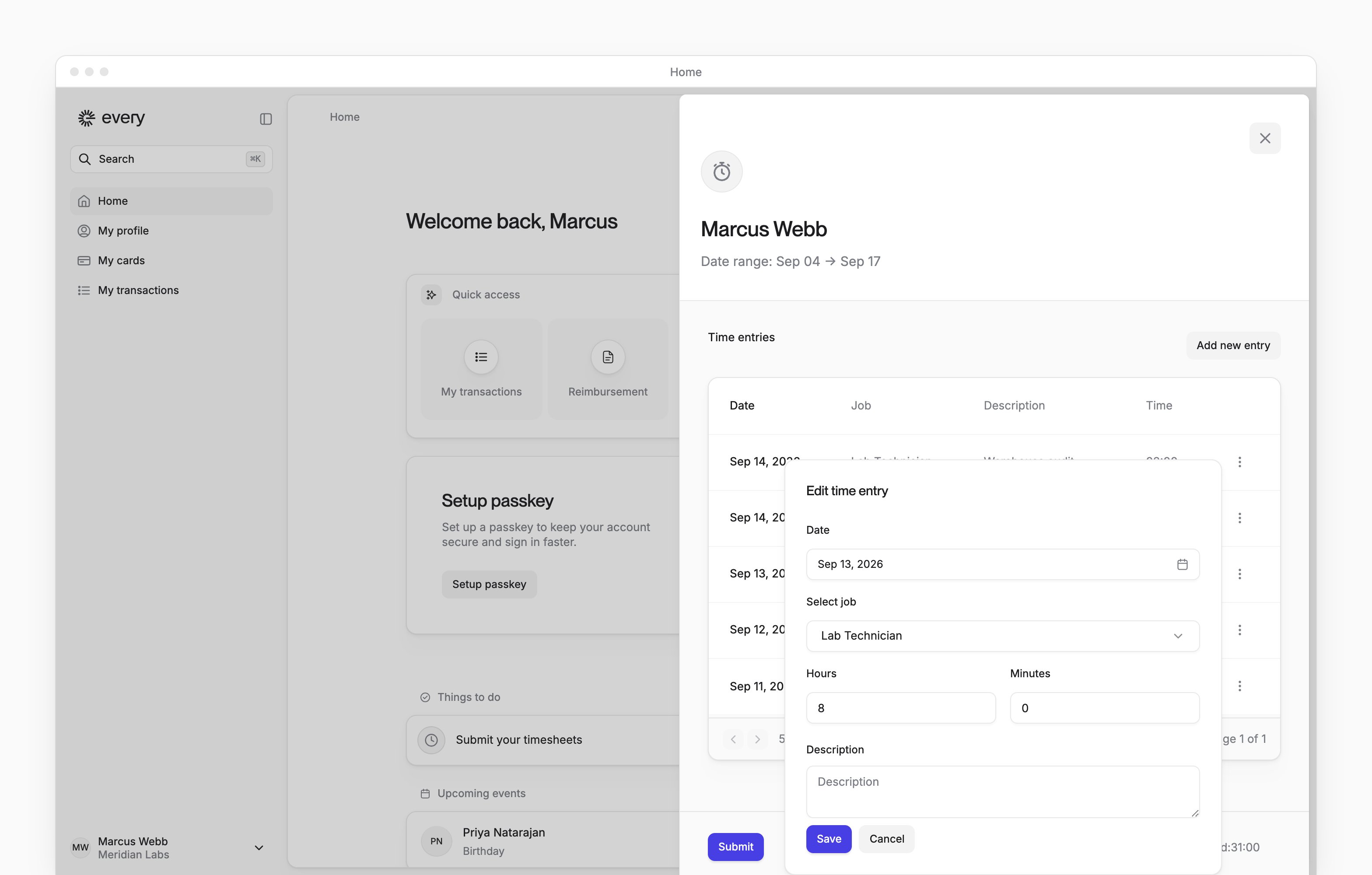
Choose the date and job, enter your hours and minutes and add a description. Select Save to add the entry.
3
Review the period
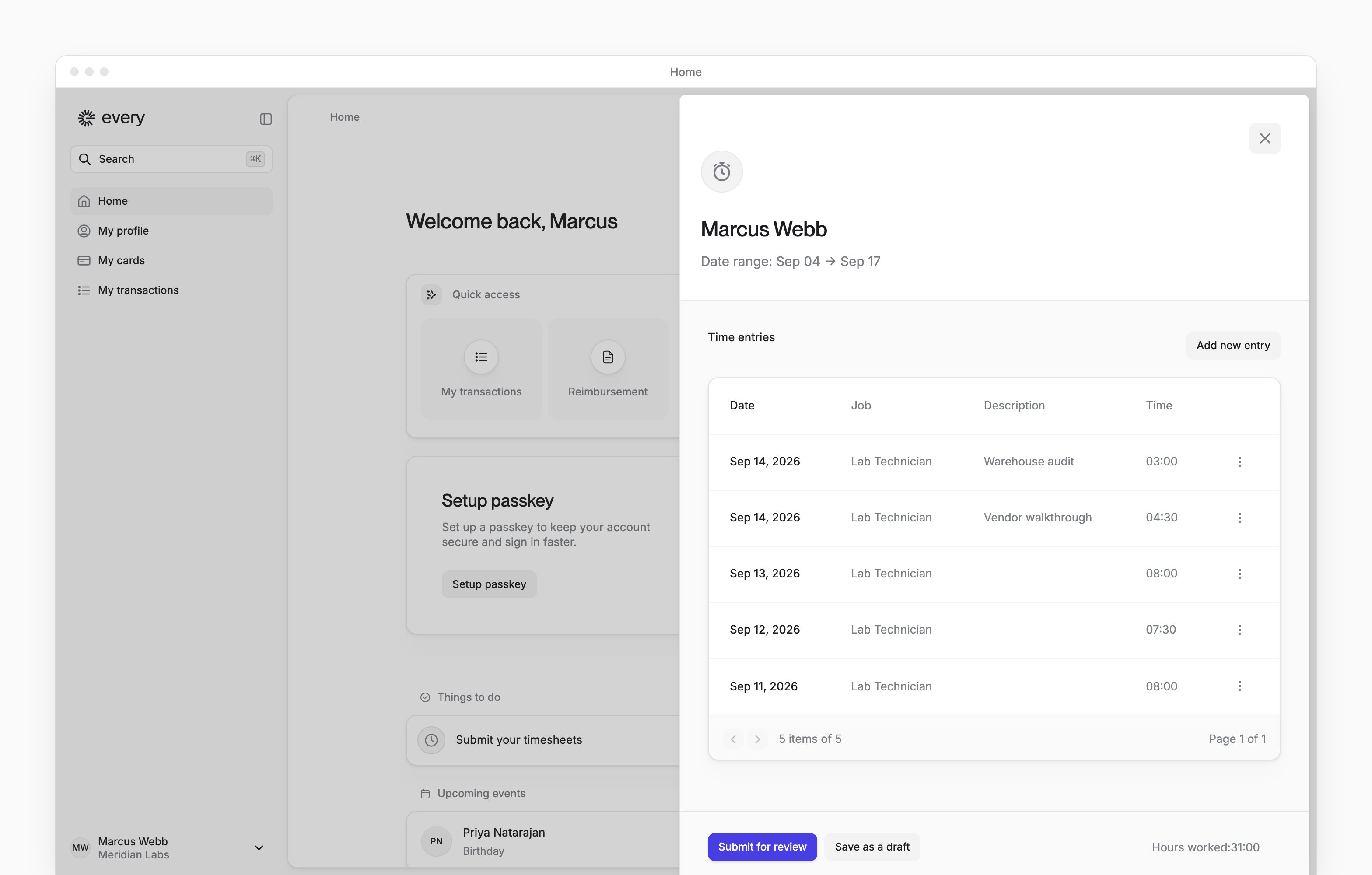
Repeat for your other work dates. Review the entries and the Hours worked total. Use an entry’s menu to Edit or Delete it.
4
Submit your hours
Select Submit for review. To return later without submitting, select Save as a draft.

Enter total hours by job
1
Choose the job
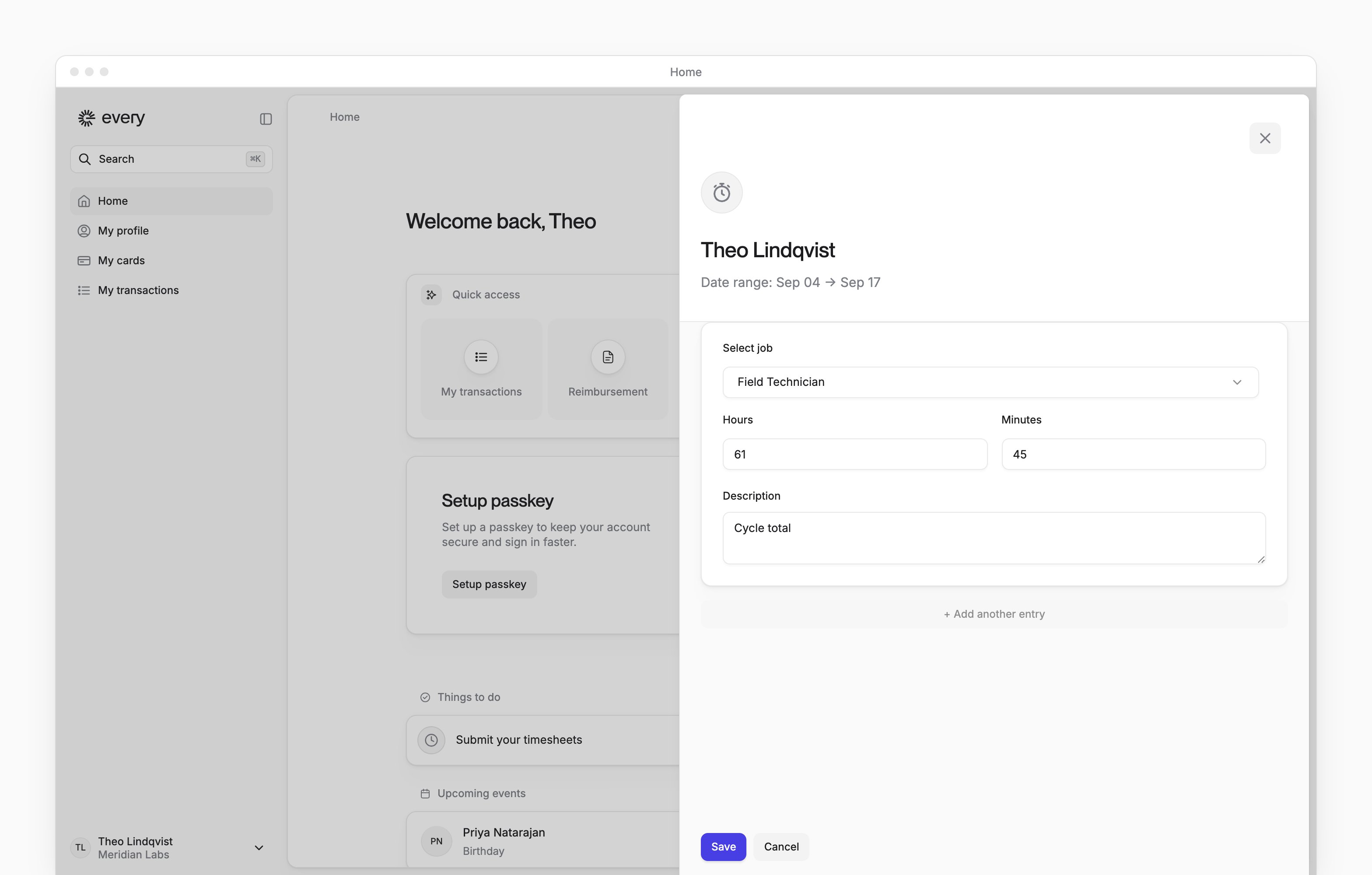
In the pay period’s form, choose the job for the entry.
2
Enter your hours
Enter the total hours and minutes and a description for that job. For another job, select + Add another entry.
3
Save your hours
Review each job’s hours, then select Save. Saving submits your hours for review.

Correct submitted hours
You can correct hours while your company’s payroll for the period is still a draft. On Home, under Things to do → Submit your timesheets, select the task that reads “Edit your hours worked between” and the period’s dates.1
Edit an entry
For daily entries, select Edit in the entry’s menu and change the hours. For total hours, change the job’s entry.
2
Save the change
Select Save.
3
Resubmit daily hours
For daily entries, select Submit. Total hours are submitted when you save.