


 Your card purchases and reimbursements are on My transactions in the sidebar, after your company finishes onboarding. There you add receipts, change categories and choose spending budgets.
Every turns on budgets company by company. If you don’t see Budget on a transaction, email support@every.io to ask about it.
Find a transaction
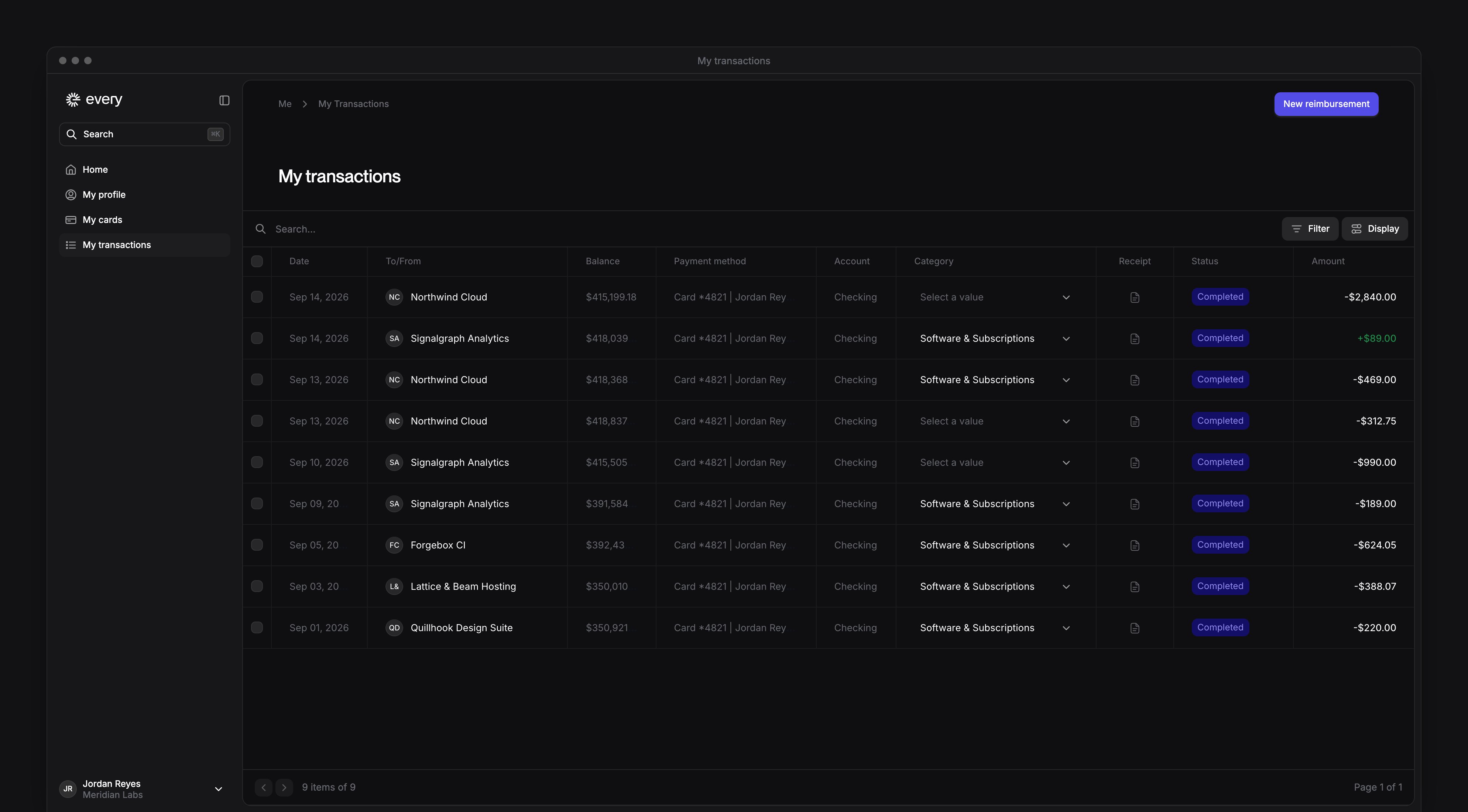
Select Filter to narrow the list by payment method, date, amount, direction or status. In Filter, under Status, select Missing information to see the transactions that still need a receipt. Each page lists 50 transactions. A Status filter, or a filter set to is not, narrows only the page you’re on.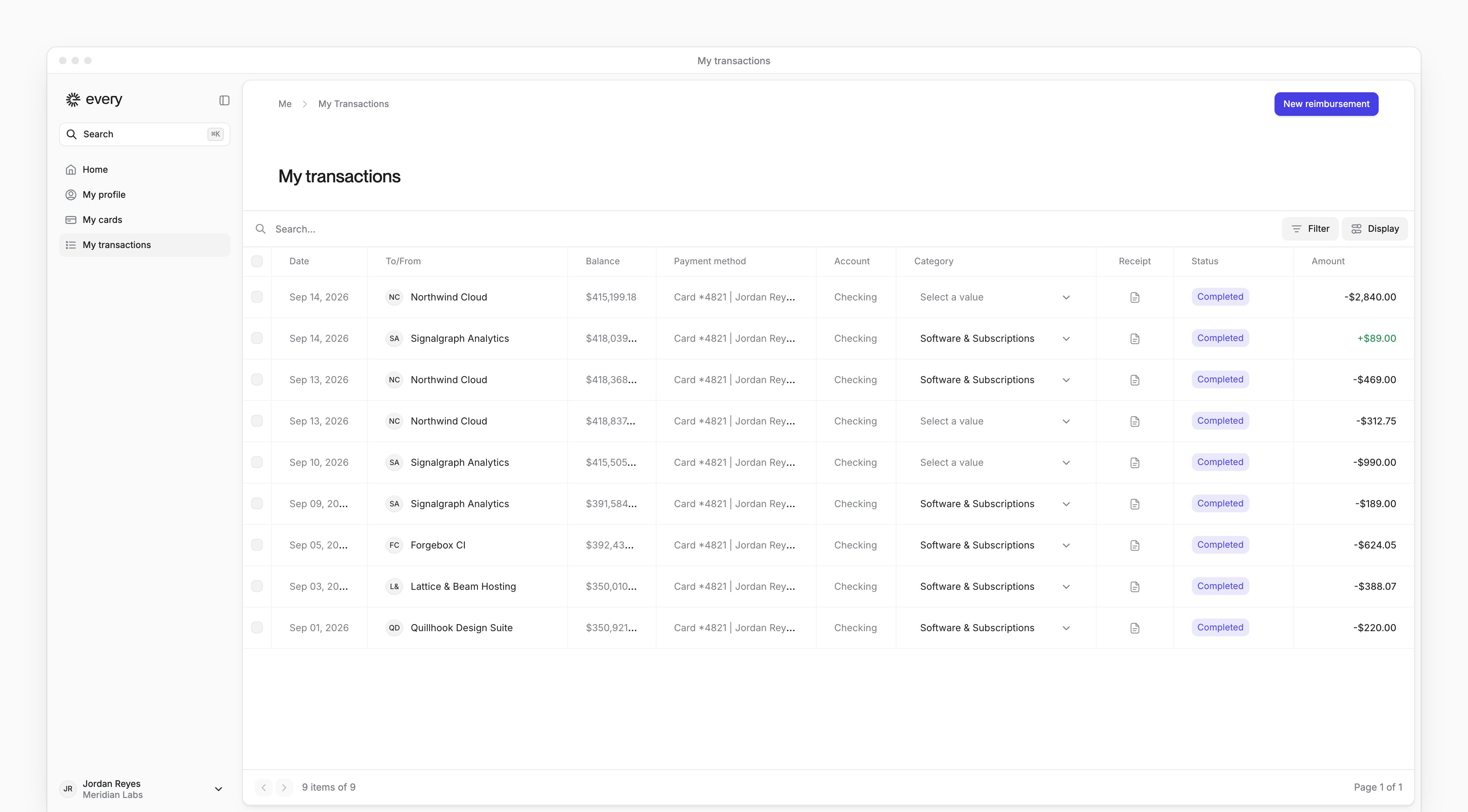
Add a receipt
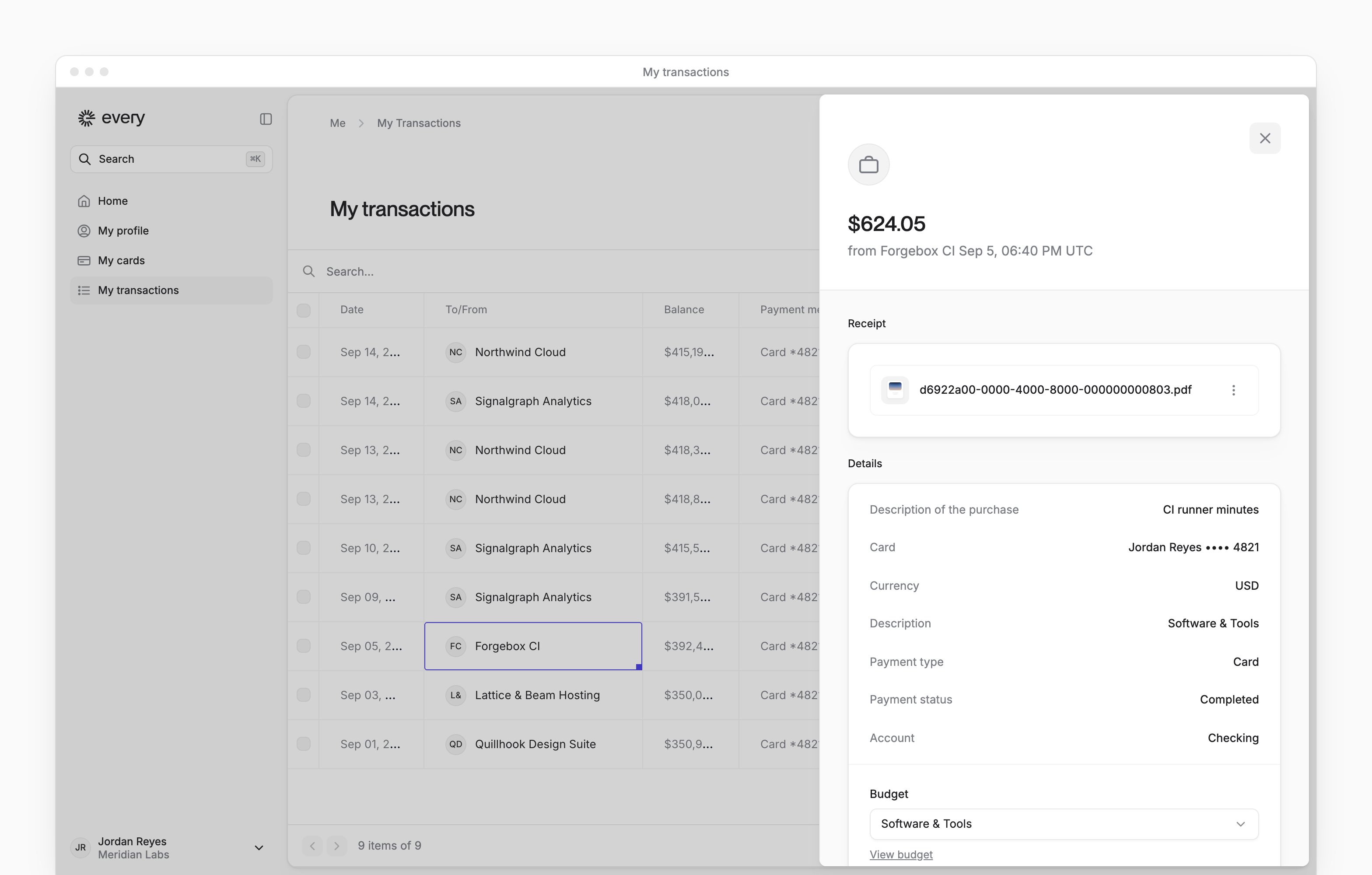
A completed card purchase that needs a receipt shows Missing receipt in Status, and its details show Missing information.1
Open the transaction
In the Receipt column, select the upload icon, or select the row.
2
Add the receipt
Under Receipt, add a PDF or image.
3
Describe the purchase
In the description field, enter what the purchase was for.
4
Save
If the sheet has a Save button, select it. If not, Every saves the receipt when you add it, and the description when you close the sheet.
1
Add the receipt
In the form, add the receipt.
2
Describe the purchase
Enter what the purchase was for.
3
Submit the receipt
Select Submit or Save & Close.
Change a category
In a transaction’s Category cell, select a new category. You can also right-click the row and select Change category. To change several transactions at once:1
Select the transactions
On My transactions, select the rows.
2
Open the category choices
Select Assign category.
3
Assign the category
Select a category.
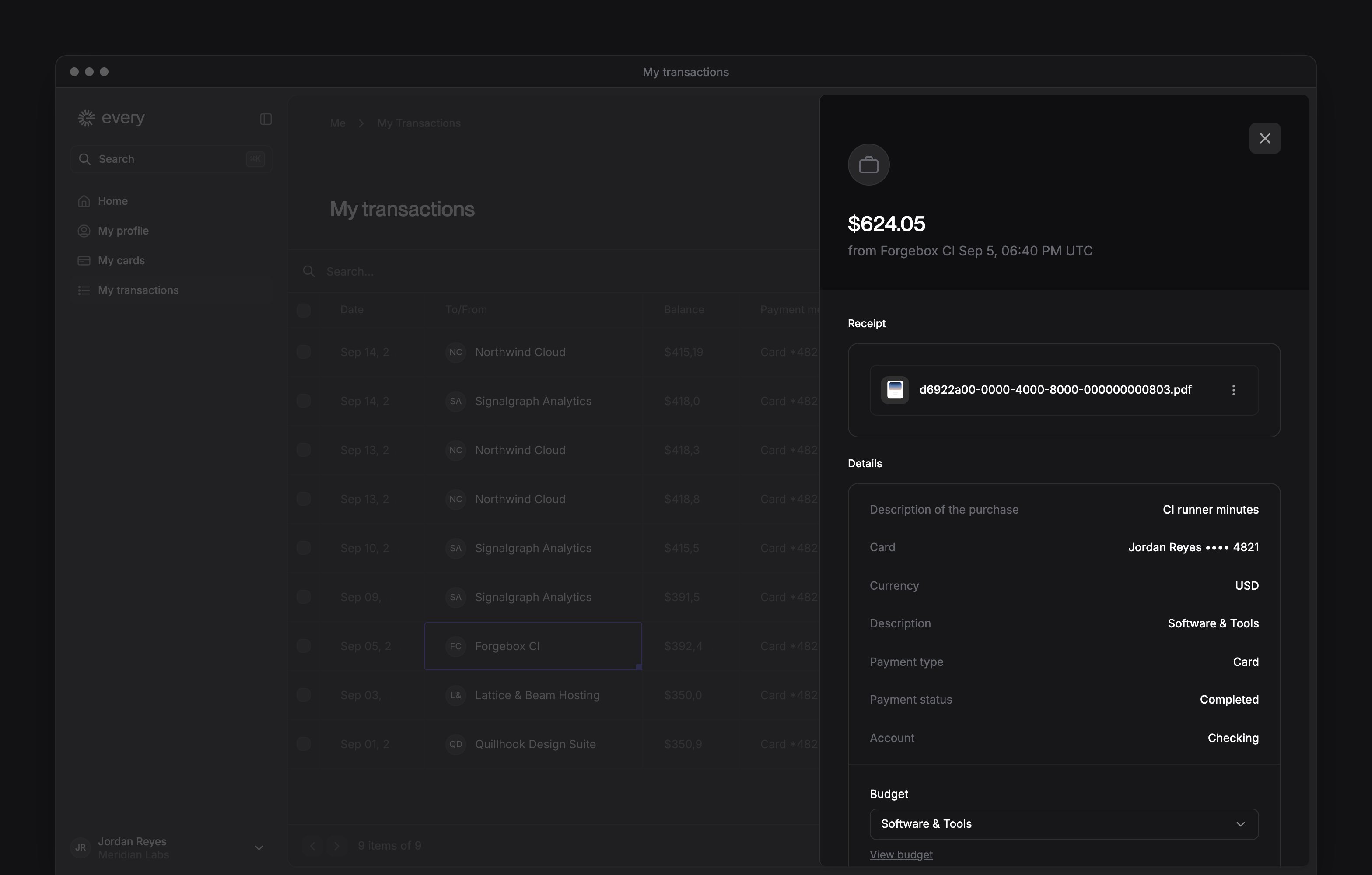
Tag a transaction to a budget
- On My transactions, open the transaction.
- Under Budget, select a budget you own.
- Select Display.
- Under Fields, turn on Budget.