


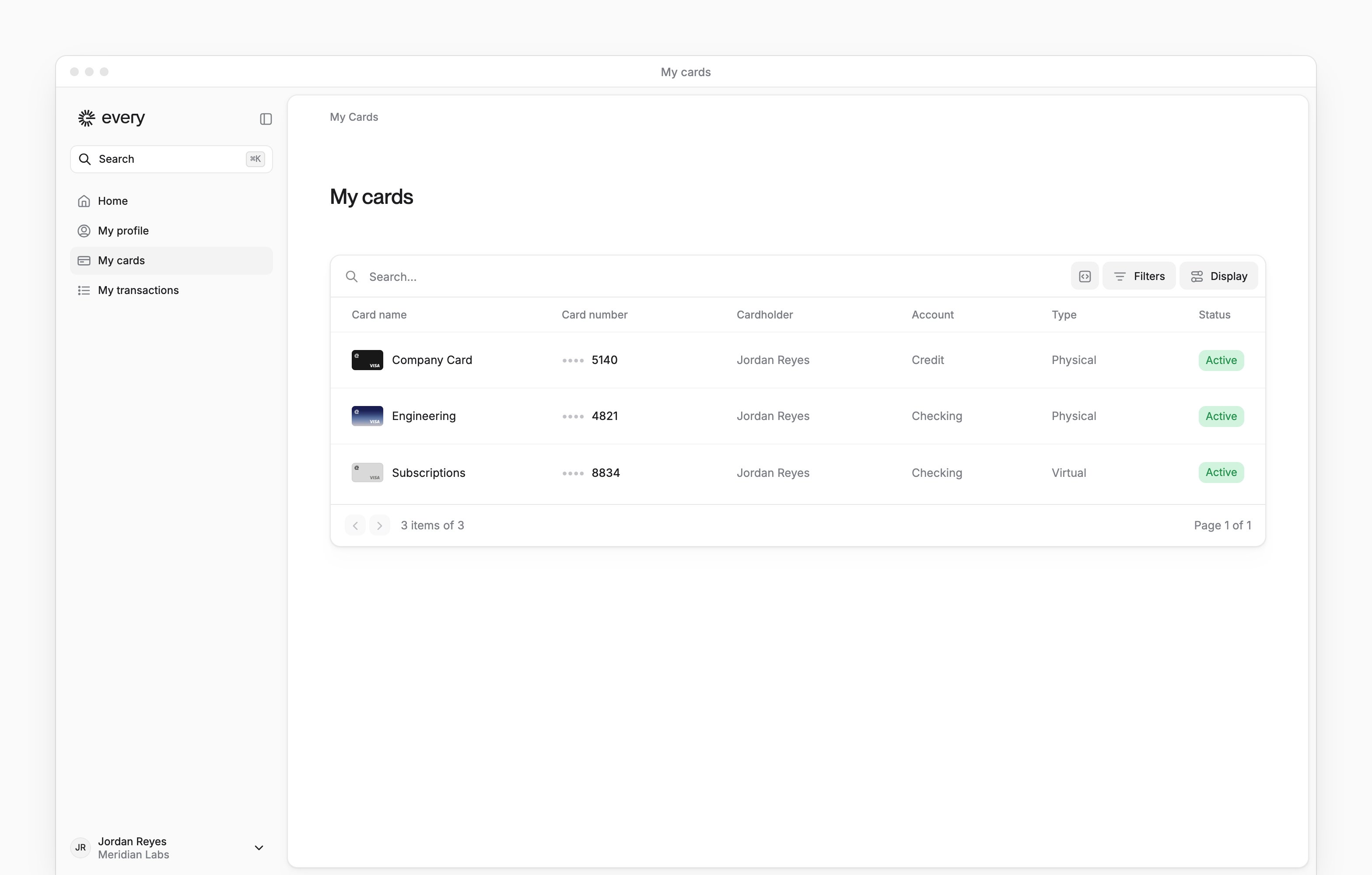
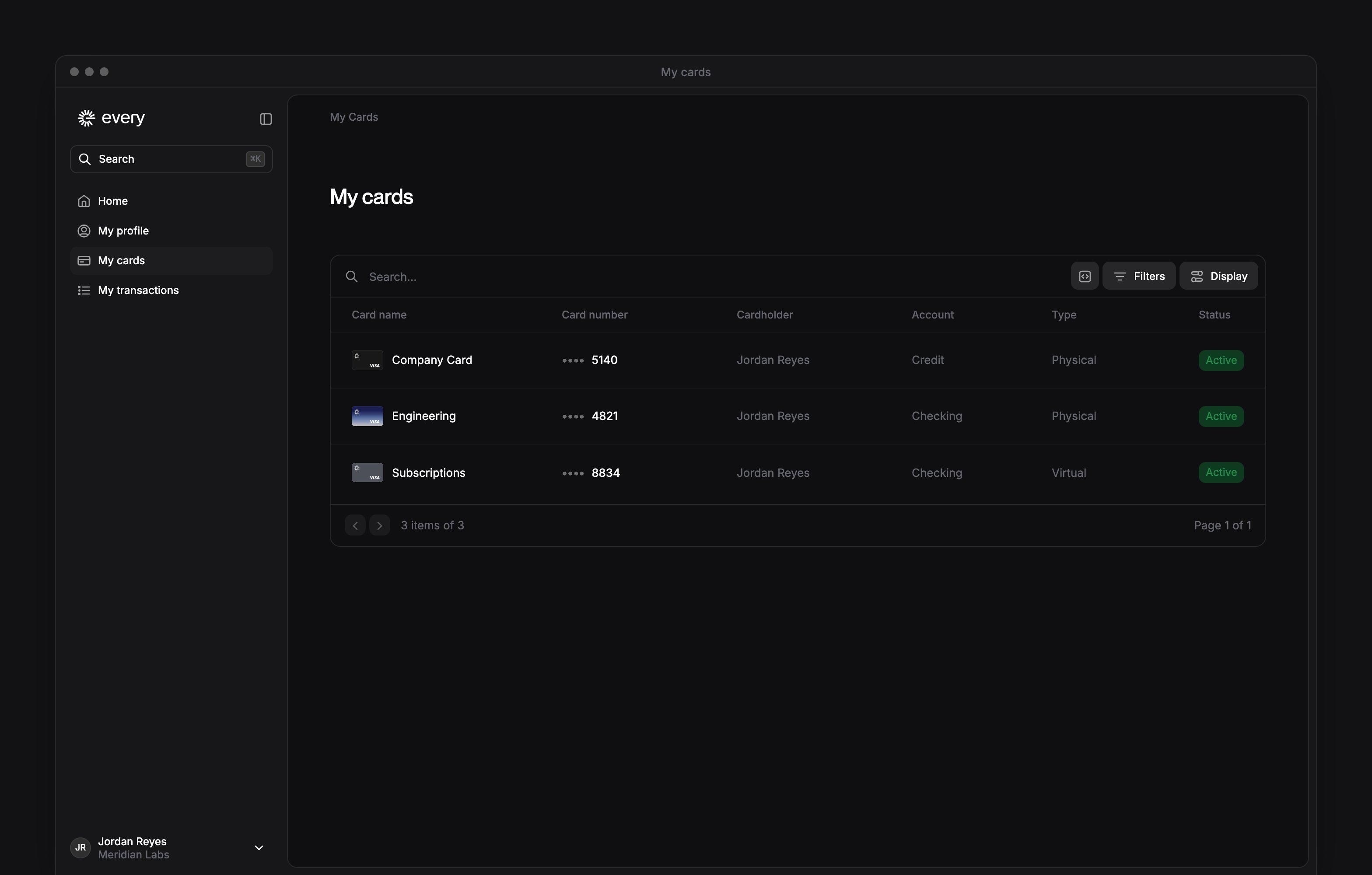
 Your cards are on My cards in the sidebar, after your company finishes onboarding. It lists the company cards issued to you and any shared with you.
See your cards
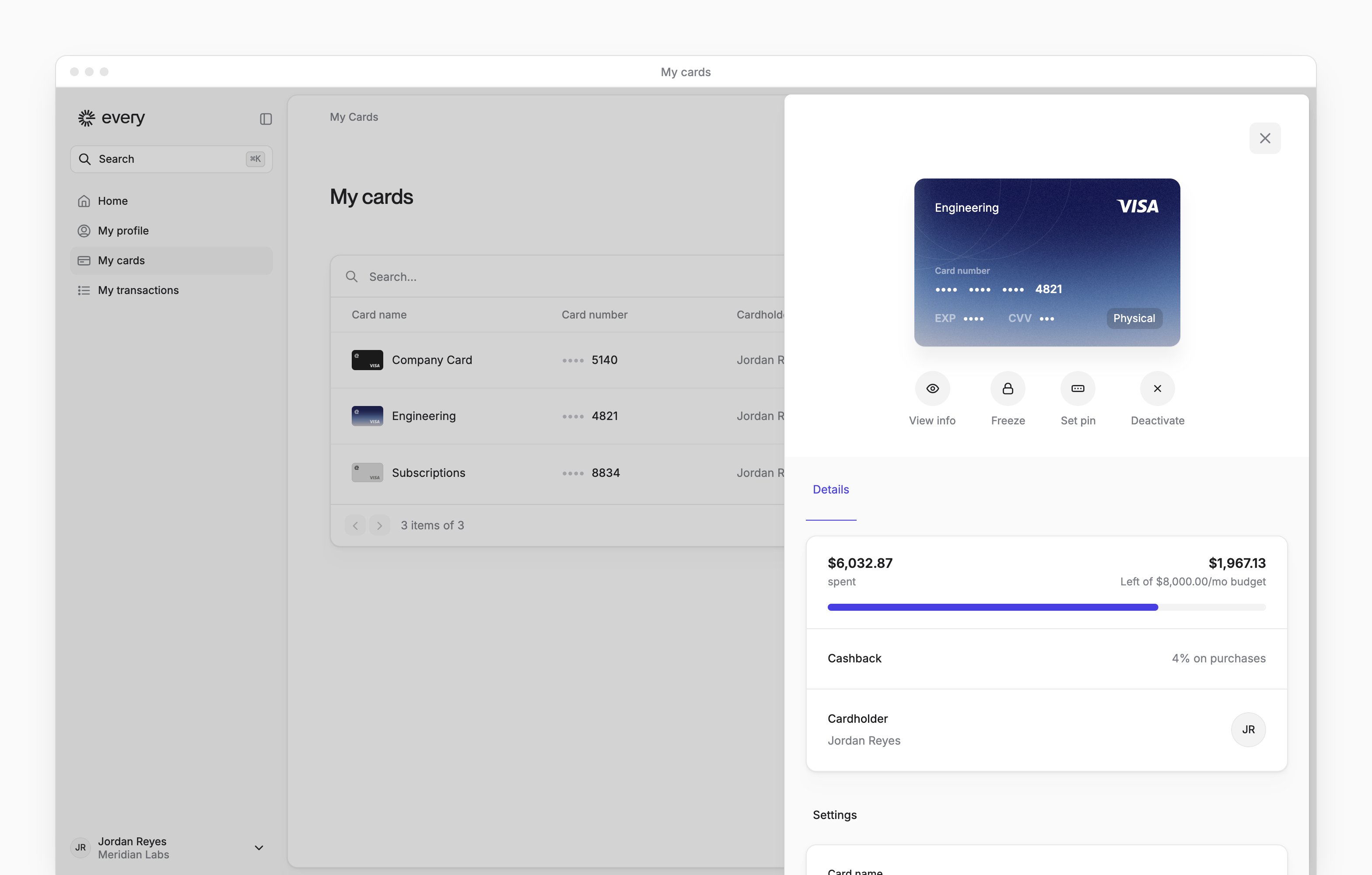
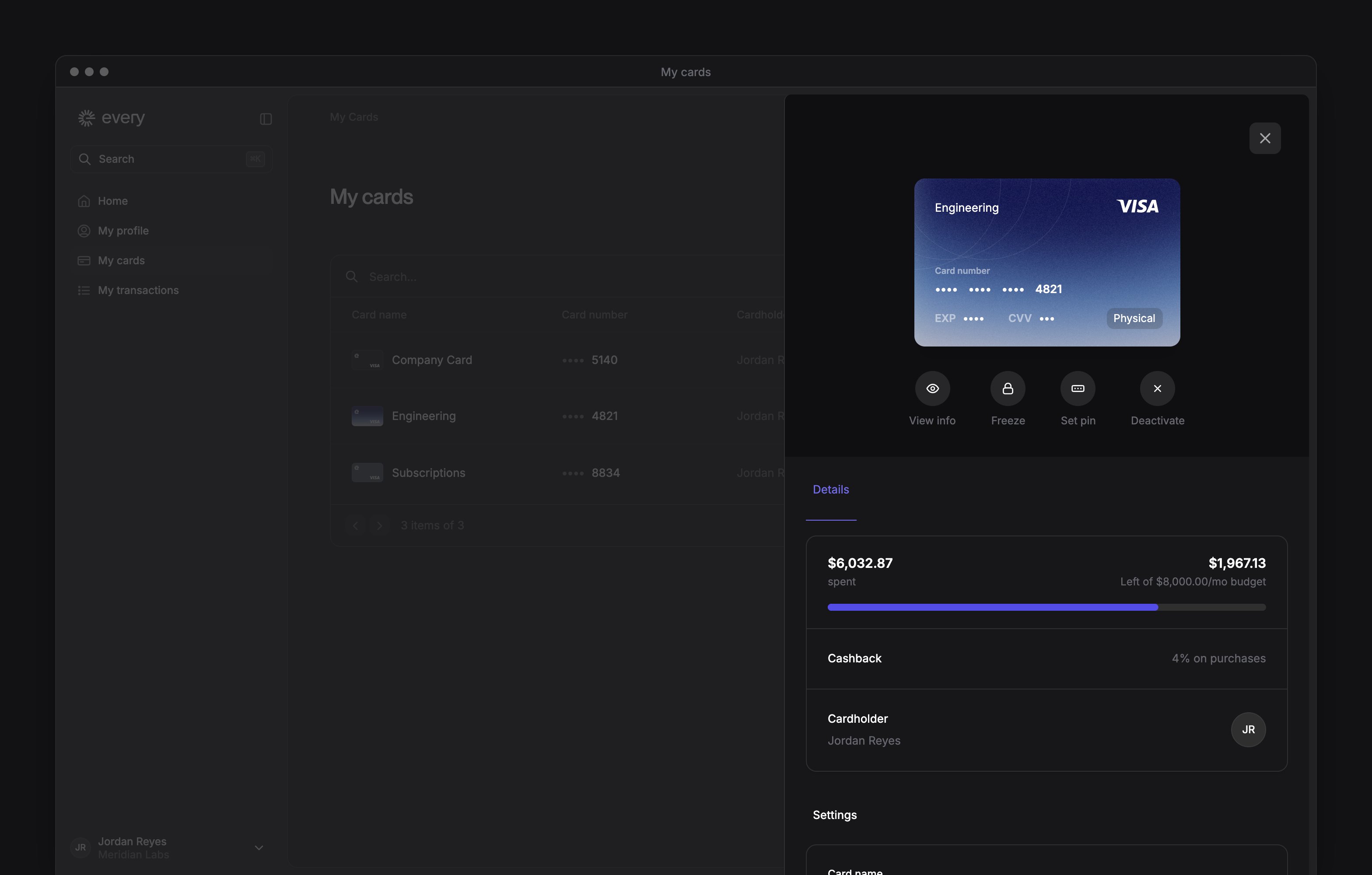
Select a card to open it. The Details tab shows what you’ve spent against the card’s limit, its billing address and the cardholder. Closed cards are hidden. To see them:- Select Display.
- Turn on Show closed cards.
Activate a physical card
When a physical card has been sent to you, Your new card is on the way shows at the top of the page.1
Start activation
Once the card arrives, select Activate card.
2
Enter the security code
Under Confirm card details, in Confirm with security code, enter the 3-digit code from the back of the card.
3
Enter the expiration date
In Card expiration date, enter the date as MM/YYYY.
4
Confirm
Select Confirm.
5
Set your PIN
For a debit card, in Card PIN, enter a 4-digit PIN. A credit card has no PIN step.
6
Save your PIN
For a debit card, select Save & close.
Use and manage a card
The buttons under an open card depend on its status:
An active virtual card issued to you can be added to Apple or Google Pay on your phone for purchases in stores. To ask how, email support@every.io.
To rename the card:
- Under Settings, enter a new Card name.
- Select Save.
Deactivate a card
On an open card:1
Start deactivation
Select Deactivate.
2
Enter the confirmation
Enter DEACTIVATE.
3
Close the card
Select Deactivate card. The card is permanently closed.
Share a card
You can share a card you hold. People you share it with can see its details and make purchases.1
Choose to share
Under Share card, choose Shared with multiple people.
2
Add people
Select Add new.
3
Search for people
In Share card with, search for the people you want to add.
4
Choose the people
Select each person you want to add.
5
Share
Select the button that shows how many people you’ve chosen.
- Select the X that appears when you hover over the person’s row under Shared with.
- Select Remove access.
- Under Share card, choose Card owner in Shared card.
- In Revoke all shared access?, select Remove access.
Set or change your PIN
1
Open the card
On My cards, open an active debit card.
2
Open the PIN form
Select Set pin, or Update pin if you already have a PIN.
3
Enter the new PIN
In New PIN, enter a 4-digit PIN.
4
Confirm your current PIN
If you’re changing an existing PIN, enter your Current PIN.
5
Save
Select Save PIN.
Use a card shared with you
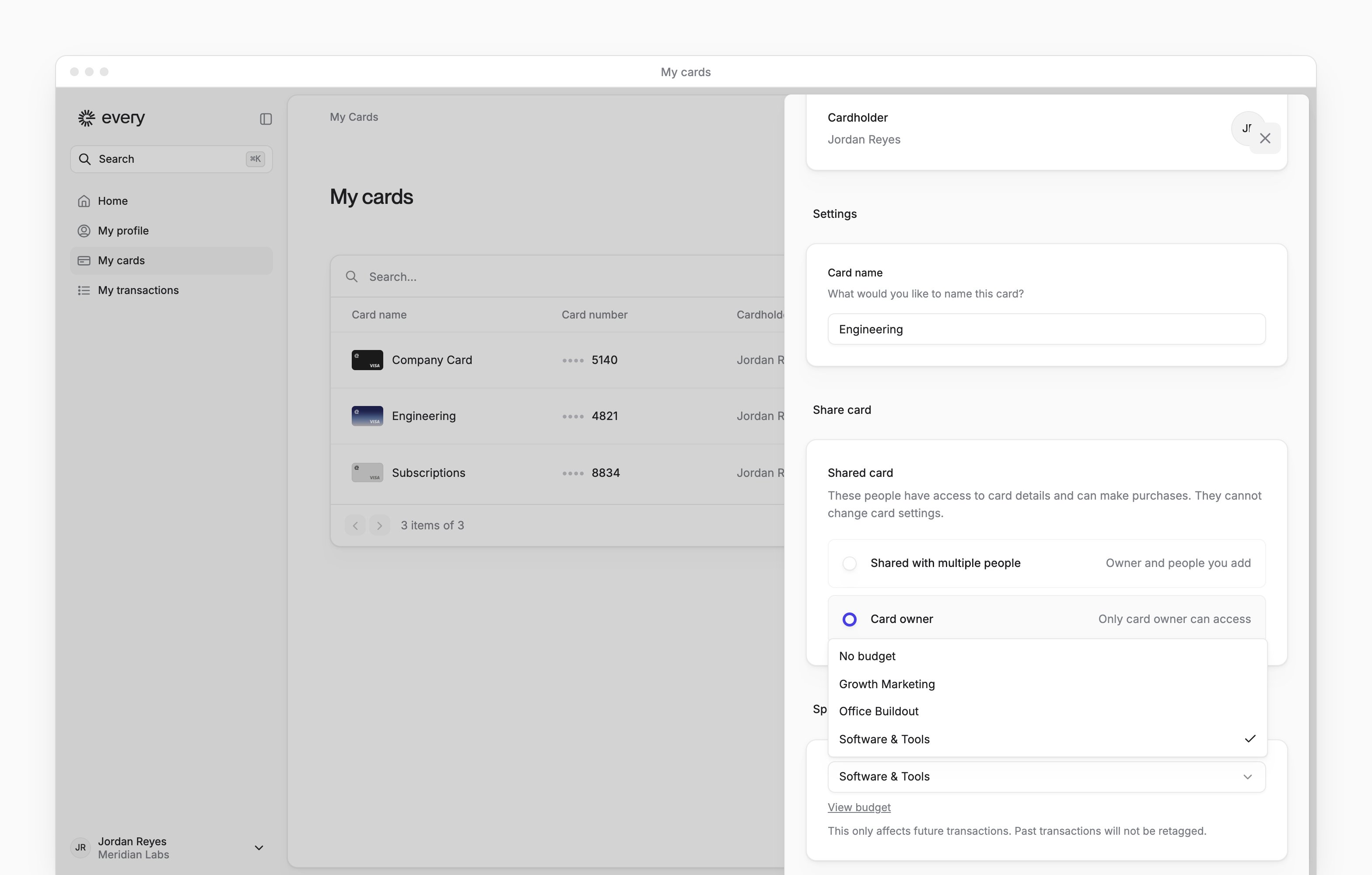
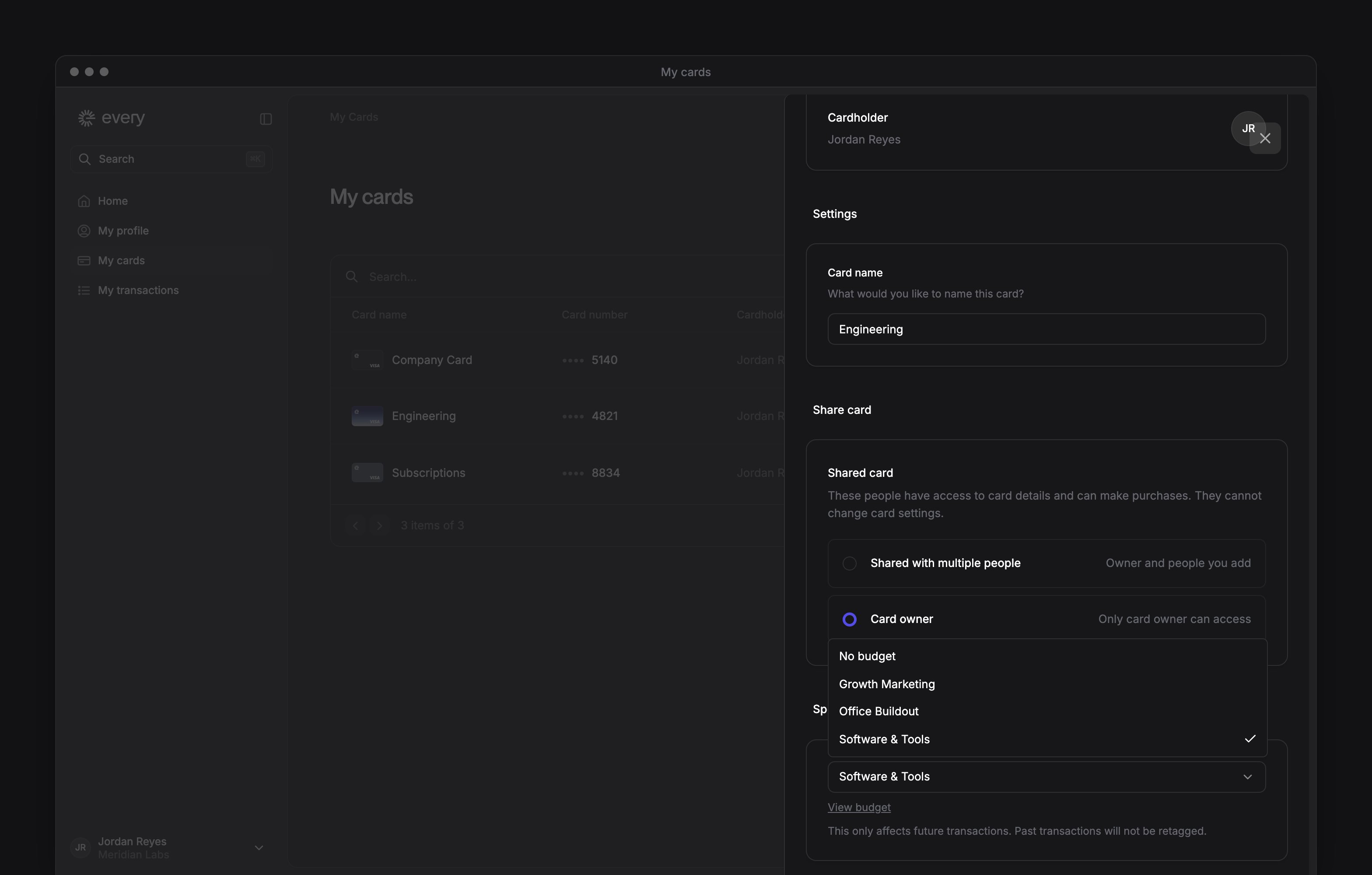
A card shared with you shows Shared card when you open it. You can make purchases with it, see its details and use View info to show the card number and CVV of an active card. You can’t rename, freeze, deactivate or share it, or set its PIN. If you own its assigned budget, you can change Spending Budget. If it has none, you can choose a budget you own.See or change a card’s spending budget
Every turns on spending budgets company by company. If you don’t see them, email support@every.io to ask about them.
- Under Spending Budget, select No budget.
- In Remove budget from this card?, select Remove budget.
Get help with your card
If a purchase is declined:1
Open the purchase
On My transactions, open the declined purchase.
2
Review the decline reason
Look for Decline reason in the purchase details.
3
Check the card
On My cards, check the card’s status and spend limit.
4
Ask for help
If the reason is missing or unclear, email support@every.io. Include the merchant, amount, date and message shown.
1
Open the card
On My cards, open the card you hold.
2
Pause an active card
If the card is active, select Freeze.
3
Report the problem
Email support@every.io to report the problem, ask about a replacement or get help with the charge. Include the card’s last digits and, for a charge, the merchant, amount and date.