


 Start from the invitation sent to the email address your company used for you. These steps cover employee setup with Personal details and Employment eligibility, and contractor setup with Details and Bank Account.
Before you begin
If your invitation opens a form with different step names, email support@every.io for help.- Have the invitation email from your company
- Employees: have your Social Security number, the bank account for your pay and your documents for
- Contractors: have your tax details and the bank account for your payments
Accept your invitation
1
Open your invitation
In the invitation email, select the link. If you already have an Every account, sign in.
2
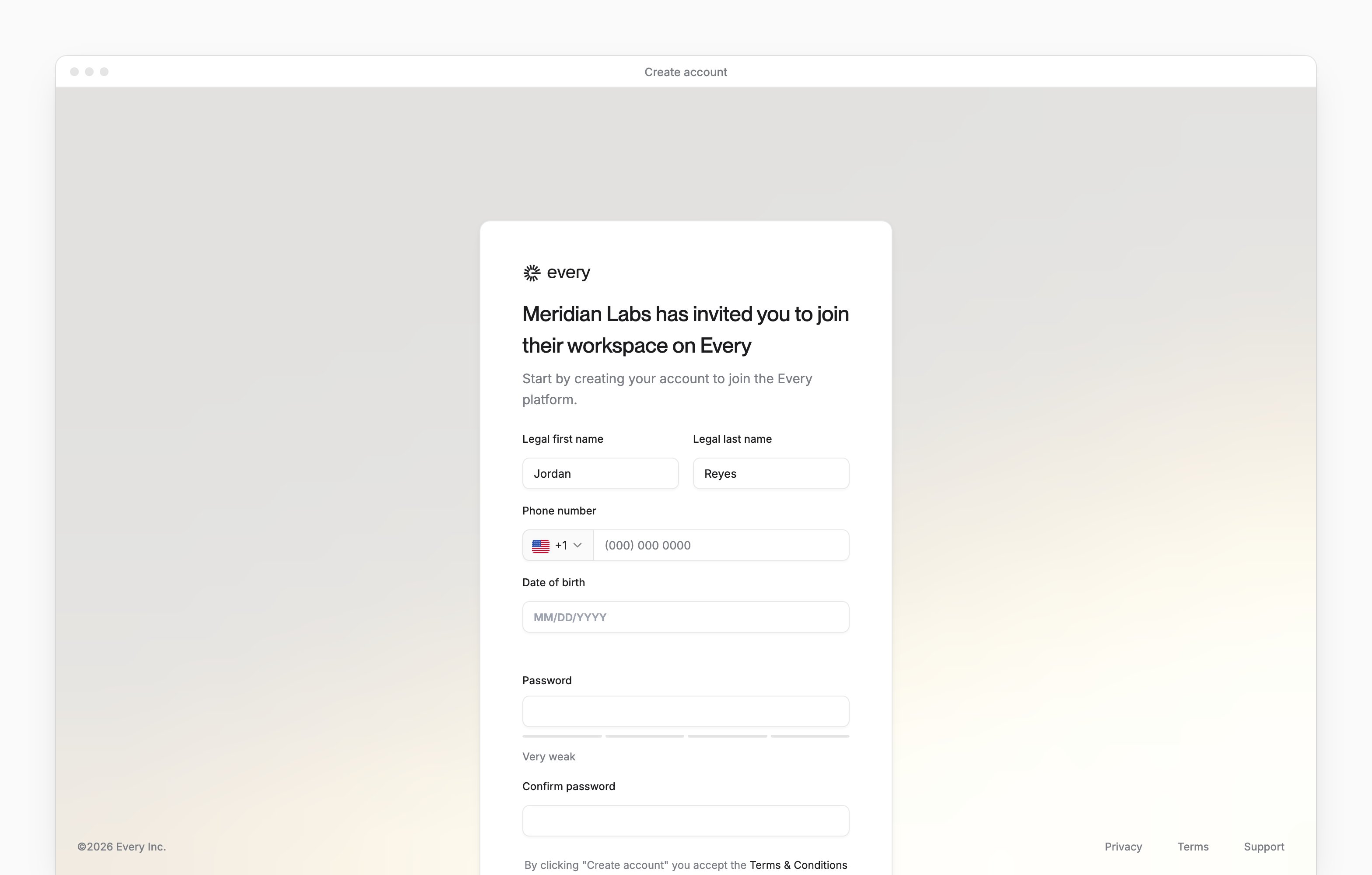
Create your account
For a new account, confirm your legal name and enter your Phone number and Date of birth. Create and confirm your password, then select Create account.
3
Confirm your email when asked
If Verification Code opens, enter the emailed code in Confirmation code, then select Continue.
Complete employee onboarding
If your company included an offer, Sign Offer comes first. Review and sign the documents presented, then continue through your setup.1
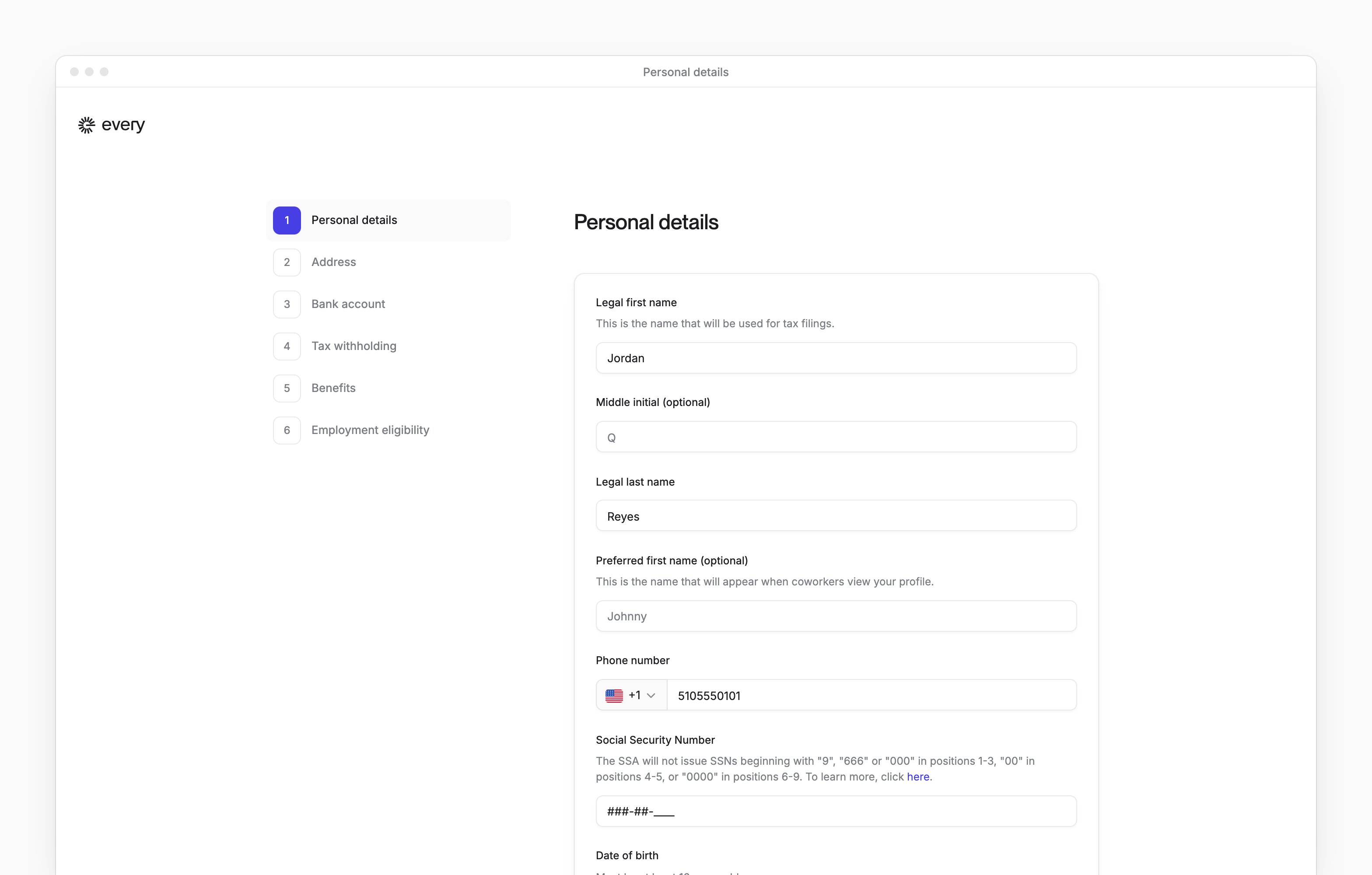
Confirm your personal details
On Personal details, confirm your legal name and enter your Social Security number and the other requested details.
2
Enter your address
On Address, enter your address.
3
Add your bank account
On Bank account, add or select the account for your pay, then sign the Direct Deposit Authorization.
4
Set up your tax withholding
On Tax withholding, complete the tax fields shown and sign .
5
Choose your benefits
If Benefits appears, complete the choices shown there. See Enroll in benefits for health coverage and waivers.
6
Complete Form I-9
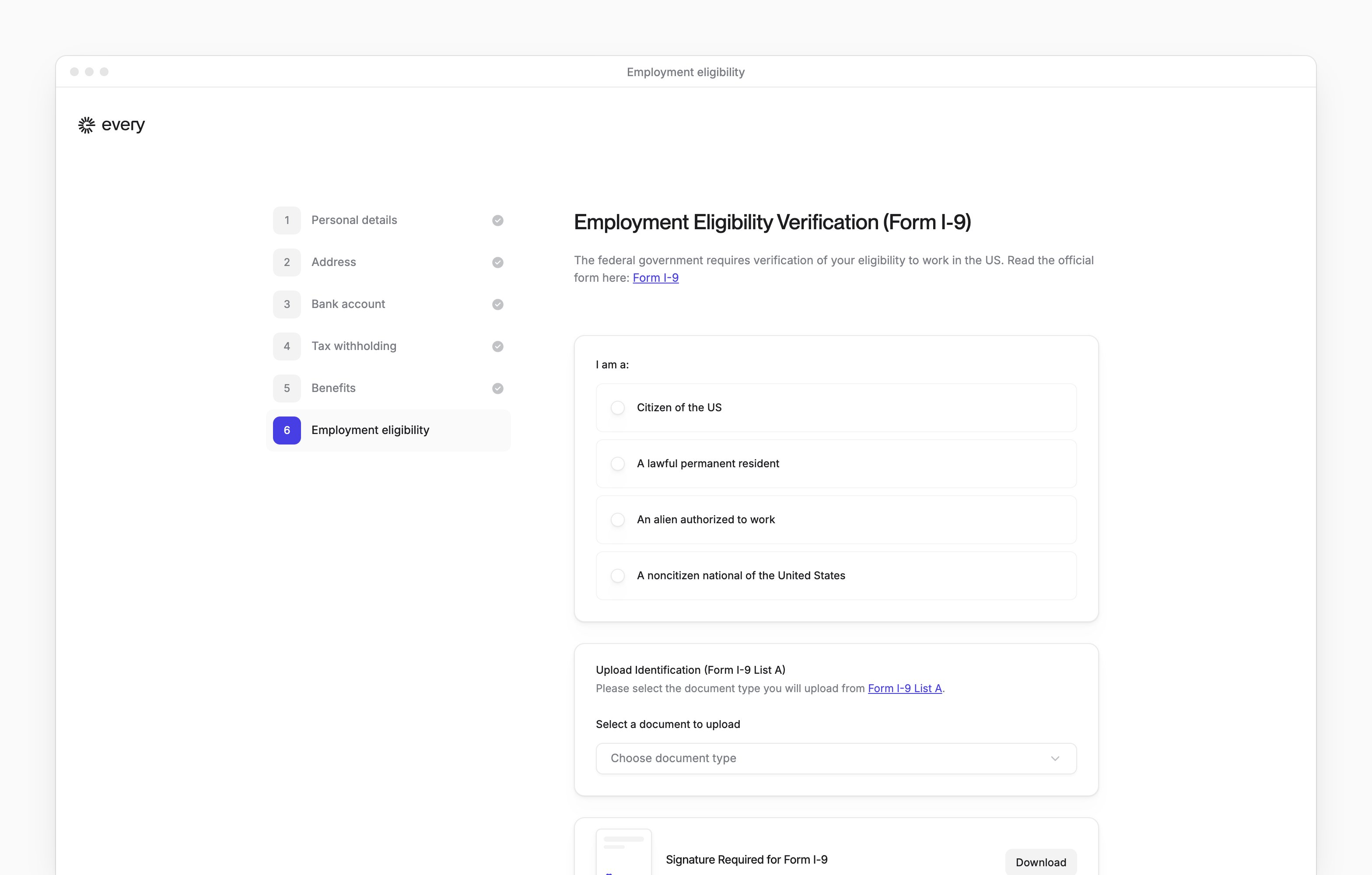
On Employment eligibility, complete Form I-9 using the steps in the next section.
Complete Form I-9
On Employment eligibility, choose your citizenship status and complete the fields that follow.1
Choose your documents
Under Select a document to upload, choose your document type. I don’t have any of these opens the List B and List C choices instead.
2
Upload your documents
Add the document images requested by the form, including the back when requested. Wait for the uploads to finish.
3
Name your representative when asked
If your company assigned you to choose a representative, enter their name and email in the authorized representative fields.
4
Sign and submit
Complete the Form I-9 signature and consent, then select Complete onboarding.
Complete contractor onboarding
If your company included an agreement, Contract comes first. Review and sign it before continuing.1
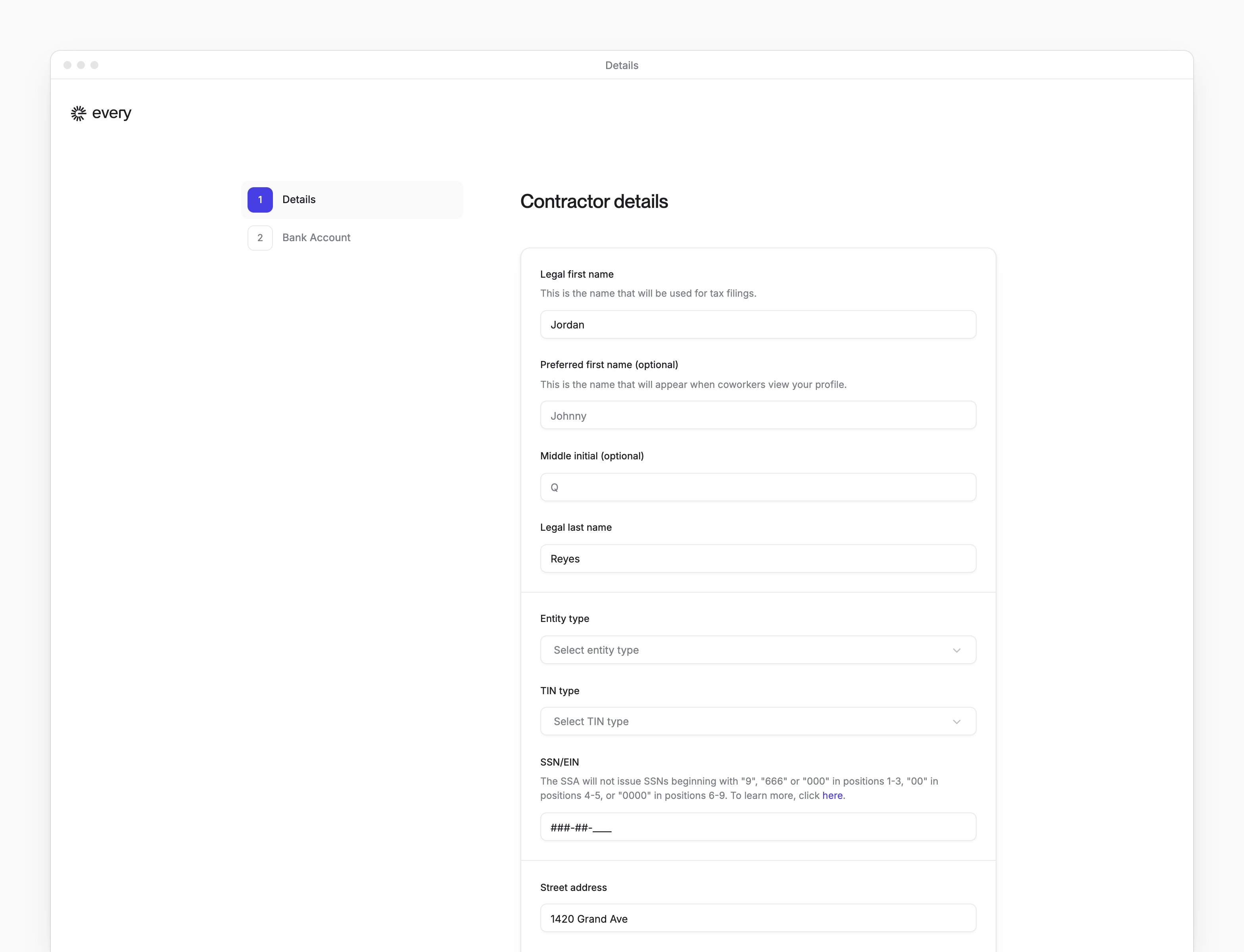
Enter your details
On Details, choose your Entity type and enter the requested name, address and tax information. For an international contractor type, enter Foreign Tax ID (FTIN). Use the tax instructions linked from the form for help with identifiers.
2
Sign the international tax form when shown
On Details, sign Form W-8BEN if you’re an international individual, or Form W-8BEN-E for an international business.
3
Add your bank account
On Bank Account, add or select your account using the options shown.
4
Finish your setup
Select Complete onboarding.
Choose a contractor bank account
On Bank Account, use the options offered for your setup. When Add new account appears, open it and choose a displayed option:- Select Connect automatically, then follow the bank connection prompts and select your linked account.
- Select Enter bank details manually (US bank), then enter Bank name, Routing number, Account number and Verify account number and choose Account type.