


 Accounting → Expenses is where you review your company’s and send expenses to QuickBooks. Company Admins and Bookkeepers use it after your company finishes onboarding.
Every turns on spending budgets and duplicate checks company by company. If you don’t see them, or Expenses itself, email support@every.io to ask about it.
Find an expense
The list includes bills, card purchases and debits.
Rows on Needs Review and Ready to Sync stay in their original tab while you work. Refresh the page to update the tabs.
Search for a merchant, amount or date, or filter by date or Status. To open an expense’s sheet, select its three-dot menu, then Open. The Receipt icon opens the same sheet.
Categorize expenses
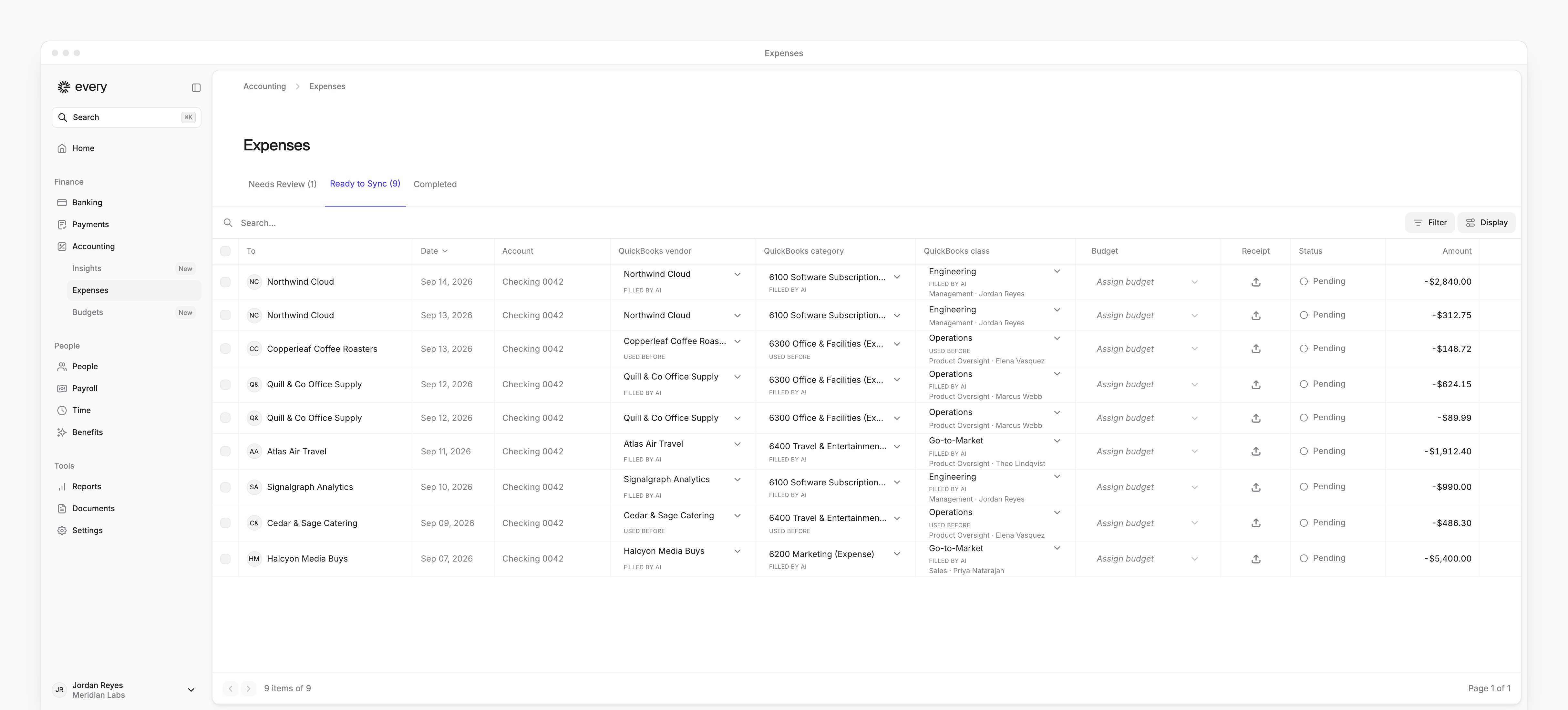
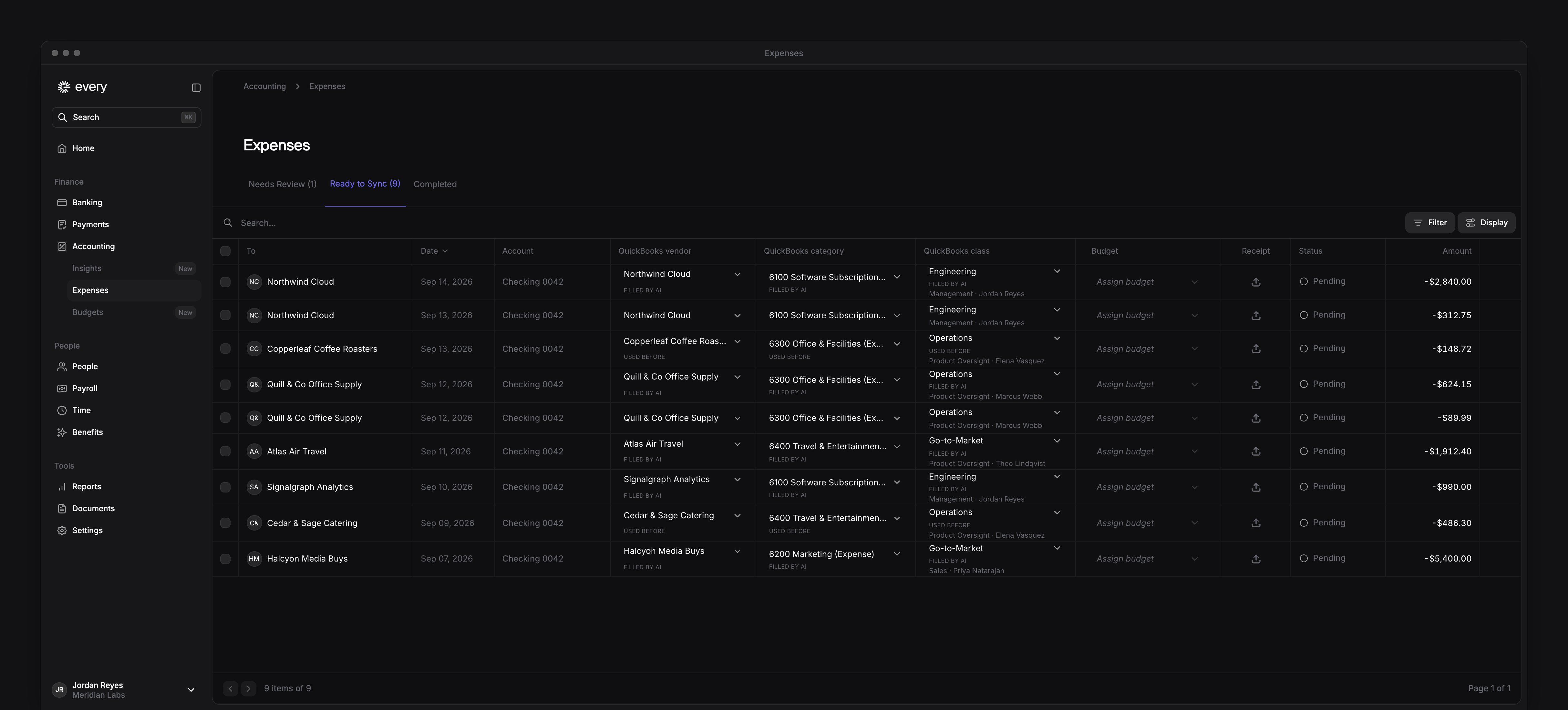
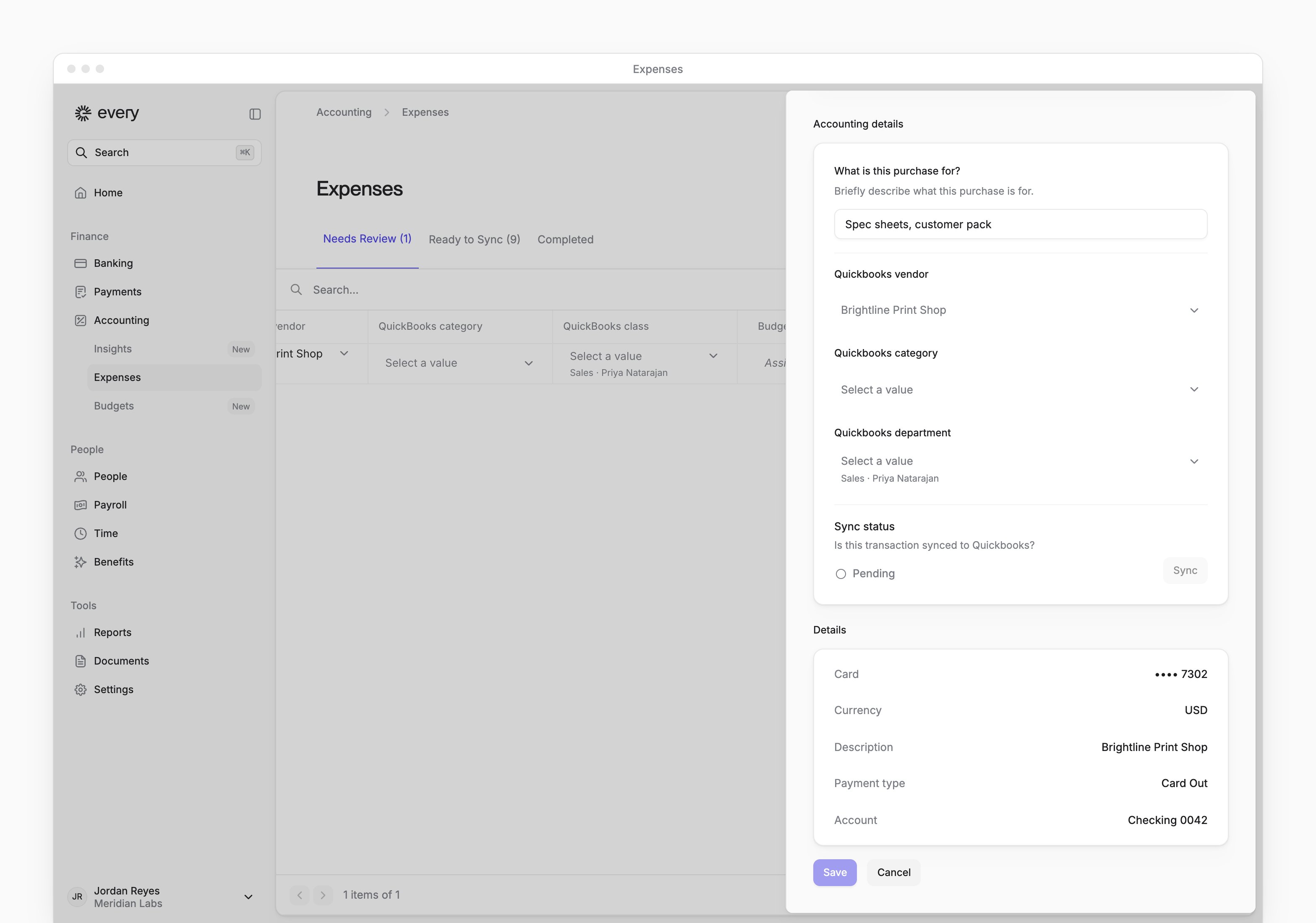
Choose a QuickBooks vendor and QuickBooks category in each row. A QuickBooks class is also required when your connected QuickBooks setup offers classes. Choices save as you make them. With spending budgets, a Budget column lets you choose each expense’s budget. The labels under a choice explain where it came from:
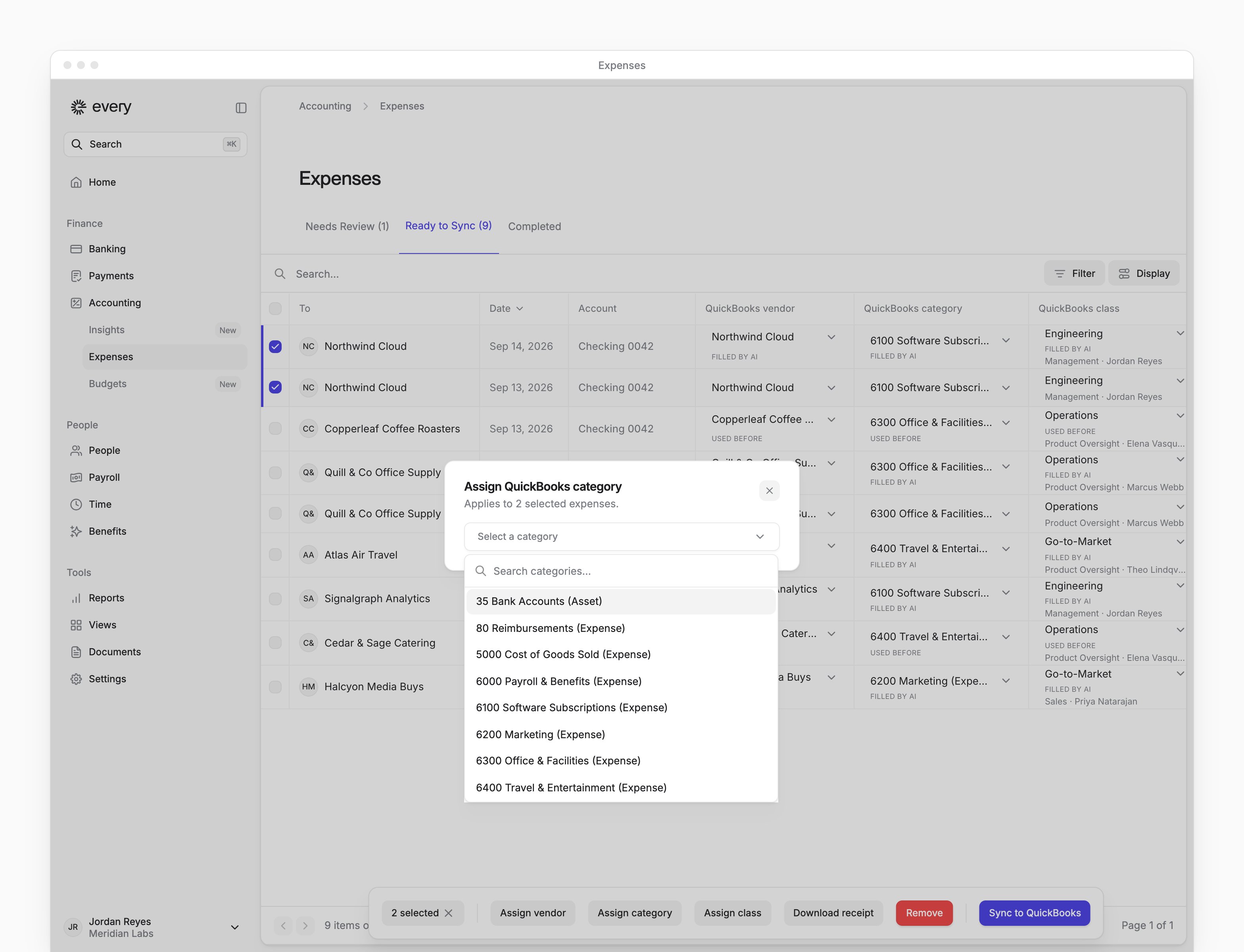
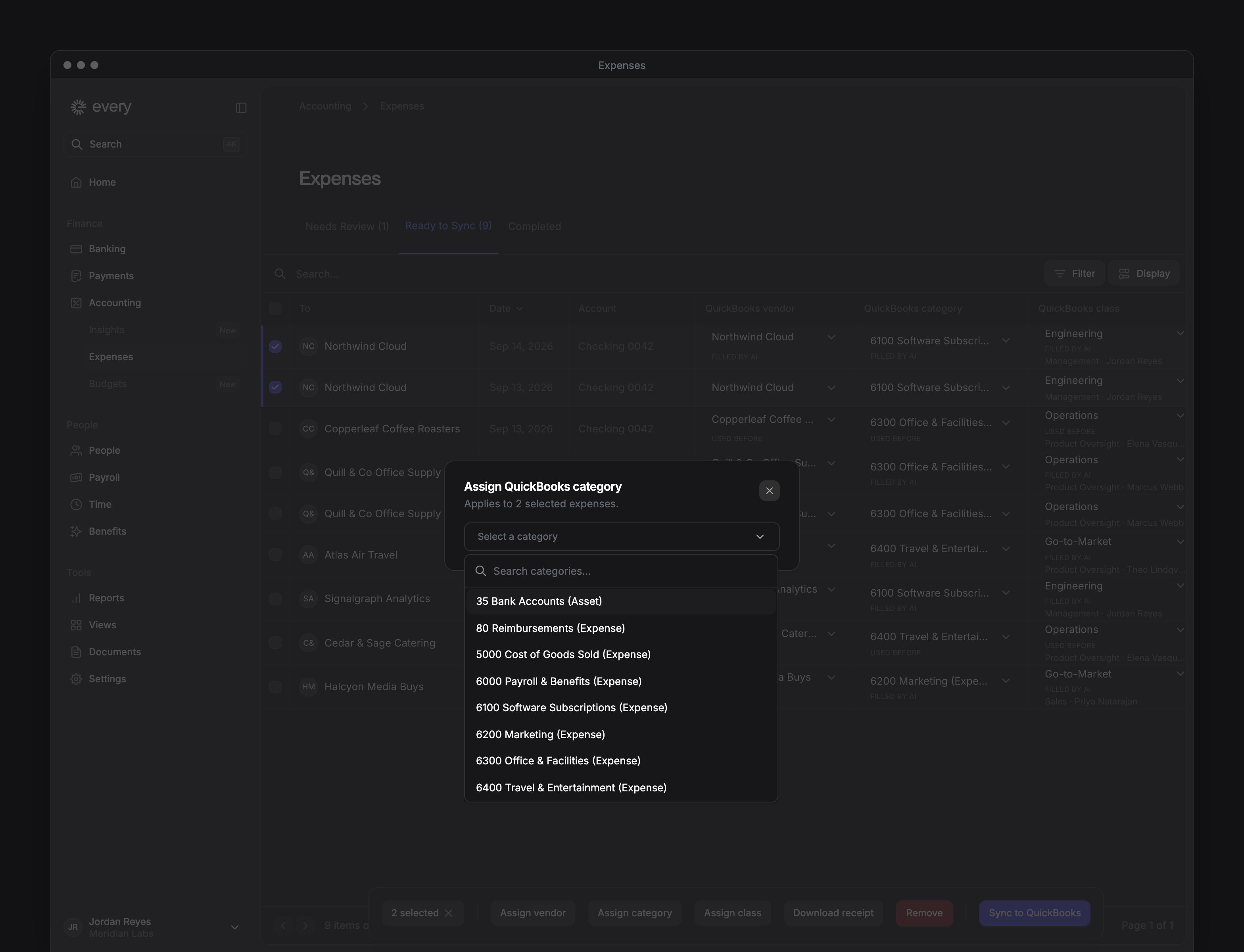
To change several expenses at once:
- Select their rows.
- Select Assign vendor, Assign category or Assign class, then choose a value.
Add or download receipts
1
Open the expense's sheet
In the Receipt column, select the upload icon labeled Upload receipt.
2
Add the file
Under Receipt, select Select a file and add a PDF or image.
3
Save the receipt
If the sheet has a Save button, select it. Otherwise, Every saves the file when you add it.
Sync to QuickBooks
Select the expenses to send, then Sync to QuickBooks. The same action is in each row’s menu. If Every says “Some Fields Are Empty”, fill in the missing vendor, category or required class and try again. To send changes to an expense that shows Needs resync, open its sheet and select Resync. QuickBooks fields are unavailable while a sync is in progress. For a Blocked expense, select the row, then Remove to take it out of the active list.Remove or restore expenses
Select expenses, then Remove to take them out of the active list. This doesn’t cancel a payment or delete a QuickBooks entry. To bring an expense back:- In Display, turn on Show removed. The list shows removed expenses only.
- Select the rows, then Restore.