


 Time → Timesheets groups your team’s logged hours by .
Company Admins and HR Admins can use it after your company enables payroll and finishes company and payroll onboarding. Employees submit their own hours from Home to-dos.
Time → Timesheets groups your team’s logged hours by .
Company Admins and HR Admins can use it after your company enables payroll and finishes company and payroll onboarding. Employees submit their own hours from Home to-dos.
If you don’t see the approval controls or Settings → Timesheets, email support@every.io to ask about access.
Review your team’s hours
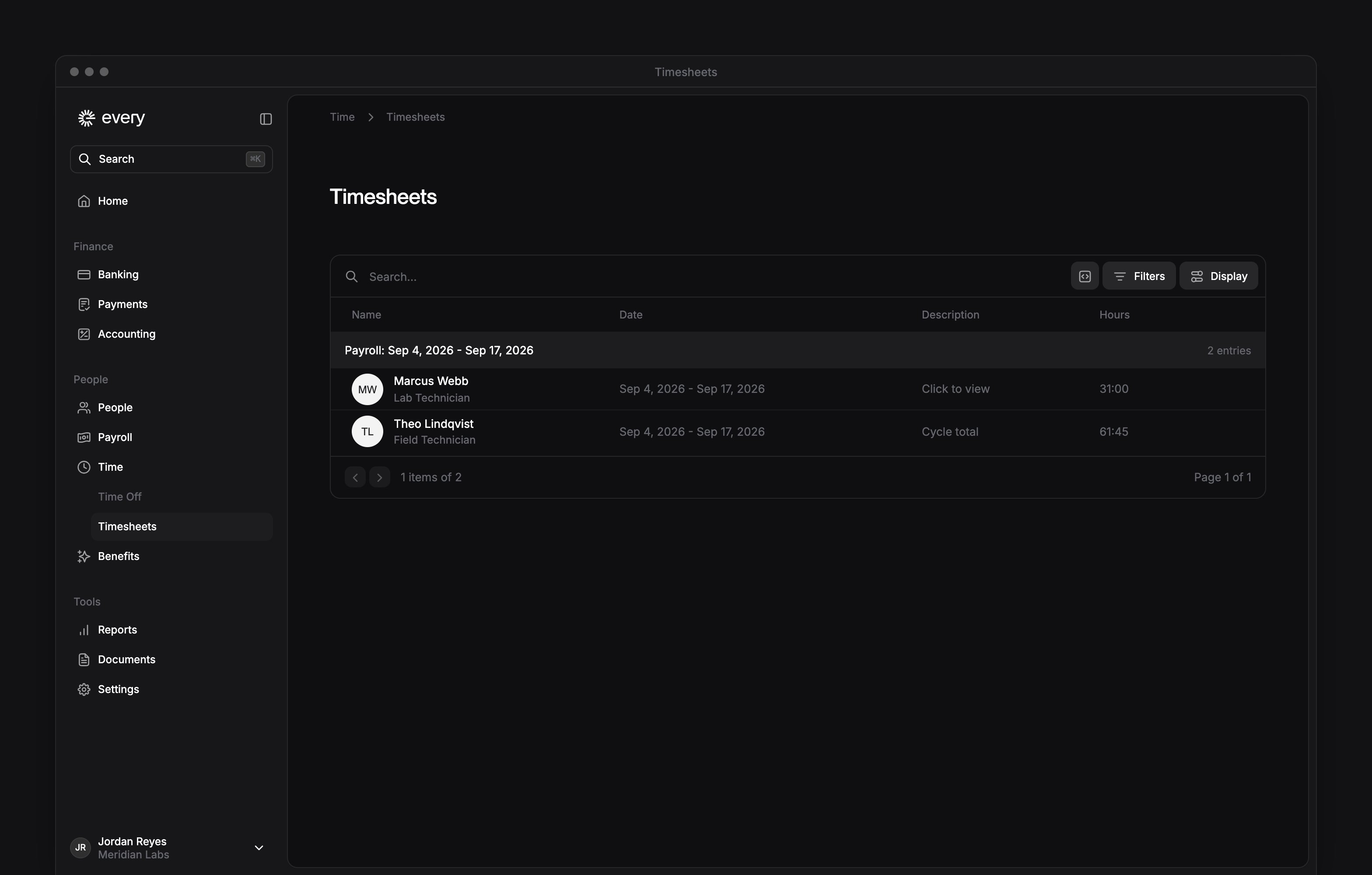
The list shows each person’s name, payroll cycle dates, description and hours. Daily entries are totaled by person and job for the payroll cycle. Select a row to open the time behind it. Filter by People, Payroll cycle, Department, Position or Location. To see earlier payrolls, select Display and turn on Include completed cycles.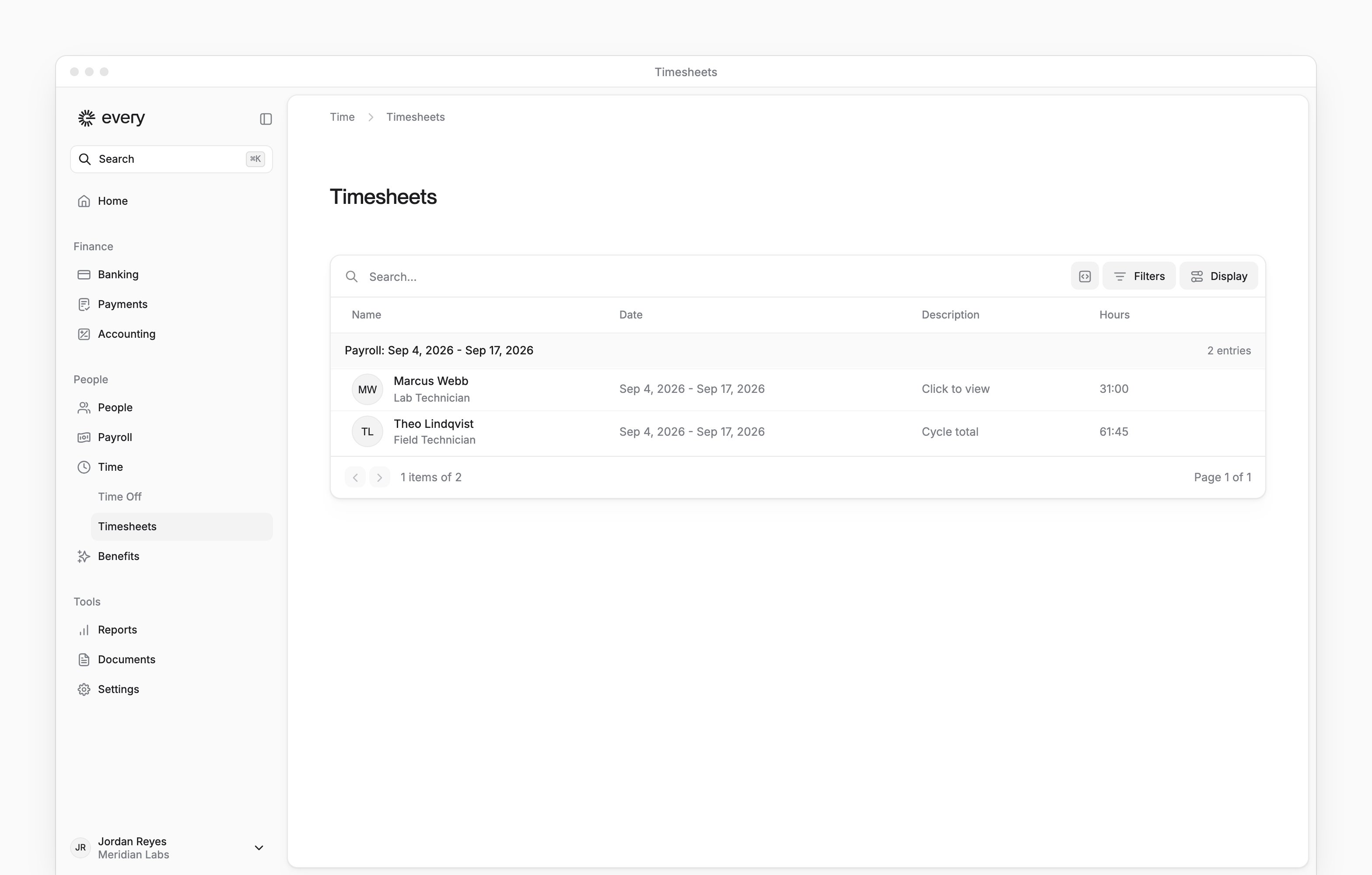
Add or correct time
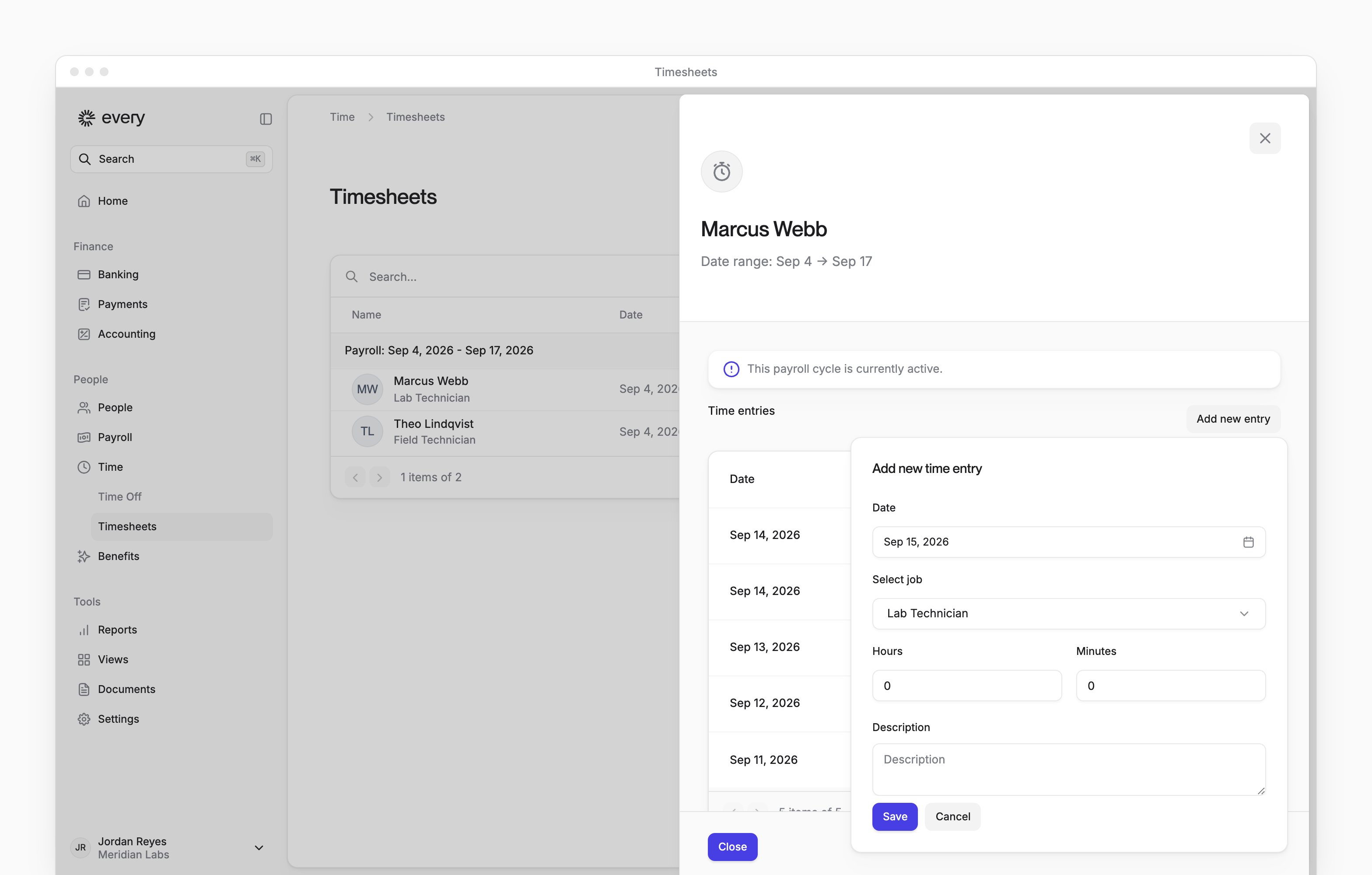
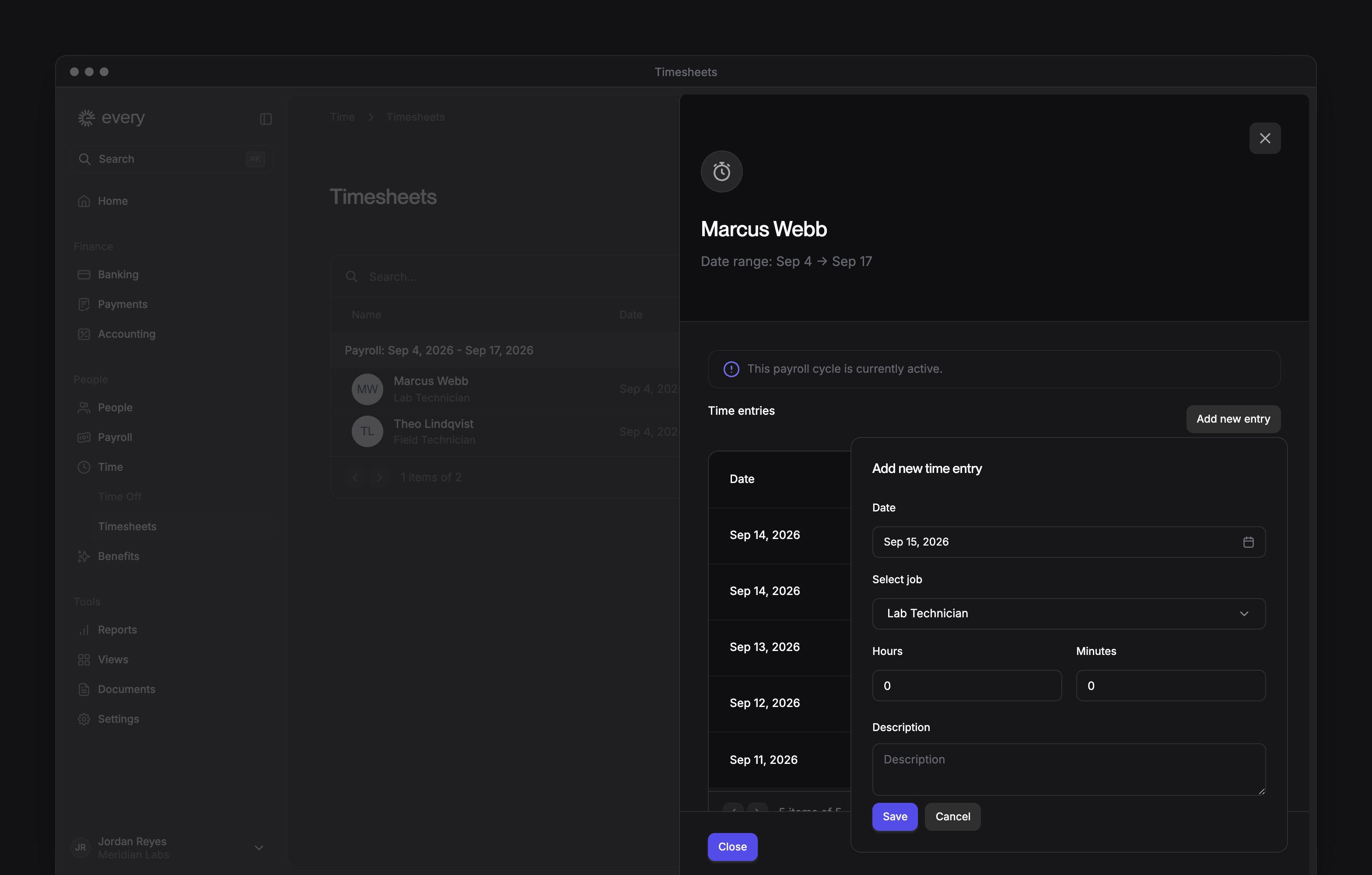
You can add, edit or delete entries while their payroll cycle is a draft. People log time as daily entries or one total per payroll cycle. Select a person’s row to open the matching sheet.Daily entries
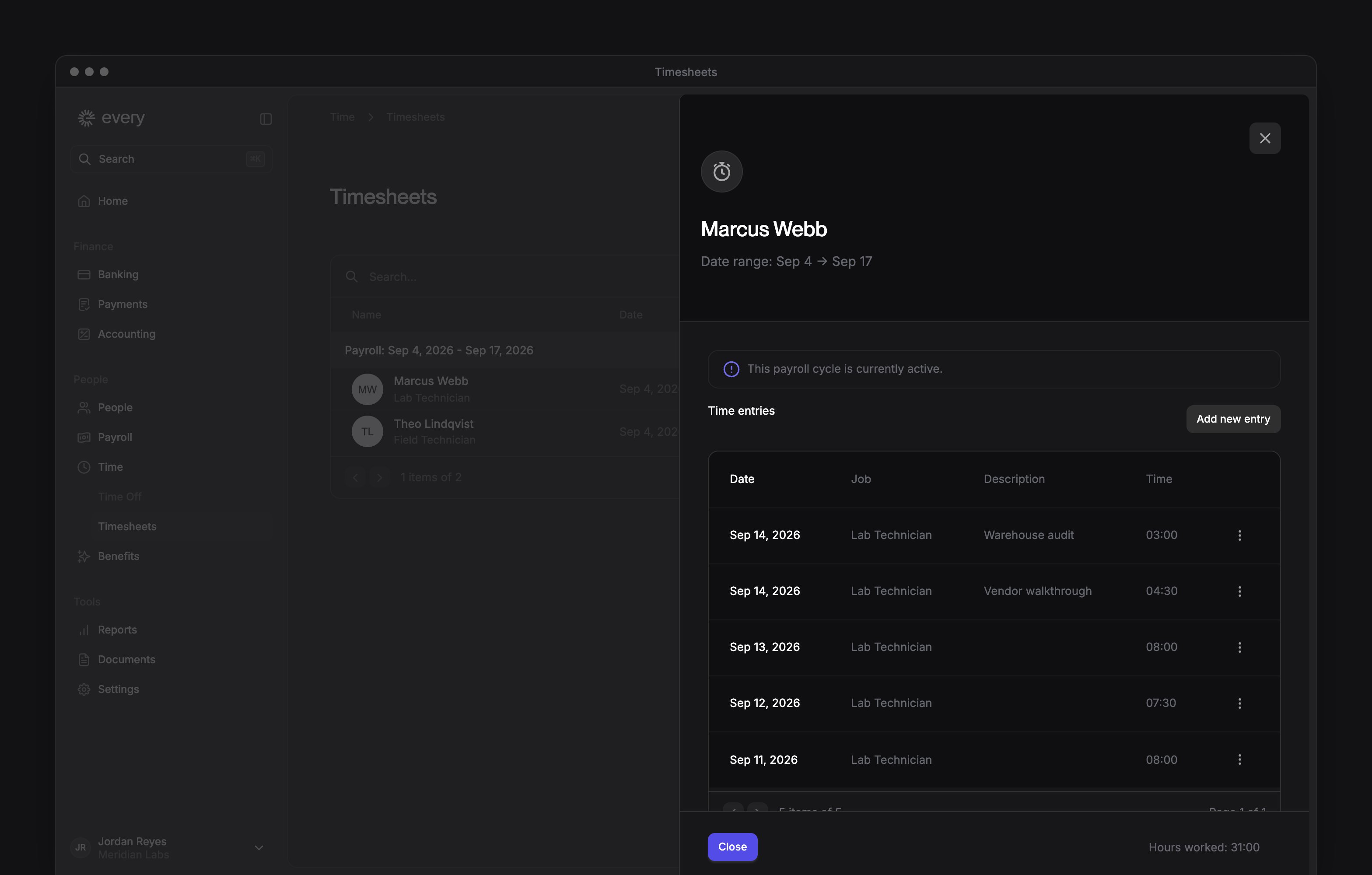
The daily summary sheet includes the person’s entries across jobs for that payroll cycle.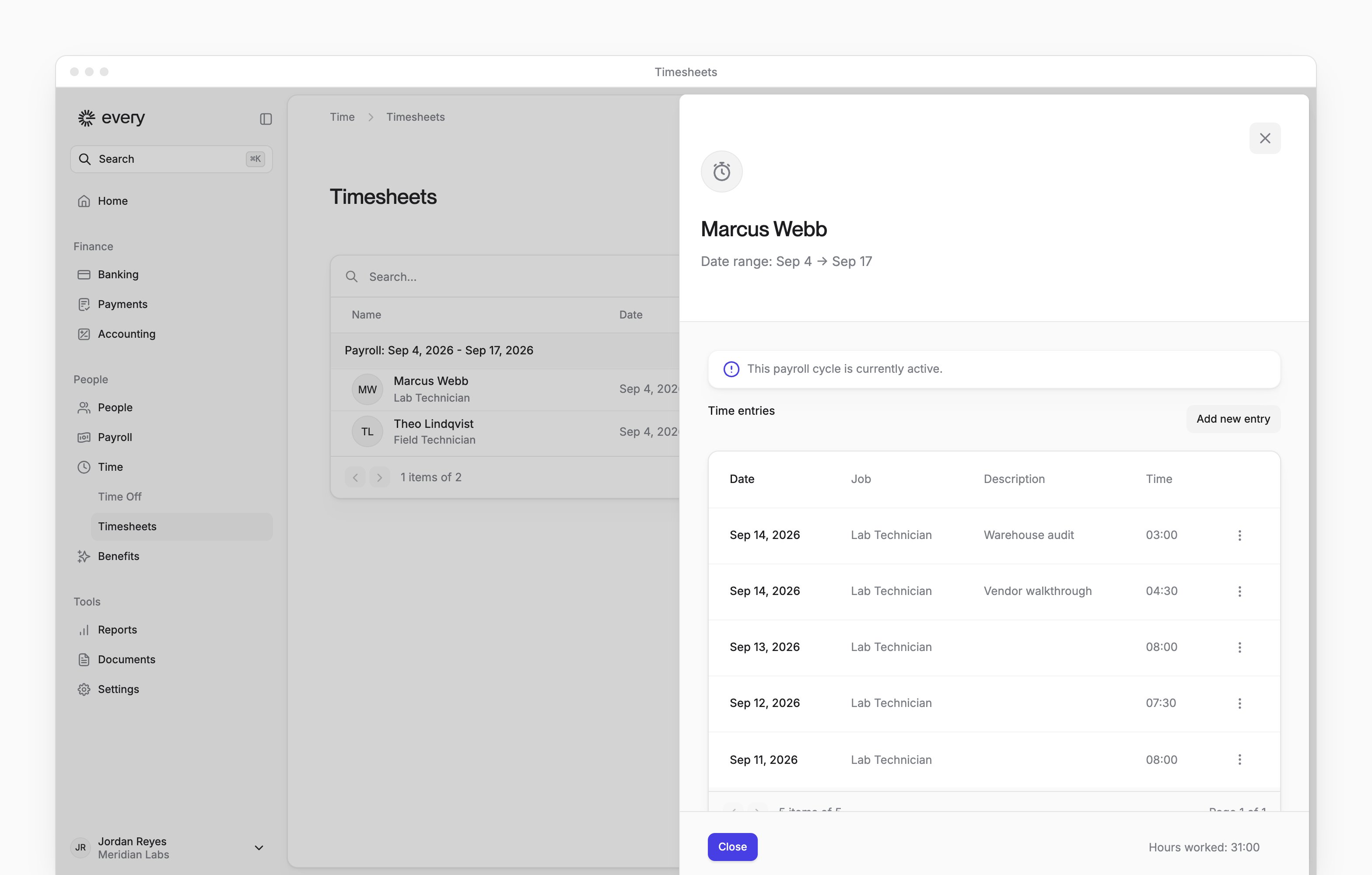
1
Add an entry
Select Add new entry.
2
Choose the day
In Date, choose the day worked.
3
Choose the job
In Select job, choose the job.
4
Enter the time
Enter Hours, Minutes and a Description of the work.
5
Save the entry
Select Save.
- Open the entry’s row menu and select Edit.
- Change the entry, then select Save.
Single entries
The single-entry sheet edits the total for that payroll cycle.- In the sheet, change the job in Select job, or the Hours, Minutes or Description. When Select project appears, choose a project too.
- Select Save.
Delete time
- On the main list, open the row’s menu and select Delete.
- In the confirmation, select Delete.
Approve timesheets
The approval policy must be on before you can approve pending time. To change it, see Set the approval policy.- On the Needs approval tab, select the rows to approve.
- In the action bar, select Approve.
A daily summary row shows Needs approval while any entry in that row is waiting.
Set the approval policy
Company Admins and HR Admins set the policy in Settings after your company finishes onboarding:1
Open the policy
Go to Settings → Timesheets, then under Policies, select Approvals.
2
Choose the policy
Choose Enable approvals or Disable approvals.
3
Save the policy
Select Save.