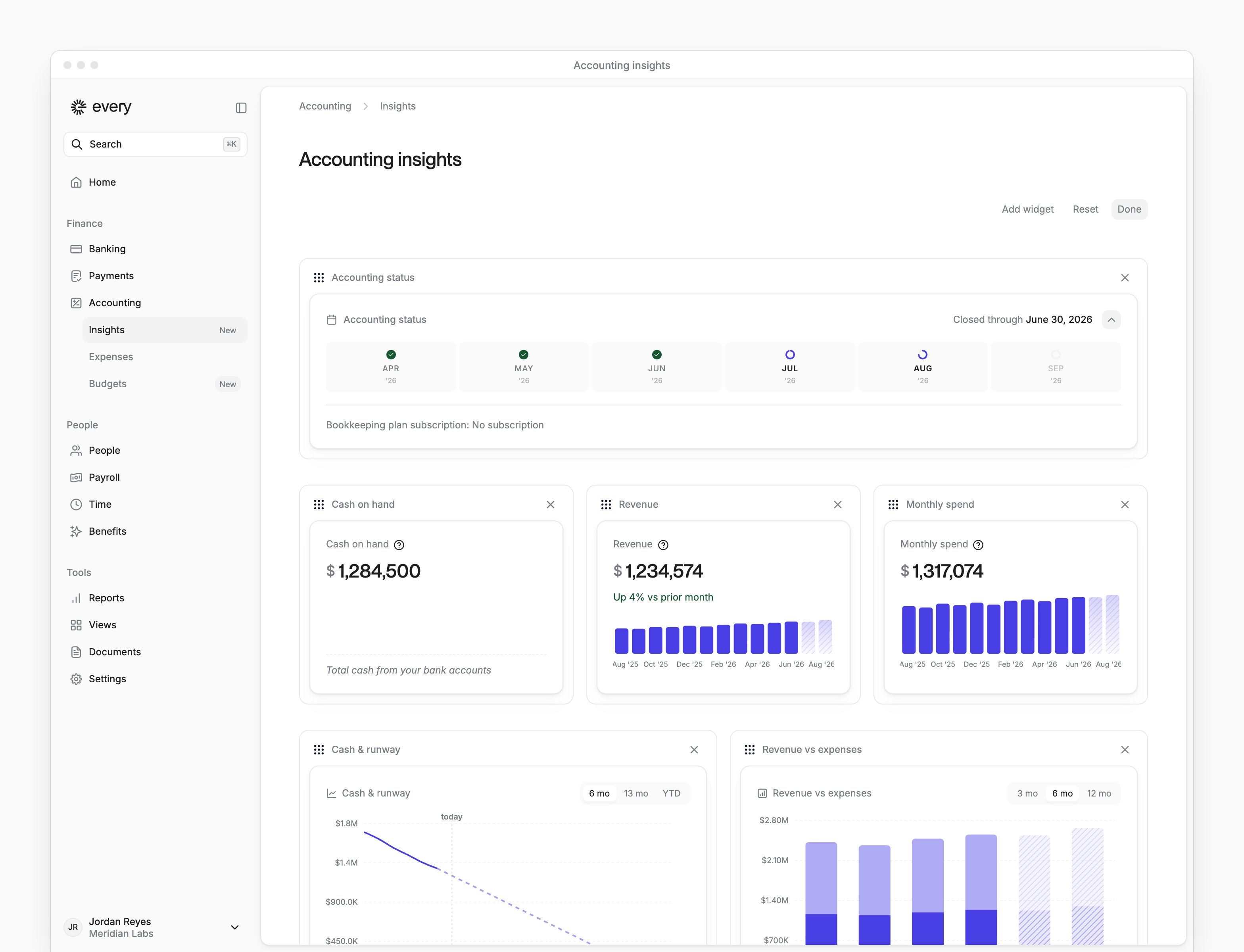
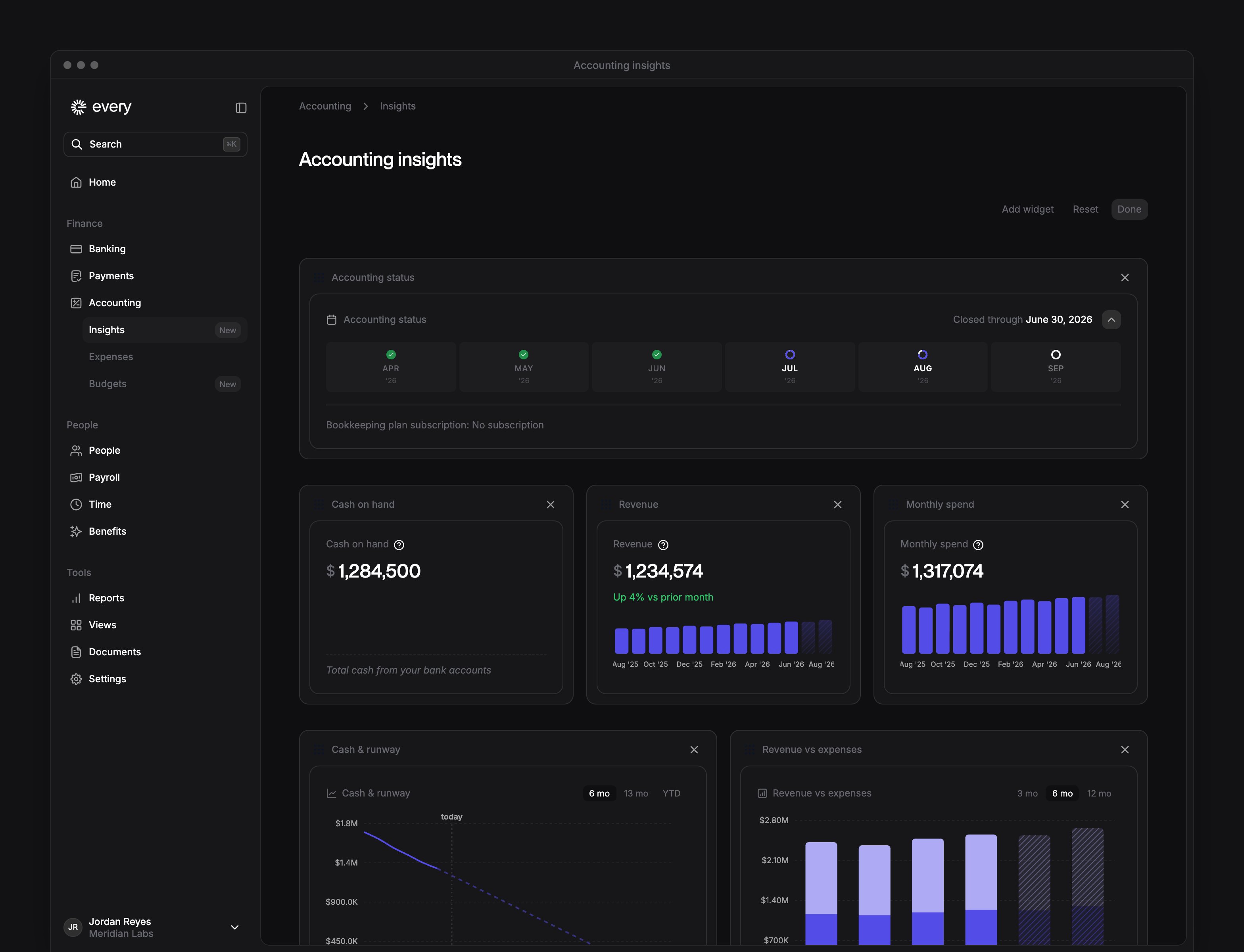
Accounting → Insights shows figures from your connected accounting software and your bookkeeping progress. Company Admins and Bookkeepers use it after your company finishes onboarding.
Every turns on Accounting insights company by company, and the Insights entry in the sidebar also needs Expenses. If you don’t see it, email support@every.io to ask about it.
Finish your accounting setup
Connect QuickBooks and set the Every Bank Account and Reimbursement default accounts in Accounting settings before using the dashboard. Without a connection, Insights shows Connect your accounting software with Connect QuickBooks. With an unfinished setup, it shows Complete your accounting setup with Complete setup. Both buttons open Accounting settings.Read your numbers
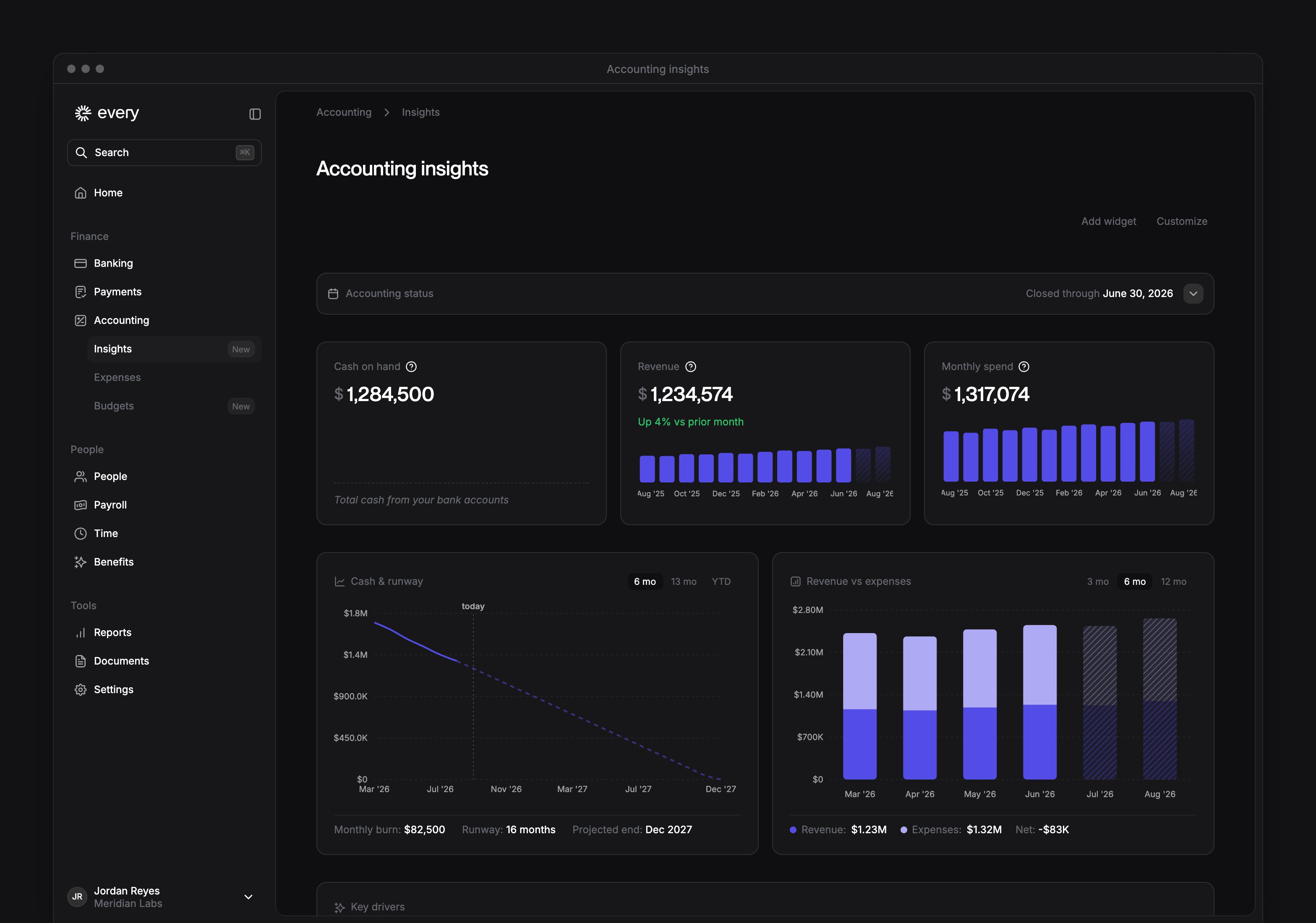
Your dashboard shows the widgets in your saved layout, which can include:- Cash on hand shows current bank-account balances from your connected accounting software.
- Revenue and Monthly spend use the most recent closed month. Without a closed month, they use the most recent month and mark it incomplete.
- Cash & runway and Runway project from historical cash and burn figures in your connected accounting software. For a profitable company, they use monthly expenses instead of burn.
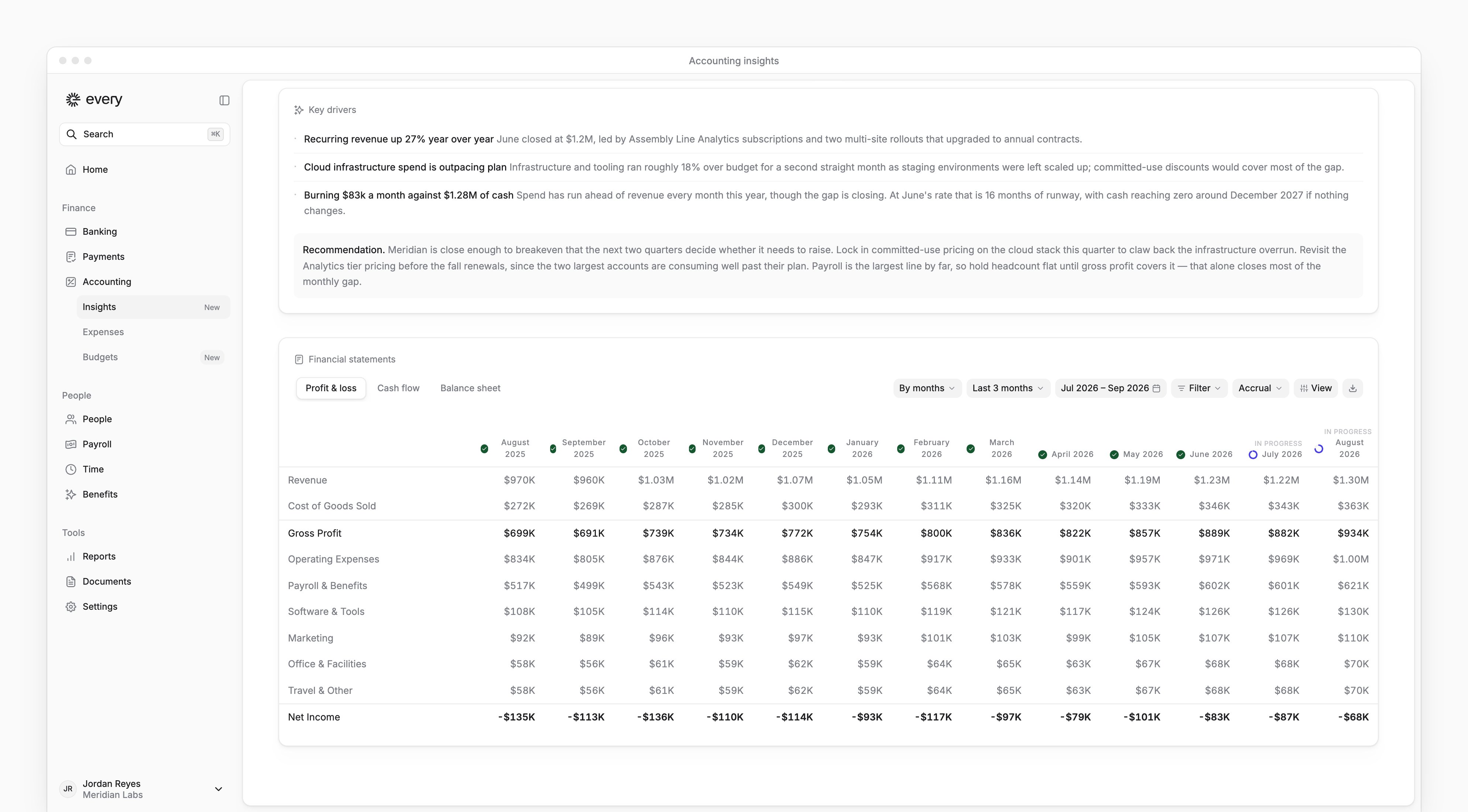
- Key drivers shows the revenue and expense drivers from an AI report, with a recommendation when the report has one.
Check bookkeeping progress
In Accounting status, hover over a month to see its status and categorization progress. An open month with uncategorized expenses has View month, which opens that month’s Expenses. The card lists 6 months and shows the latest closed one, or “No closed months yet”. It also shows your bookkeeping plan. A closed month with expenses still waiting to sync warns that its figures can be incomplete.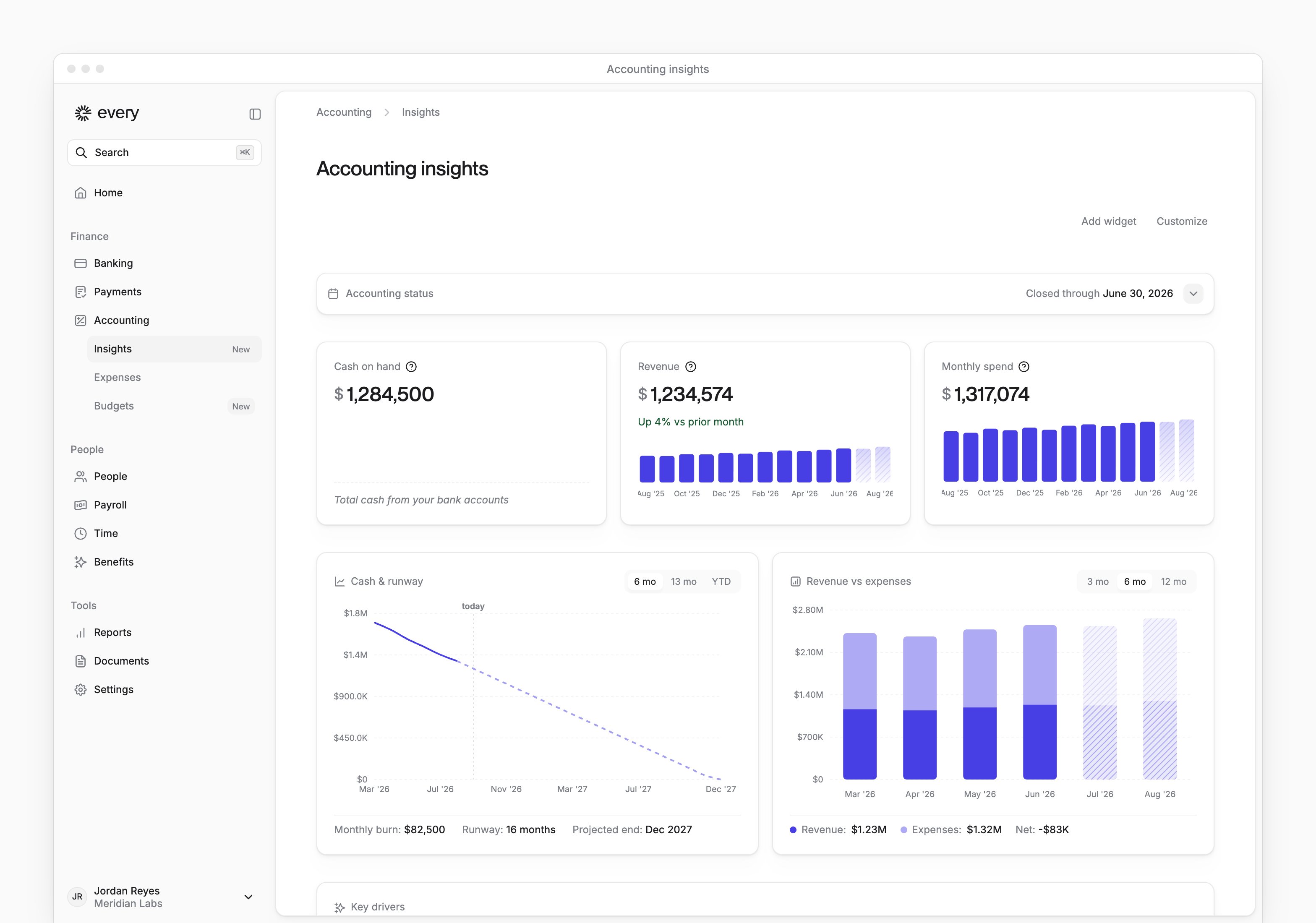
Read and download financial statements
1
Choose a statement
In Financial statements, select Profit & loss, Cash flow or Balance sheet.
2
Choose the period
Use the period menu to choose a preset, such as Last 3 months or Year to date.
3
Choose the column grouping
Group the columns by month, quarter or year.
4
Choose the accounting basis
Choose Accrual or Cash.
5
Download the statement
Select the download icon for a CSV of the statement.
Customize your dashboard
1
Start customizing
Select Customize.
2
Move a widget
Drag a widget by its dotted handle to change its position.
3
Remove a widget
Optional: on a widget, select Remove widget.
4
Add a widget
Optional: select Add widget and choose a widget from the picker.
5
Save your layout
Select Done. The layout is saved for you in the current company.