


 Settings → Company information, Settings → Locations and Settings → Departments hold your company’s details, addresses and departments. Company Admins and HR Admins can update all three; Bookkeepers can update the details and locations.
Every turns on QuickBooks department choices company by company. If the choices don’t load, email support@every.io to ask about them.
Update company information
1
Open the company form
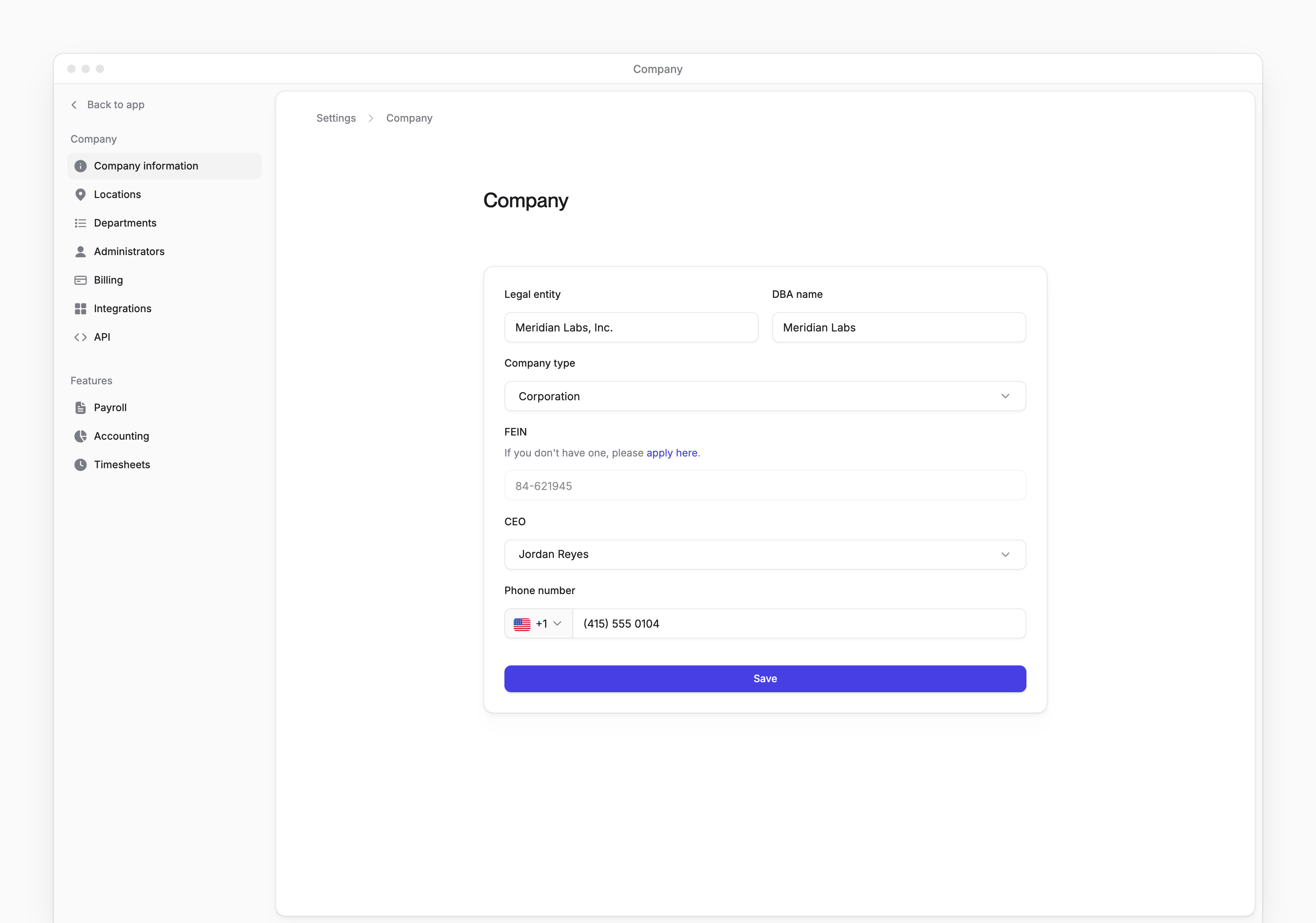
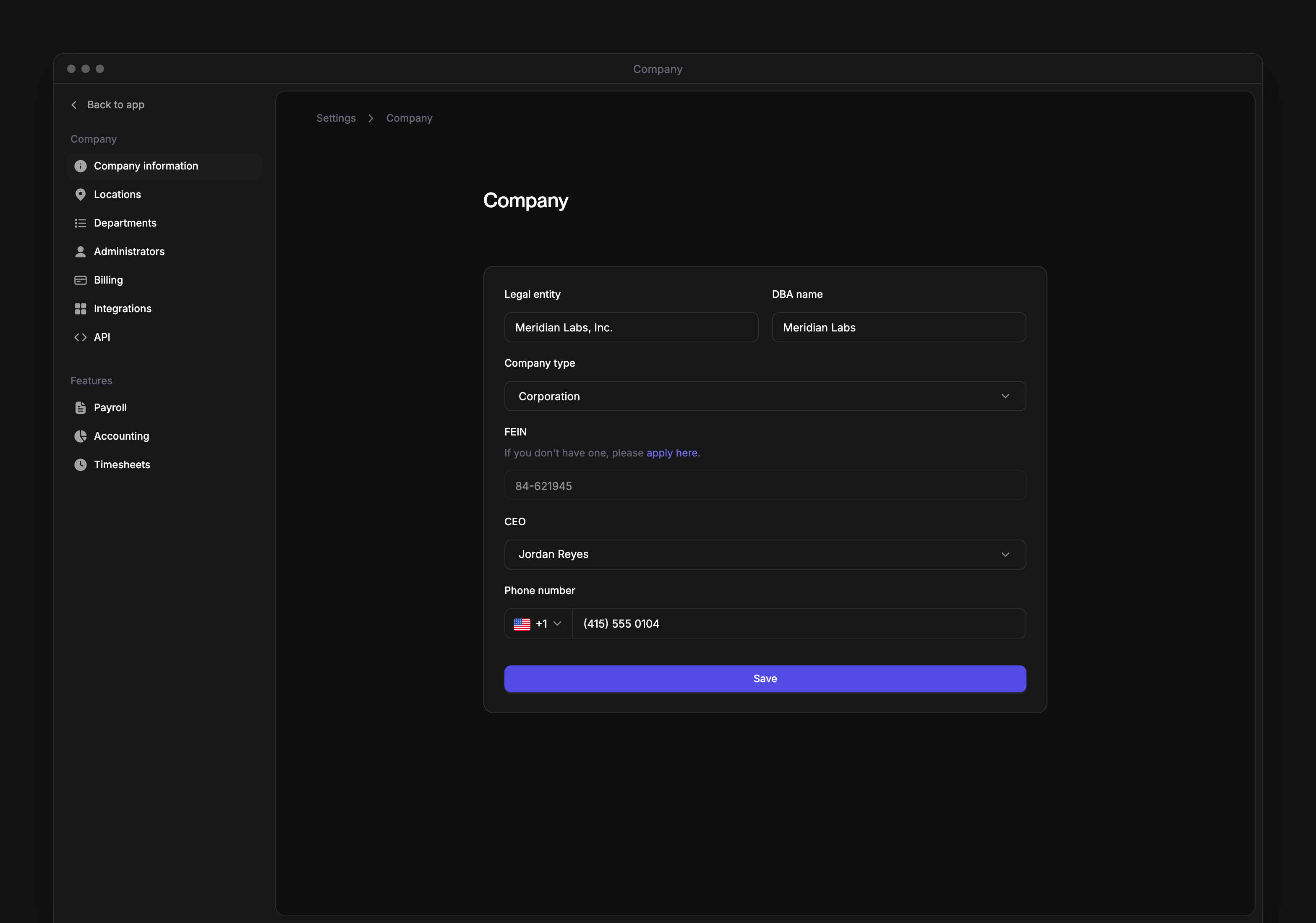
Go to Settings → Company information.
2
Update the details
Update Legal entity, DBA name, Company type, CEO and Phone number as needed. All five are required. Your company’s can have up to 50 characters.
3
Save the changes
Select Save. Every confirms that the company details were updated.
Add or edit a location
1
Open the location form
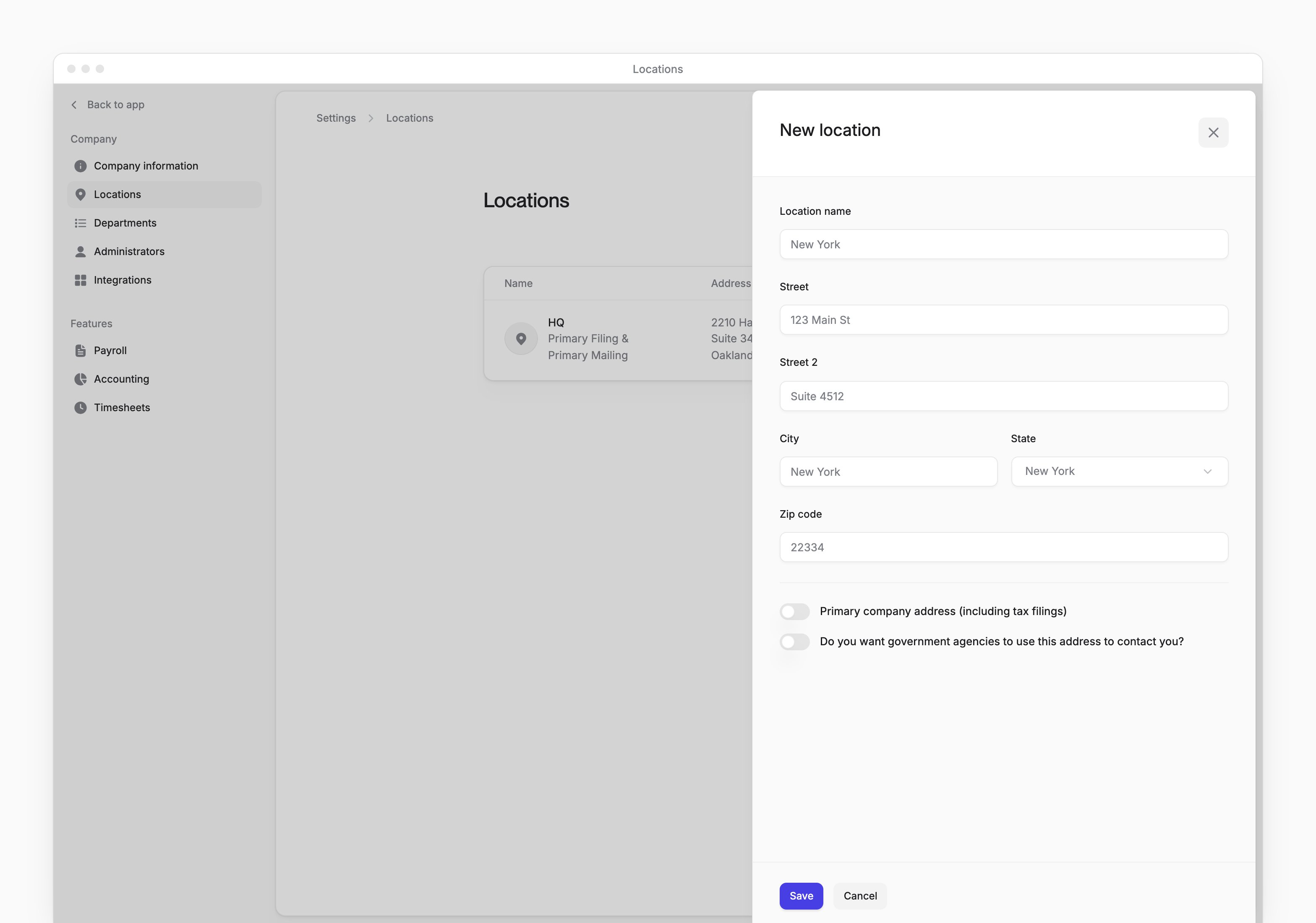
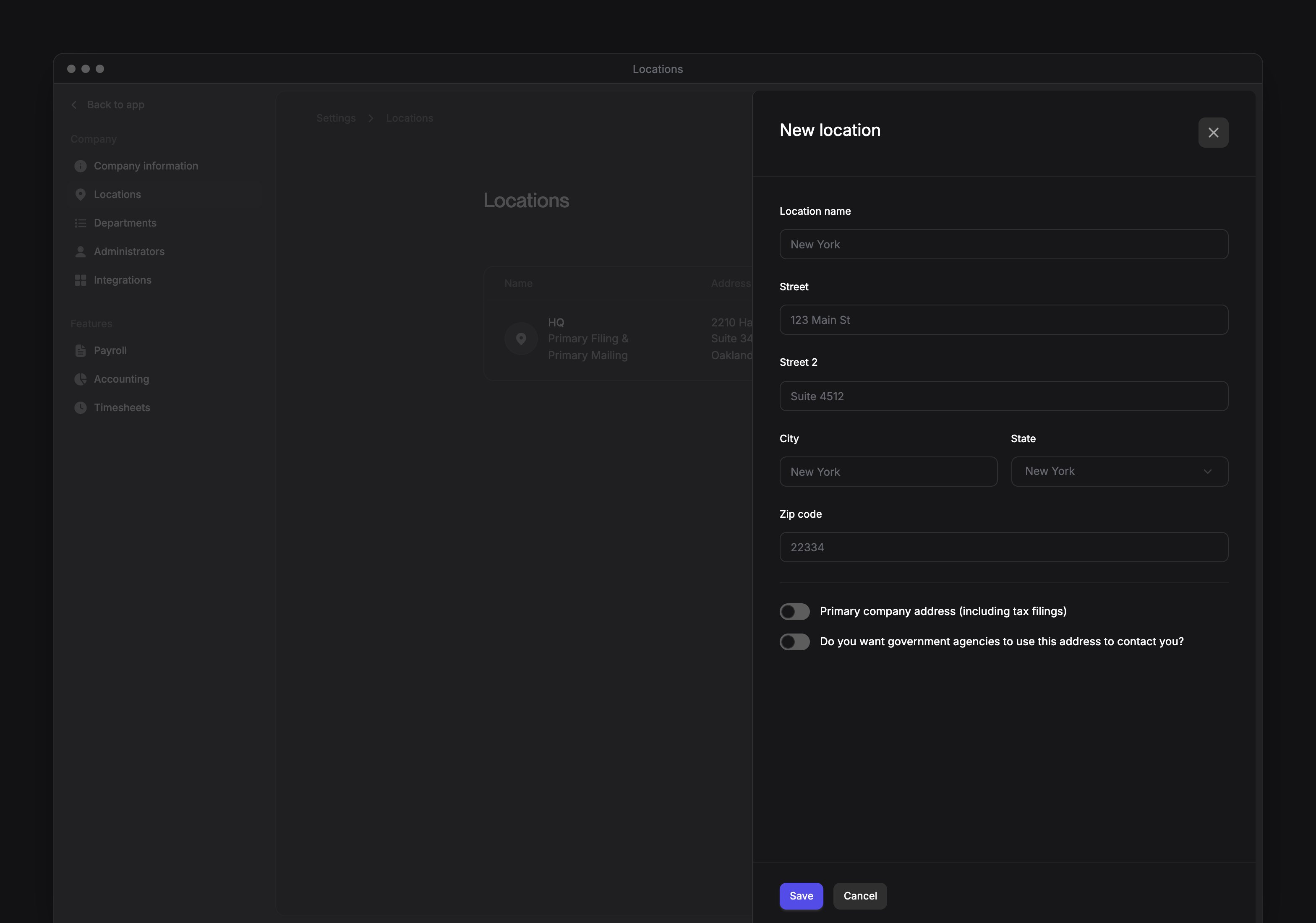
On Settings → Locations, select Add location. To change an existing location, select its row instead.
2
Enter the address
Enter Location name, Street, City and Zip code. Street 2 is optional.
3
Choose the state
In State, select the location’s state.
4
Optional: choose the filing address
Turn on Primary company address (including tax filings) to make this your company’s primary filing address.
5
Optional: choose the mailing address
Turn on Do you want government agencies to use this address to contact you? to make this your company’s primary mailing address.
6
Save the location
Select Save. The form closes after the location is saved.
Add a department
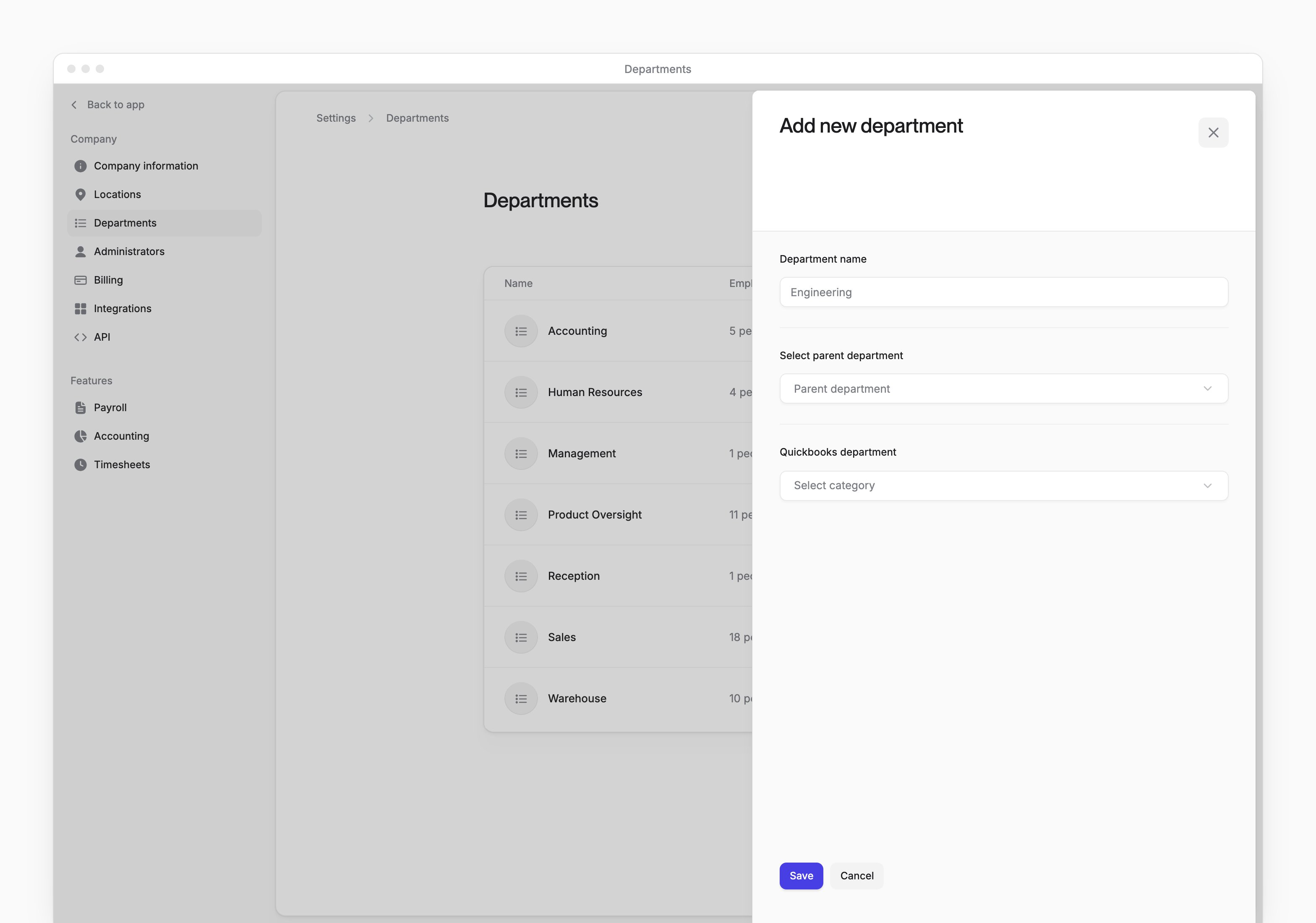
Company Admins and HR Admins can add, edit and delete departments. Once your company starts connecting QuickBooks, even before the connection finishes, the form requires a Quickbooks department. An HR Admin role alone can’t load its choices. While the field shows, an HR Admin role alone can’t save a new department or an existing one with no .1
Open the department form
On Settings → Departments, select Add department.
2
Name the department
Enter a Department name. The form rejects a name already used by another department, ignoring capitalization and surrounding spaces.
3
Optional: select a parent
In Select parent department, select a department to make this a sub-department.
4
Select the QuickBooks class
If Quickbooks department appears, select a QuickBooks class. Once QuickBooks is connected, Company Admins and Bookkeepers also see the choice under Department mapping in Accounting settings.
5
Save the department
Select Save. Every confirms that the department was created.
Edit a department or view its people
1
Open the department
In the department’s menu on Settings → Departments, select Edit department.
2
Change the details
Update Department name or Select parent department. If Quickbooks department appears, you can change its QuickBooks class.
3
Save the department
Select Save. Every confirms that the department was updated.
Delete a department
- In the department’s menu on Settings → Departments, select Delete department.
- In the confirmation dialog, select Delete.