


 Benefits lists retirement partners under Financial, where you start setup with one of them. When Home shows a 401(k) compliance alert, you record your provider there.
Company Admins and HR Admins can use Benefits after your company enables payroll and finishes company and payroll onboarding.
Benefits lists retirement partners under Financial, where you start setup with one of them. When Home shows a 401(k) compliance alert, you record your provider there.
Company Admins and HR Admins can use Benefits after your company enables payroll and finishes company and payroll onboarding.
Start with a partner
On Benefits, select the retirement partner’s row under Financial. The partner’s website opens in a new tab, where you continue setup. The first time anyone at your company selects a partner, its row shows In Progress. Selecting it again keeps its current badge.Record your provider
If your company already has a 401(k) plan, record its provider from the 401(k) compliance alert on Home.1
Open the alert
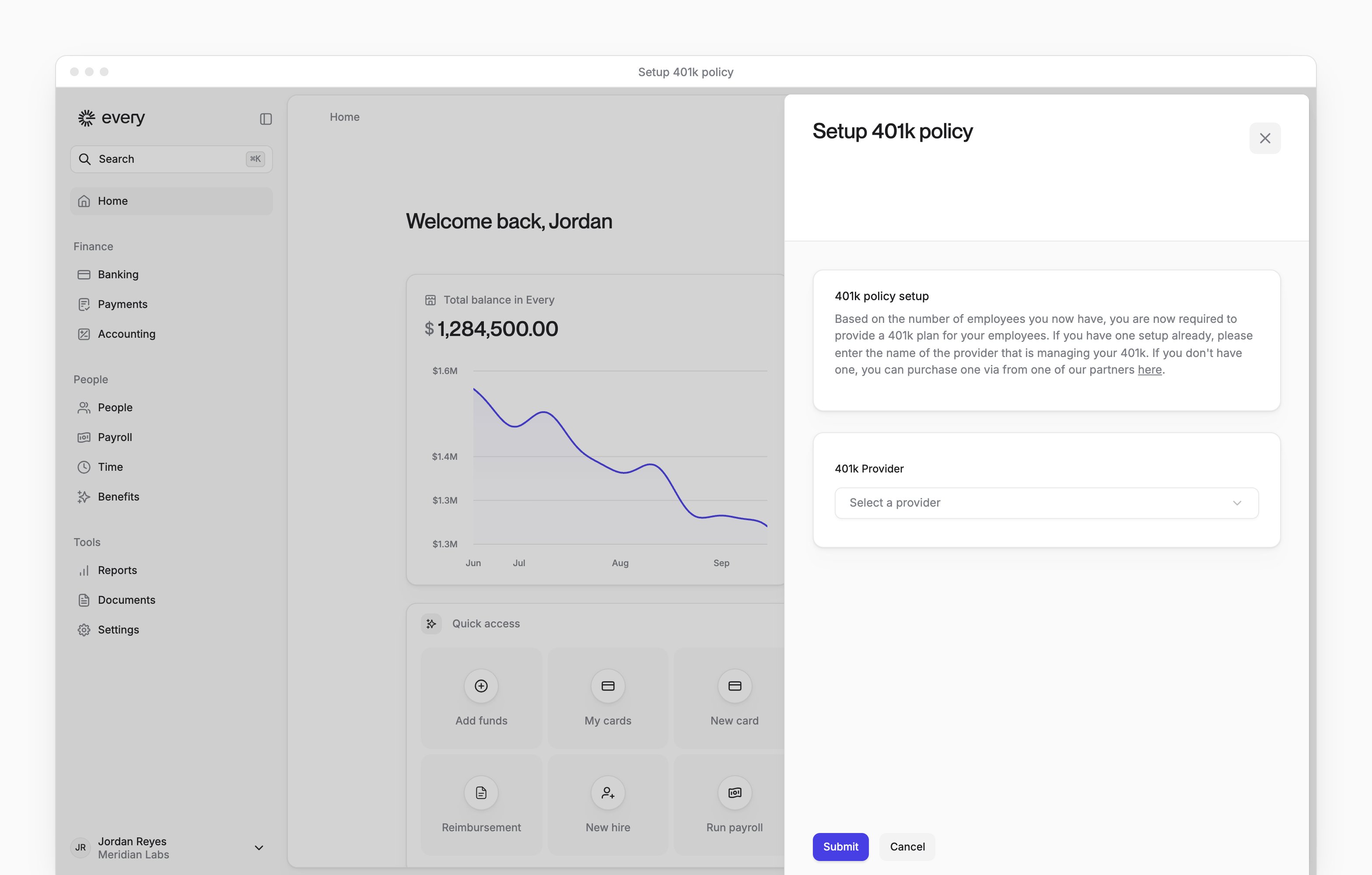
On Home, select the 401(k) compliance alert to open Setup 401k policy.
2
Select your provider
In 401k Provider, select Human Interest or Octave Wealth.
3
Save the provider
Select Submit. Every saves the provider and marks the alert complete.
Dismiss the 401(k) alert
Selecting Dismiss opens a dialog that asks you to confirm that every employee on payroll, excluding contractors, is a company owner.- On Home, select Dismiss on the 401(k) compliance alert.
- In the dialog, select Dismiss, we are all founders and don’t need a 401k. Every removes the alert from Home.