


 You choose who approves a payment when you send it, and the approvers approve one after another. Each approver gets a to-do on Home, and you can also act on payments from Payments → All payments.
Company Admins, Bookkeepers and Accounts Payable users send payments and act on them from All payments, which appears in the sidebar after your company finishes onboarding. An approver can be any current employee, or an External 3rd party user added under Settings → Administrators.
You choose who approves a payment when you send it, and the approvers approve one after another. Each approver gets a to-do on Home, and you can also act on payments from Payments → All payments.
Company Admins, Bookkeepers and Accounts Payable users send payments and act on them from All payments, which appears in the sidebar after your company finishes onboarding. An approver can be any current employee, or an External 3rd party user added under Settings → Administrators.
Every turns on the bill inbox and the Accounts Payable role company by company. If you don’t see them or the All payments page, email support@every.io to ask about them.
Who needs approval
Approvers don’t need a particular role. You can’t choose yourself, and you can choose each person once per payment.
Choose approvers
1
Open the approver question
On All payments, select Send money. The approver question is on the flow’s Accounting Details step (see Send money for the steps before it).
2
Choose how many approvers
Answer How many people should approve this bill? A Company Admin’s choices start at No approvers needed. Everyone else’s start at 1.
3
Choose each approver
Every shows one approver field for each approver you asked for. Choose a person in each field, starting with the first. The first approver you choose reviews first.
4
Send the payment
On the review page, select Confirm & pay. Every shows “Payment sent for approval”.
What happens next
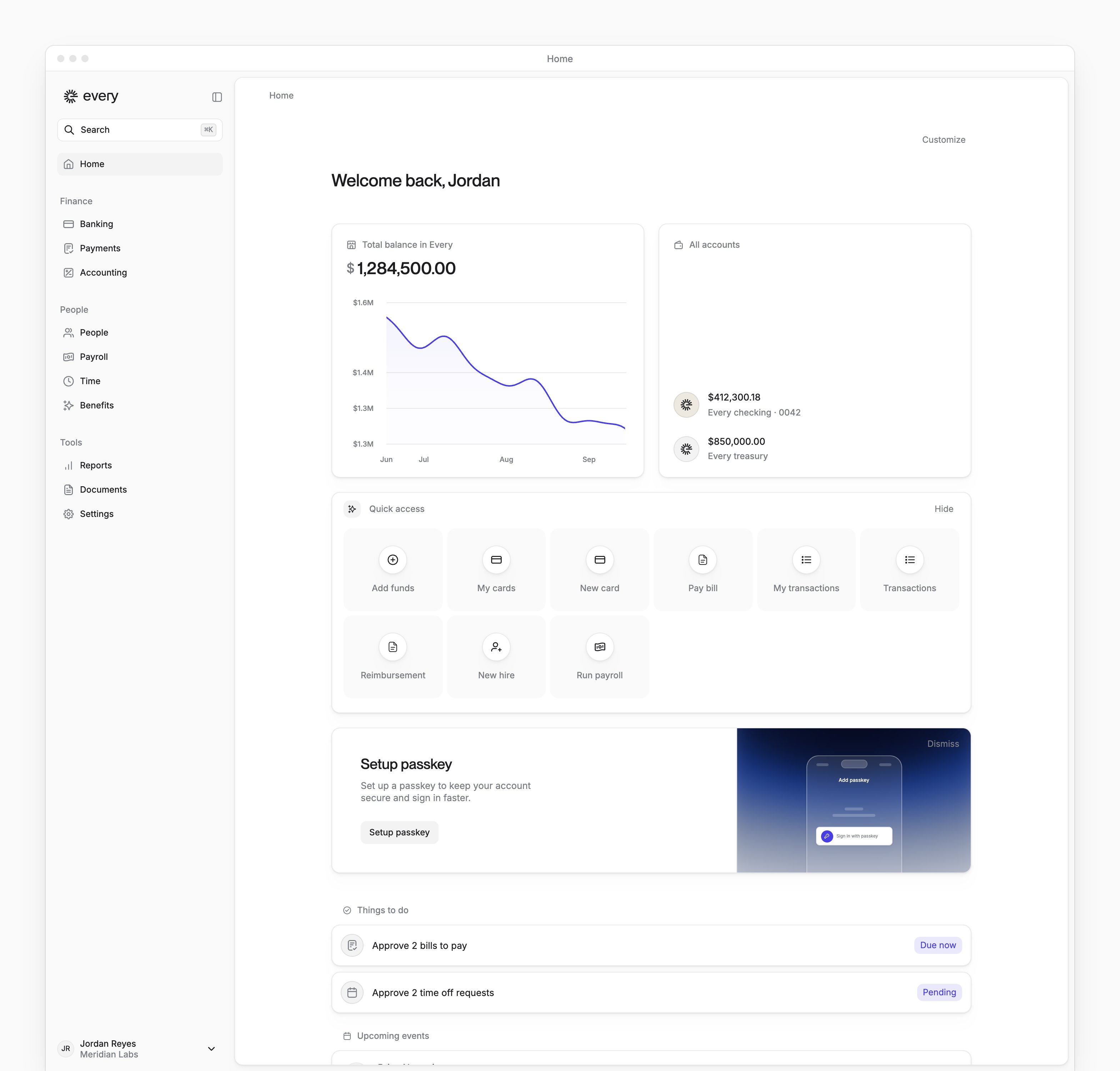
- The first approver gets a to-do on Home. It starts “Approve the bill & pay” and ends with the vendor’s name.
- When they approve, the next approver gets a to-do. Each approver has to approve unless someone overrides approval.
- When the last approver approves, Every sends the payment unless it is scheduled for a later date.
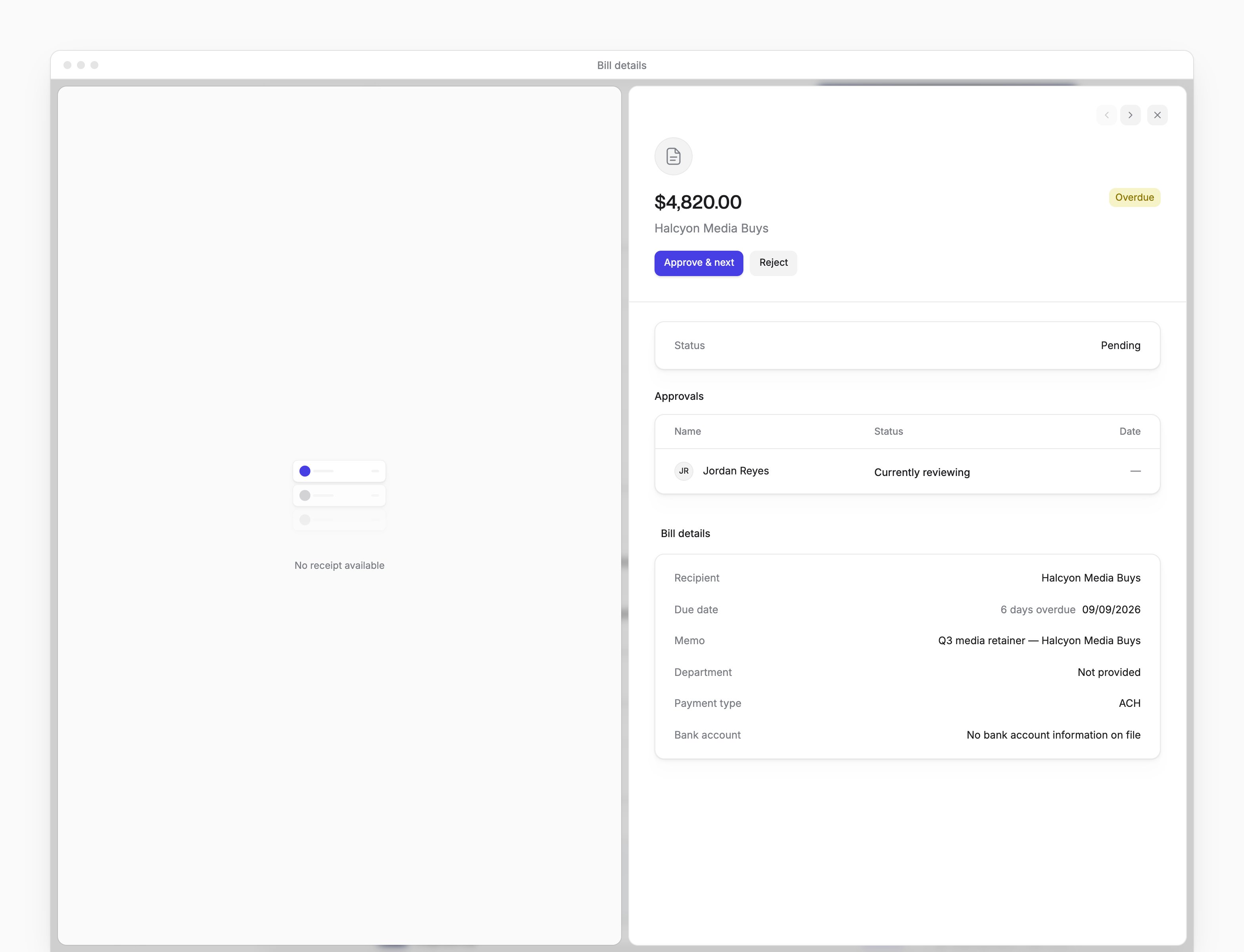
You see the list on Home, in a payment’s Bill details sheet. On All payments, a payment opens either in a sheet that shows the list, or in a drawer that shows who approved it under Approved by instead.

Approve or decline a payment
On Home
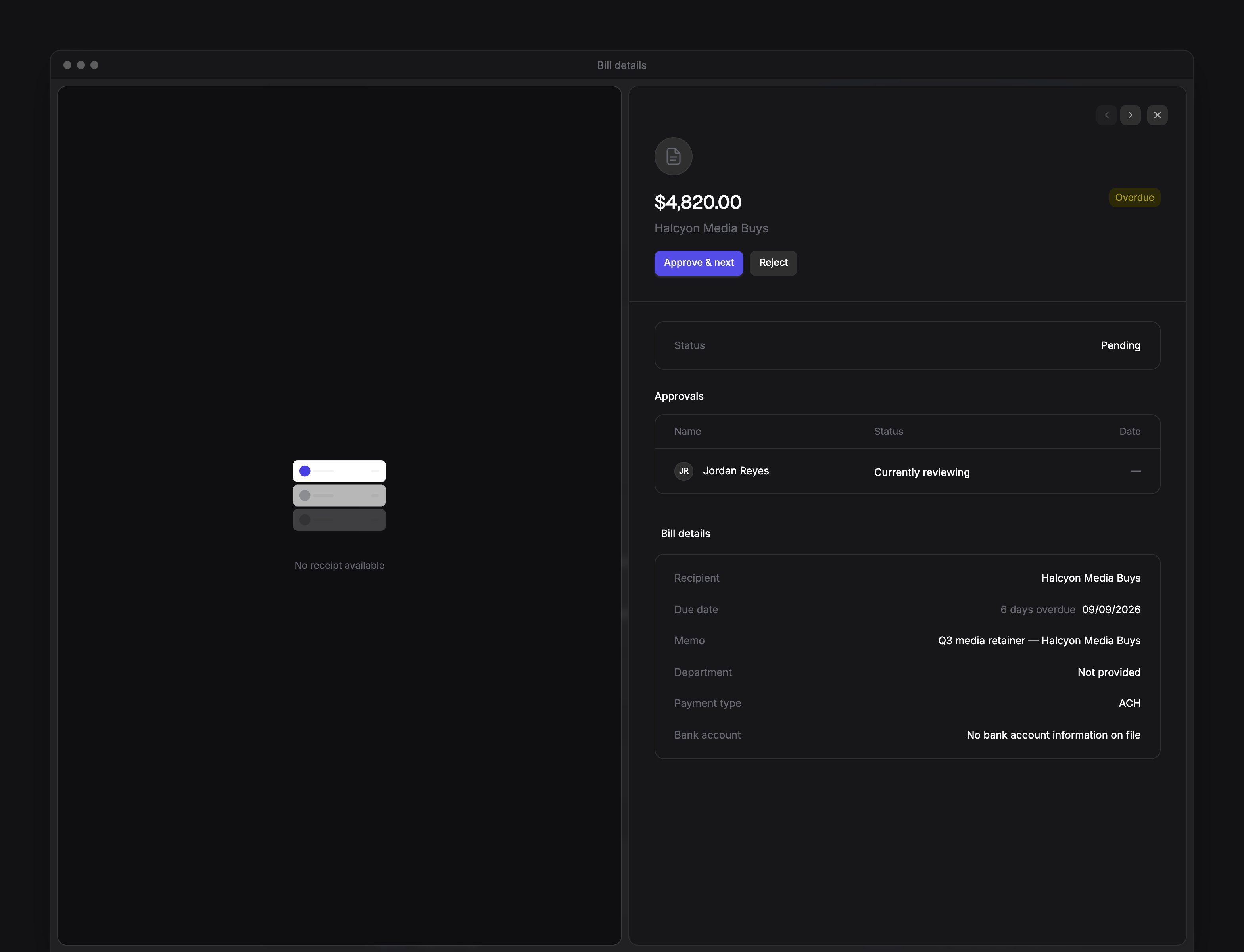
Select the to-do to open its Bill details sheet. Then:- To approve, select Approve (Approve & next when another payment is waiting) and confirm.
- To decline, select Reject. In the dialog, enter a Reason, which is required, and select Reject.
On All payments
- To act on one row, point at it and select Approve or Decline, then confirm. Neither asks for a reason.
- To act on one payment, select its row, then select Approve, or Decline in its drawer (Reject in its sheet). Declining opens Reason for rejection: enter a reason and select Reject.
- To act in bulk, select rows on the All or Needs approval tab. Then select the Approve button, which shows how many payments it covers and their total, or select Actions → Decline. Bulk decline asks for no reason, and each action covers up to 100 payments.
Override approval
A payment waits on you when it’s in your to-dos on Home. Approve on one of those counts as your own approval, and the payment moves to the next approver. Approve on a payment that isn’t waiting on you is an override. It approves the whole payment right away, and anyone still waiting is marked Skipped. Decline always declines the whole payment.- A Company Admin can override any payment.
- On the All payments page, Bookkeepers and Accounts Payable users can too.
- If Payments → All payments opens a page titled Bills & Reimbursements, only Company Admins can override there. Other roles act on payments waiting on them.
- Nobody can override a reimbursement paid to them. Bookkeepers and Accounts Payable users can’t override a payment they sent, but Company Admins can.