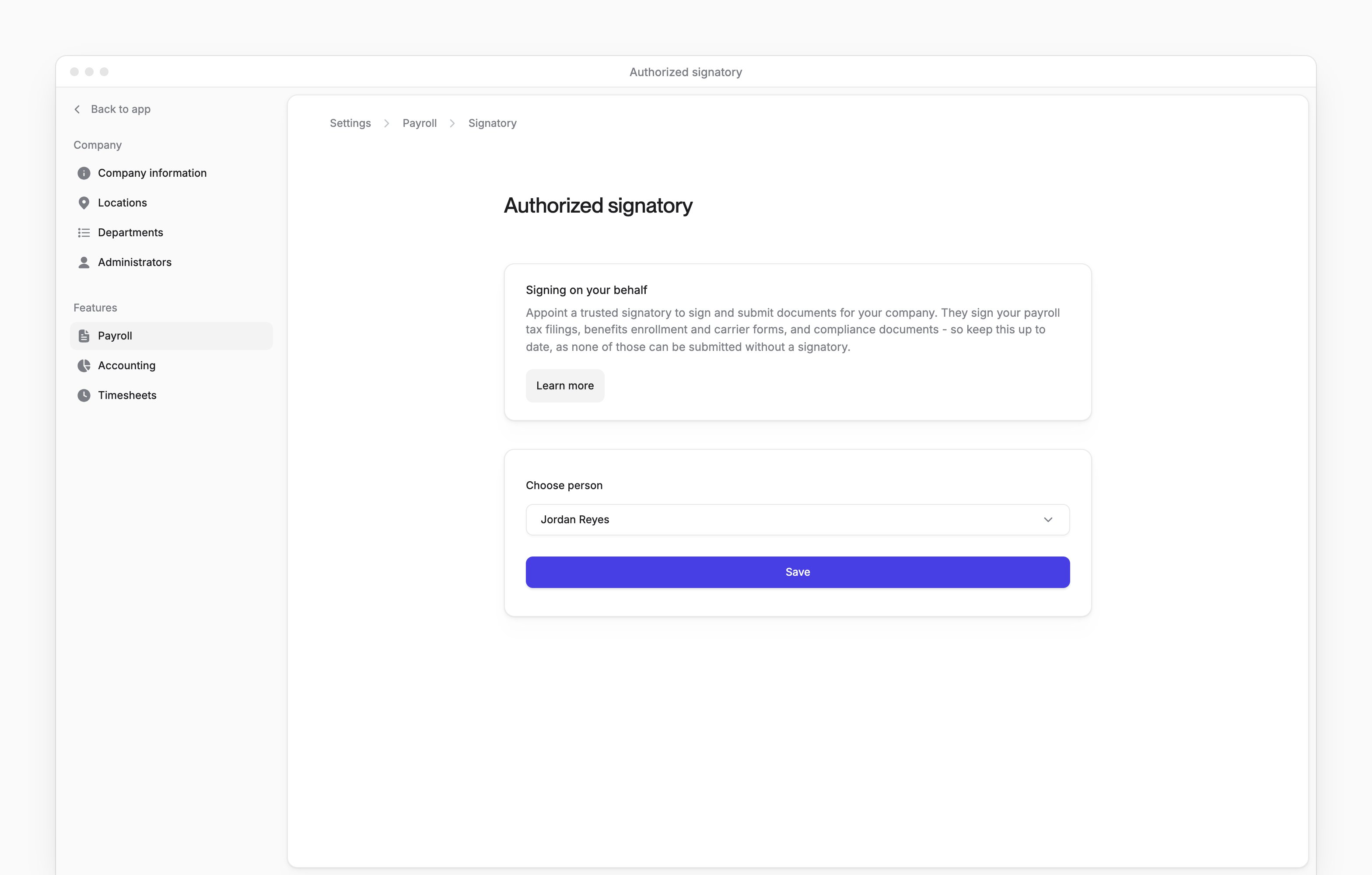
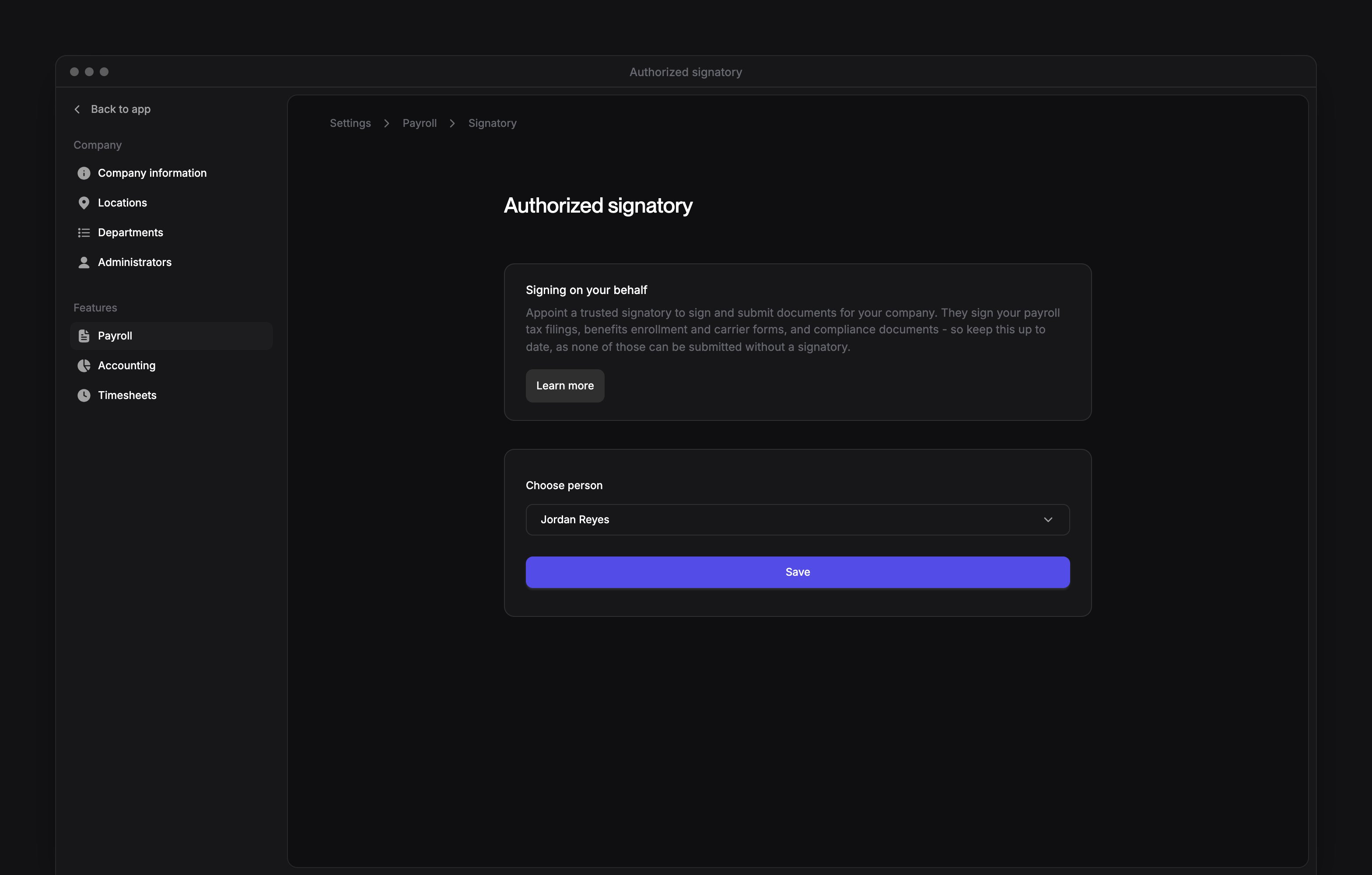
Settings → Payroll holds pay schedules, pay types and your company’s . Company Admins and HR Admins manage schedules and pay types after your company finishes payroll setup. Company Admins and HR Admins choose the signatory.
Every turns on weekly and biweekly schedules, calendar-month hourly schedules, additional custom pay categories and recurring pay types company by company. If you don’t see them, email support@every.io to ask about them.
Create a pay schedule
You need Company Admin or HR Admin access.1
Open the new schedule
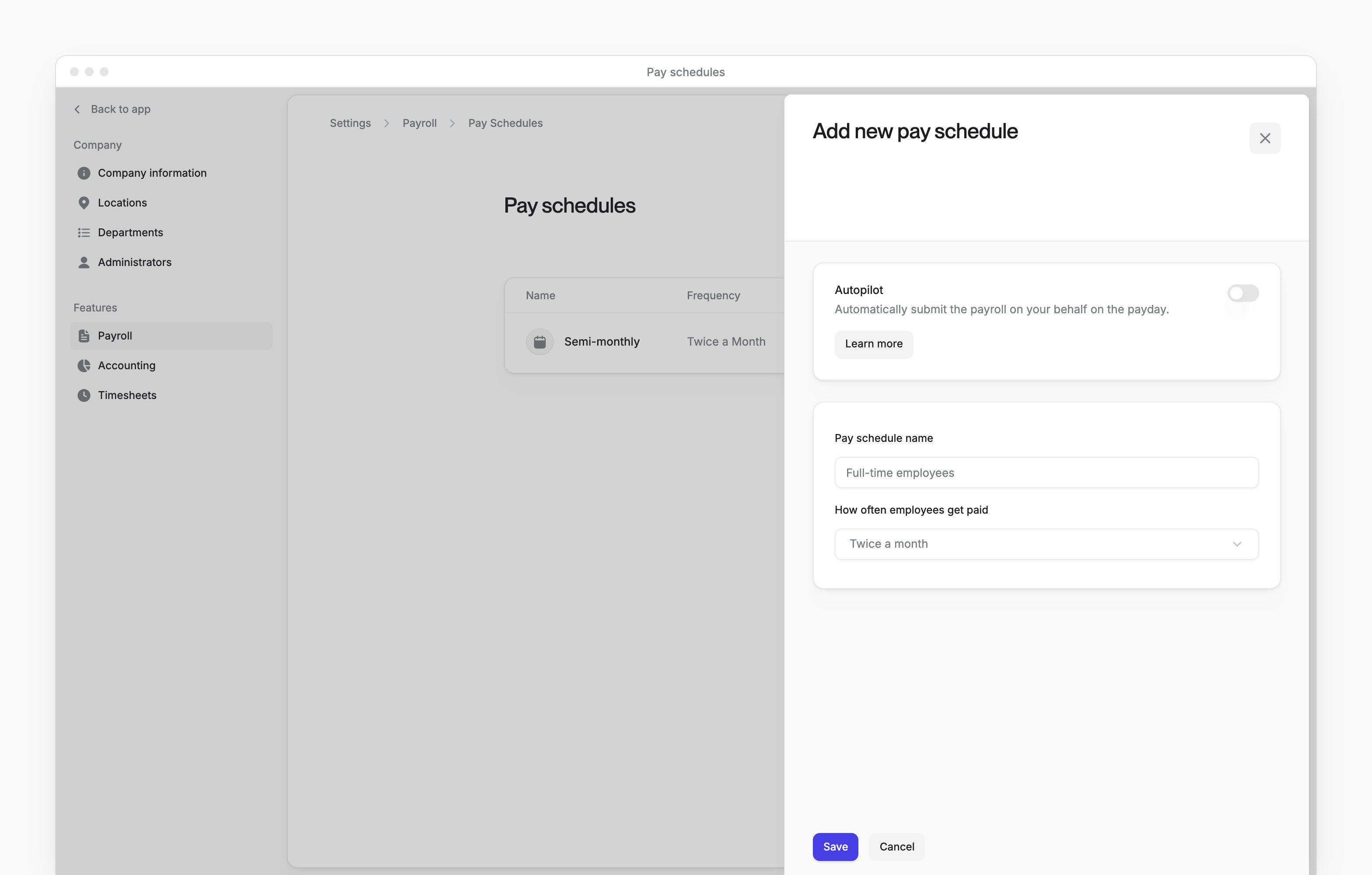
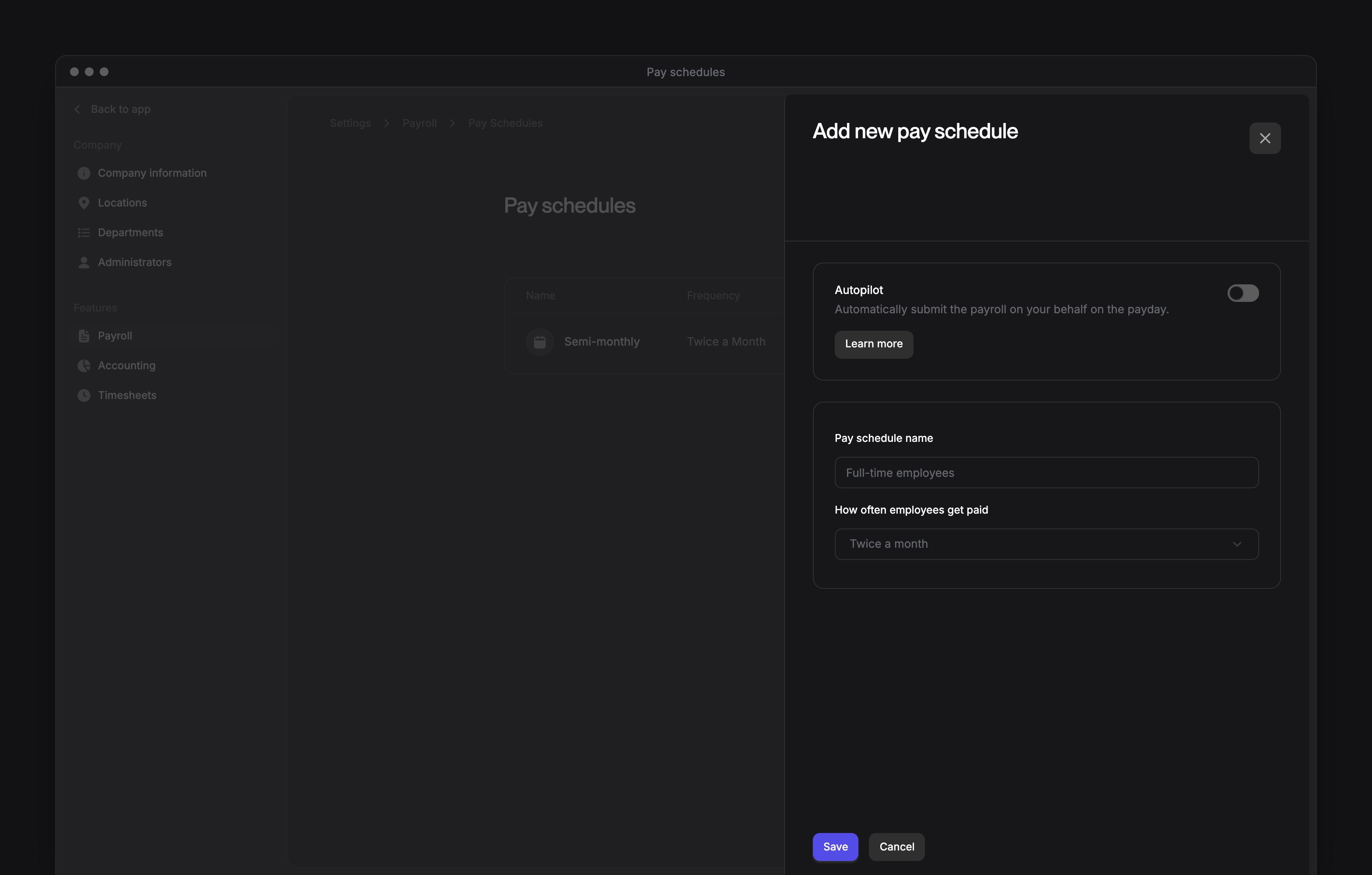
Go to Settings → Payroll → Pay schedules, then select Add new.
2
Choose whether to use Autopilot
Optional: at the top of the form, turn on Autopilot to have Every submit payroll on your behalf.
3
Name the schedule
Enter a Pay schedule name.
4
Choose the frequency
In How often employees get paid, choose Monthly, Twice a Month, Weekly or Bi-weekly.
5
Choose the monthly payday rule
For a monthly schedule, choose 15 or Last day of the month. Or turn on Pay for the full calendar month to pay hourly employees for the full prior month on the 7th of the next month.
6
Choose the first payday
Choose the first payday from the available dates. Weekly and biweekly schedules use Fridays.
7
Choose the first pay period
In What should be the first pay period?, choose the first period. The field is hidden for calendar-month hourly schedules.
8
Save the schedule
Select Save. Every shows “Pay schedule created”.
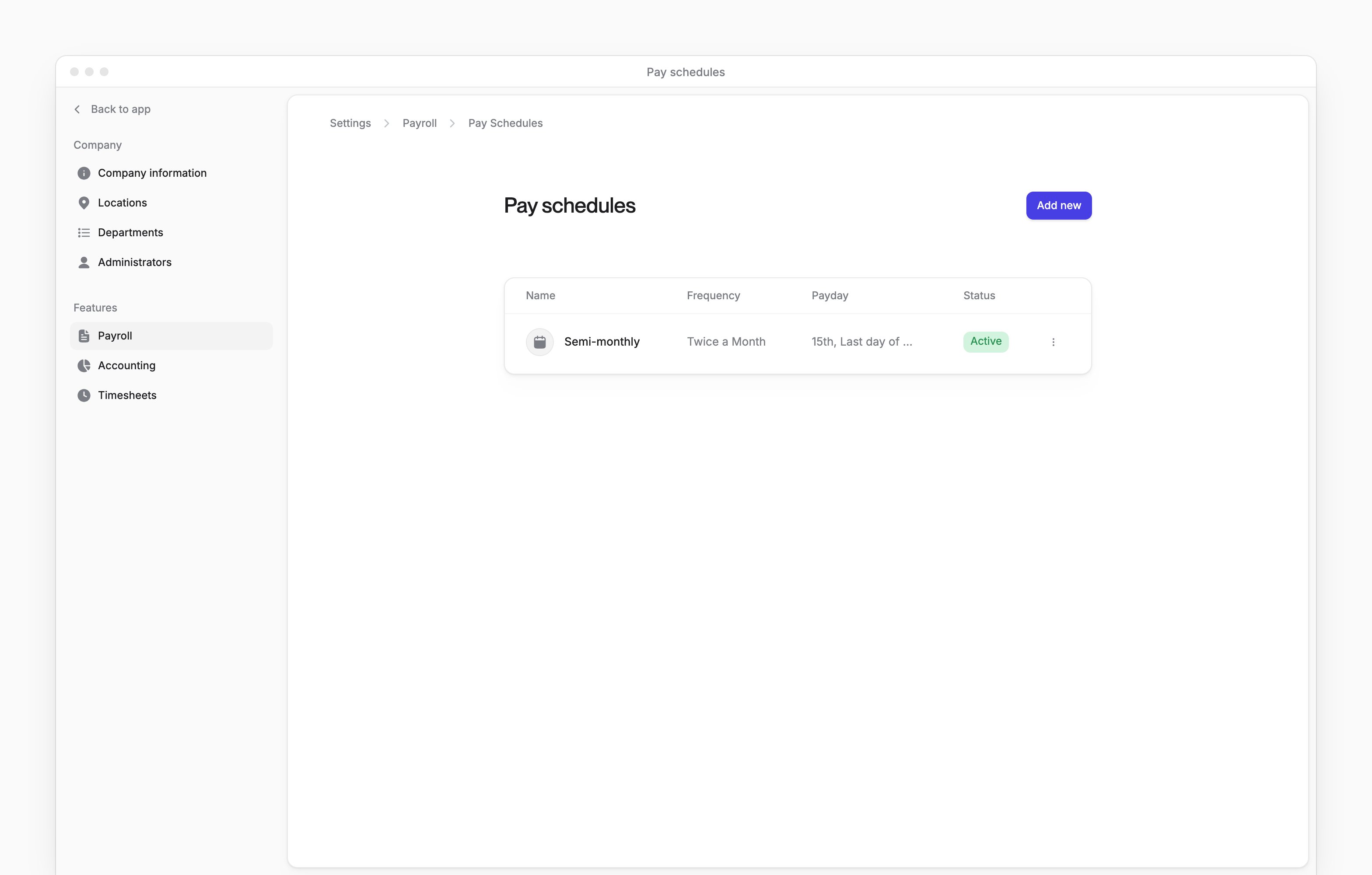
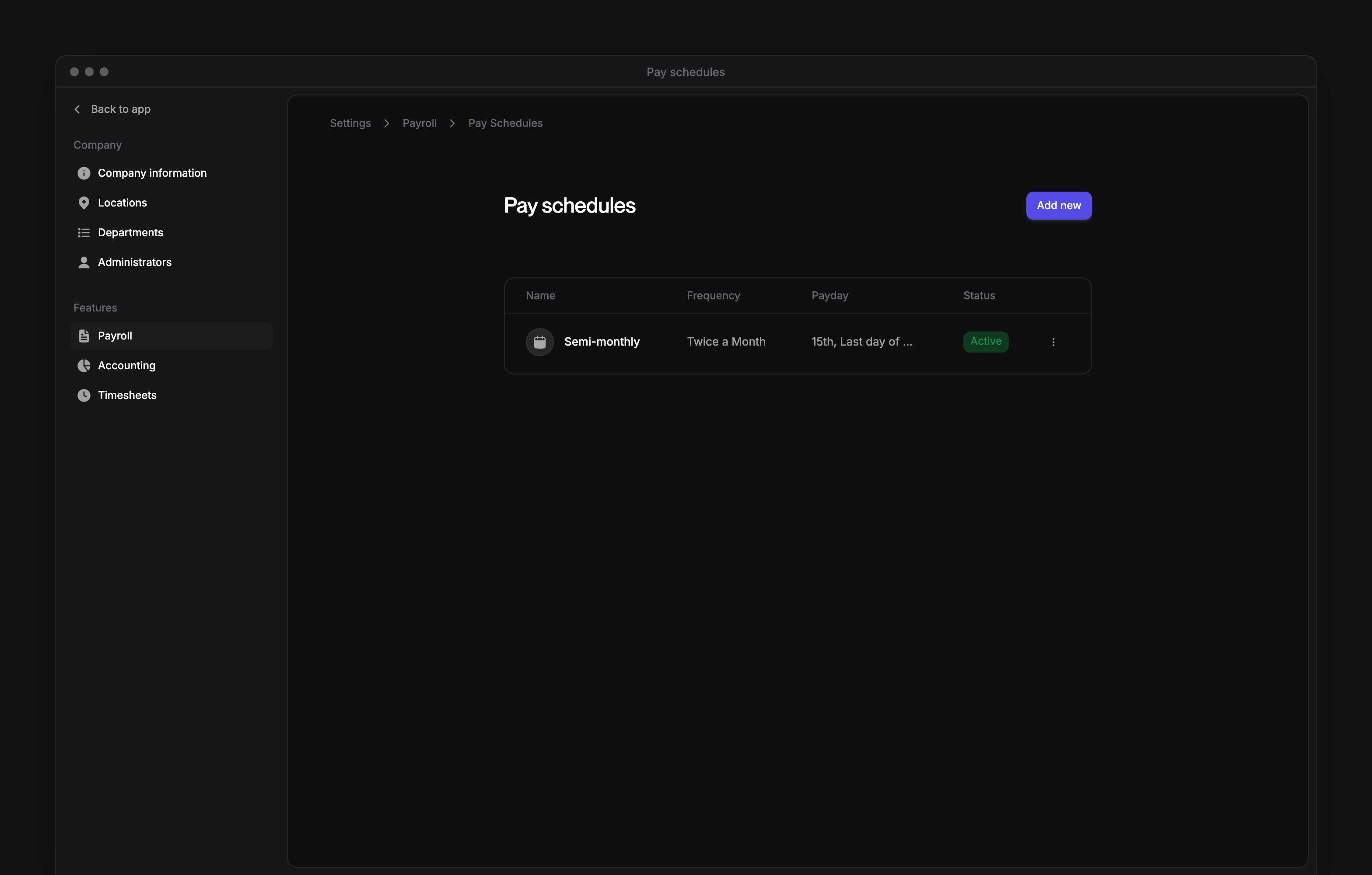
Change or disable a schedule
1
Open the schedule
On Pay schedules, select the existing schedule you want to change.
2
Change the schedule
Change Pay schedule name, Autopilot or Enable pay schedule.
3
Save the changes
Select Save.
Create a custom pay type
1
Open the form
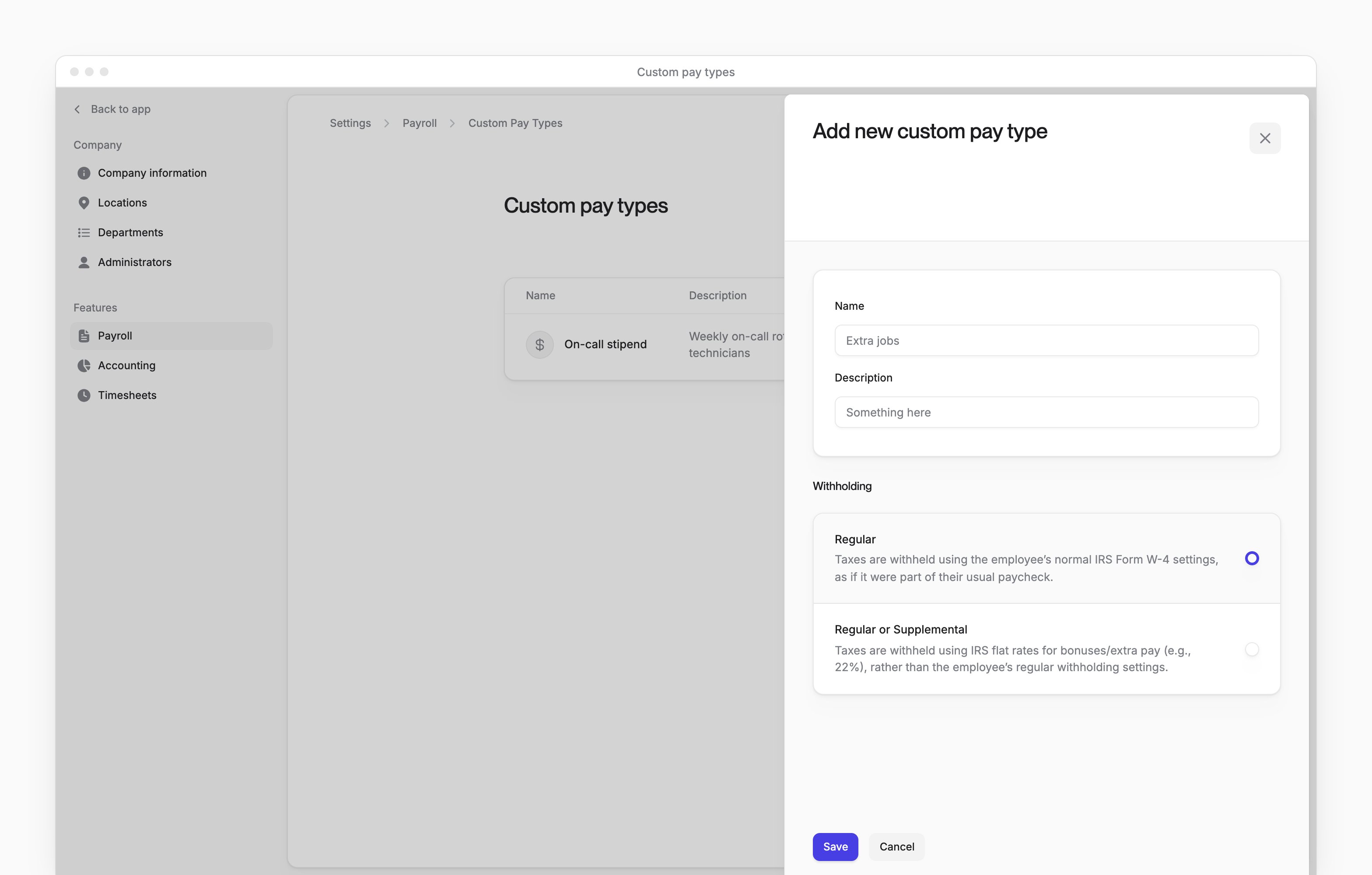
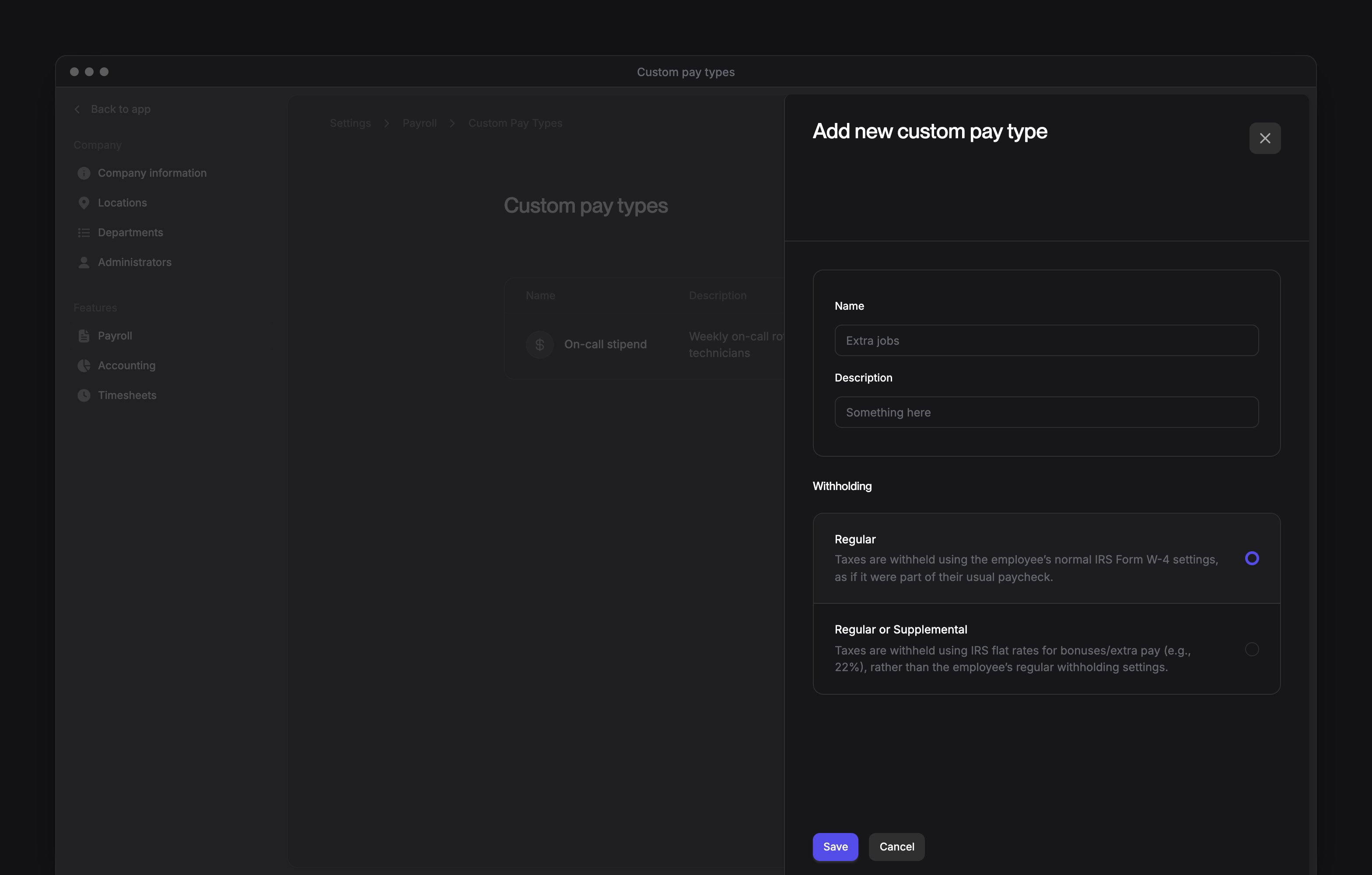
Go to Settings → Payroll → Custom pay types, then select Add new.
2
Name the pay type
Enter a Name and optional Description.
3
Choose a category if offered
In Category, choose Pre-tax earning, Post-tax earning or Fringe benefit.
4
Optional: Make the pay type recurring
Under Recurring, choose Yes.
5
Set the recurring start date
For recurring pay, choose a Start date.
6
Optional: Set an end date
For recurring pay, turn on Set end date.
7
Choose the end date
If you turned on an end date, choose an End date.
8
Choose earning withholding
For a pre-tax earning, in Withholding, choose Regular or Regular or Supplemental.
9
Choose the fringe income type
For a , in Imputed income type, choose Group Term Life.
10
Choose the fringe wage type
For a fringe benefit, in Wage type, choose Regular or Supplemental.
11
Save the pay type
Select Save.
- In the pay type’s row menu, select Delete.
- In the confirmation, select Delete.
Recurring pay types
A recurring pay type needs a start date. Its optional end date must be on or after the start date. While employees have active assignments of a recurring pay type, you can’t stop it from recurring or change its dates to leave those assignments out.Create an hourly pay type
An hourly pay type multiplies an employee’s base hourly rate.1
Open the form
Go to Settings → Payroll → Hourly pay types, then select Add new.
2
Name the pay type
Enter a Name and optional Description.
3
Set the multiplier
Enter the multiplier in Multiply an employee’s base hourly rate by x times.
4
Save the pay type
Select Save.
- In the pay type’s row menu, select Delete.
- In the confirmation, select Delete.
Choose the authorized signatory
Company Admins and HR Admins choose the person who signs payroll tax filings and compliance documents, plus benefits enrollment and carrier forms.- On Authorized signatory, in Choose person, choose who signs.
- Select Save.