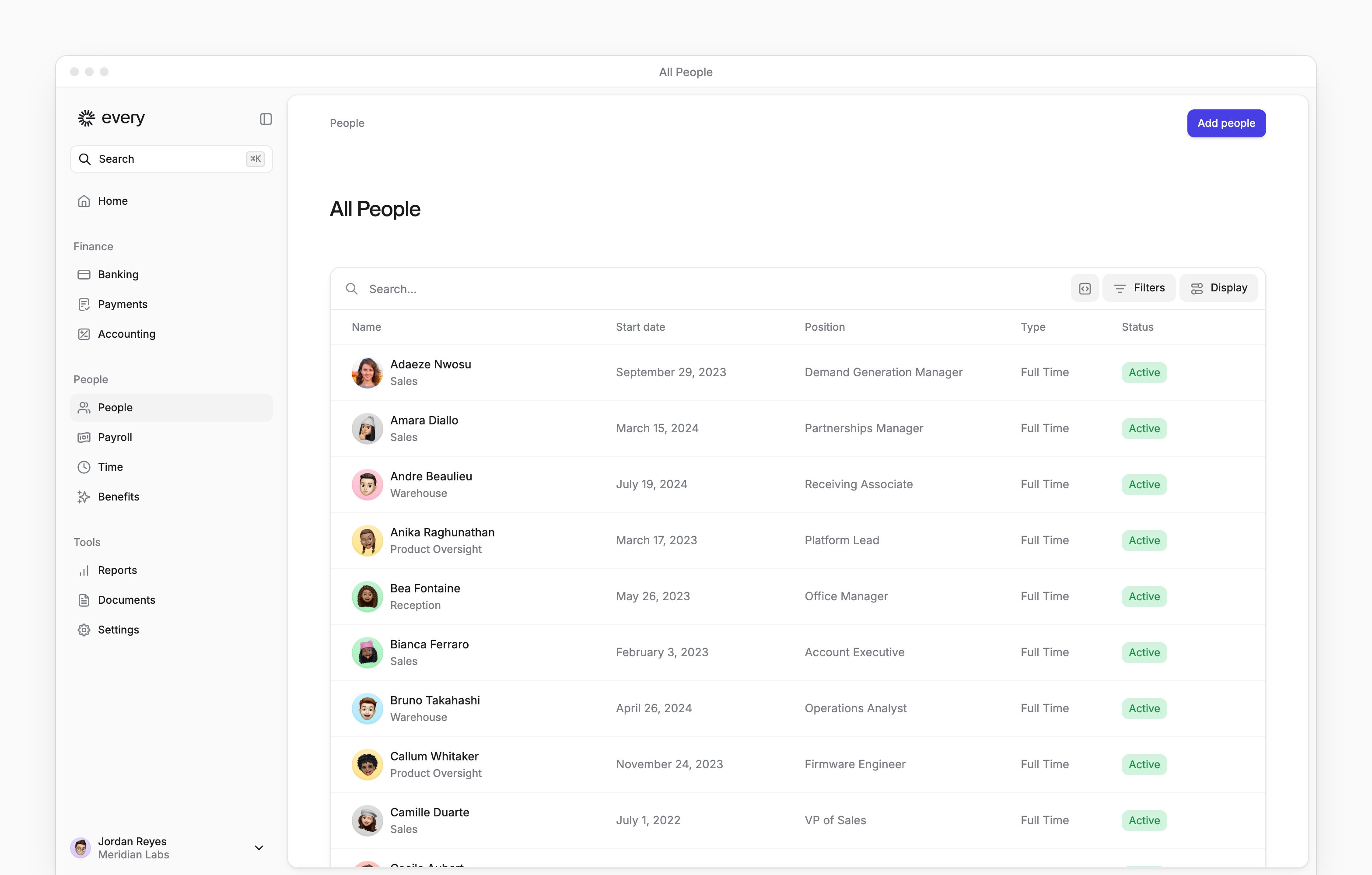
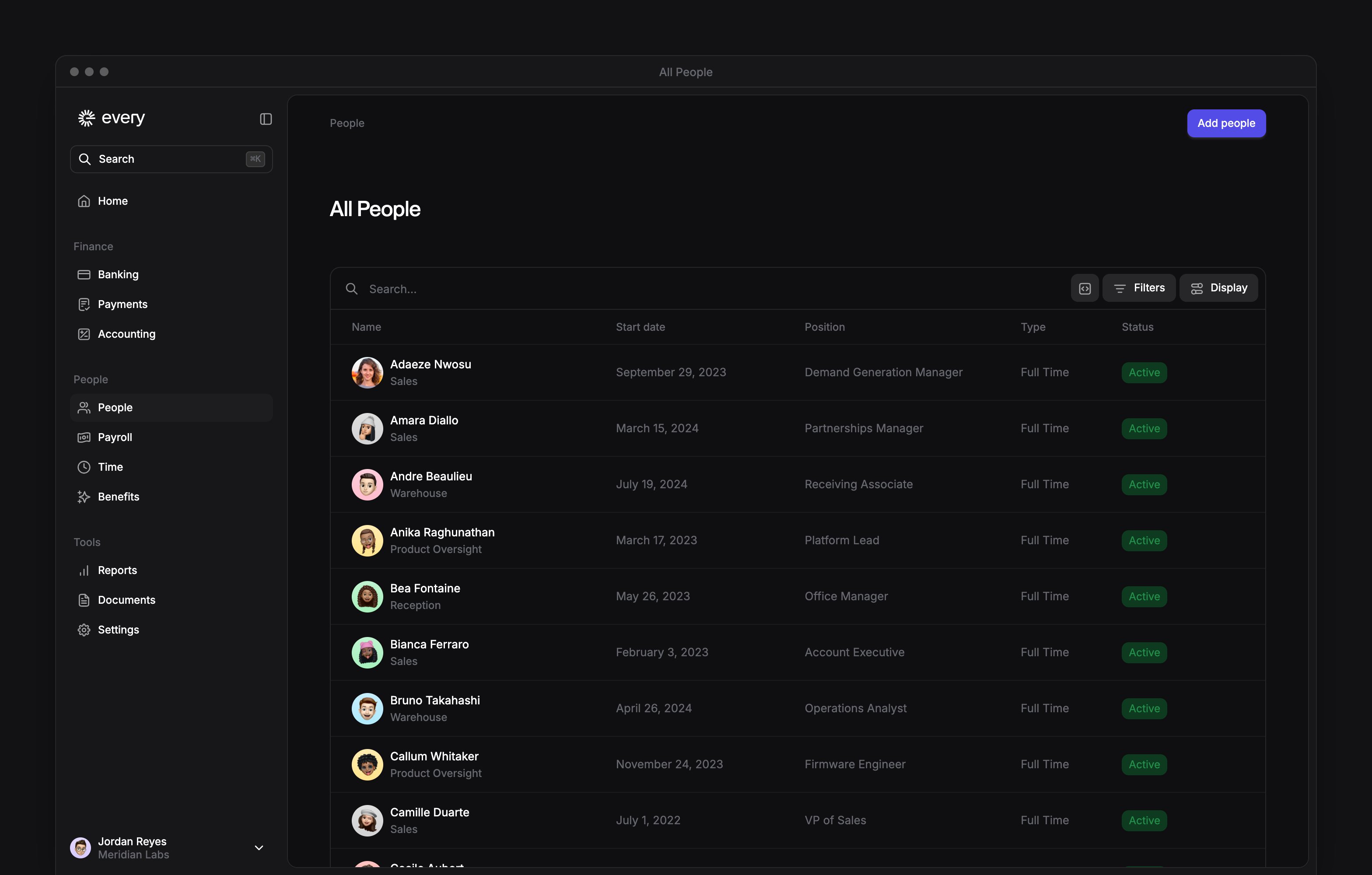
People in the sidebar opens All People, where you find employees, contractors and external users and keep their records up to date. Company Admins and HR Admins manage people once payroll is set up and your company has finished onboarding. Each employee sees their own details on My profile (see My profile).
Every turns on the org chart, inactivity, rehire and document recovery company by company. If you don’t see one, email support@every.io to ask about it.
Find a person
The table lists each person with their type and status. Use Display to choose more columns or include people hidden from the list:- Turn on Show terminated users to include people whose employment has ended. In the table with Start date and Position columns, it also shows inactive people.
- Turn on Show external admins to include external users.
Edit people in the table
When the table has Manager and Title columns, you can edit people in it. Select an editable cell to change it. You can also paste changes into several selected cells in one column. Some cells are read-only for some people, such as employment fields for external users and timesheet type for people who aren’t paid hourly. Select the rows you want, then select Export to download those people as a CSV.Update a profile
Employee profiles have Personal information; contractors have Contractor details. Both have Job & pay. External users have Overview and Expenses instead.1
Choose the section
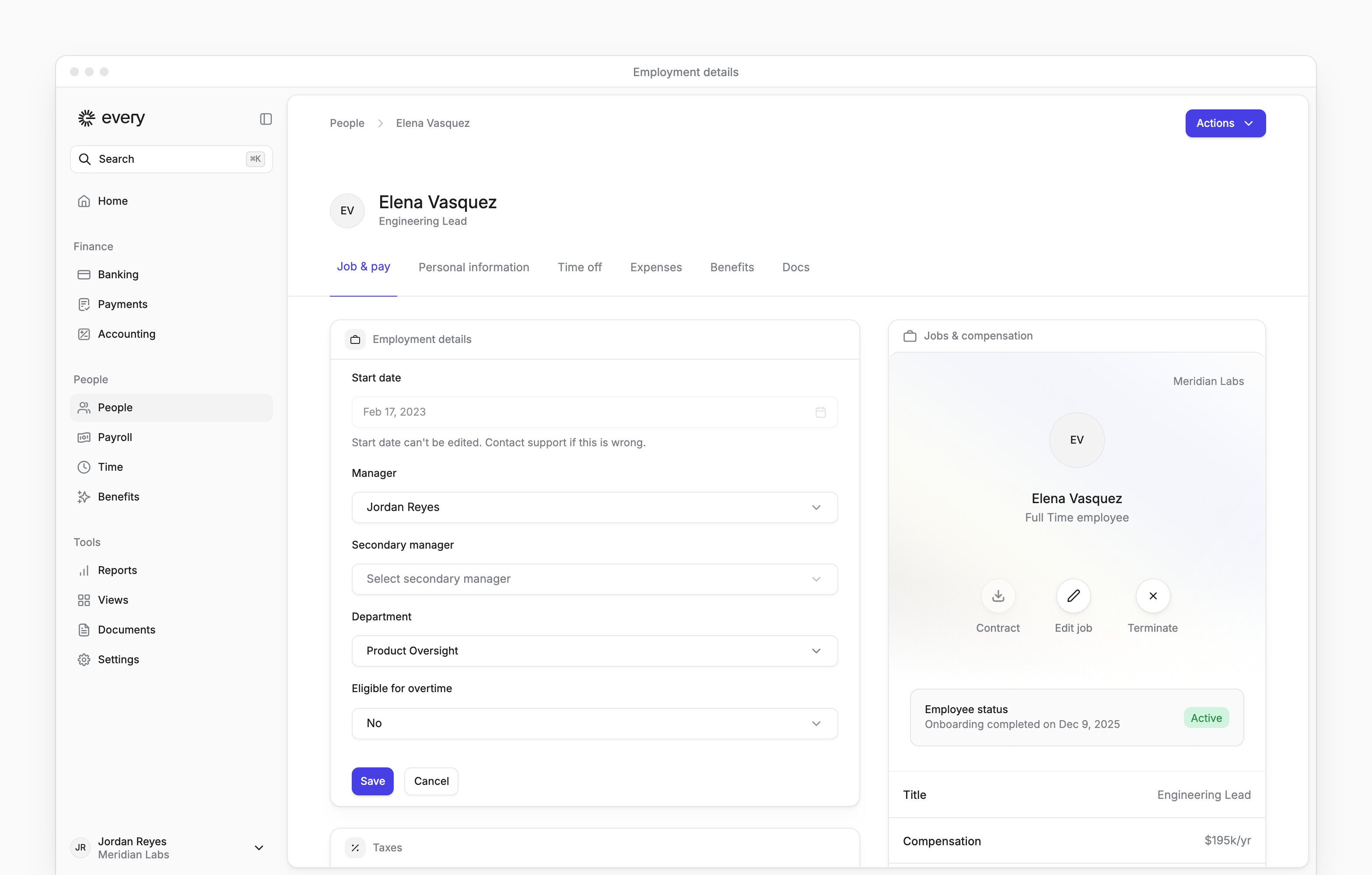
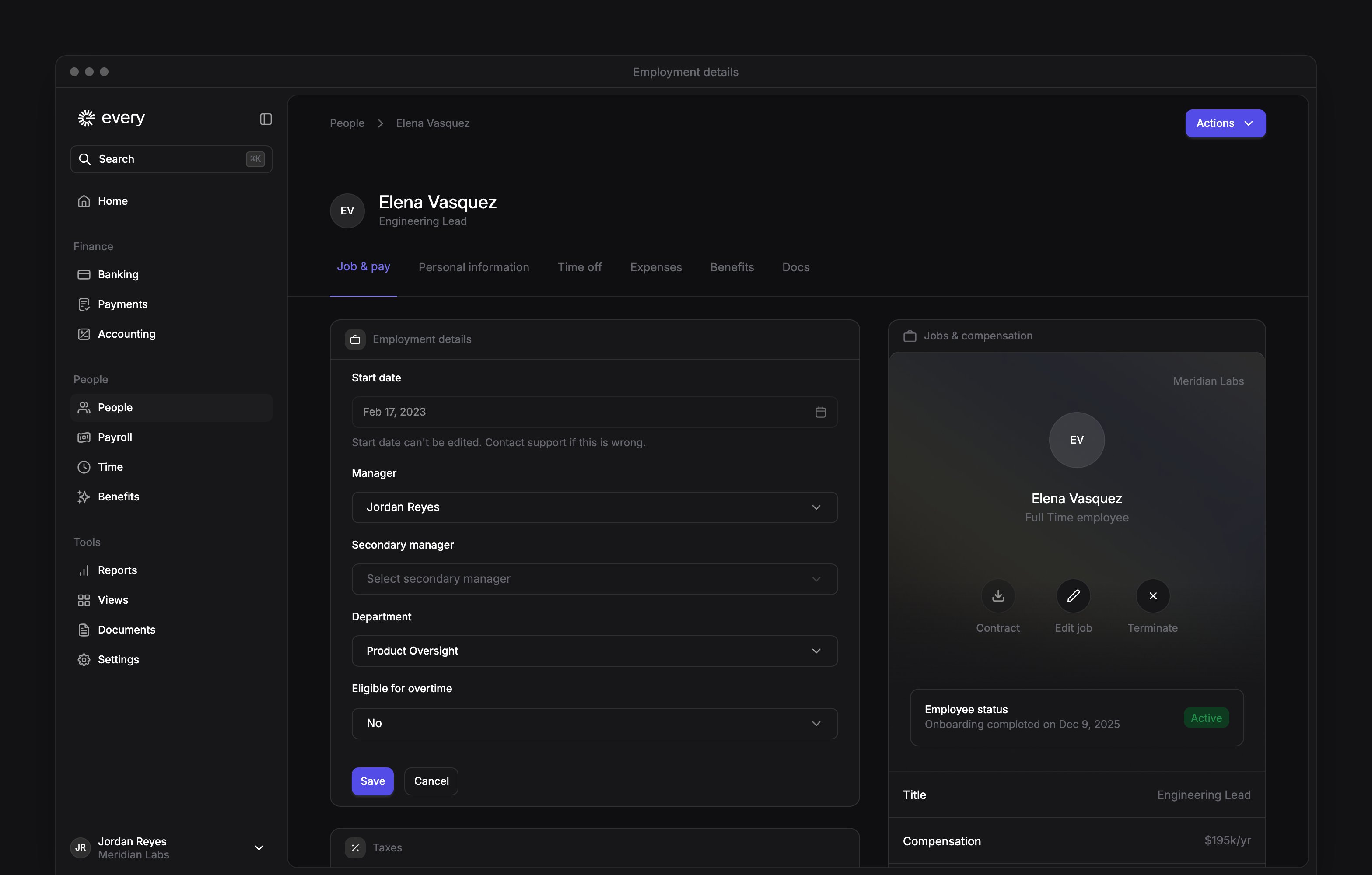
For employment details, open Job & pay → Employment details. For personal details, open Personal information or Contractor details, then find Personal details.
2
Open the editor
Select Edit information beside the section.
3
Enter the changes
Update the fields shown. Under Employment details, you can change the manager, secondary manager and department, plus Eligible for overtime for employees. The start date is locked; if it’s wrong, email support@every.io.
4
Save
Select Save.
Manage documents
Open the person’s Docs tab to find paystubs and documents. The sections shown depend on the person’s records.1
Start an upload
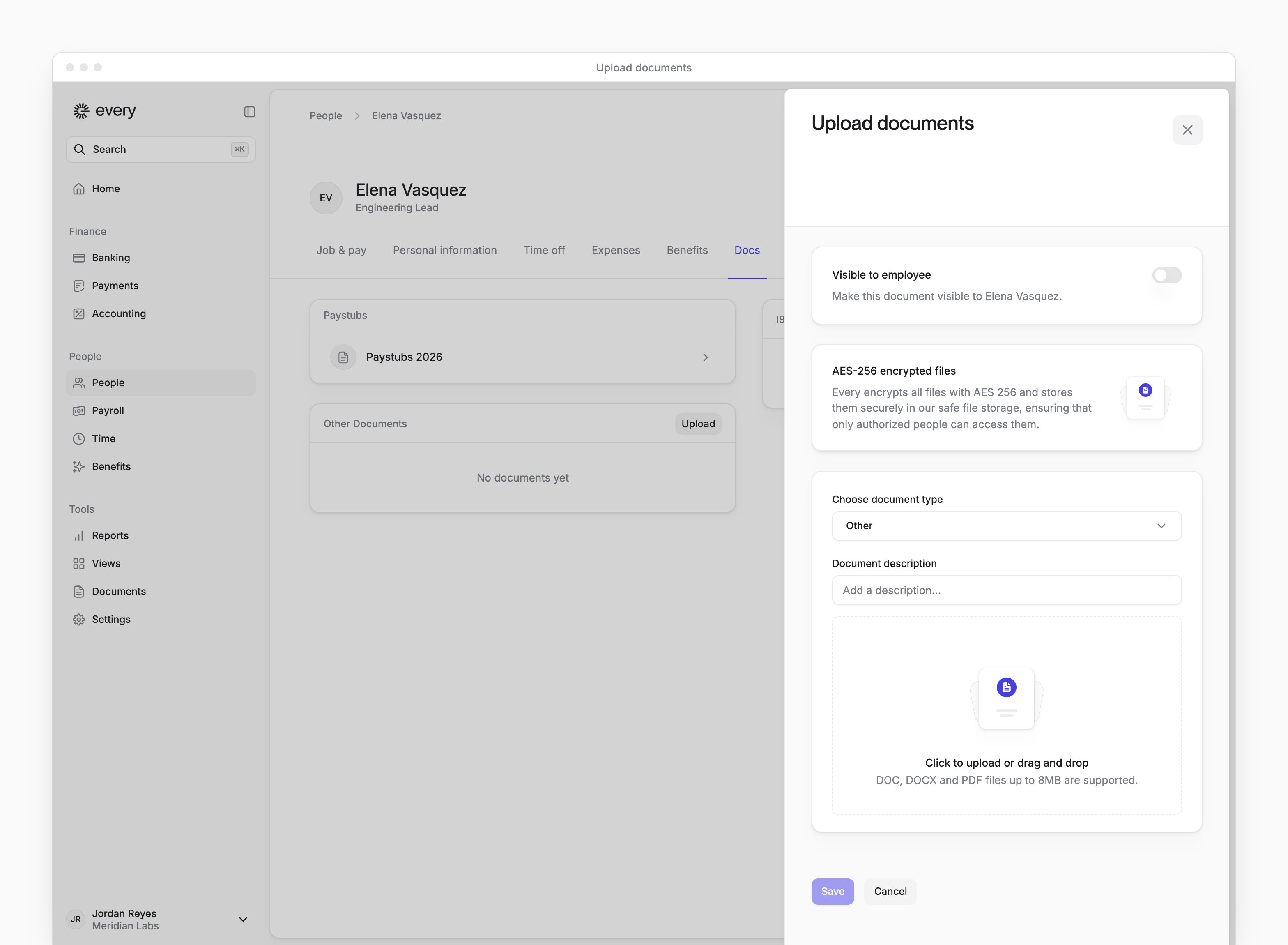
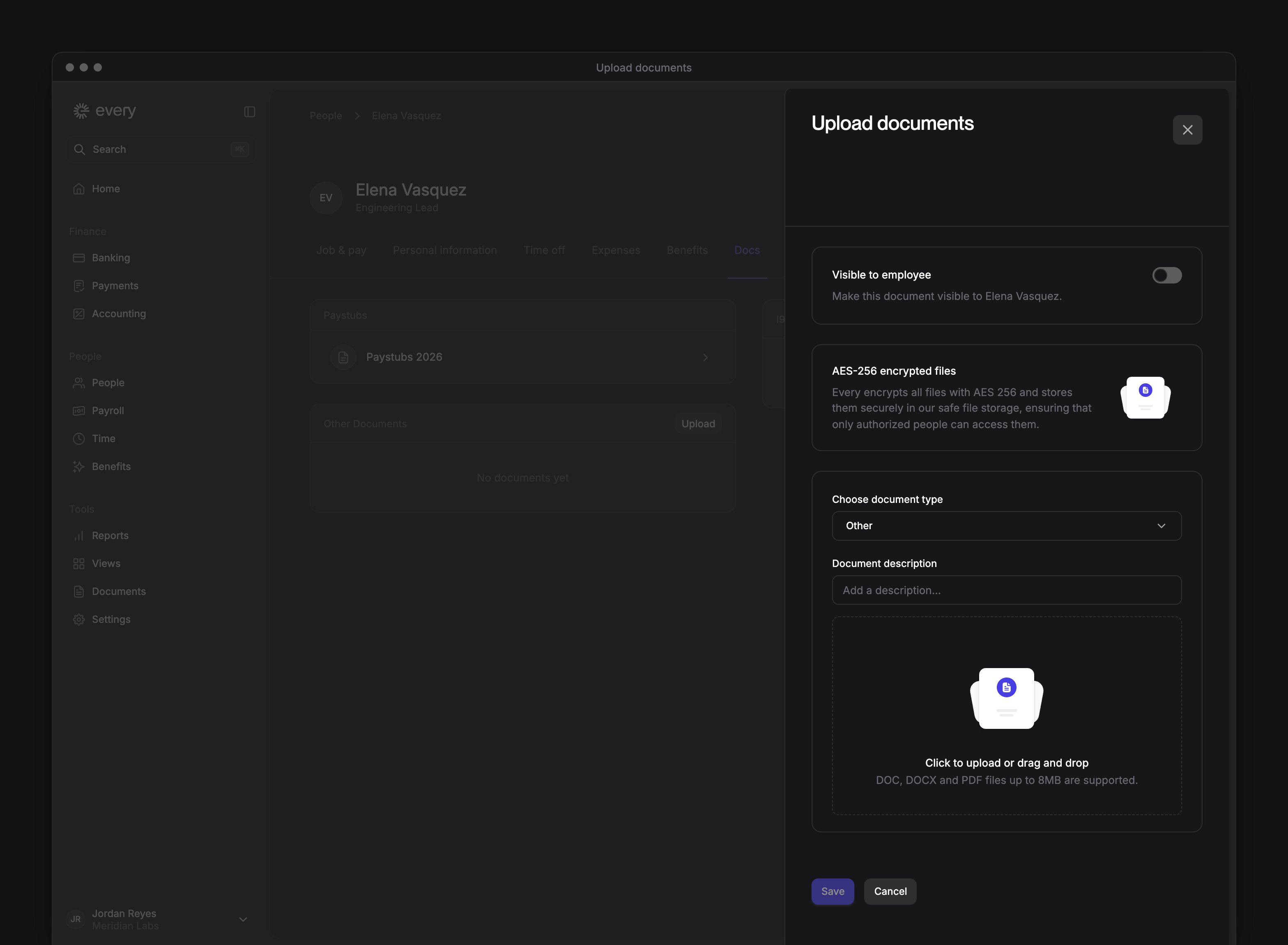
Select Upload beside I9 Documents or Other Documents. Contractors use Other Documents.
2
Choose the document type
In Choose document type, select the document’s category.
3
Add the file
Upload a PDF, DOC or DOCX file.
4
Set its visibility
Optional: Turn on Visible to employee to share it with the person. New uploads start with this off.
5
Add a description
Optional: In Document description, enter a description.
6
Save the document
Select Save.
- On the person’s Docs tab, go to Archive → Recently deleted.
- Select Restore beside the file before its Restore deadline.
Convert a contractor
1
Start the conversion
On the contractor’s profile, select Actions → Convert to employee.
2
Enter their employment details
Choose Full Time or Part Time, then work through the rest of the hire, including the employee’s start date. Add people explains each hire step.
3
Confirm
Review the details, then select Confirm & Invite.
Mark someone inactive
Inactivity takes someone out of payroll for a period. If they’re inactive for a whole , they’re left out of that payroll. For part of a pay period, their salary leaves out the inactive days.1
Open inactivity
On the person’s profile, select Actions → Mark as inactive.
2
Choose the dates
Set Inactive from to today or a future date. Reactivate on (optional) sets their first day back and must be after the inactive date.
3
Choose a replacement signatory
If the person is your company’s , choose their replacement in New signatory. Otherwise, skip this step.
4
Confirm inactivity
Select Mark as inactive.
- On their profile, select Actions → Reactivate.
- In Reactivate employee, select Reactivate.
Rehire someone
After a termination takes effect, the person’s profile shows Rehire in place of Actions.1
Open the rehire
On the person’s profile, select Rehire.
2
Set the new hire details
Work through the hire again. Choose a start date after the previous termination date.
3
Confirm
Review the details, then select Confirm & Invite.
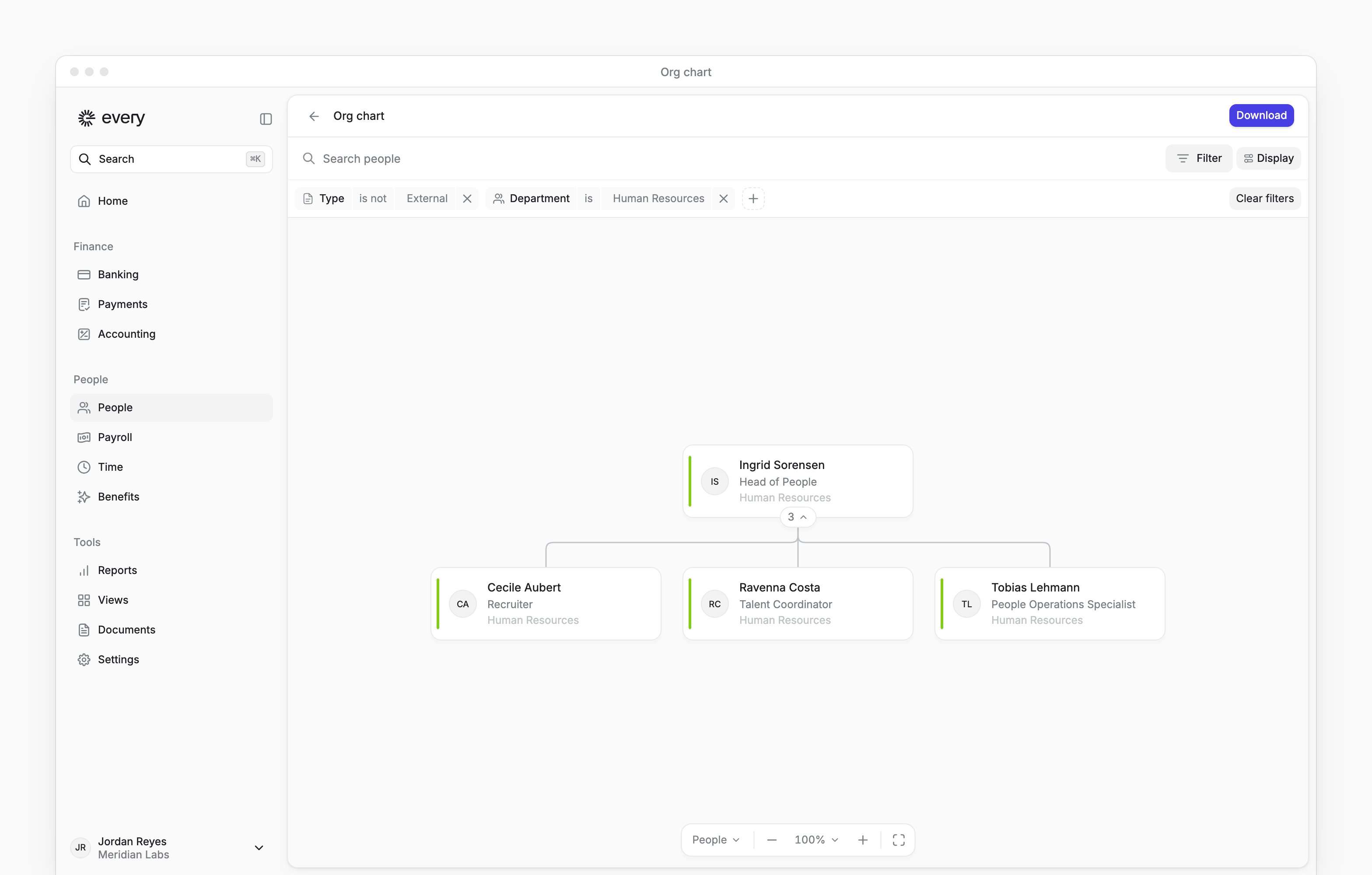
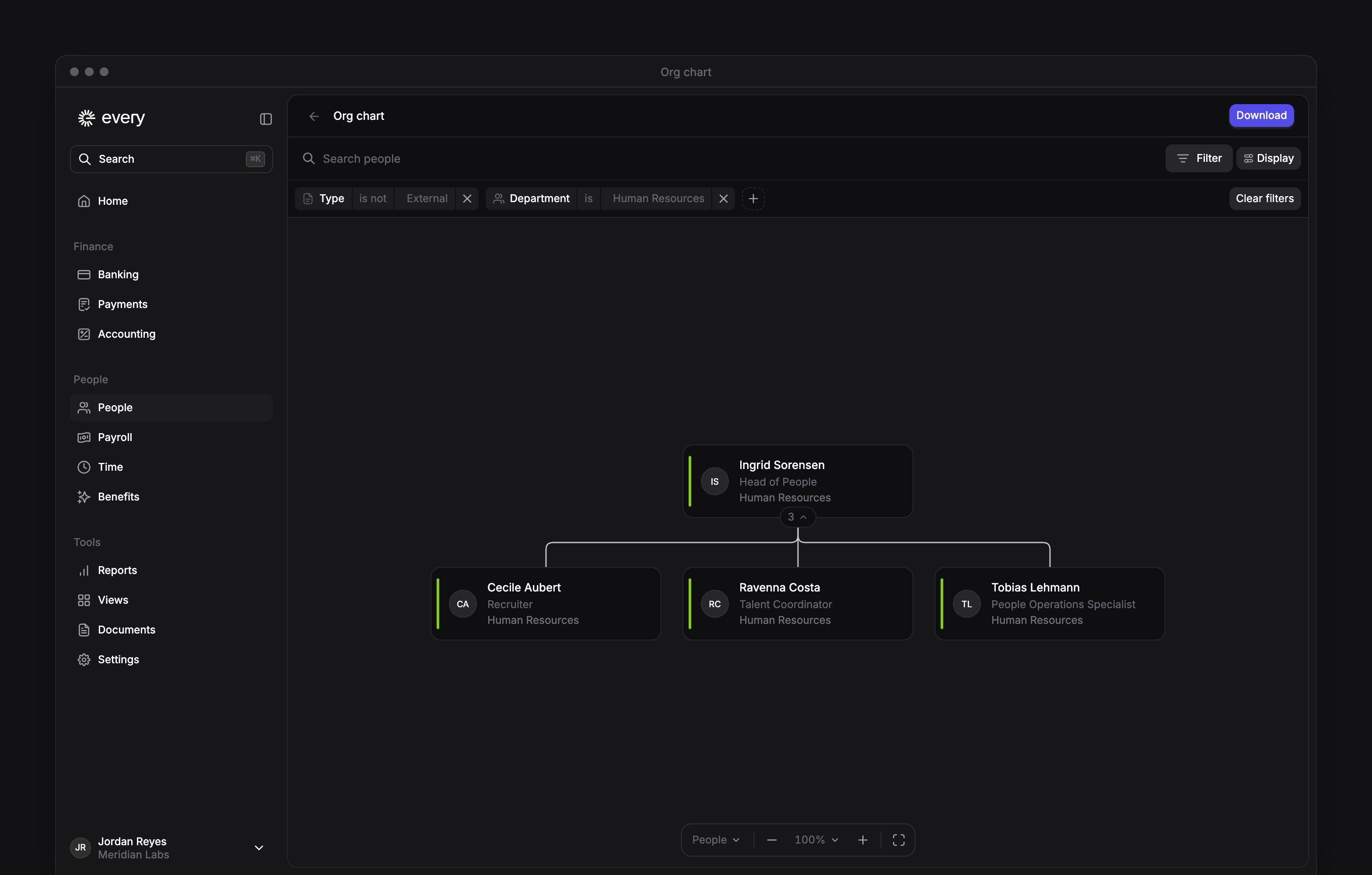
Open the org chart
At the top of People, select Org chart. To download a copy:- Select Download.
- Choose a format: PNG, JPG, SVG or PDF.