


 On Payments → All payments, select Send money to pay a vendor from your checking account by , wire or check. Company Admins and Bookkeepers can send payments, and so can Accounts Payable users once Every has turned that role on for your company.
Every turns on Send money with a Recipient Account step, and scheduled payments, company by company. If you don’t see them, email support@every.io to ask about them.
Before you begin
You need the vendor’s payment details: the and account number for ACH, the same plus the recipient’s address for a wire, or an address for a check. If the vendor has no saved accounts, you can ask them for their bank details instead (see Request from vendor).Open Send money
- Go to Payments → All payments, then select Send money. The Payments menu appears in the sidebar after your company finishes onboarding.
- Go to Banking → Checking account (Overview if your Banking menu has no Credit card item), then select Move money → Send money. Company Admins and Bookkeepers can use this one (see Move money).
- On Home, select Pay bill in Quick access.
- Go to Payments → Vendors, then select Pay vendor on a vendor. Send money opens with that vendor already chosen.
Send a payment
1
Choose the recipient
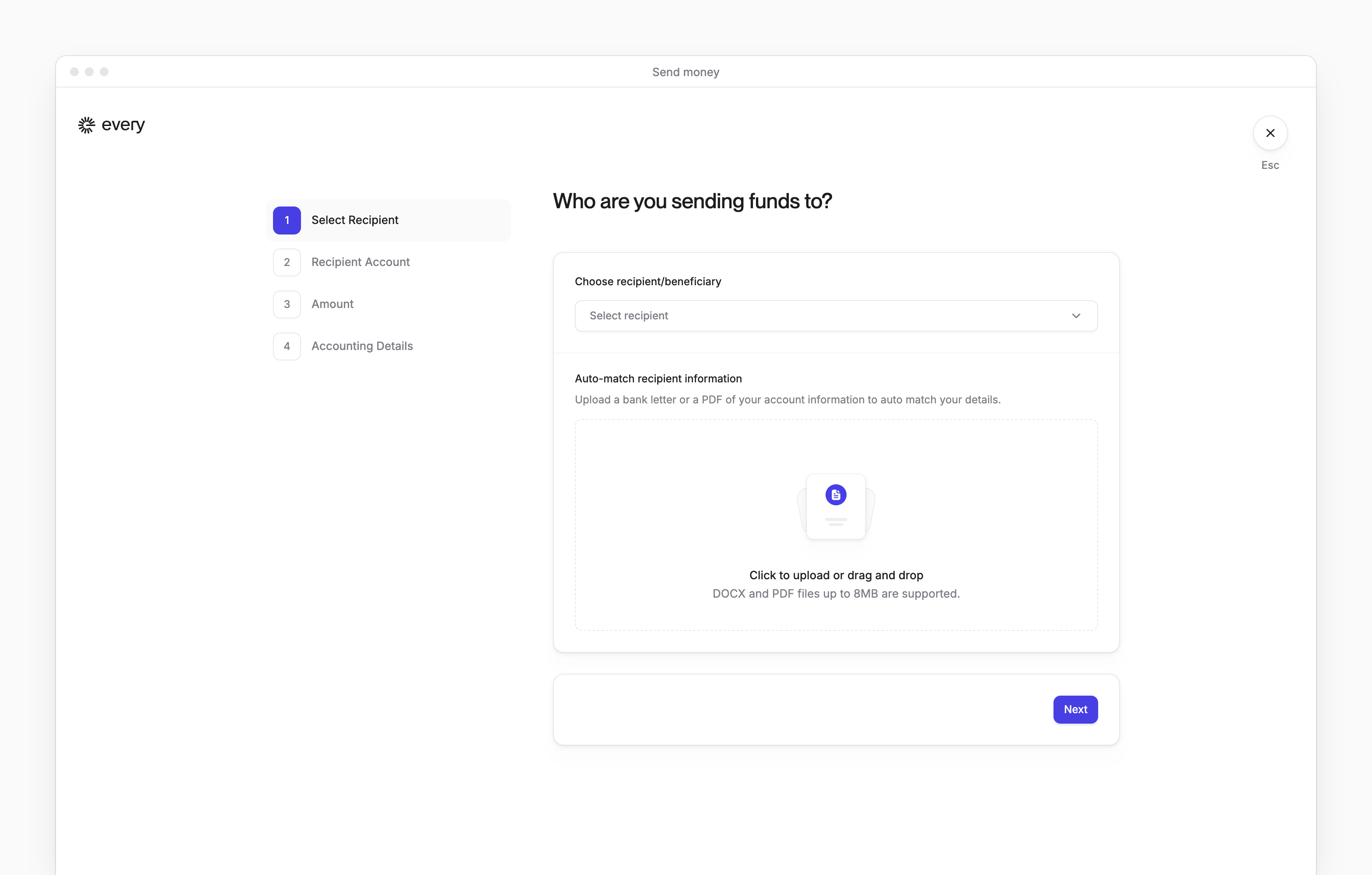
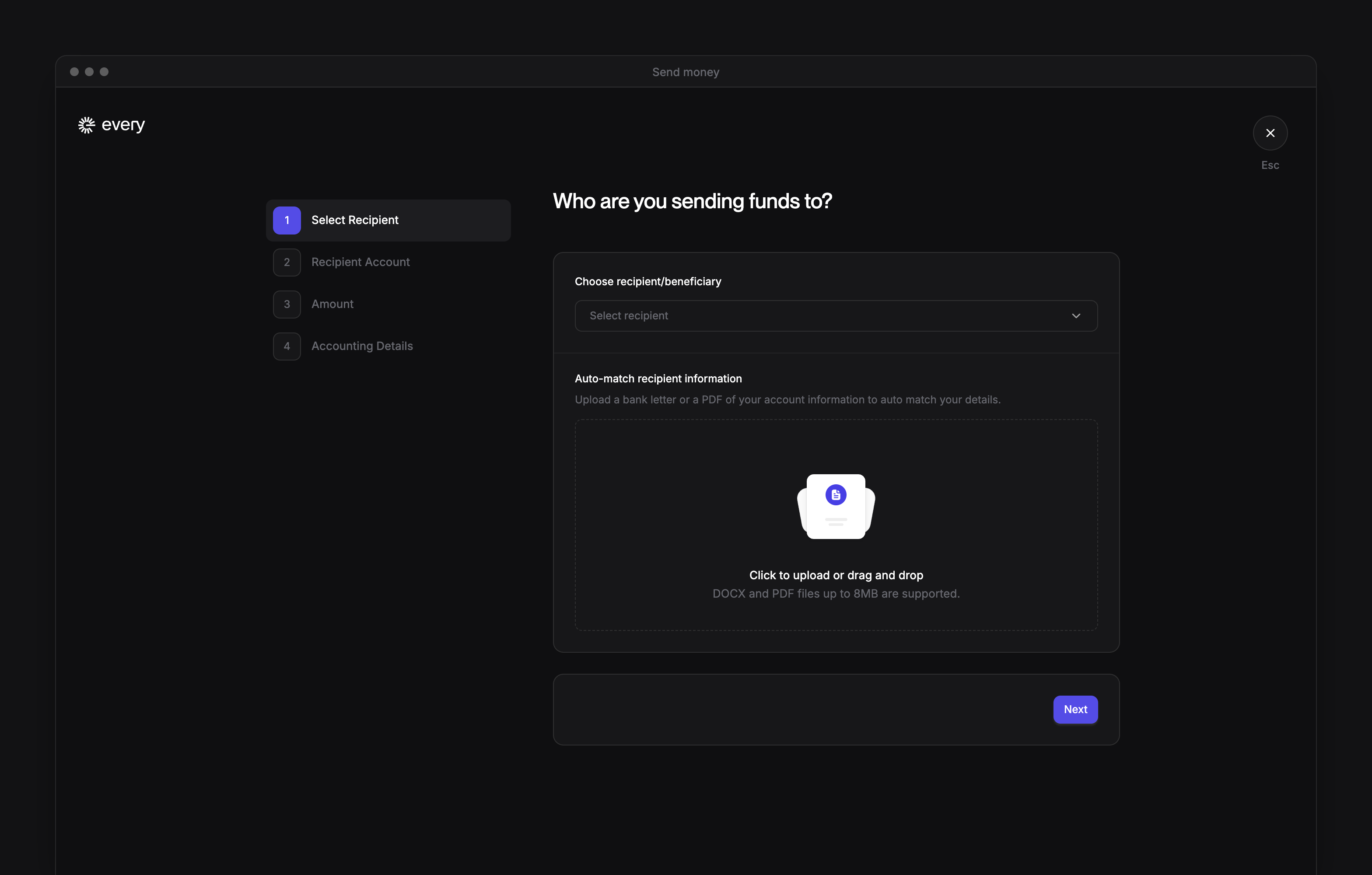
In Select Recipient, search for a vendor, or type a new name (up to 50 characters) and select the option that starts with Create.
2
Optional: upload the vendor's details
Under Auto-match recipient information, upload a bank letter or a PDF of the vendor’s account information. Every fills in what it finds, such as the amount, the routing and account numbers, the vendor’s email, the bill number and the dates.
3
Choose the account
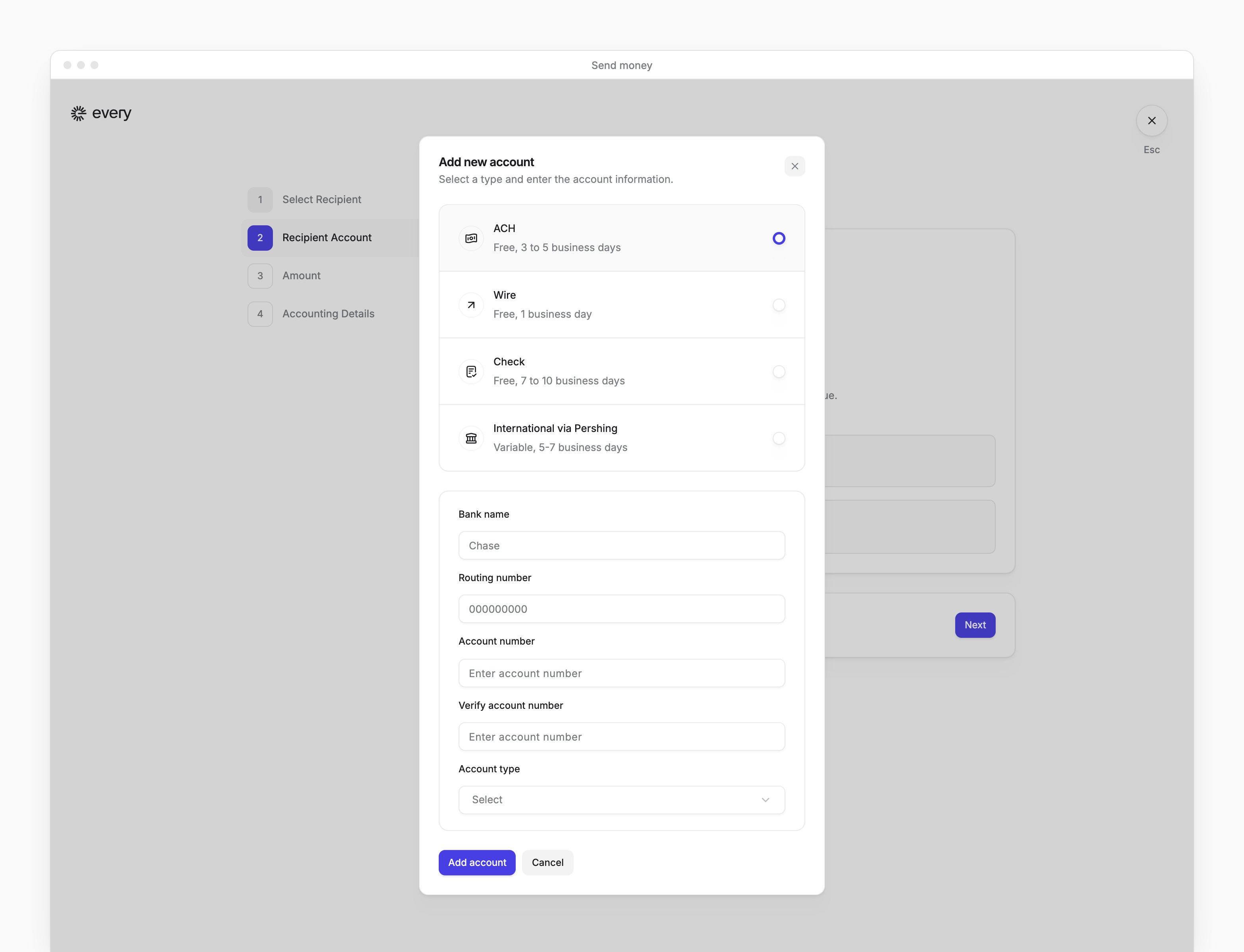
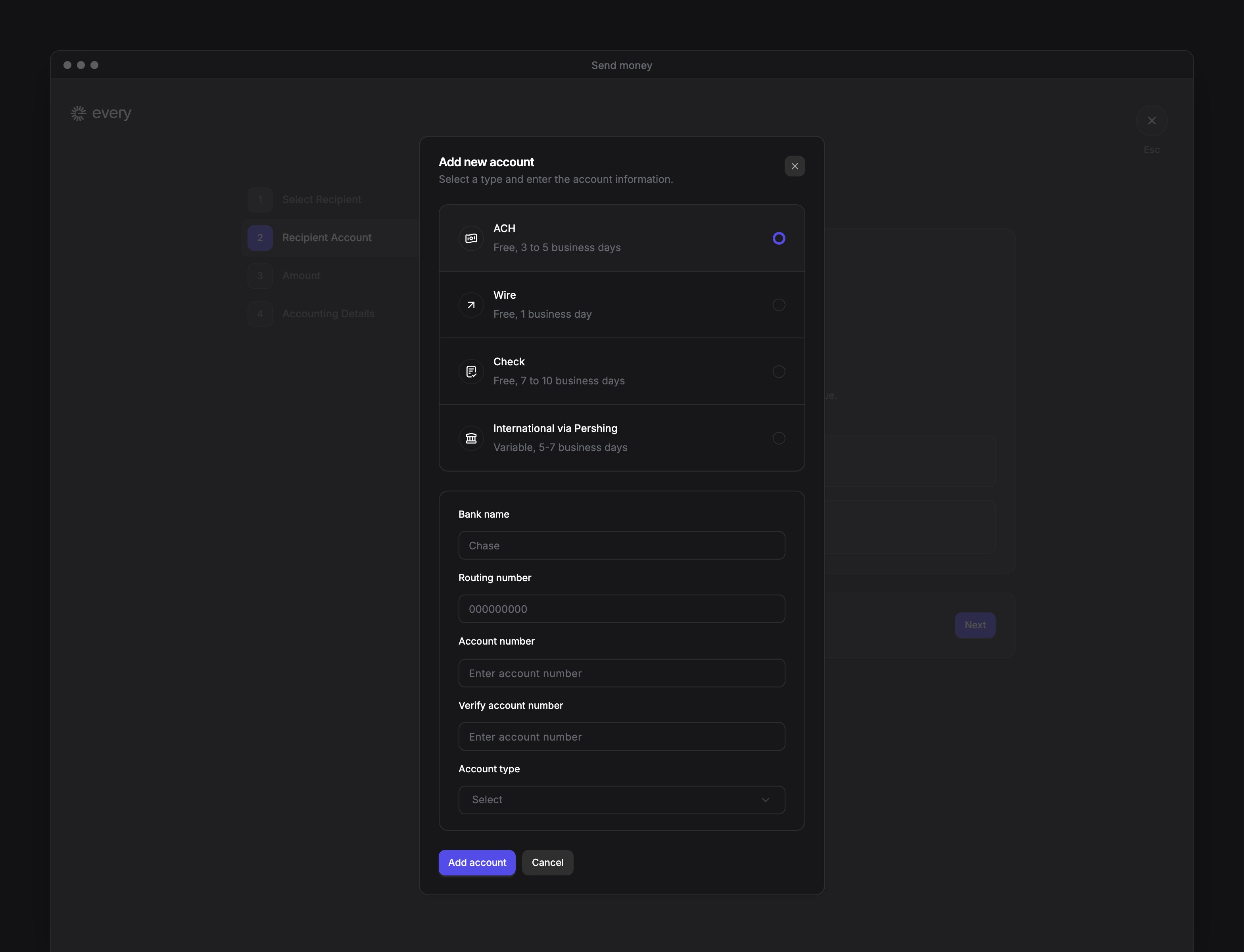
In Recipient Account, select one of the vendor’s saved accounts, or select Add new account and choose a type (see Account types). The account’s type sets how the money is sent. A vendor with no saved accounts also has Request from vendor.When your uploaded file names an account that’s already saved, Every selects it. When it names one the vendor doesn’t have, select Review these details and add the account to open Add new account with the routing and account numbers filled in.
4
Enter the amount
In Amount, enter how much to send. The step also shows your Checking Account Available Balance.
5
Add the accounting details
In Accounting Details, fill in the fields (see Accounting details), then select Next.
6
Review and confirm
On the review page, make sure the recipient, amount, payment method and items are right, then select Confirm & pay. To go back, select Make changes.
Account types
A saved account has a three-dot menu with Delete, which is unavailable on the account marked Primary. The account types can also include international ones (see Pay a vendor abroad).
Request from vendor
If the vendor has no saved accounts, Recipient Account also offers Request from vendor: “Send an email asking the vendor to provide their bank details”. Select it and enter the Vendor Email. If the payment has no approvers, the screen after you confirm says “After we receive payment details from the vendor payment will automatically be sent.” For what the vendor does, see Collect vendor details.Accounting details
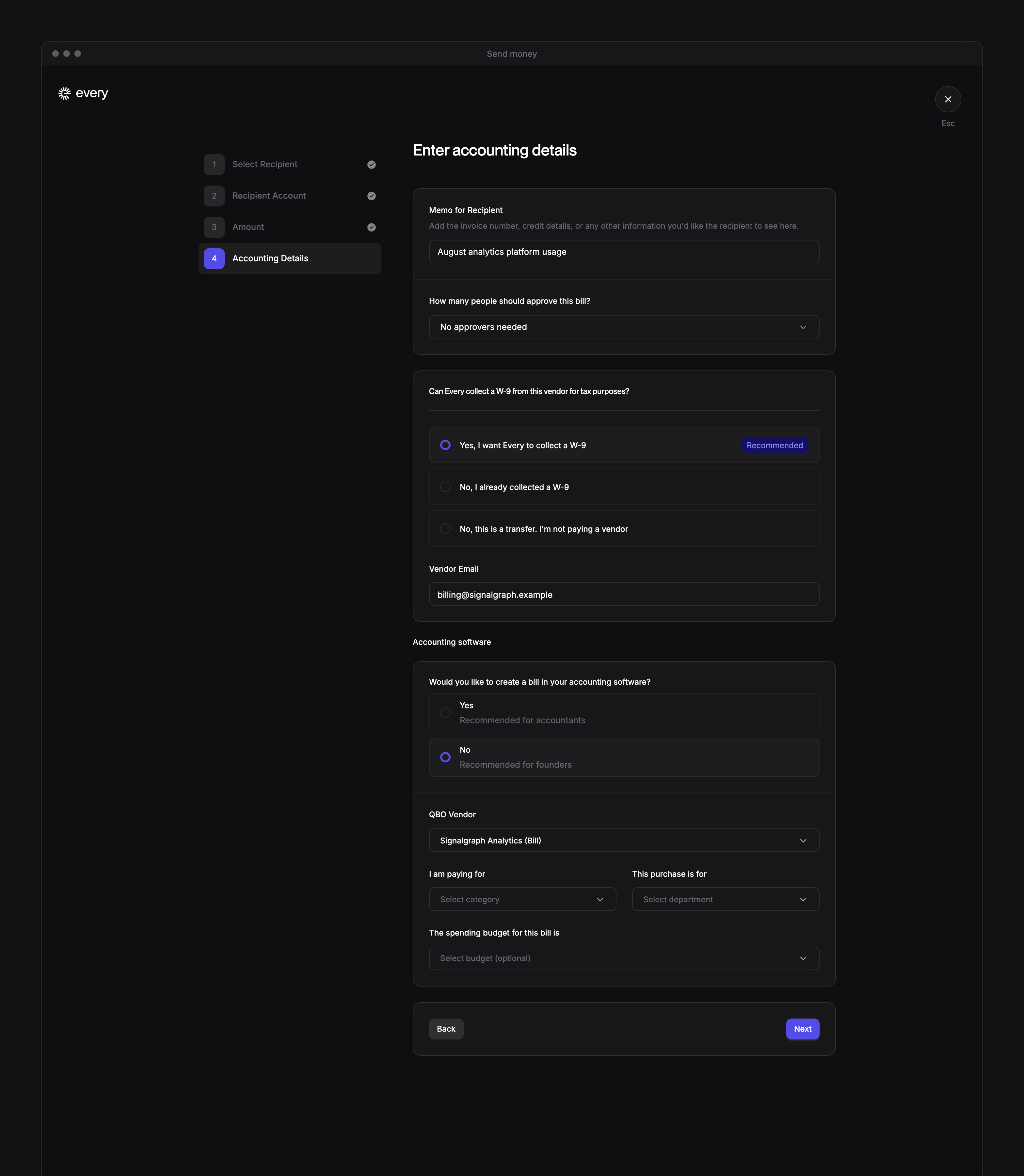
Enter a Memo for Recipient. It’s required except for a check, with a limit of 50 characters, or 40 for a check. Every converts it to plain text for ACH, wire, check and Request from vendor. Accents, curly quotes and dashes become plain characters, and other characters become a space. Under How many people should approve this bill?, Company Admins can choose No approvers needed. Bookkeepers and Accounts Payable users must choose at least one approver. Then choose each approver; you can’t choose yourself. See Approvals. Answer Can Every collect a W-9 from this vendor for tax purposes? Choose Yes, I want Every to collect a W-9 and enter the vendor’s email, or choose No, I already collected a W-9. Company Admins can also choose No, this is a transfer. I’m not paying a vendor. Every skips this question for a Request from vendor payment and for a vendor whose is already collected. See Collect vendor details. When your accounting software is connected to Every and its default reimbursement and bank accounts are set up, answer Would you like to create a bill in your accounting software? The answer starts as No for Company Admins and Yes for Bookkeepers. With Yes, enter the QBO Vendor, QBO account, QBO class, Bill number, Issue date and Due date, then add Bill items with Add new item. The items must add up to the payment amount. With No, choose the QBO Vendor, then answer I am paying for and This purchase is for. Without connected accounting software, answer I am paying for and This purchase is for instead. Choose a budget under The spending budget for this bill is, which appears with I am paying for and This purchase is for when you can assign budgets (see Budgets). For an ACH or Request from vendor payment, answer When should this bill be paid? (see Schedule a payment).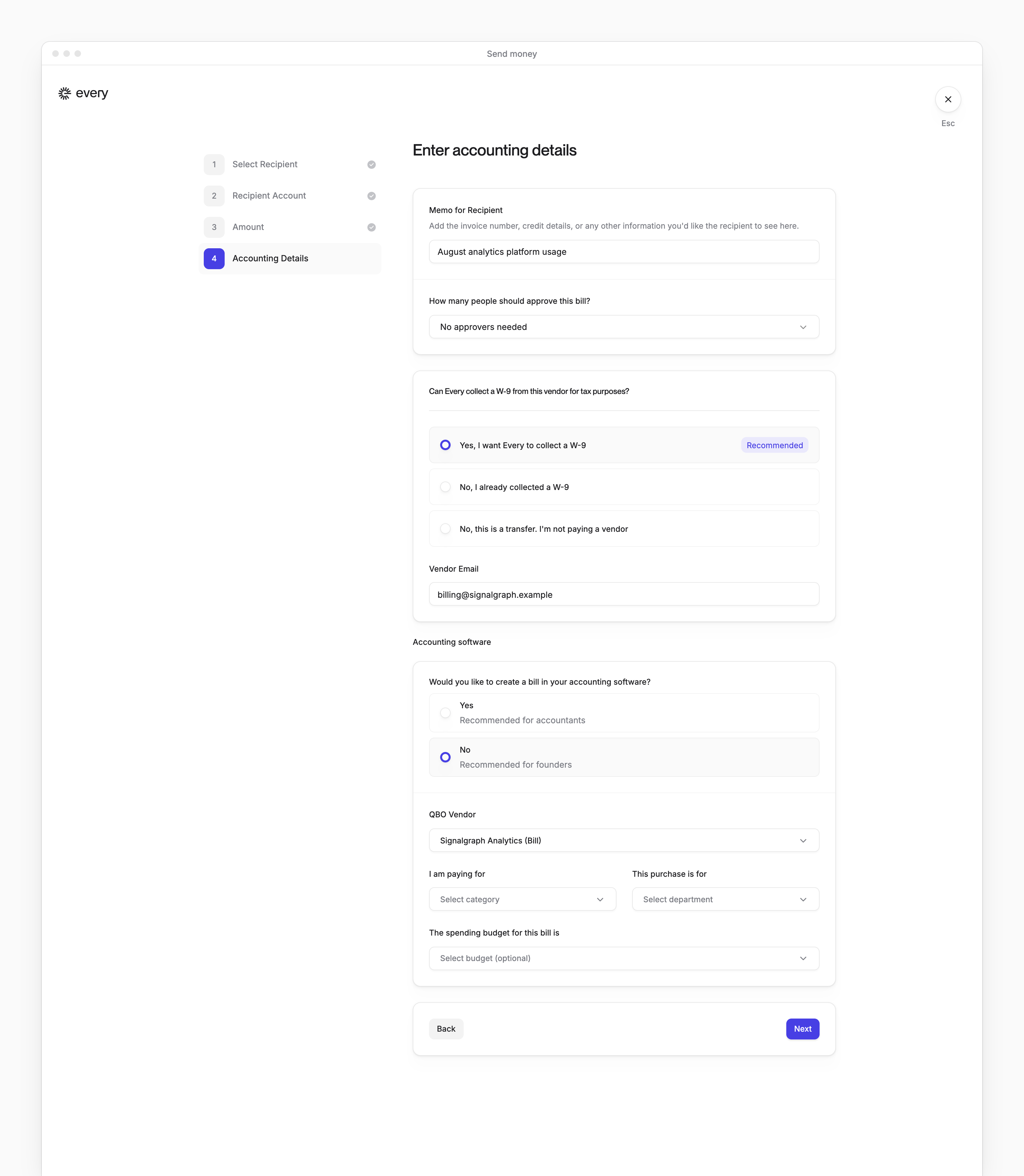
Schedule a payment
In Accounting Details, an ACH payment or a Request from vendor payment asks When should this bill be paid?- Select Pay now (“Send the payment as soon as it’s approved.”) or Schedule for later.
- For Schedule for later, choose a Payment date after today, on the 1st to the 28th of a month. The product says “Once approved, we’ll hold this payment and send it on this date.”
What happens next
For an ACH or wire payment that goes through, the screen also has Download statement. See Approvals for payments waiting on approvers and Transactions for sent payments.
Errors you can see
“$X” stands for an amount: your balance in the balance message, and your limit in the limit messages.
For another payment failure after Confirm & pay, email support@every.io.
Change or cancel a scheduled payment
If Payments → All payments is titled Bills & Reimbursements, you can reschedule or cancel a scheduled payment from its Approved tab. The page titled All payments has neither action. Once a scheduled payment has been sent, it can’t be rescheduled or canceled.1
Open the payment's menu
On the Approved tab of Bills & Reimbursements, hover over the scheduled payment and open its three-dot menu.
2
Choose the action
Select Reschedule or Cancel payment.
3
Confirm it
To reschedule, choose a new Payment date after today, on the 1st to the 28th of a month, then select Reschedule. To cancel, select Cancel payment in the Cancel scheduled payment dialog. Canceling stops the scheduled payment, so no money moves, and it can’t be undone.