


 Tools → Reports opens All Reports, the prebuilt reports for your company, grouped by product. Company Admins, Bookkeepers and HR Admins use it after your company finishes onboarding.
Every turns on the Terminations and Equity Grants reports company by company. It does the same for Time Off, which the Time Off Balances and PTO Liability reports need. If you don’t see a report, email support@every.io to ask about it.
Find a report
The list shows a report only when your role and your company both qualify. If none qualify, it shows “No reports available”.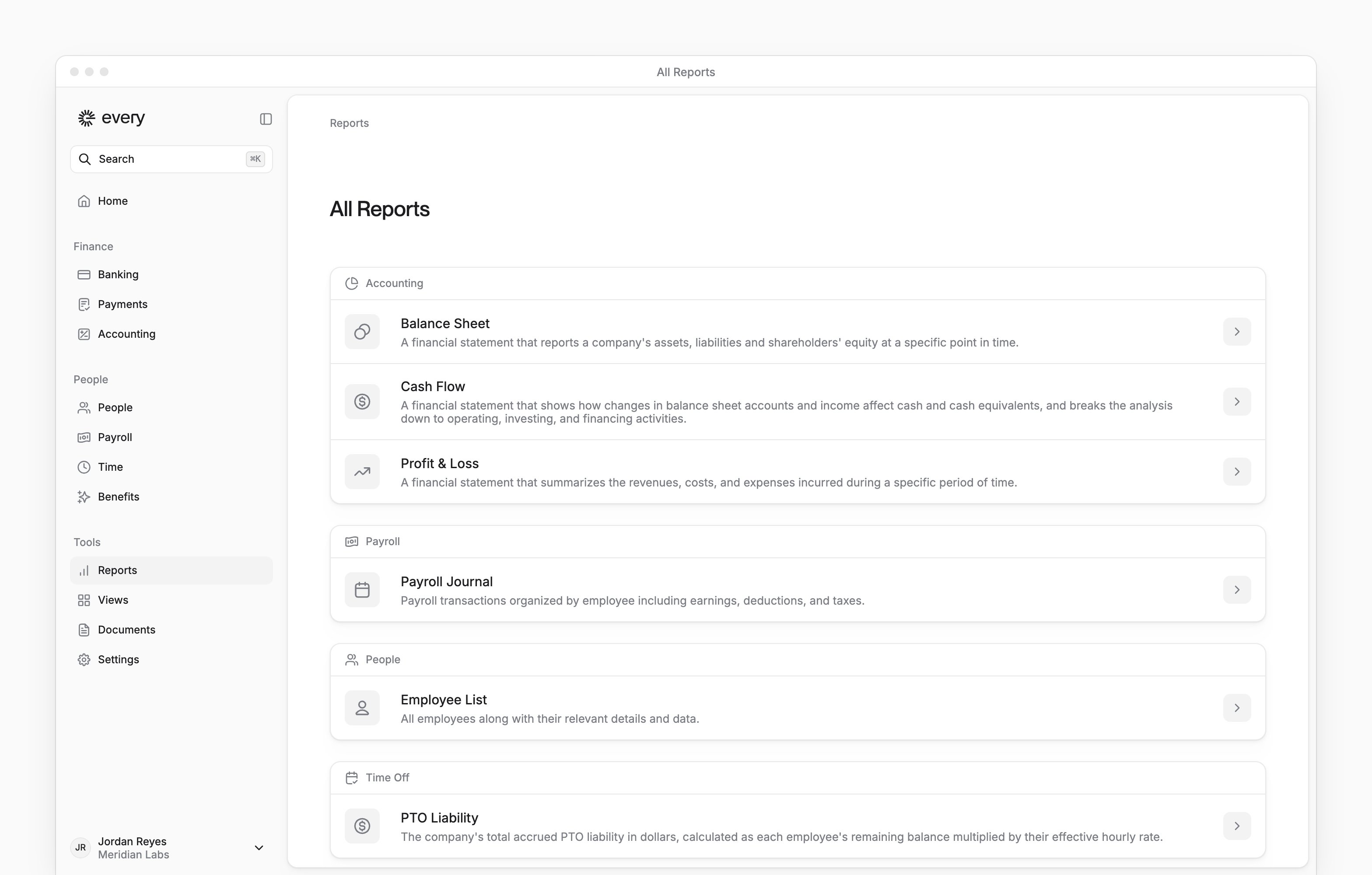
Work with a report
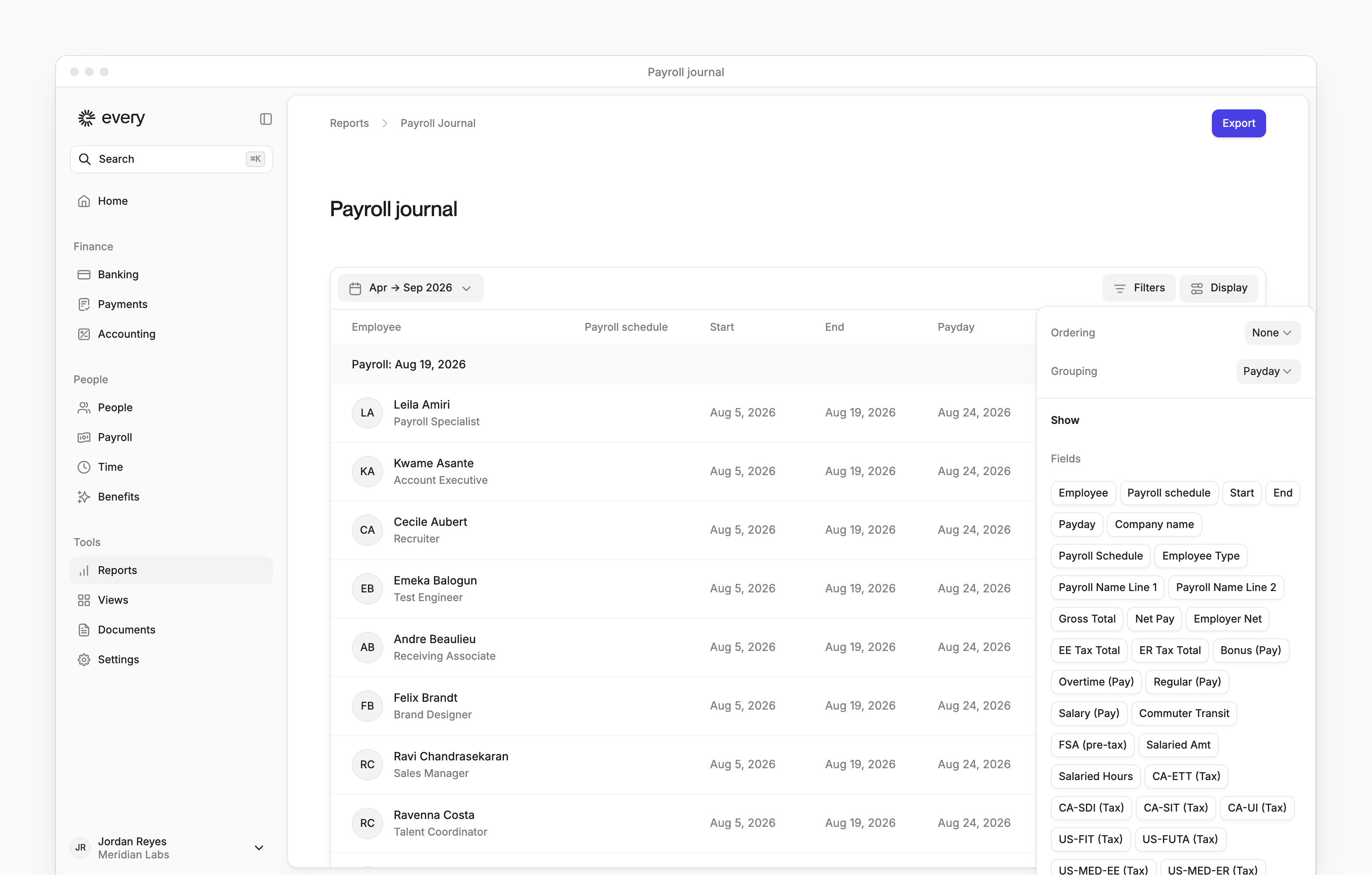
Select a report to open it as a table.- When a report has a date range picker, choose a preset or Custom, then select Apply. Other reports have a search box instead.
- To filter, select Filters to narrow the rows by a column, such as Department on Employee List. The choices depend on the report.
- To arrange the table, select Display. Set the Ordering, show or hide columns under Show, or group rows where the report offers Grouping, as Payroll Journal does.
- Once you change the view, Display also shows Reset view, which clears your saved Display settings for that report.
- In reports with nested rows, such as the accounting reports, expand a row to see the rows inside it.
Export a report
Select Export at the top of the report to download it as a CSV file.- Table search doesn’t narrow the file. Column filters and ordering change it only on Time Off Balances, where the file follows them.
- A new period changes the file, because Every loads the report again for that period.
- On PTO Liability, As of and Status change the rows in the file. Policy and Policy Type don’t.
- An empty report doesn’t download. Every shows “No data to export. The report is empty.”