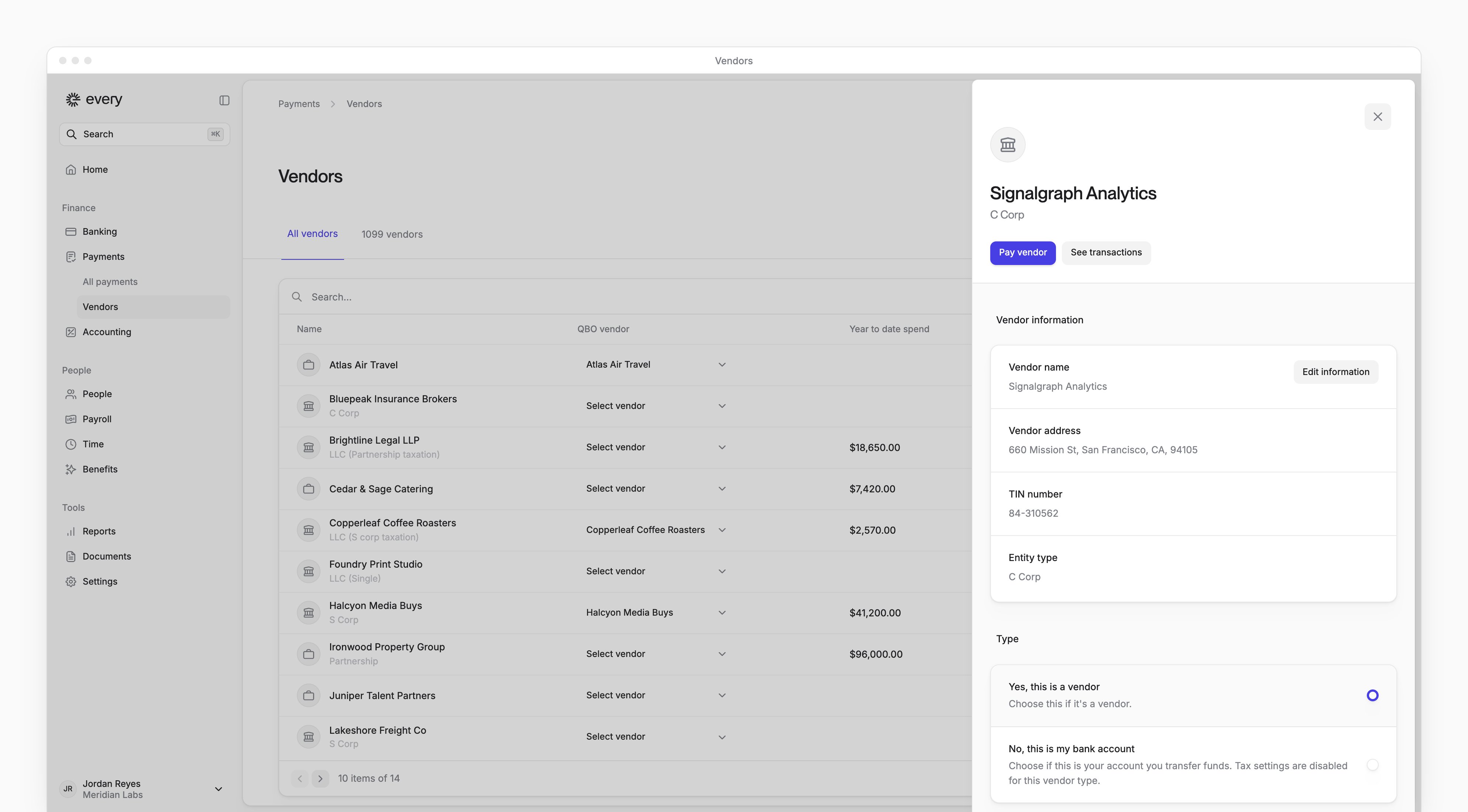
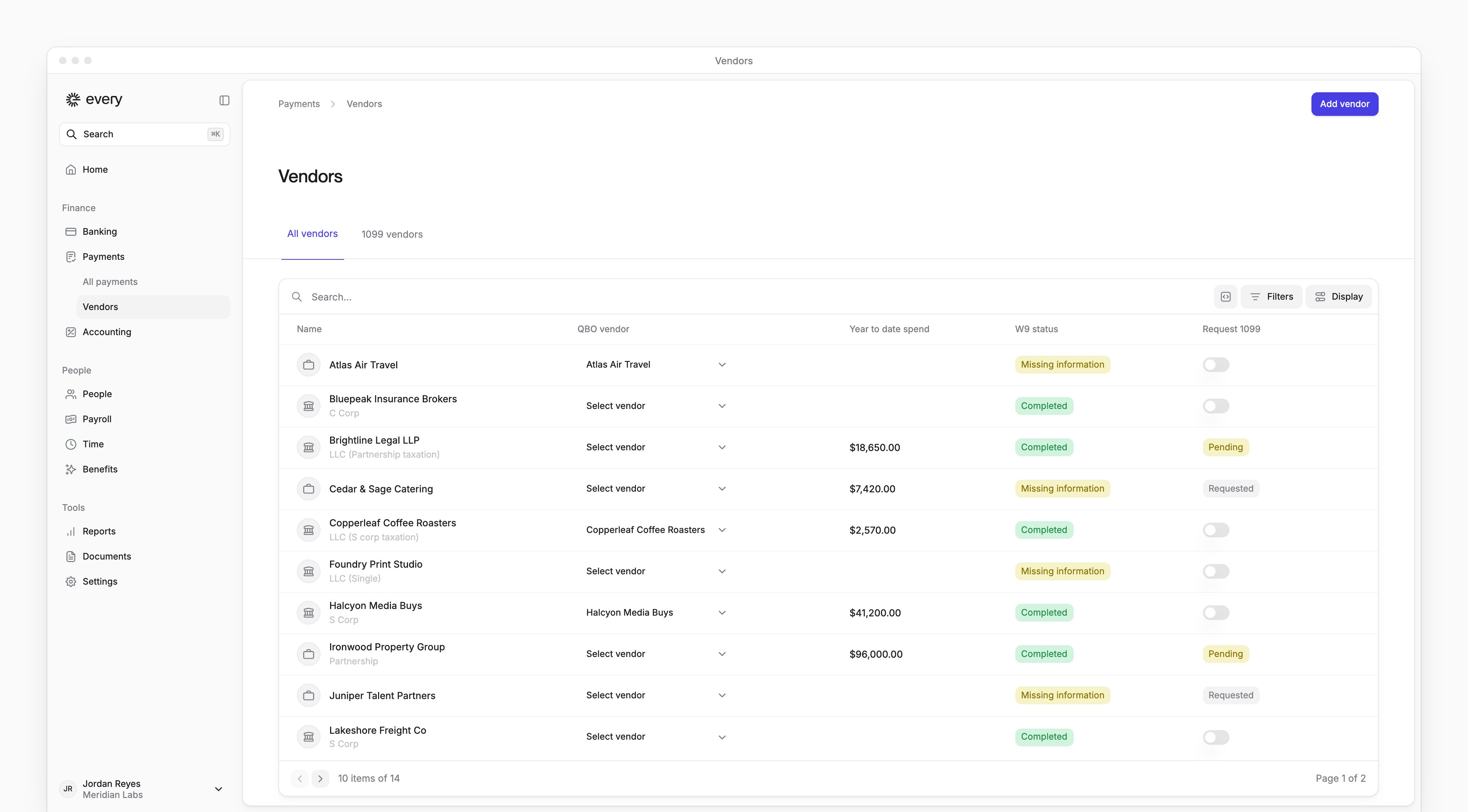
Payments → Vendors lists your company’s vendors, where you add them, edit their details, pay them and request their . Company Admins and Bookkeepers can use it, and so can Accounts Payable users once Every has turned that role on for your company. The Payments menu shows in the sidebar after your company finishes onboarding.
Find a vendor
The page has two tabs:
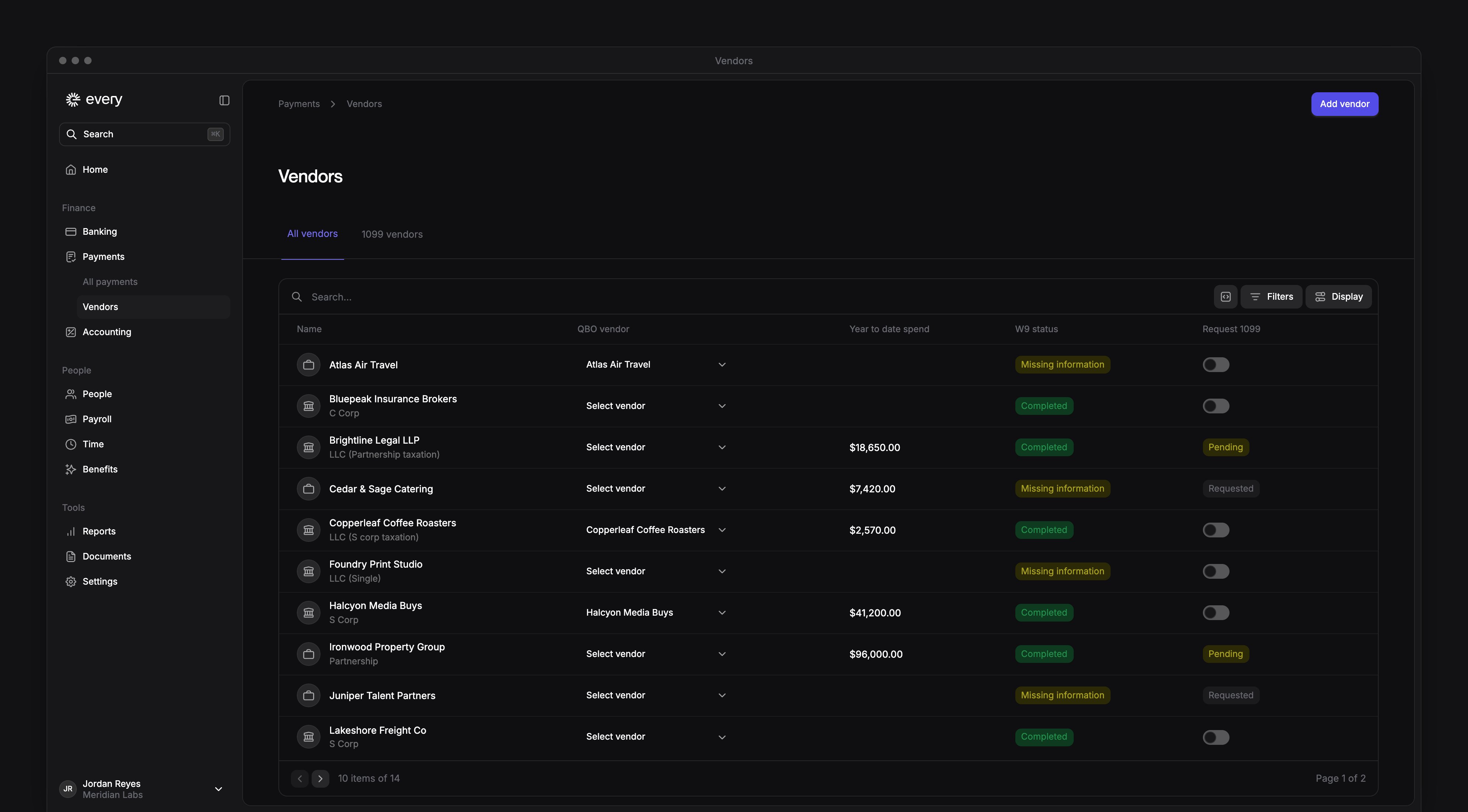
Each row has these columns:
Entity Type and QBO Category are hidden at first. To show them, select Display, then under Fields, turn them on.
Use the search box to find a vendor by name. Select Filters to narrow the list by QBO Vendor, W9 Status, Entity type or Category. The list shows 10 vendors a page.
In Display you can also order the list and group it by W9 status. Every remembers your Display choices, and Reset view undoes them.
In January, All vendors can also show an Annual 1099s review card. Request 1099s covers it.
Use the row menu
Hover over a row, then select the three-dot button at its end.Add a vendor
1
Open the form
Select Add vendor.
2
Answer the 1099 question
Choose Yes or No to say whether to request a 1099 filing for this vendor.
3
Upload a W-9
Optional: under Upload W-9 (optional), add the vendor’s as a PDF. Every reads it and fills in the vendor’s details.
4
Answer the legal services question
Under Does this vendor provide legal services?, choose No or Yes.
5
Enter the vendor's details
Under Add vendor details, review or enter the vendor’s entity type, name, type of TIN, TIN, email and address.
6
Choose the accounting details
Under Accounting Details, which shows when your accounting software is connected, choose the QBO Vendor, Default Account and Department. In QBO Vendor, you can also create a vendor.
7
Submit
Select Submit. Every shows Success and “Vendor was successfully created”.
What Every requires
- The vendor’s name is the only required field, unless you request a 1099 filing.
- A name that matches an existing vendor shows “Vendor already exists”.
- For Individual or Sole Proprietor, the name needs a first and last name and no numbers.
- If you answer Yes to the 1099 question, Every also requires the entity type, type of TIN, TIN (9 digits), street, city, state (a two-letter code) and zip code (5 digits). When your accounting software is set up, it requires the QBO Vendor too.
Edit a vendor’s details
In the vendor’s row menu, select Edit vendor. A sheet opens with Pay vendor and, for Company Admins and Bookkeepers, See transactions. Below them:
Type, Tax settings and Accounting details save as you change them. Vendor information saves when you select Save. It requires the vendor’s name and, when the vendor has a 1099 requested, the entity type, TIN, street, city, state and zip code.
Under Type, choose No, this is my bank account for one of your own accounts, used for transferring funds. Every then hides Tax settings and Accounting details for it.
Neither the row menu nor the details has a delete or archive action, and the details have no bank account section.