Set up an or commuter benefit from Benefits.
Company Admins and HR Admins manage these benefits once payroll is set up and your company has finished onboarding. Employees review their enrolled plans on My profile → Benefits after self-service onboarding (see My profile).
Set up an or commuter benefit from Benefits.
Company Admins and HR Admins manage these benefits once payroll is set up and your company has finished onboarding. Employees review their enrolled plans on My profile → Benefits after self-service onboarding (see My profile).
Every turns on financial benefits company by company. If you don’t see them, email support@every.io to ask about them.
Choose a benefit
Select the benefit you want to set up. When FSA plan-year cards appear, select the year first. The cards show each year’s status and enrolled count. Commuter benefits use monthly contributions without a plan-year selection.
If setup asks Who is the current CEO?, follow Use full-page setup. Otherwise, follow Use the setup window.
Use the setup window
1
Start setup
In the benefit’s introduction, select Get Started.
2
Choose the date
In Start Date, choose one of the offered dates.
3
Enter the contribution
Enter Annual Company Contribution for an FSA or Company Monthly Contribution for a commuter benefit.
4
Choose the email preference
Choose whether Every should send an enrollment email or you will communicate with employees yourself.
5
Submit setup
Select Submit.
6
Finish
On the completion screen, select Done.
Use full-page setup
1
Answer the FSA question
For an FSA, answer the question under Get started. If the screen shows “You’re not qualifying”, you can’t continue. To ask about eligibility, email support@every.io.
2
Choose the date
In Start date, choose one of the offered dates.
3
Enter the contribution
Enter Annual company contribution for an FSA or Monthly company contribution for a commuter benefit. Stay within the contribution limit setup shows.
4
Choose the CEO
In Who is the current CEO?, select the person.
5
Choose the email preference
Choose whether Every should email employees about the benefit.
6
Review who's eligible
Optional: Select Eligible for benefits to review the people listed for enrollment.
7
Continue or submit
Select Continue or Submit, whichever setup shows.
1
Confirm an FSA
For an FSA, on Review & confirm, select Confirm & submit.
2
Acknowledge the plan description
On the completion screen, read the plan description and select its acknowledgment checkbox when shown. For Health FSA, Done stays unavailable until you acknowledge the plan description. If none appears, email support@every.io.
3
Finish
On the completion screen, select Done.
Confirm a subscription
When full-page setup includes Confirm & subscribe, review the subscription before confirming. The subscription step does not appear when editing an existing benefit. You need an Every checking account as the payment method to confirm.1
Review the subscription
On Confirm your subscription, review the pricing, payment method and total.
2
Confirm the subscription
Select Confirm & Subscribe.
3
Acknowledge the plan description
On the completion screen, read the plan description and select its acknowledgment checkbox when shown. For Health FSA, Done stays unavailable until you acknowledge the plan description. If none appears, email support@every.io.
4
Finish
On the completion screen, select Done.
Review enrollment and change settings
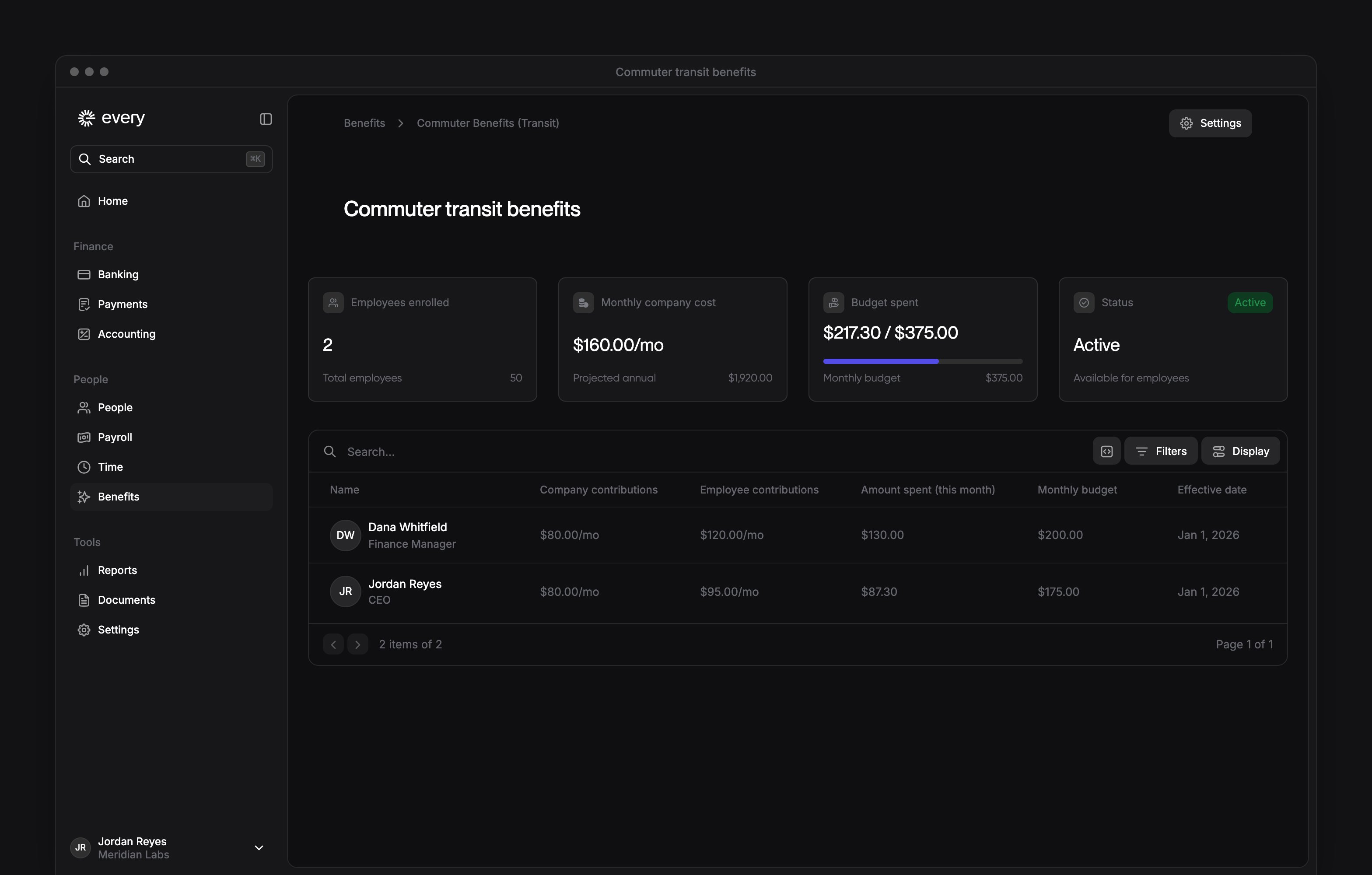
Select a commuter benefit you’ve set up to open its dashboard. For an FSA, select the year on its plan-year cards. The dashboard shows enrollment, company cost or budget, spending and status. The employee table shows contributions or elections, spending, budgets, effective dates and statuses.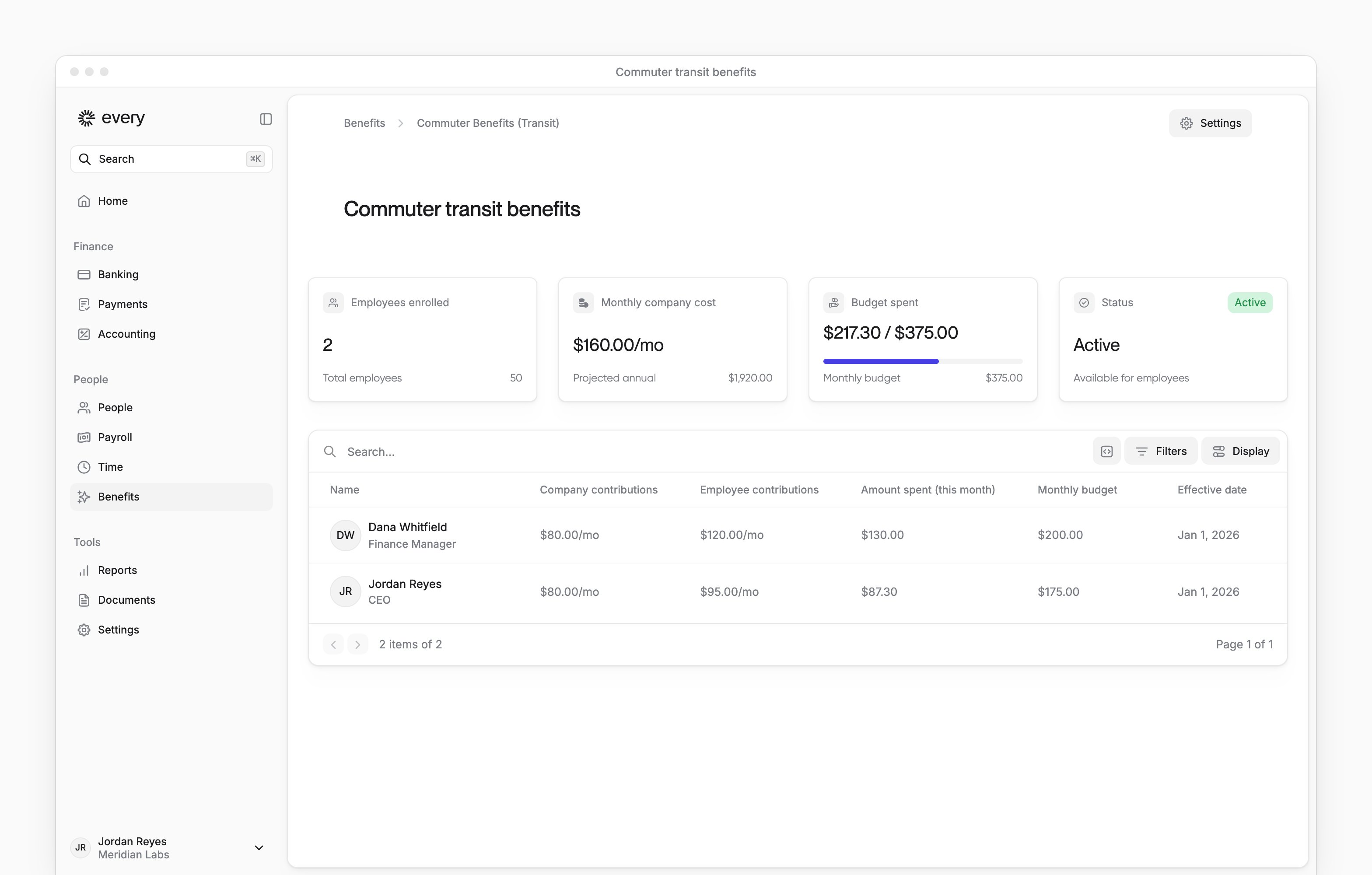
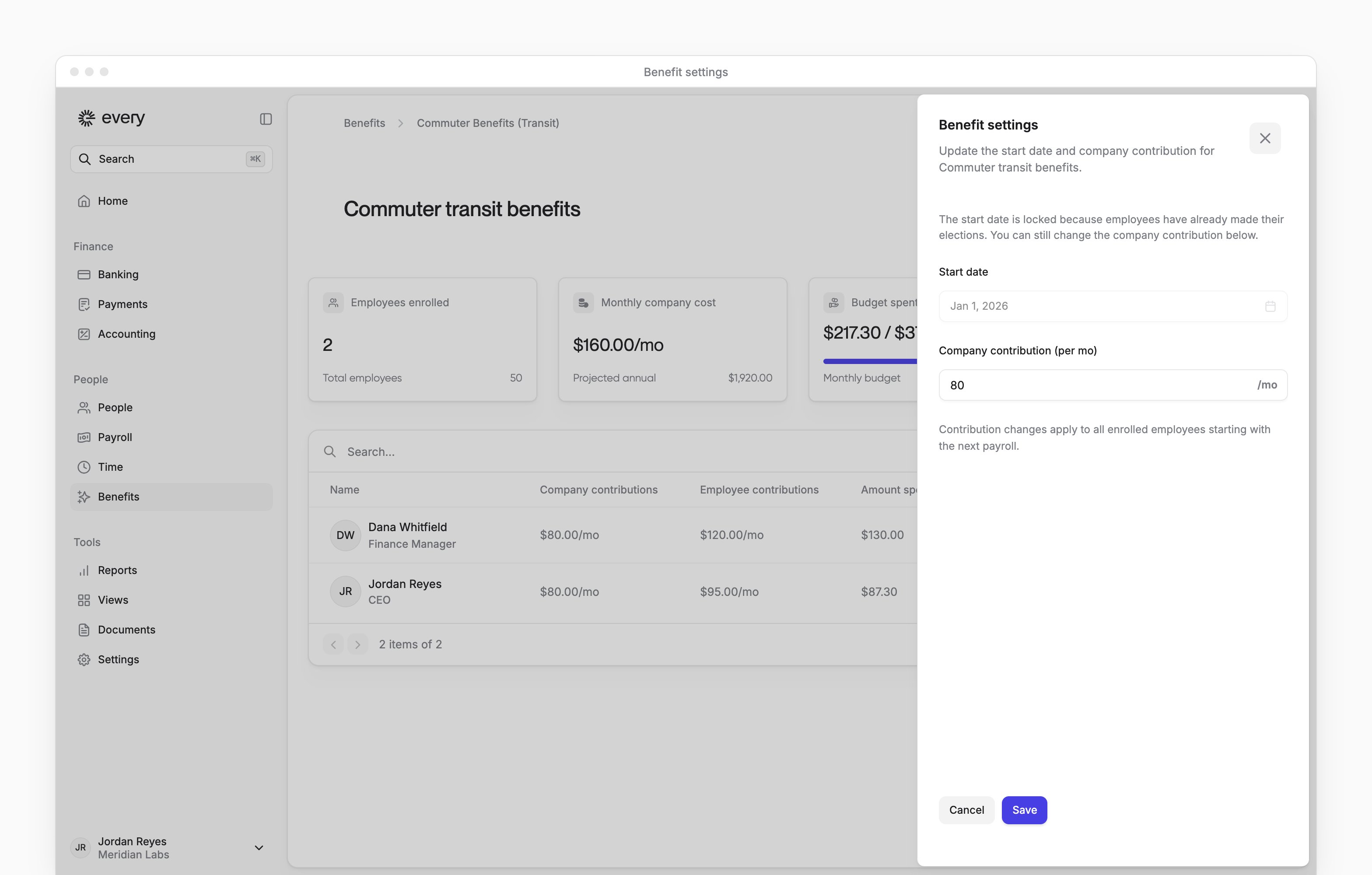
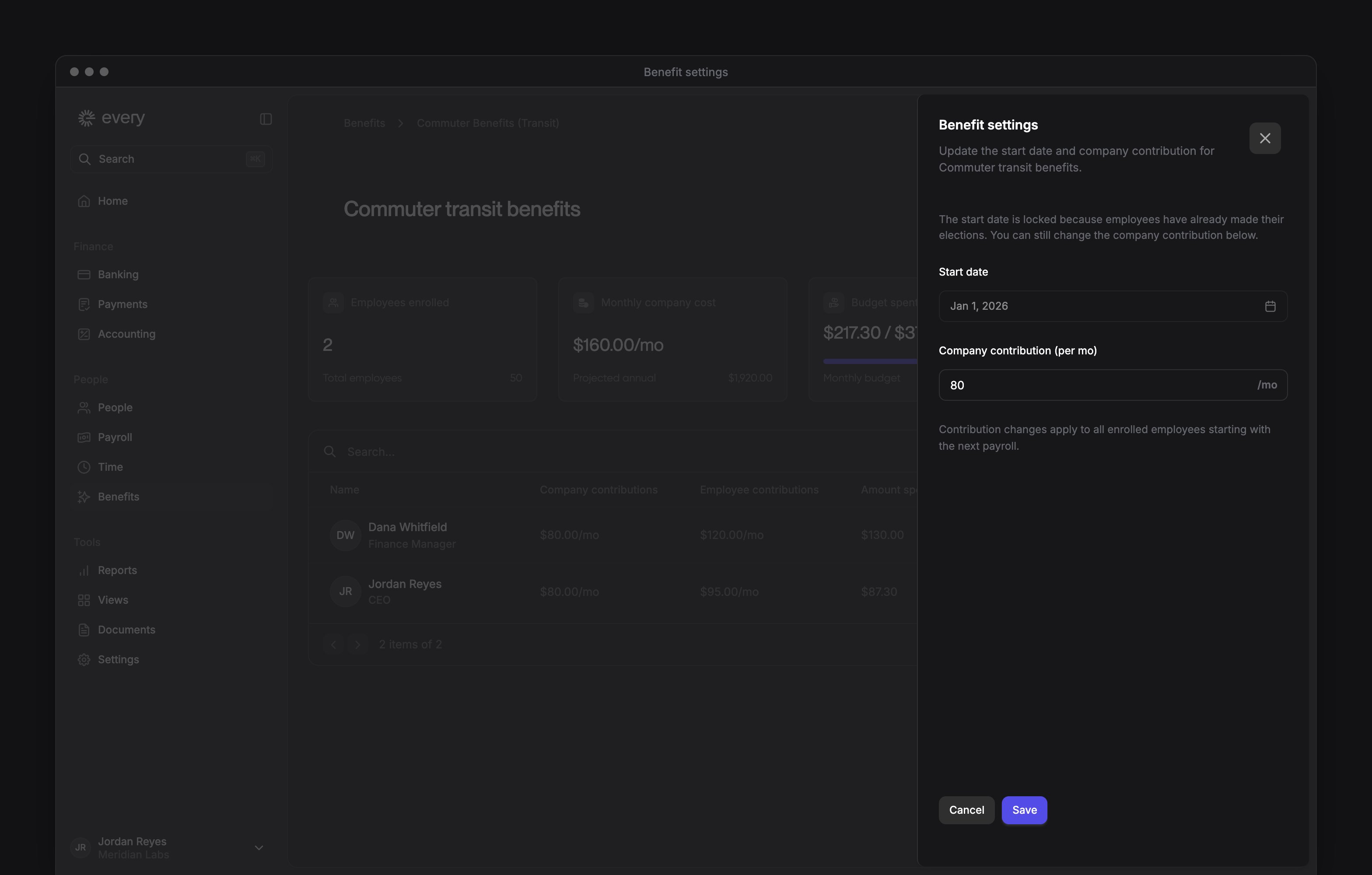
- On the dashboard, select Settings to open Benefit settings.
- Update the available fields, then select Save.
An ended benefit’s dashboard settings are locked. For a change to locked settings, email support@every.io.
The setup window uses the same election locks. In full-page FSA editing, the start date locks after elections and the company contribution stays editable.