


 Upload invoices or email them to your company’s bill address, and Every reads the recipient, amount and due date off each one. The bills land in Inbox on Payments → All payments, where you review them before they’re paid. Company Admins and Bookkeepers can add and review bills, and so can Accounts Payable users once Every has turned that role on for your company.
Every turns on the bill inbox and the All payments page company by company. If you don’t see them, email support@every.io to ask about them.
Before you begin
Payments shows in the sidebar after your company finishes onboarding. The Bill Pay Agent setting must be on, and it is unless someone turns it off. It’s under Bookkeeping agents on Settings → Accounting (see Accounting settings), which Company Admins and Bookkeepers can open. When the setting is off, Inbox, Needs attention, Upload bill and the bill address are hidden, and bills emailed to Every aren’t kept. You can still pay a bill with Send money.Upload files
1
Open the upload dialog
Go to Payments → All payments and select Upload bill.
2
Add the files
Drop your invoices in, or select the drop area to choose them. Every accepts PDF, PNG, JPEG and WebP files up to 8 MB each, and takes 10 files in a batch. It makes one bill from each file.
3
Read the results
Every reads the files one at a time and marks each one. With several files, the dialog doesn’t close by itself, so select Done after Every marks them. Inbox opens when a bill is added or already in your inbox.
Email bills
Your company has its own bill address, next to the title on Payments → All payments.- Hover over the address and select Copy address.
- Email or forward invoices to that address. They arrive in Inbox.
If Every can’t read an invoice
An invoice Every can’t read isn’t a row in Inbox, and it has no stage. A banner at the top of Inbox says “Some invoices could not be read” and lists the files. Select a file name to download it, then pay the bill with Send money.Review a bill
Select a bill that needs attention to open it in a drawer, with the invoice beside it and Decline at the top. Previous and Next move through the list, and Done closes the drawer.Fix a bill that needs attention
The Stage column says what a bill needs.Add vendor details
Missing information means Every holds no bank details for the vendor, so the bill can’t be approved yet.1
Open the Add vendor dialog
In the drawer, select Add vendor details.
2
Check the vendor
Vendor shows the vendor Every matched or suggests, or else the name it read off the invoice, and you can’t edit it. If it’s empty, choose or add a vendor there.
3
Choose how you pay them
In How we pay them, choose ACH, Wire or Check. For ACH, Every fills in the bank details it read from the invoice. Enter any details it left blank.
4
Optional: add a remittance email
In Remittance email (optional), enter the vendor’s email. The field shows only when the bill has no vendor yet. If Every read an address off the invoice, select the checkbox that confirms it’s the vendor’s contact email, or Every doesn’t save it.
5
Choose whether to request a 1099
Under Tax details, choose whether to request a filing for this vendor (see Request 1099s).
6
Save the vendor
Select Add vendor. If the bill had no vendor, Every uses the vendor with that name or creates one. The bill stays in Inbox until you approve it.
Fix a data mismatch
Data mismatch means the invoice prints different bank details than the account on file. Choose one:- Add suggested account opens Update bank details with the invoice’s bank details. Select Save account to replace the account on file. Saving doesn’t approve the bill.
- Pay using existing account approves the bill against the account on file, with no further confirmation.
Review a card fee
Review card fee means the invoice mentions a credit card processing fee, so Inbox doesn’t offer Approve on it.1
Open the bill in Send money
In the drawer, select Open Pay Bill. The bill opens in the Send money flow.
2
Take out fees that don't apply
In Amount, enter the amount without any fee that doesn’t apply to . Every deducts no fee for you.
3
Confirm the payable amount
On the review page, select the checkbox that confirms the payable amount. You can’t confirm the payment until you do.
Resolve a potential duplicate
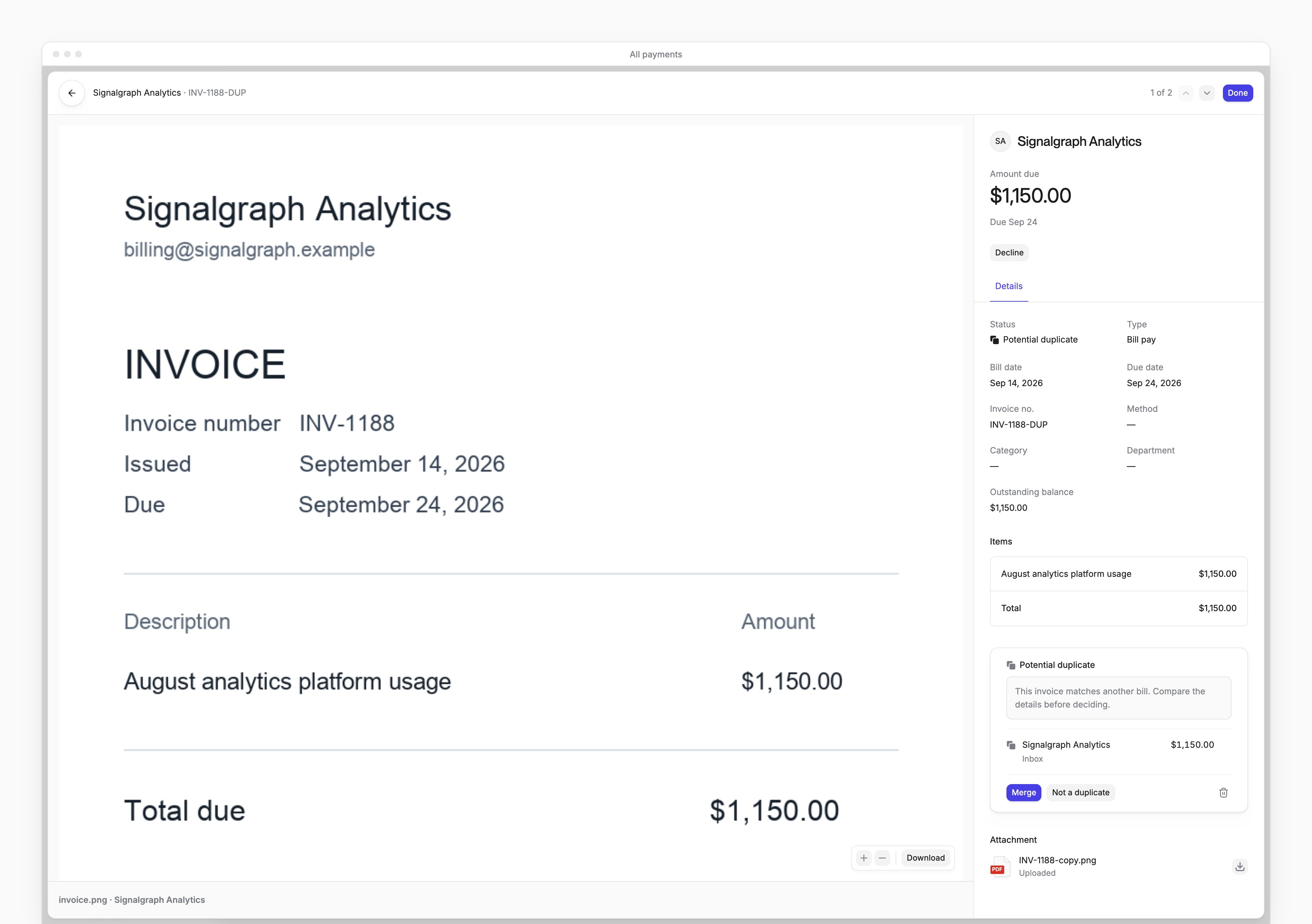
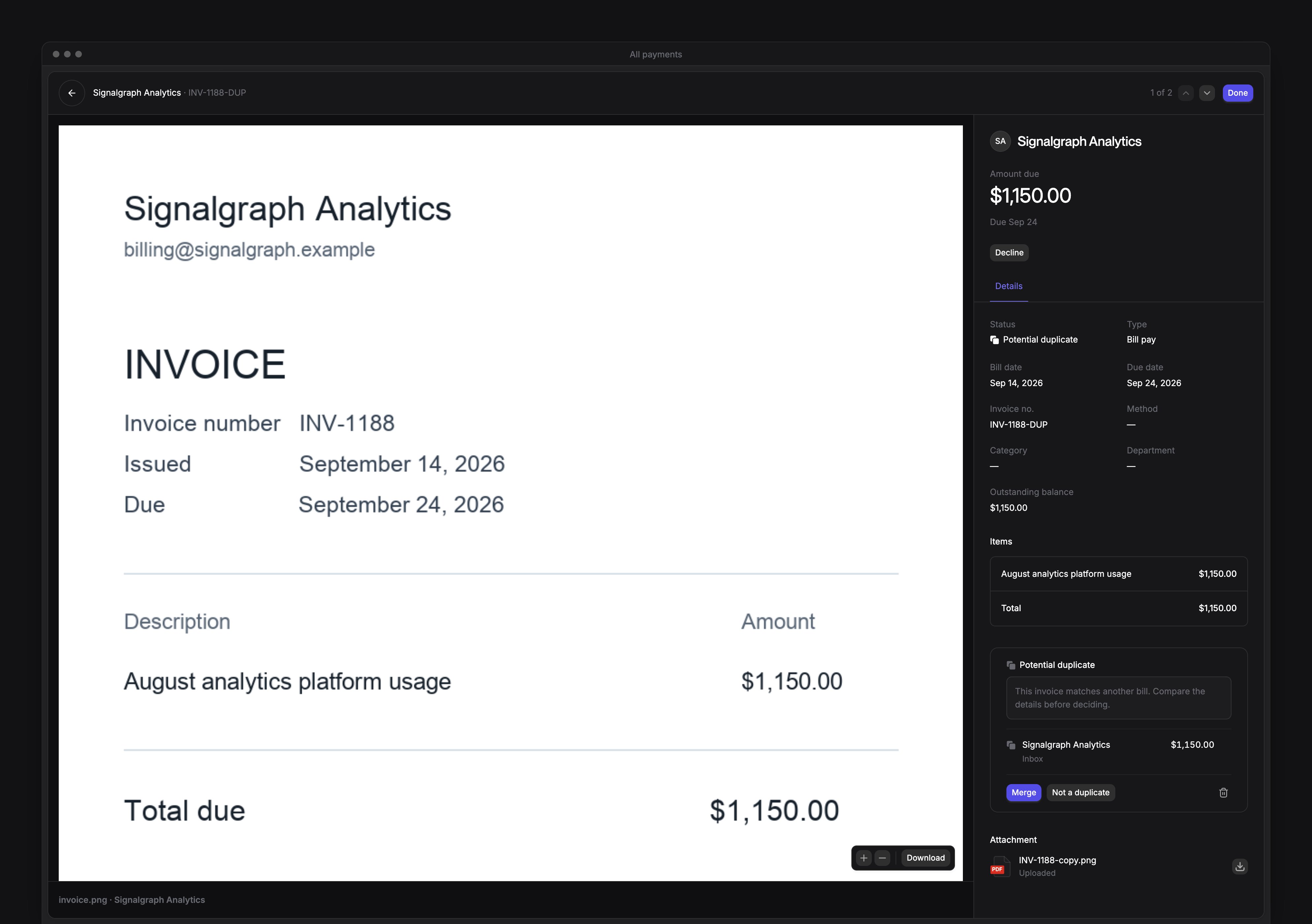
A Possible duplicate badge sits beside the recipient, and its tooltip gives the reason. In the drawer, the Potential duplicate card shows the matching bill:- Merge keeps the document on the matching bill and takes this copy out of the inbox. It shows only when Every found a match, and you confirm in the Merge duplicate dialog.
- Not a duplicate clears the flag.
- The trash button asks “Delete duplicate?”, then removes this copy from the inbox and leaves the original as it is.
Retry the bank details check
Bank details unavailable means Every couldn’t verify the vendor’s bank details. Select Retry bank details check. Approve stays hidden until the check works.Pay a bill in the Send money flow
Quick approval (Approve on an Inbox row or in the drawer) can’t pay a bill when:- the bill isn’t in US dollars, or Every read no amount
- the invoice mentions a card fee
- the vendor’s account is international or card-based
Needs attention
Needs attention lists the Inbox bills that have something to fix. Select a row to open its drawer. The tab looks only at the 100 most recent inbox bills, and its rows have no buttons. When nothing needs attention, it says “Nothing needs attention”.Approve a bill from the Inbox
Approve shows on an Inbox row when you hover over it, and in a bill’s drawer, when:- Every matched a vendor with a bank account on file, paid by ACH, or check
- the amount is in US dollars, and Every read it
- the bill mentions no card fee and isn’t a potential duplicate
- the bank details on the invoice match the account on file
- Hover over an Inbox row and select Approve.
- In the “Approve this bill?” dialog, select Approve. The dialog says “This bill will be paid immediately.”