


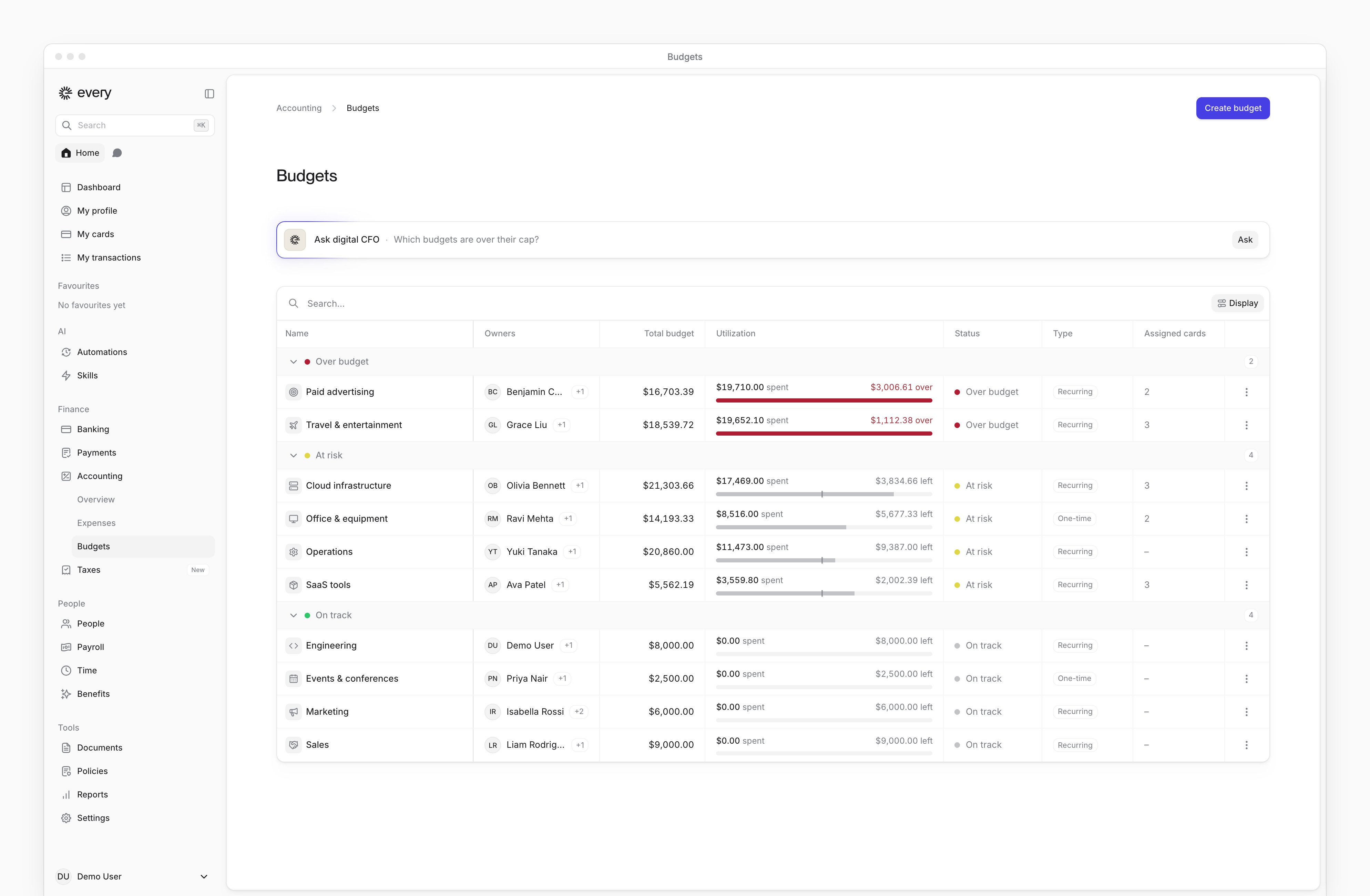
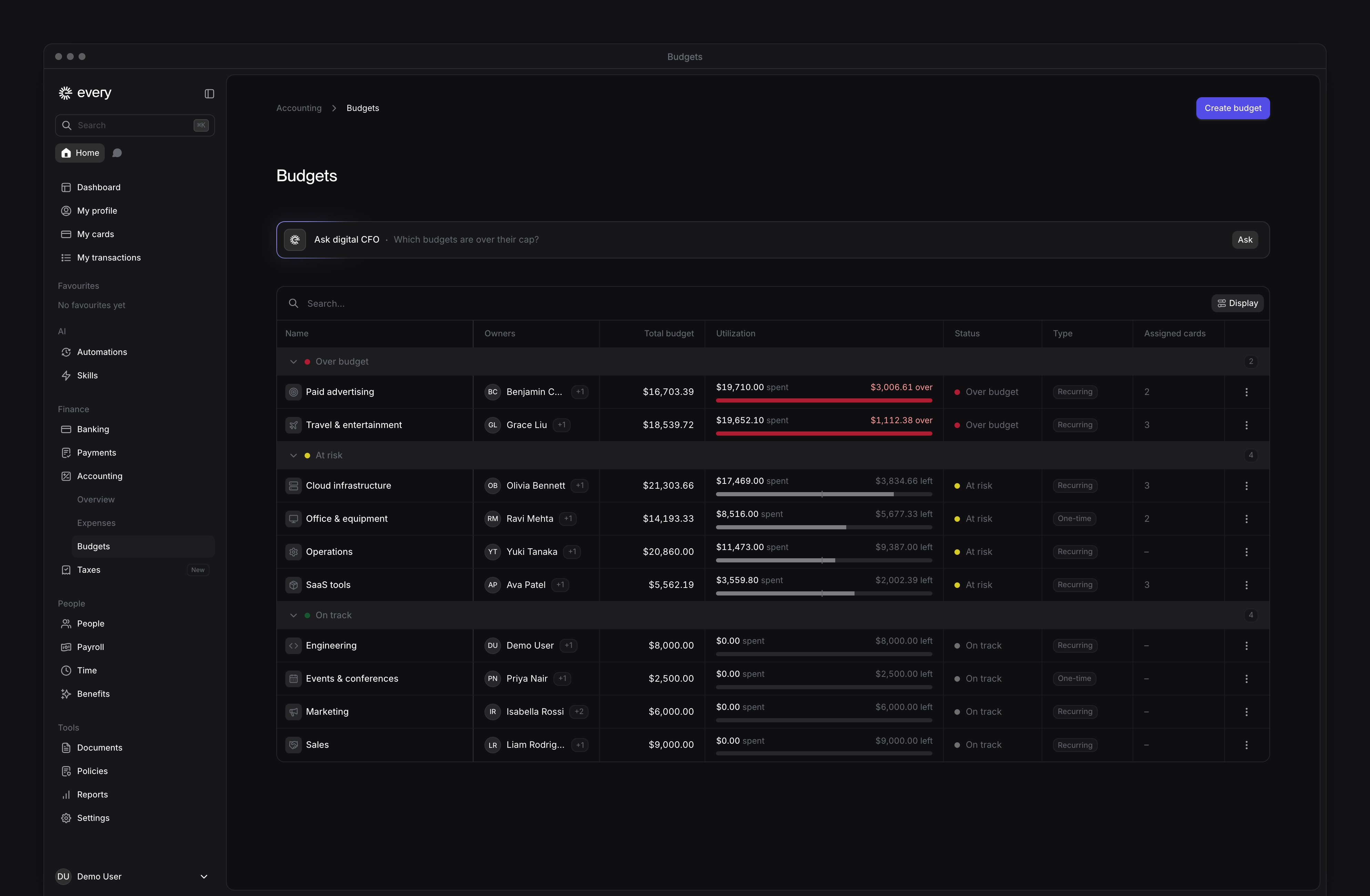
 Accounting → Budgets tracks spending against a cap. A spending budget doesn’t set a card’s spend limit.
Company Admins and Bookkeepers manage all company budgets. Other company members can create budgets and manage the ones they own.
The sidebar shows Budgets after your company finishes onboarding. Employees see their own cards’ assignments on My cards and transaction tags on My transactions.
Accounting → Budgets tracks spending against a cap. A spending budget doesn’t set a card’s spend limit.
Company Admins and Bookkeepers manage all company budgets. Other company members can create budgets and manage the ones they own.
The sidebar shows Budgets after your company finishes onboarding. Employees see their own cards’ assignments on My cards and transaction tags on My transactions.
Every turns on spending budgets company by company. If you don’t see them, email support@every.io to ask about them.
Create a budget
1
Open the form
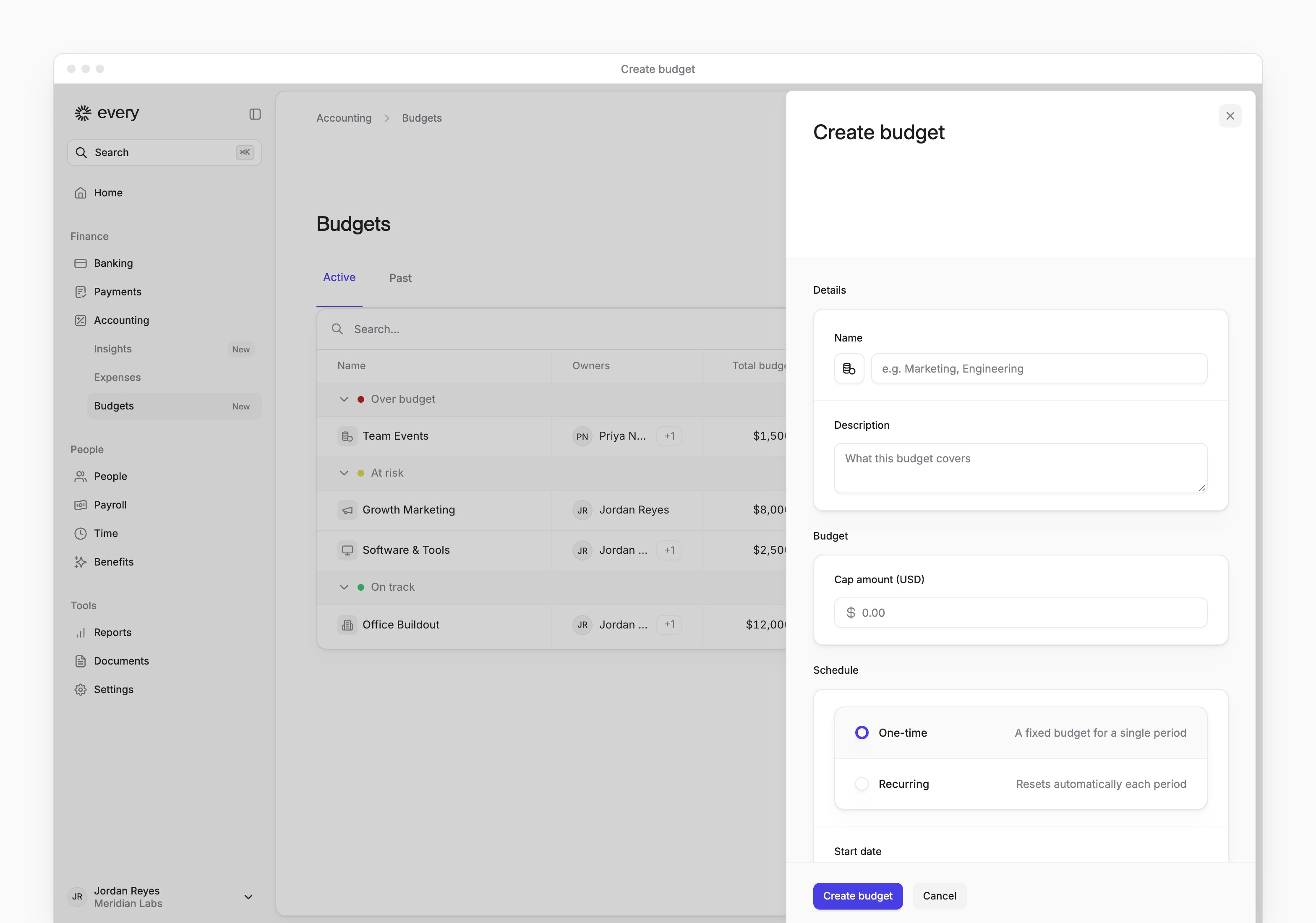
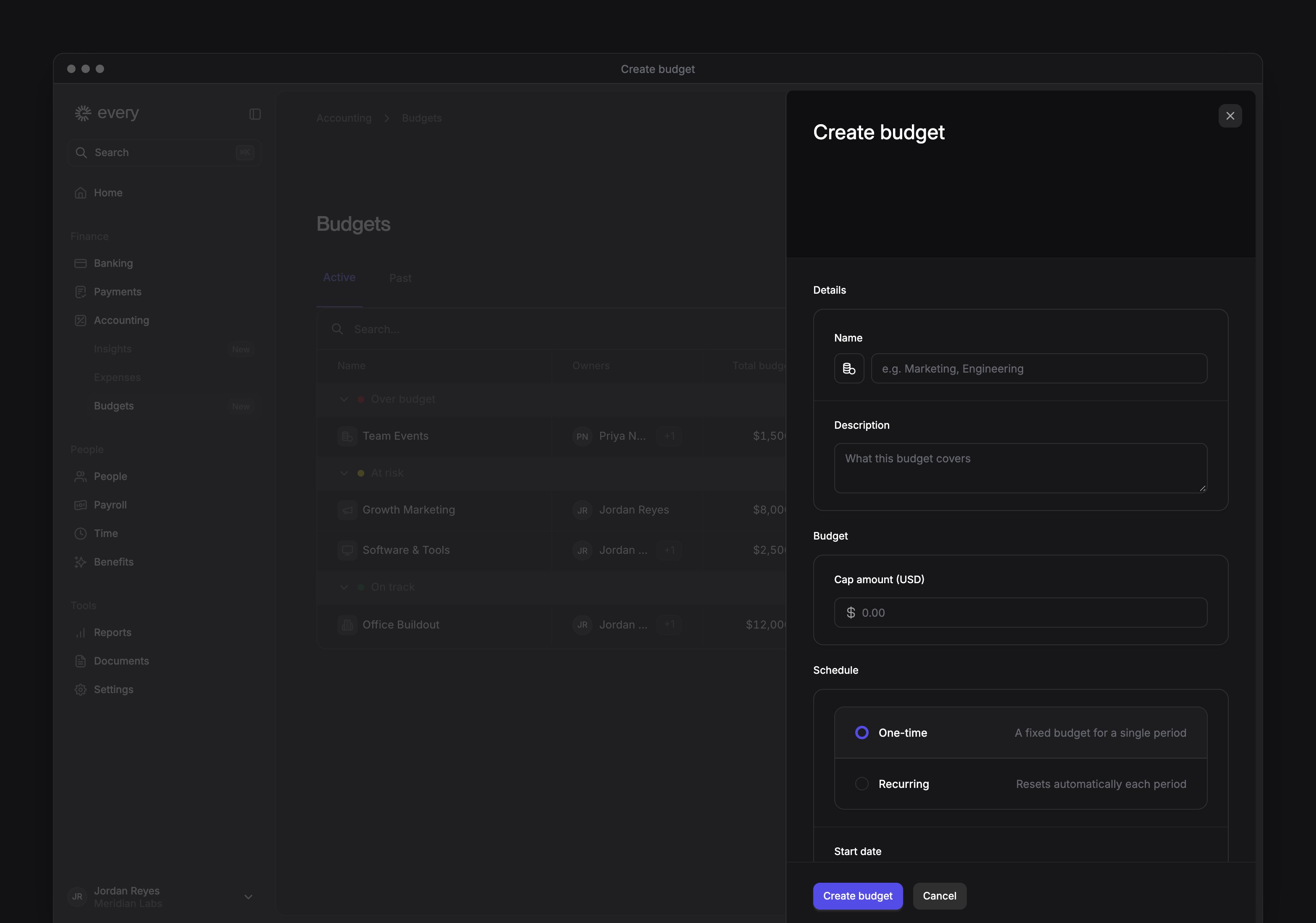
Select Create budget, or press C.
2
Name the budget
Under Details, enter a Name. Optional: add a Description.
3
Set the cap
Under Budget, enter a Cap amount (USD) greater than zero.
4
Choose a schedule
Under Schedule, choose One-time with a Start date and End date, or Recurring with a Start date and a Frequency of Monthly, Quarterly or Annually.
5
Choose what the budget covers
Optional: under Organization, add Owners, Cards and Every categories. With your accounting software connected, add rules under QuickBooks accounts.
6
Add notifications
Optional: under Notifications, select Add notification and enter a whole-number percentage from 1 to 100.
7
Save the budget
Select Create budget. You’re added to the budget’s Owners, along with the people you chose.
Choose which spending counts
New spending on assigned cards is tagged to the budget. Card spending in your chosen Every categories also counts. A card can belong to one budget. In a budget’s sheet, adding a card assigned to another budget you can access asks you to confirm Move card. You need access to both budgets to move it. Changing cards or category rules doesn’t retag existing transactions. To change the budget on one of your own transactions, open it on My transactions and choose its Budget.Track a budget
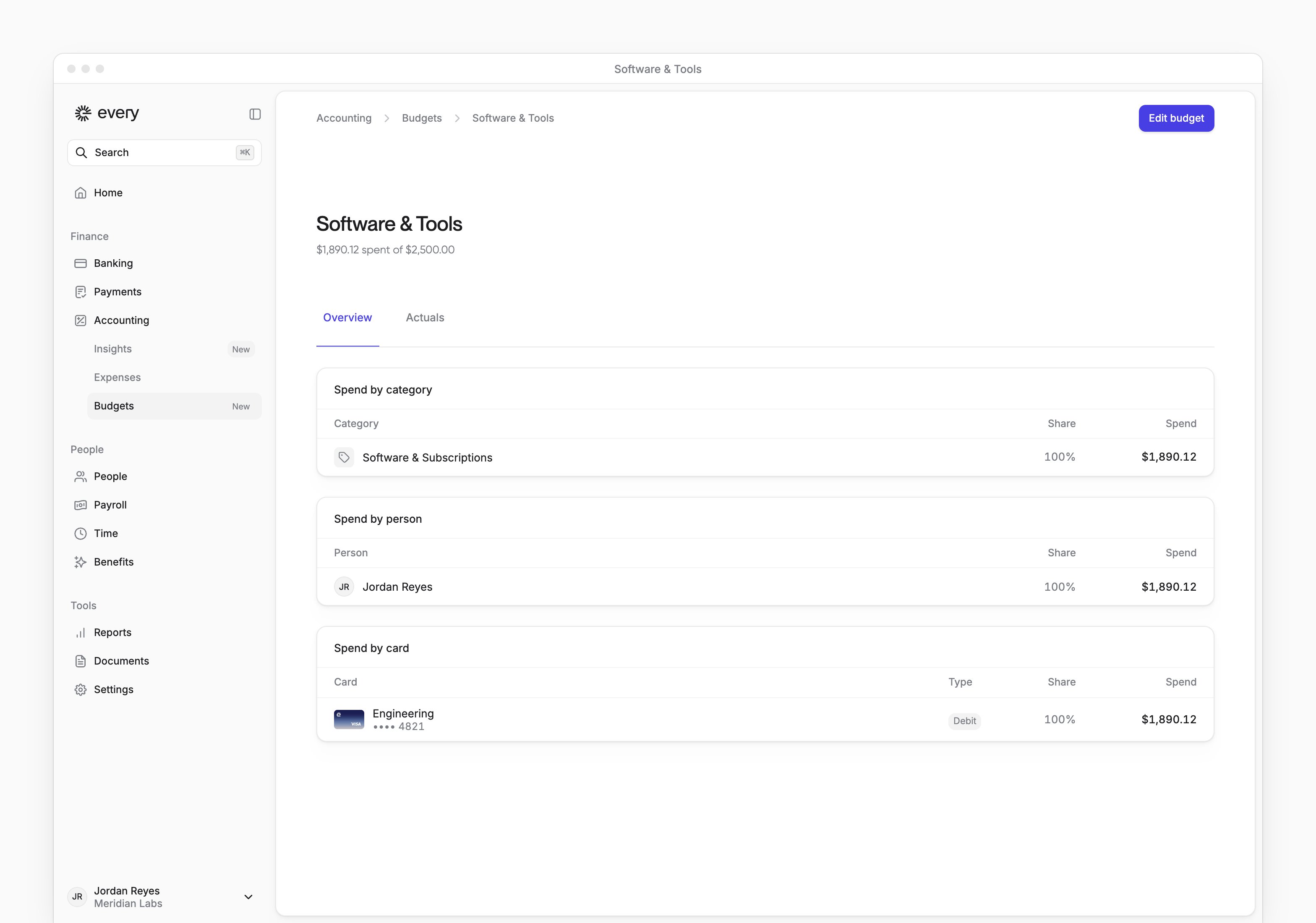
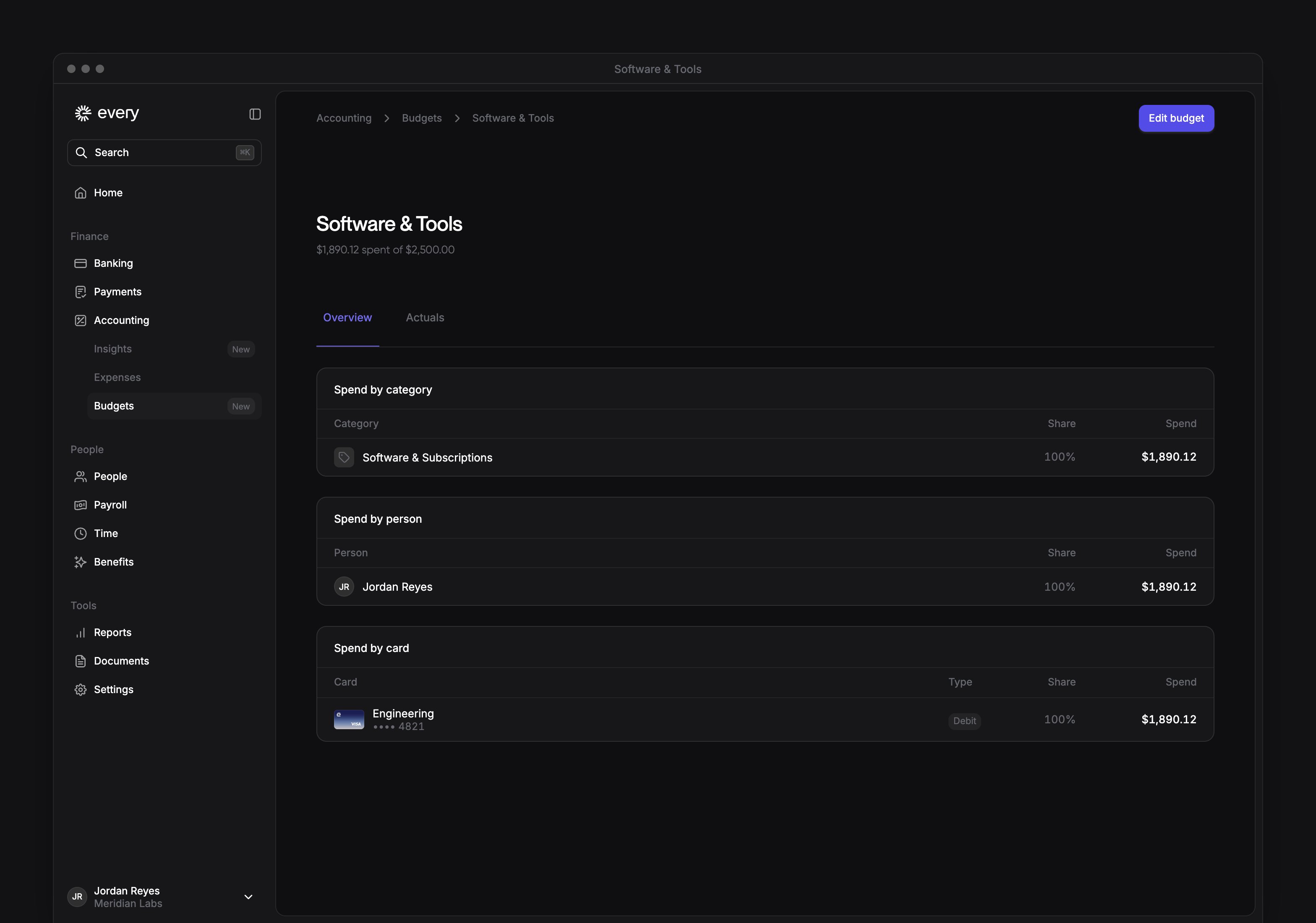
Active holds budgets whose end date hasn’t passed and budgets with no end date. Past holds the rest. Select a budget to open it:- Overview breaks the period’s spending down by category, person and card.
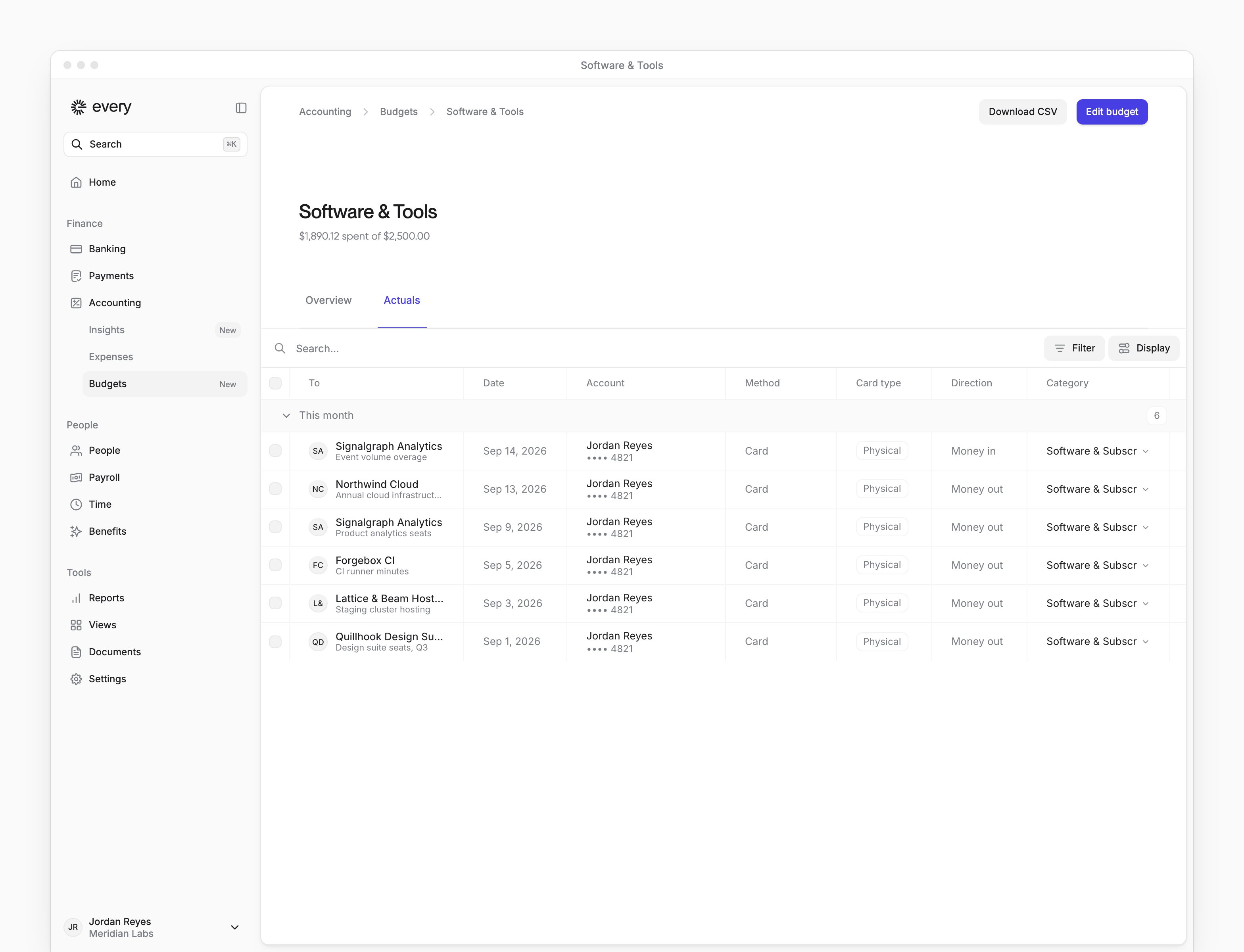
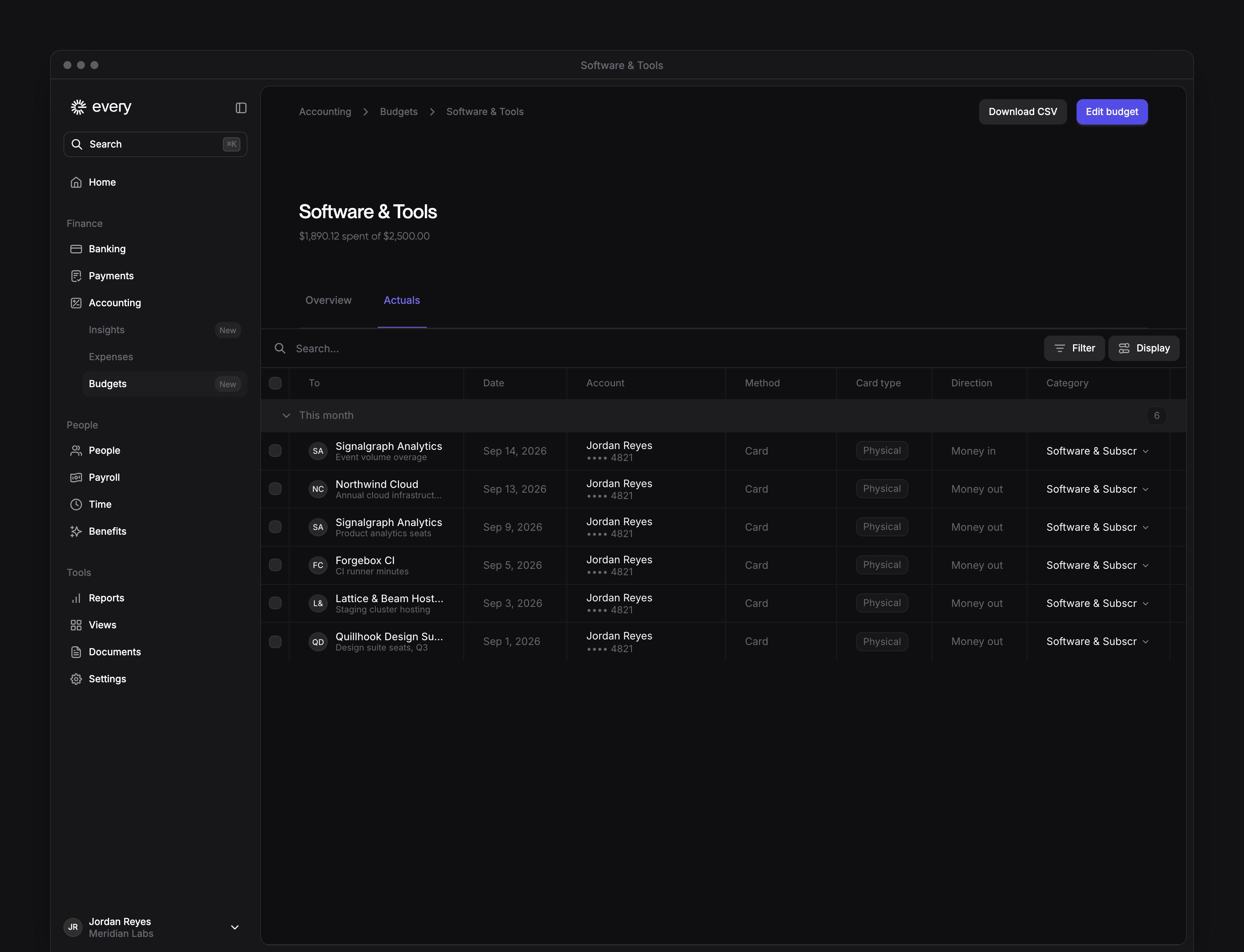
- Actuals lists the 100 most recent tagged transactions, including those outside the current period.
Edit a budget
1
Open the editor
Open the budget and select Edit budget.
2
Make your changes
Change its name, description, cap, owners, cards, categories or notifications.
3
Save the budget
Select Save changes.