


 Settings → Integrations connects company tools such as Okta, Slack and Puzzle. Company Admins and HR Admins manage the connections their roles allow.
A Bookkeeper role alone can’t set up Okta, Slack or Puzzle.
Settings → Integrations connects company tools such as Okta, Slack and Puzzle. Company Admins and HR Admins manage the connections their roles allow.
A Bookkeeper role alone can’t set up Okta, Slack or Puzzle.
Every turns on each integration separately. If you don’t see one, email support@every.io to ask about it.
Find an integration
On Settings → Integrations, select Browse all to search integrations and browse them by category. Configured integrations lists the ones that are connected.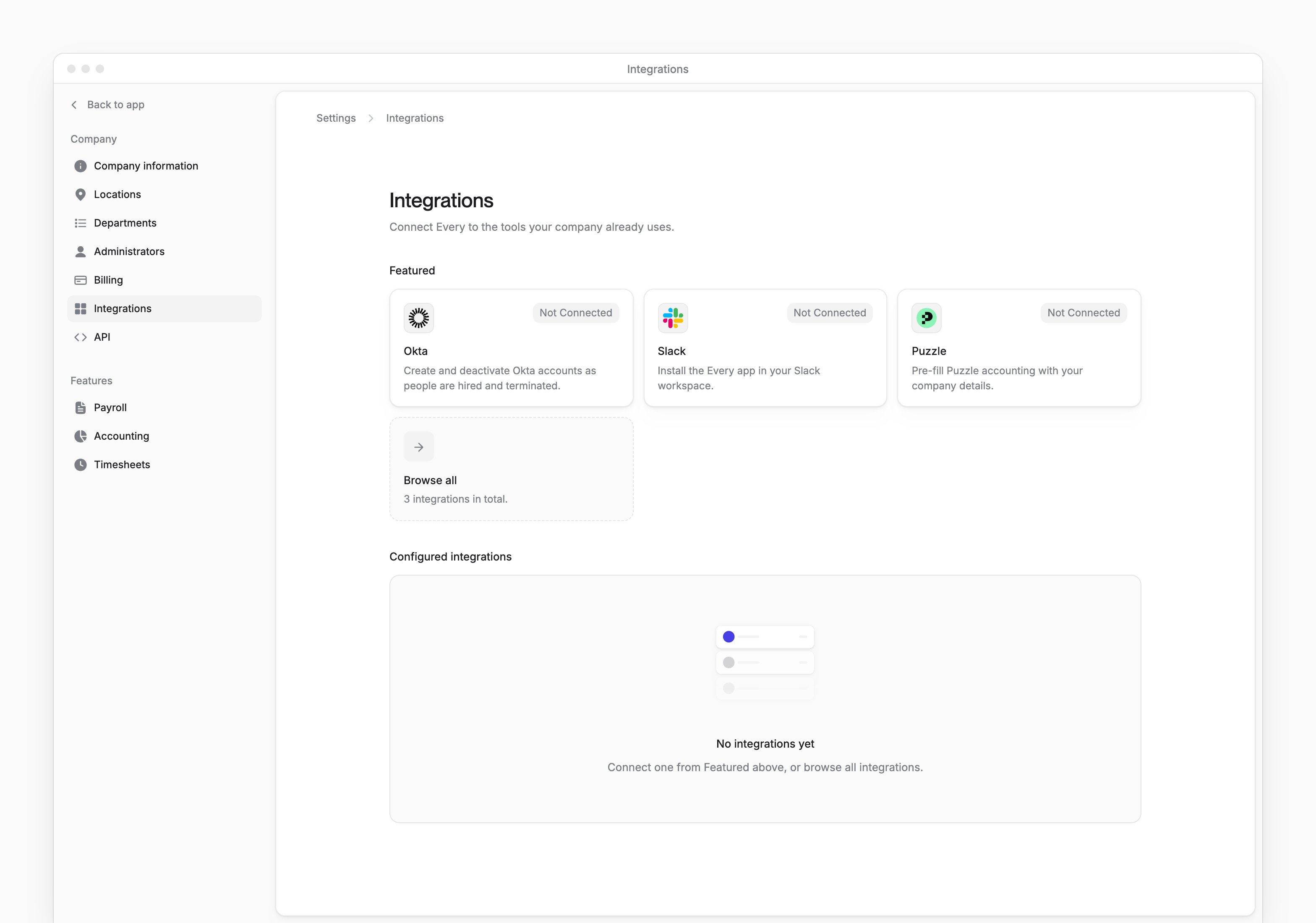
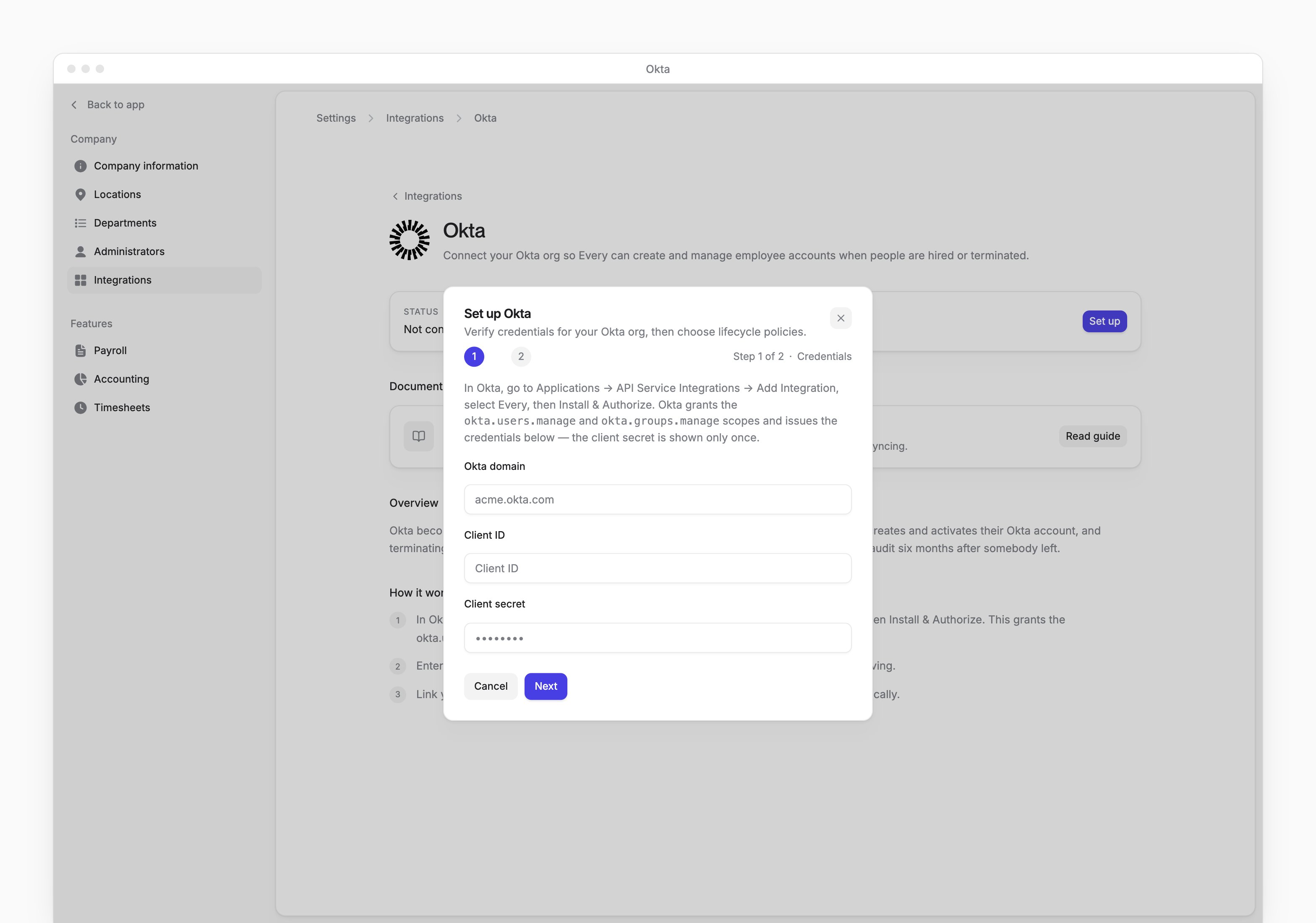
Set up Okta
1
Open Okta setup
On Settings → Integrations → Okta, select Set up.
2
Get your credentials
Follow the Okta authorization instructions in the dialog to get your credentials.
3
Enter your credentials
Enter your Okta domain, Client ID and Client secret.
4
Continue to lifecycle policies
Select Next.
5
Choose when accounts activate
In Okta account activation, choose Activate immediately or Activate after onboarding.
6
Choose what happens at termination
In Termination behavior, choose Suspend the account or Deactivate the account. Every warns that deactivation removes the person from assigned apps and can lead to deletion of their data, including email and files.
7
Connect Okta
Select Connect. Every verifies your credentials with Okta before saving the connection.
Connect Slack
On Settings → Integrations → Slack, select Add to Slack to install the Every app in your workspace. The Every app brings AI chat into Slack. The Slack page shows the workspace connection date. Select Reconnect Slack to approve Every in Slack again after its permissions change or when the Every app stops replying.Connect Puzzle
Puzzle is accounting software for startups. Connecting pre-fills your Puzzle account with your company details, and you finish setup on Puzzle’s site.- On Settings → Integrations → Puzzle, select Connect. If setup is in progress, select Continue setup.
- In the confirmation dialog, select Connect to agree to share your company details with Puzzle.
AI clients
My account → Integrations → MCP connects AI clients with a . For token creation, client setup and revocation, see MCP. Employees with AI chat access connect their own on MCP for employees.Integrations and who can set them up
To connect QuickBooks, use Accounting settings.