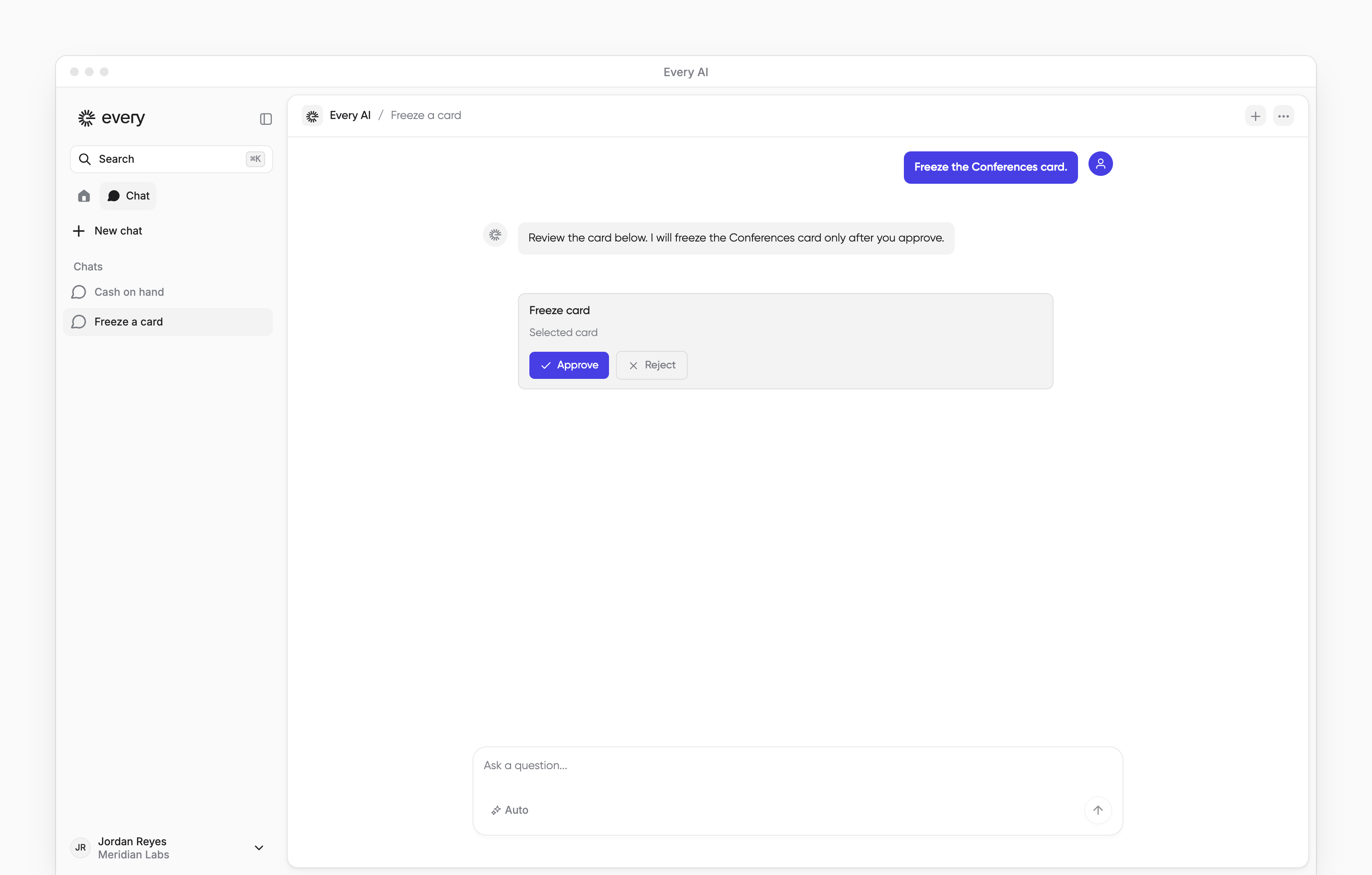
The Every AI button opens AI chat for questions about your company’s data and changes you can review. Every turns on AI chat for Company Admins or for everyone at your company.
For your own pay and time off, see AI chat for employees.
The Every AI button opens AI chat for questions about your company’s data and changes you can review. Every turns on AI chat for Company Admins or for everyone at your company.
For your own pay and time off, see AI chat for employees.
Open AI chat
Select the round Every logo in the bottom-right corner (its tooltip reads Every AI) to open the AI chat panel. You can also press ⌘J or Ctrl+J. On a computer, in the AI chat panel, select Display mode, then select Sidebar, Floating or Expanded. On a computer, if Chat appears beside Home at the top of the sidebar, select it to open the full AI chat workspace.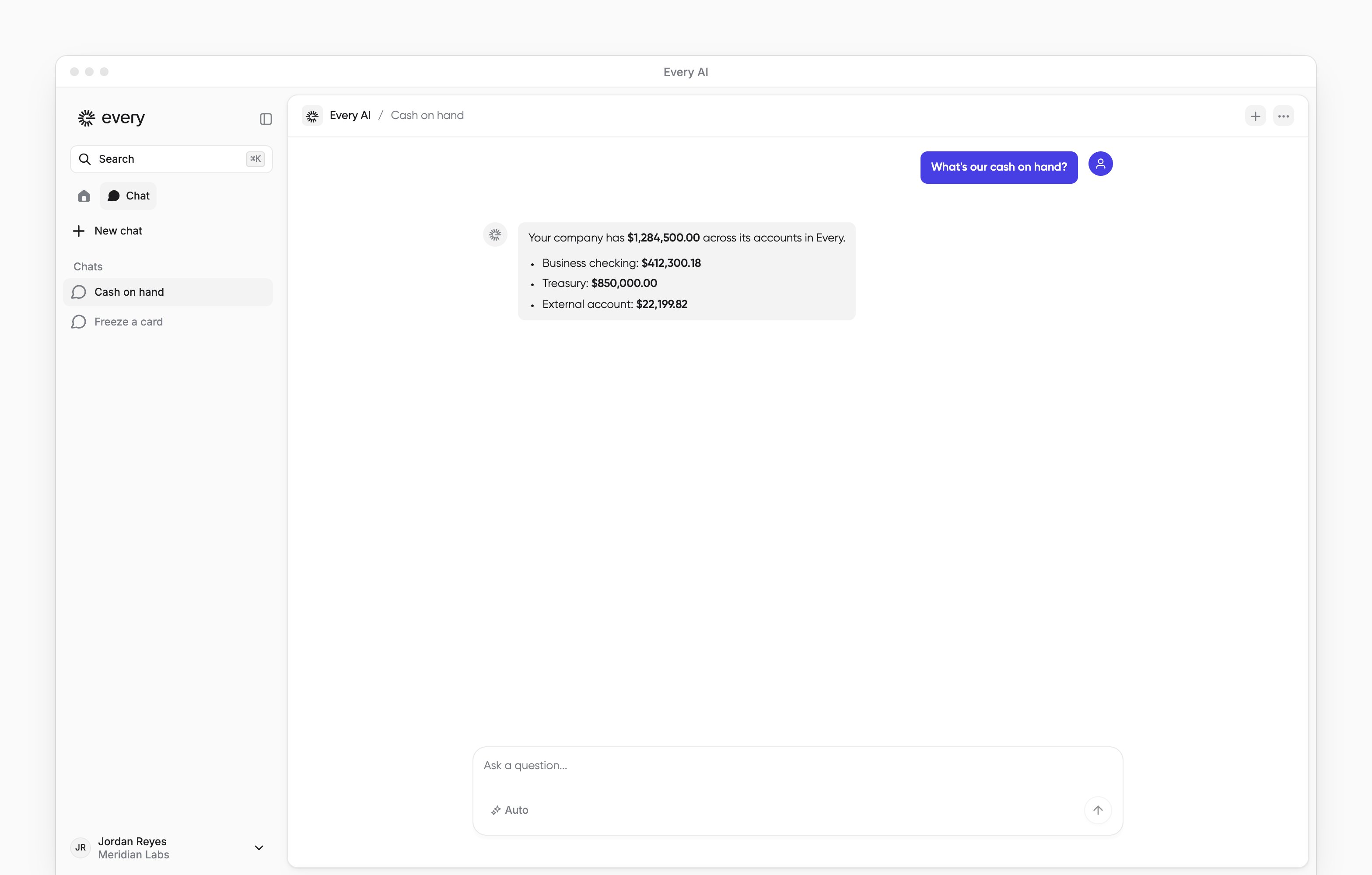
Ask about your company
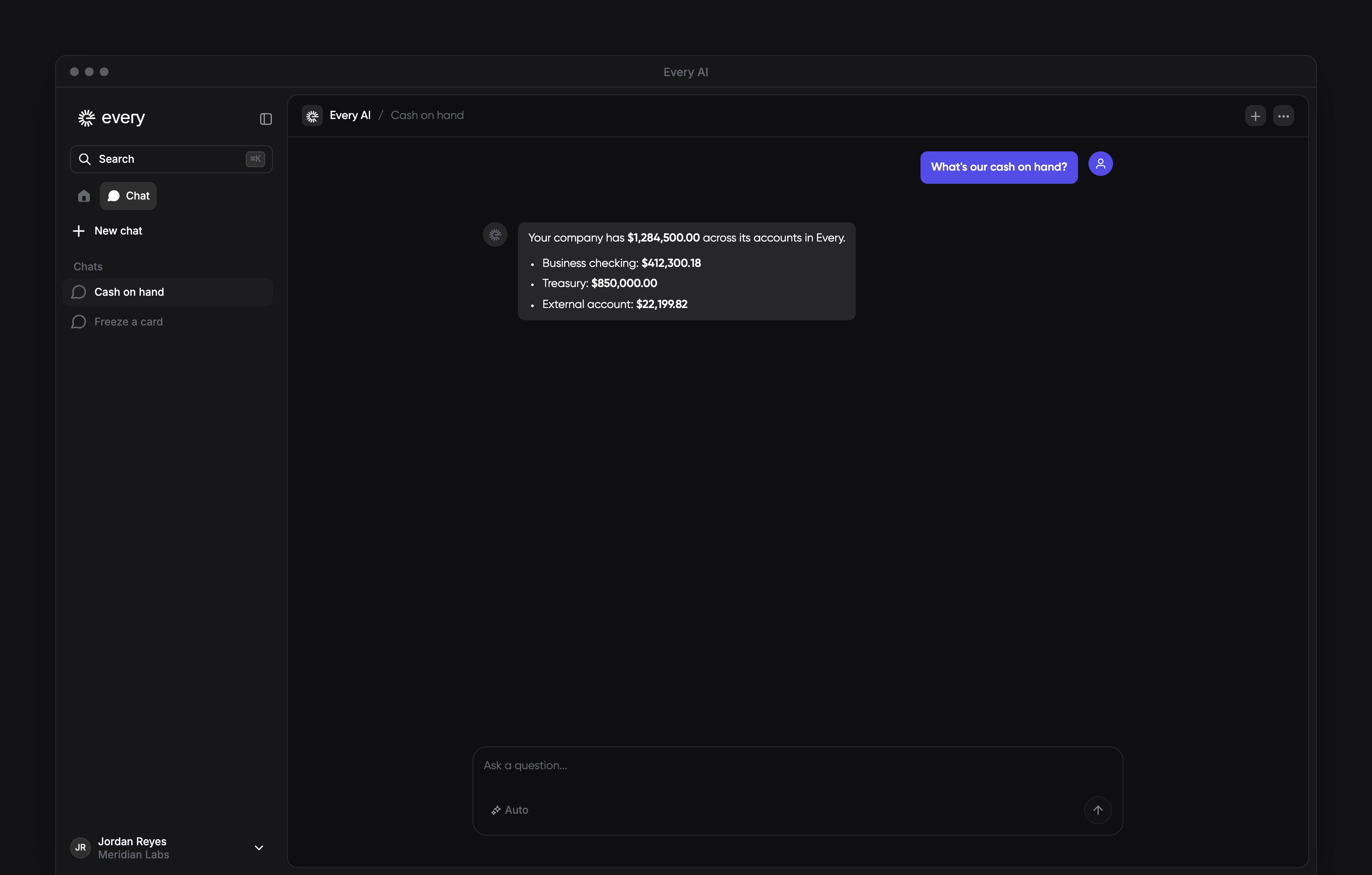
Enter a question and press Enter. Press Shift+Enter for a new line. What AI chat can see and do depends on your roles and on what Every has turned on for your company. Company Admins and Bookkeepers can ask about bank balances:Ask about company bank balances
Ask about company payroll
Review proposed changes
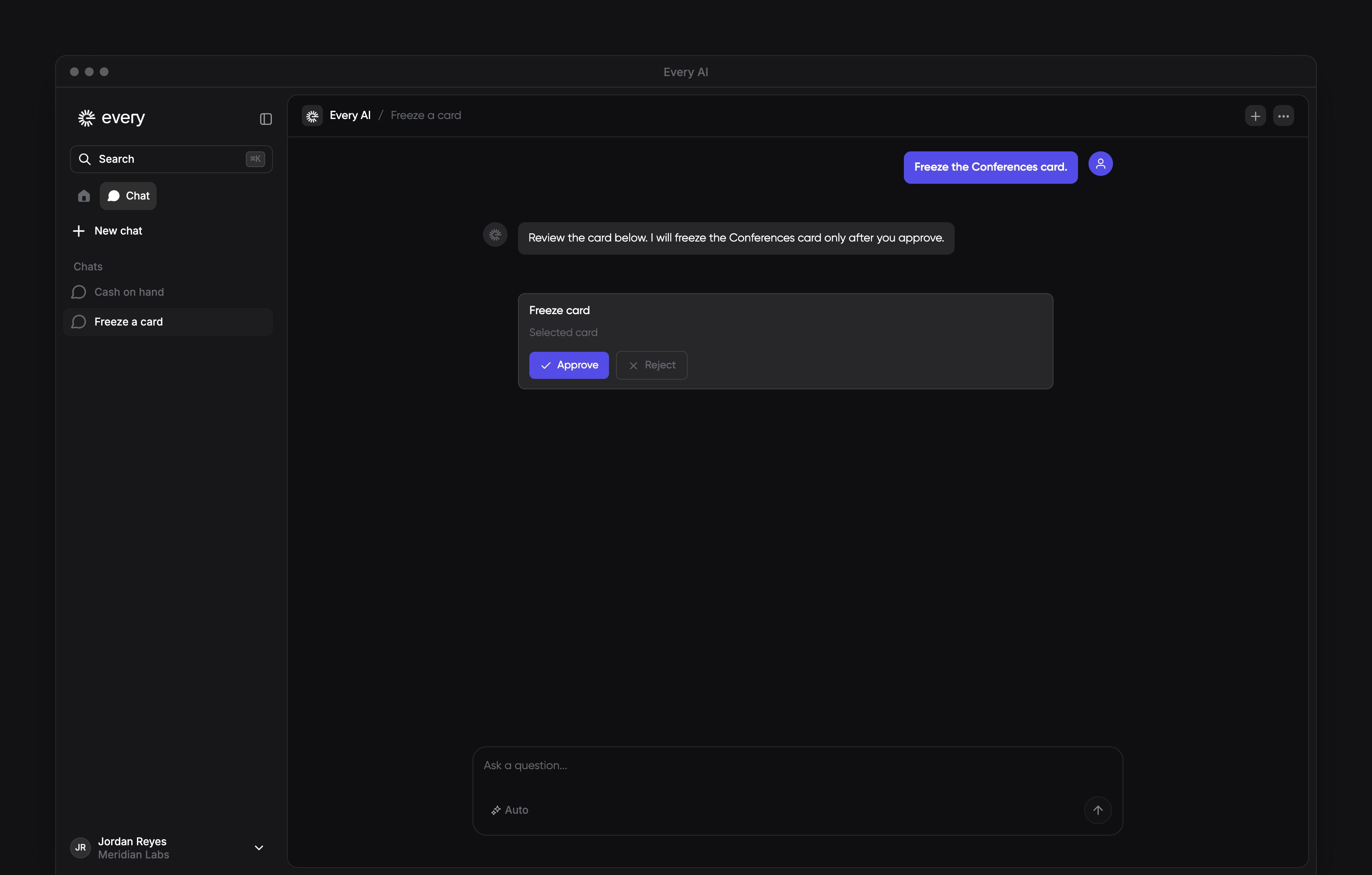
When AI chat proposes a change, such as saving a view, it shows a card. Review the proposed change, then select Approve to continue or Reject to decline it. If a proposed change has expired, ask AI chat to propose it again. Company Admins and HR Admins can ask AI chat to move someone to another department. When Every has turned on Views and charts in AI chat for your company, AI chat can draw charts in the conversation. To save a view, select Preview draft on the Create view or Update view card, then select Approve. Company Admins and Bookkeepers can ask AI chat to prepare a proposed domestic vendor payment. Approving the proposed payment pays nothing. To pay the vendor, start a new payment in Send money.