


 Documents → All documents holds your company’s documents. Company Admins, Bookkeepers and HR Admins can use it.
Employees and contractors find their own documents on My profile → Docs after your company finishes onboarding (see Paystubs and tax forms).
Company Admins and HR Admins manage each person’s documents on the person’s Docs tab under People (see All People).
Documents → All documents holds your company’s documents. Company Admins, Bookkeepers and HR Admins can use it.
Employees and contractors find their own documents on My profile → Docs after your company finishes onboarding (see Paystubs and tax forms).
Company Admins and HR Admins manage each person’s documents on the person’s Docs tab under People (see All People).
Every turns on the folder view in All documents company by company. If you don’t see it, email support@every.io to ask about it.
Find a document
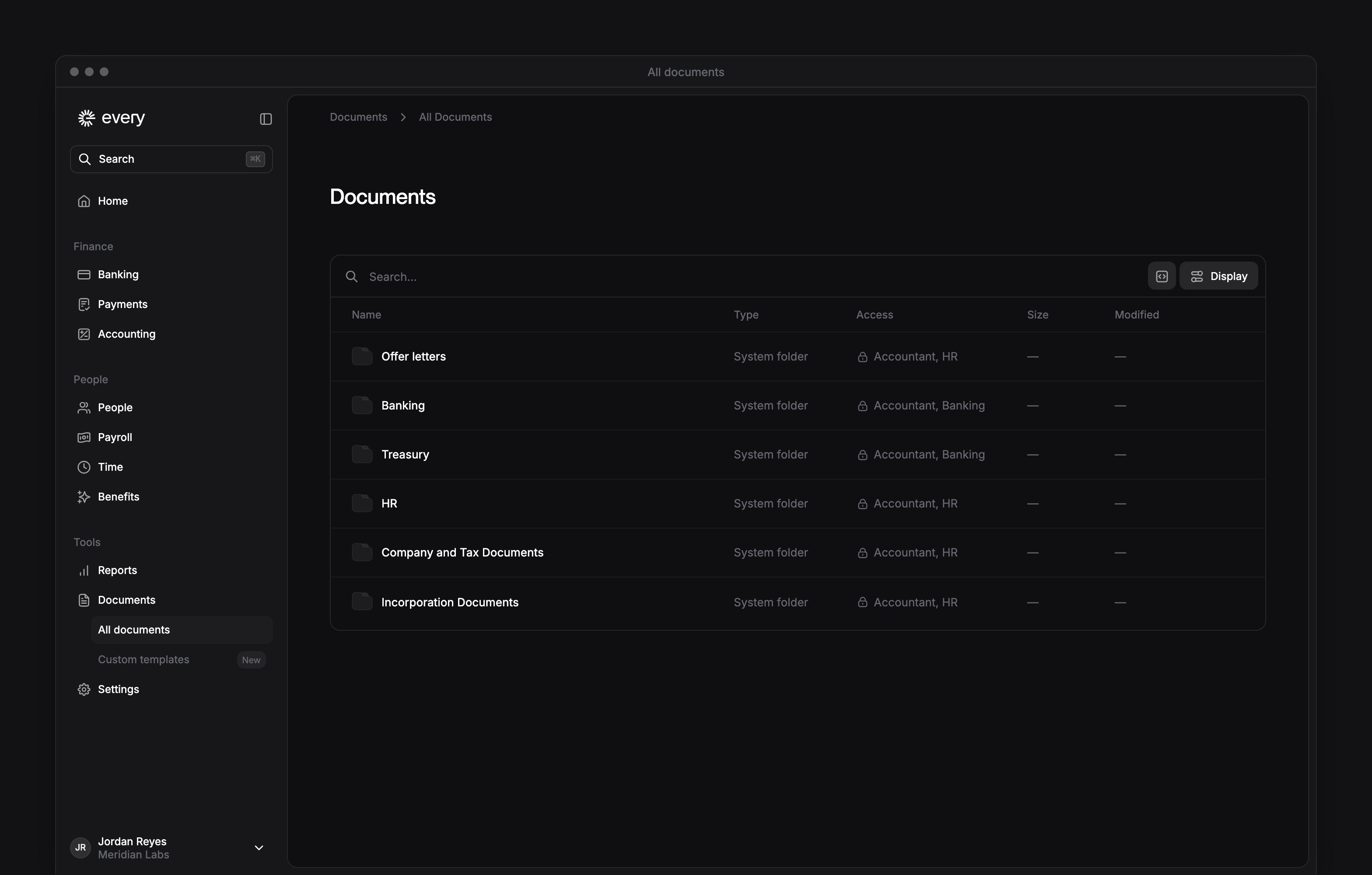
Select a folder to open it. The folders you see depend on your role.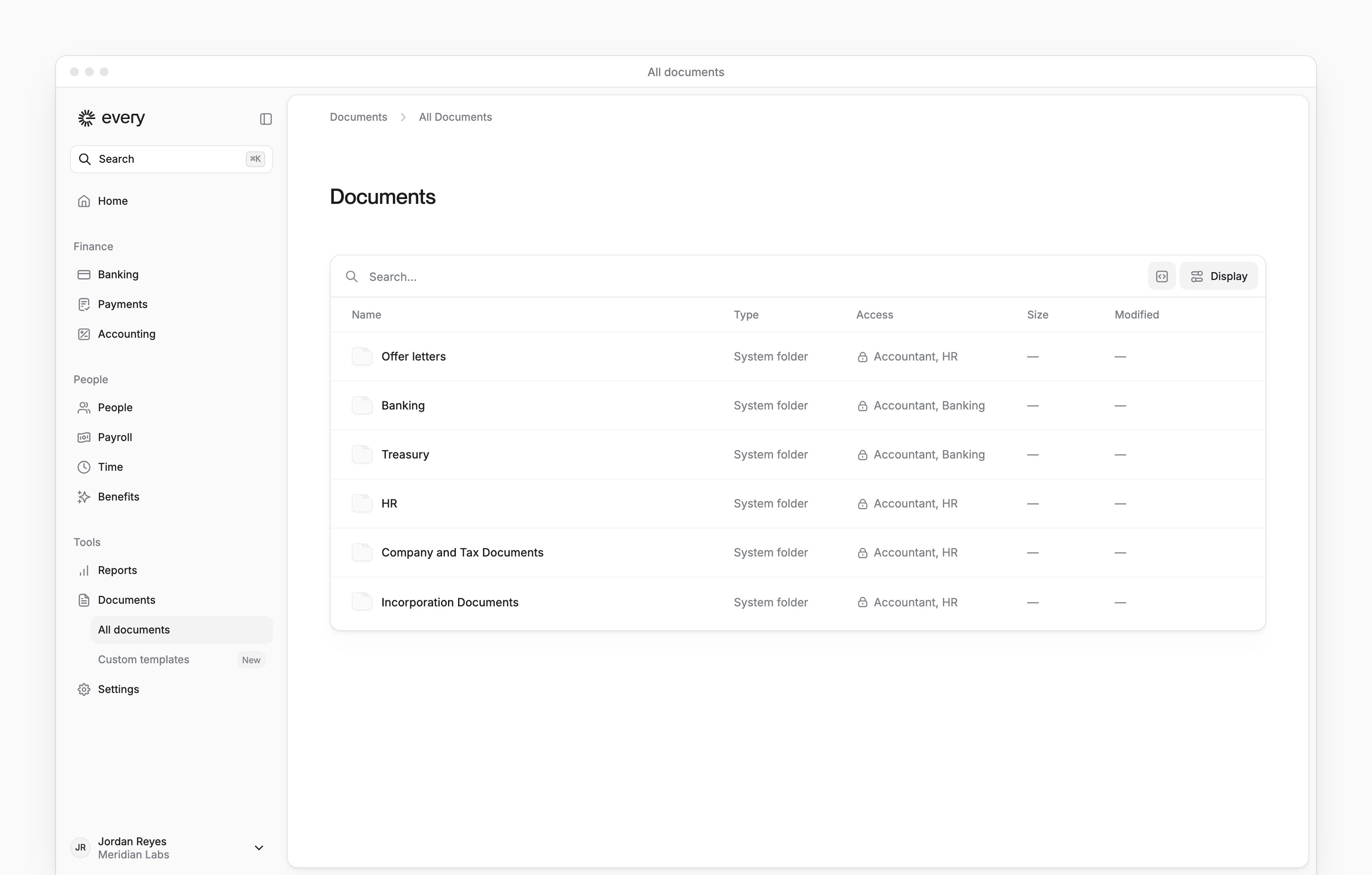
Find account statements
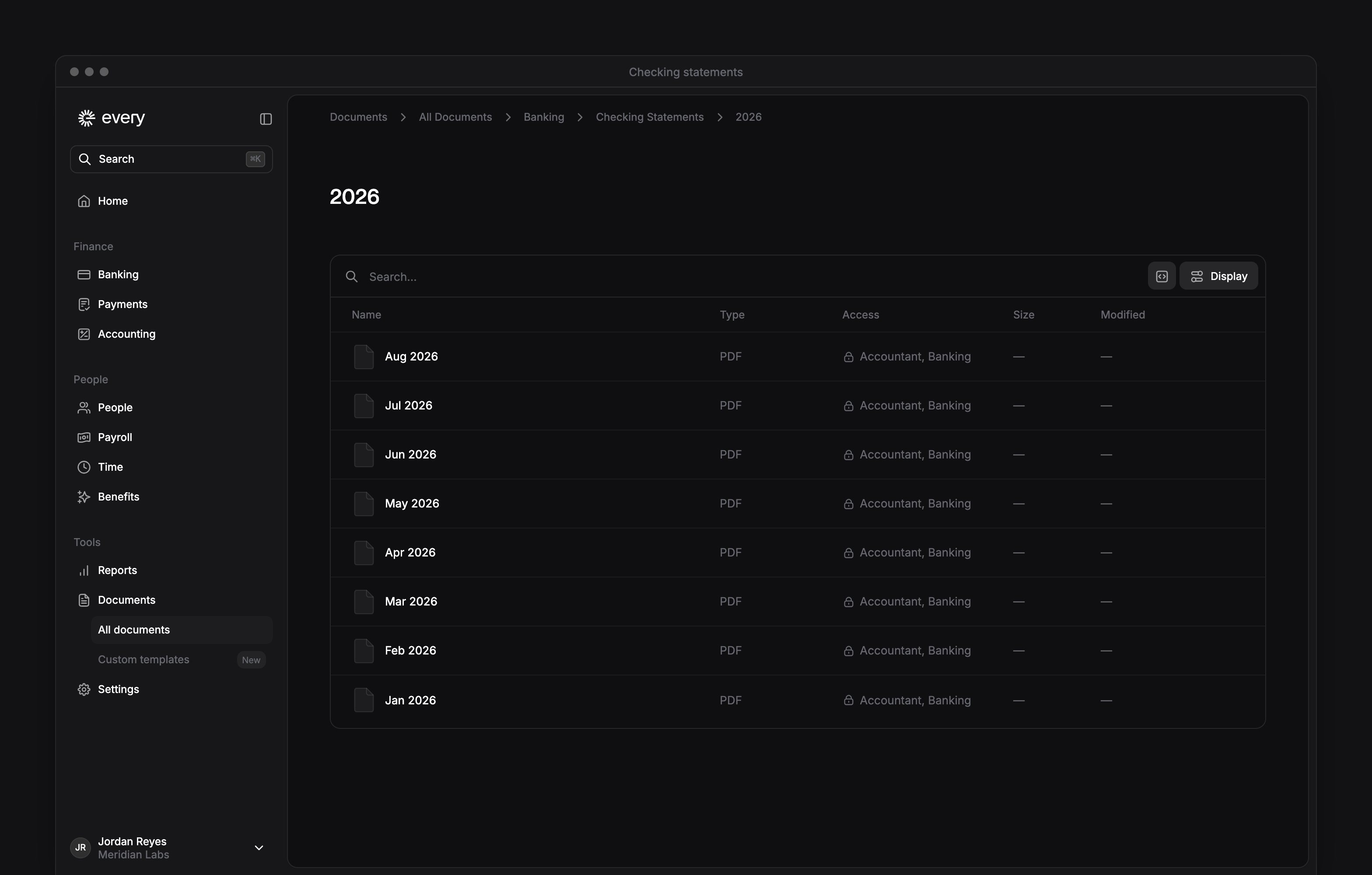
Select Banking → Checking statements or Credit statements, then select a year. For Treasury, select Treasury, then a year, to find account and tax statements. Checking and credit statement folders appear when statements are available.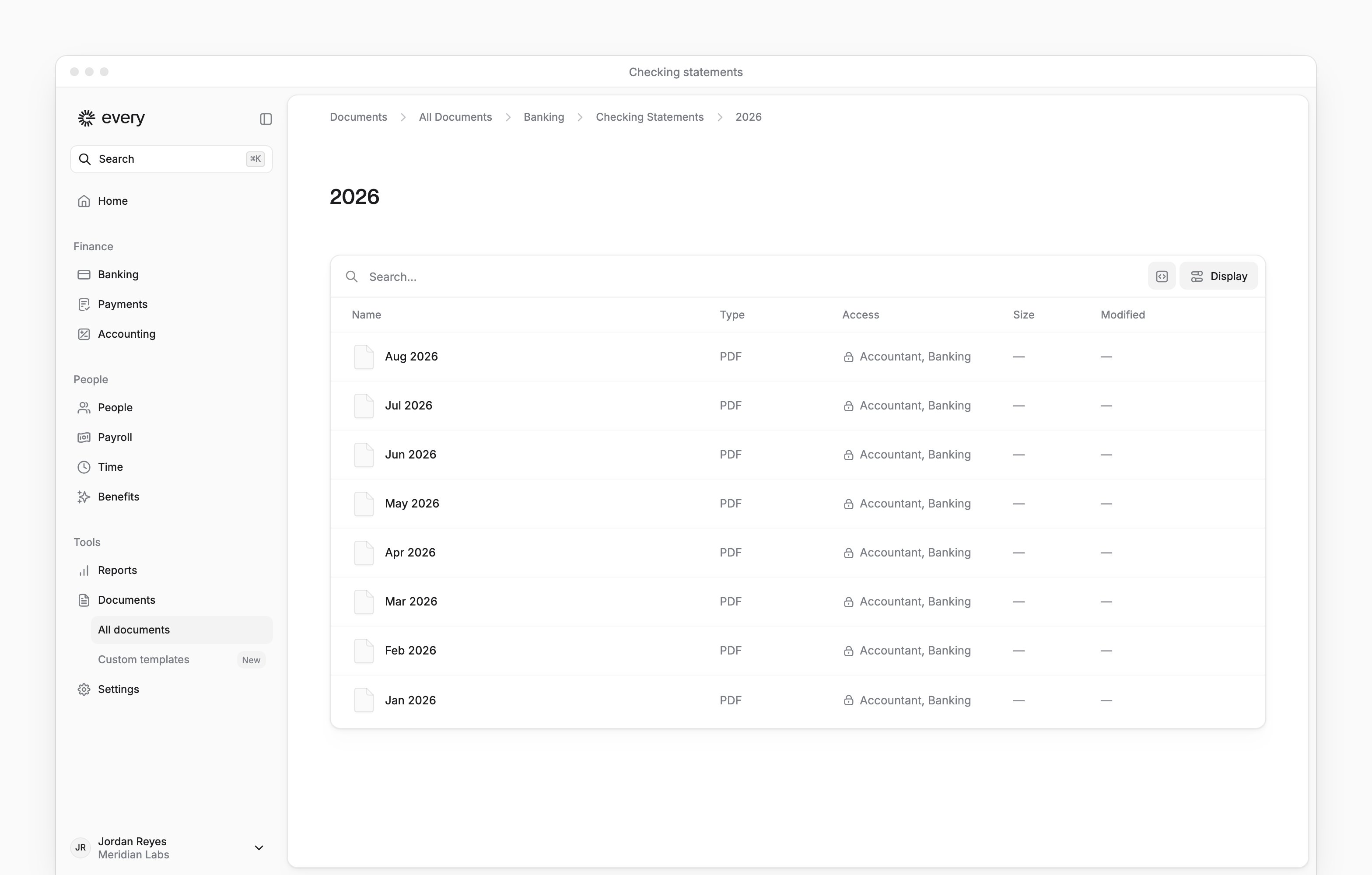
Open or download a document
Open a document’s menu, or right-click its row, and select Open or Download. PDF, JPEG and PNG files preview in Every. Other file types show “Preview not available”; use Download to save the file. In Banking, three documents work differently:- Bank Letter and Wire Instructions download when you open them.
- Legal Agreements opens a website in a separate tab. Its download action is unavailable.
Rename or delete an uploaded document
Company Admins and HR Admins can rename or delete uploaded documents in folders they can open. Documents generated by Every, such as offer letters, can’t be renamed or deleted. Banking and Treasury documents are read-only.Rename a document
1
Open the rename dialog
In the document’s menu, select Rename.
2
Enter the name
In Name, enter the document’s new name.
3
Save the name
Select Save. Every shows “Document renamed” when the change succeeds.
Delete a document
- In the document’s menu, select Delete.
- In the confirmation, select Delete.