


 Tools → Views lists the saved pages of company data that you and your colleagues have made. Each view is built from blocks: tables, bar, line, area and pie charts, stats, calendars and text.
Company Admins, Bookkeepers and HR Admins see Views in the sidebar after your company finishes onboarding.
Tools → Views lists the saved pages of company data that you and your colleagues have made. Each view is built from blocks: tables, bar, line, area and pie charts, stats, calendars and text.
Company Admins, Bookkeepers and HR Admins see Views in the sidebar after your company finishes onboarding.
Find a view
My views holds the views you made, and Shared with company holds the ones colleagues shared. A group shows only when it has views, and the most recently updated view comes first. Each card shows the view’s title, its description if it has one and the date it was last updated. A Shared badge marks a view shared with your company, and a view you shared stays under My views. Select a card’s title to open the view.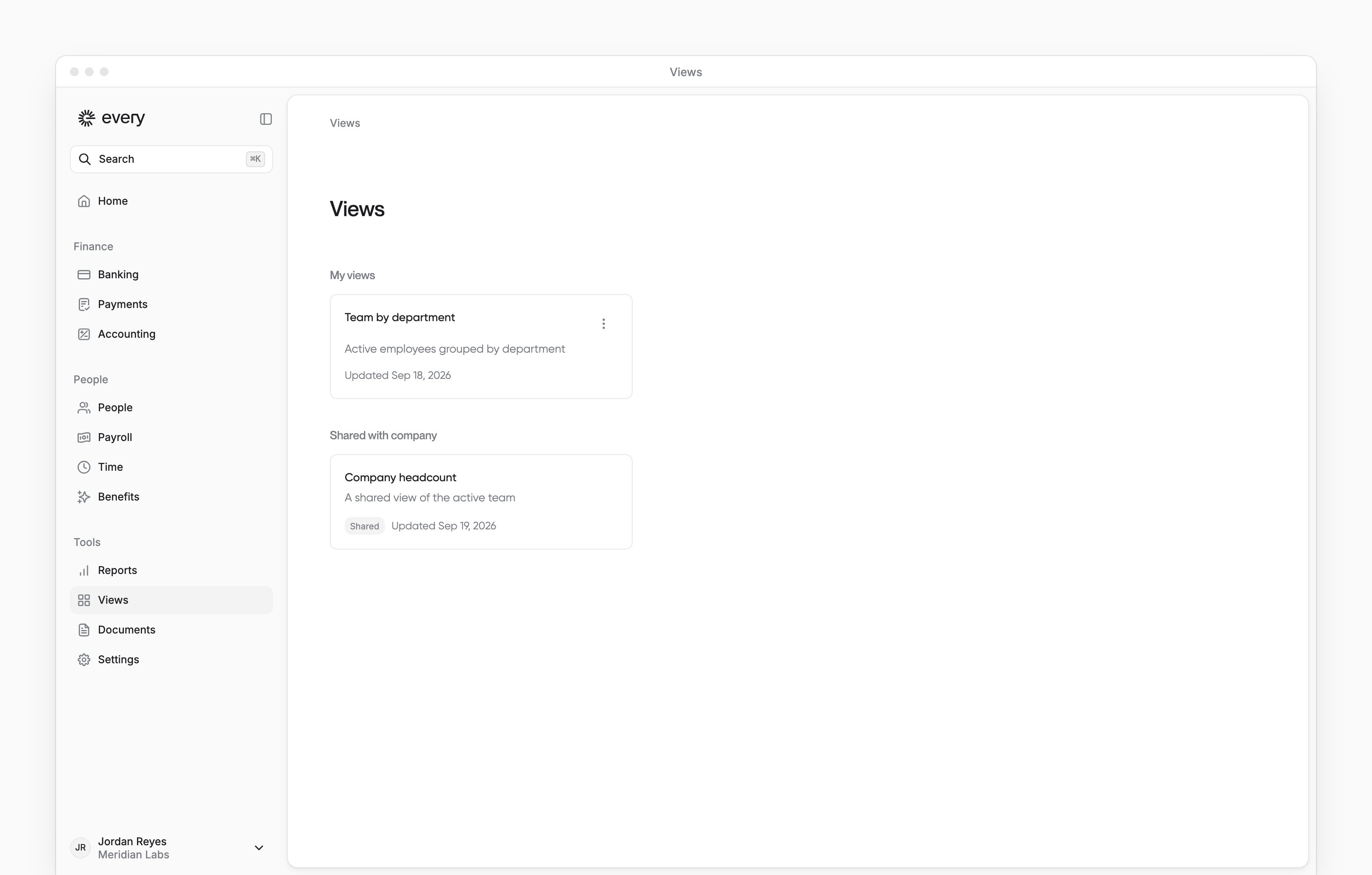
Rename a view
Only the person who made a view gets Rename on its card.1
Open the card's menu
On Views, select the three-dot menu on the card of a view you made.
2
Select Rename
In the menu, select Rename. The Rename view dialog opens with the current name.
3
Enter the new name
In Name, enter the new name for the view.
4
Save the name
Select Save. Every confirms with “View renamed successfully”.
Delete a view
Only the person who made a view gets Delete on its card.1
Open the card's menu
On Views, select the three-dot menu on the card of a view you made.
2
Select Delete
In the menu, select Delete. The Delete this view? dialog opens.
3
Confirm the deletion
In the dialog, select Delete. Every confirms with “View deleted successfully”. Deleting a shared view removes it for everyone. For a private view, the dialog says “This action cannot be undone.”
Create a view
You build a view by asking AI chat. There is no manual editor. You see New view when AI chat is available to you and your company has the view builder.1
Start the view
On Views, select New view. AI chat opens with “Create a view showing ” in the message box.
2
Describe what you want
Finish the sentence with the data you want to see, such as headcount by department, and send it. AI chat builds only from the sources your role can read (see What a view can show).
3
Review the card
AI chat replies with a Create view card that lists the view’s title.
4
Preview the draft
Optional: select Preview draft to open Draft preview, which shows the view with your company’s data and an Unsaved draft badge.
5
Approve or reject
On the card, select Approve to save the view, or Reject to decline it.
Open a view
A view’s page shows its title, its description and its blocks. Tables, charts and stats load their data as you scroll to them. In a table, select a column heading to sort. A table shows 10 rows at a time, so select Load more to see more.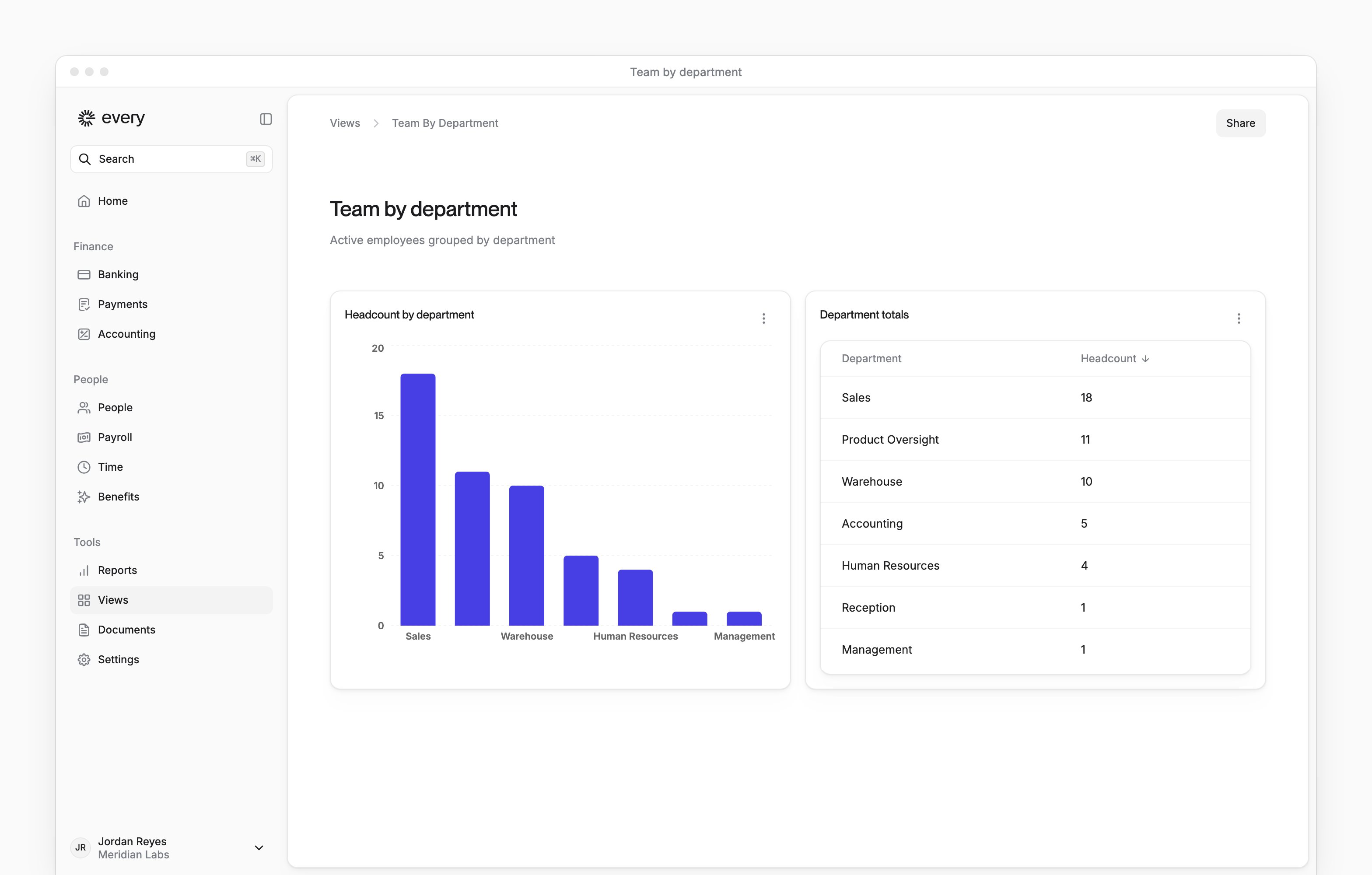
Change a view
1
Choose what to edit
On a view you made, select Edit to change the whole view, or open a block’s menu and select Edit block to change only that block.
2
Describe the change
AI chat opens with “Update this view to ” or “Change this block to ” in the message box. Finish the message and send it.
3
Review the change
Review the Update view card and select Approve or Reject. The saved view stays as it is until you approve the change.
Copy a block’s rows
To include more table rows, select Load more before copying.- On a view you made, open the block’s menu.
- Select Copy as Markdown. Every confirms with “Copied as Markdown”.
Share a view
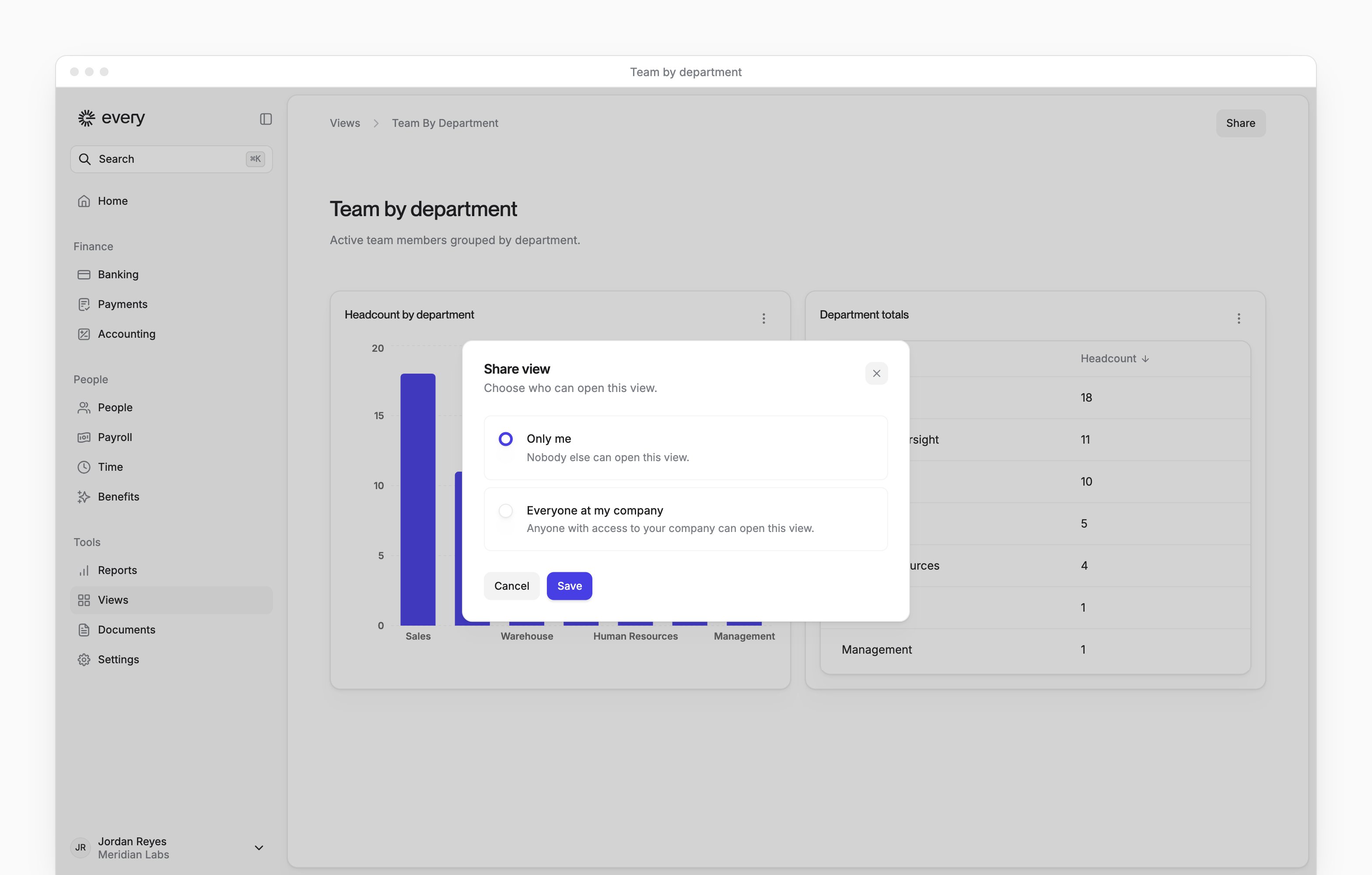
To share a view you made with your company, you need the Company Admin, HR Admin or HR Admin (No Comp) role, so a Bookkeeper alone can’t. A draft can’t be shared until you approve it.1
Open sharing
On the page of a view you made, select Share.
2
Choose who can open it
In the Share view dialog, choose Only me or Everyone at my company.
3
Save the choice
Select Save. Every confirms with “View shared with your company” or “View is now private”.
What a view can show
A block reads from one of these sources:
Payroll transactions aren’t a source in Views.