


 On Benefits, select Every’s Health, Dental, and Vision row to choose plans and run by plan year. Company Admins and HR Admins use it once payroll is set up and your company has finished onboarding.
Employees enroll from a to-do on Home (see Home to-dos) and see their plans on My profile (see My profile benefits).
Every’s Health, Dental, and Vision row appears when your company’s primary filing workplace is in California or when your company already has a medical policy through Every.
On Benefits, select Every’s Health, Dental, and Vision row to choose plans and run by plan year. Company Admins and HR Admins use it once payroll is set up and your company has finished onboarding.
Employees enroll from a to-do on Home (see Home to-dos) and see their plans on My profile (see My profile benefits).
Every’s Health, Dental, and Vision row appears when your company’s primary filing workplace is in California or when your company already has a medical policy through Every.
Every turns on two options company by company: health benefits in New York and North Carolina, and a per-plan switch for an . If you don’t see an option, email support@every.io to ask about it.
Plan years
Plan-year cards show dates, plan count and people enrolled or pending. A selectable card opens setup, the plan-year dashboard or We’re setting up your benefits. A Prepared by Every card isn’t selectable while Every’s team is finalizing the plans.
Without a plan year, select Setup benefits. When the next screen offers Shop plans, follow Begin with Shop plans. If it opens Shop Benefit Plans, follow Set up plans with a meeting.
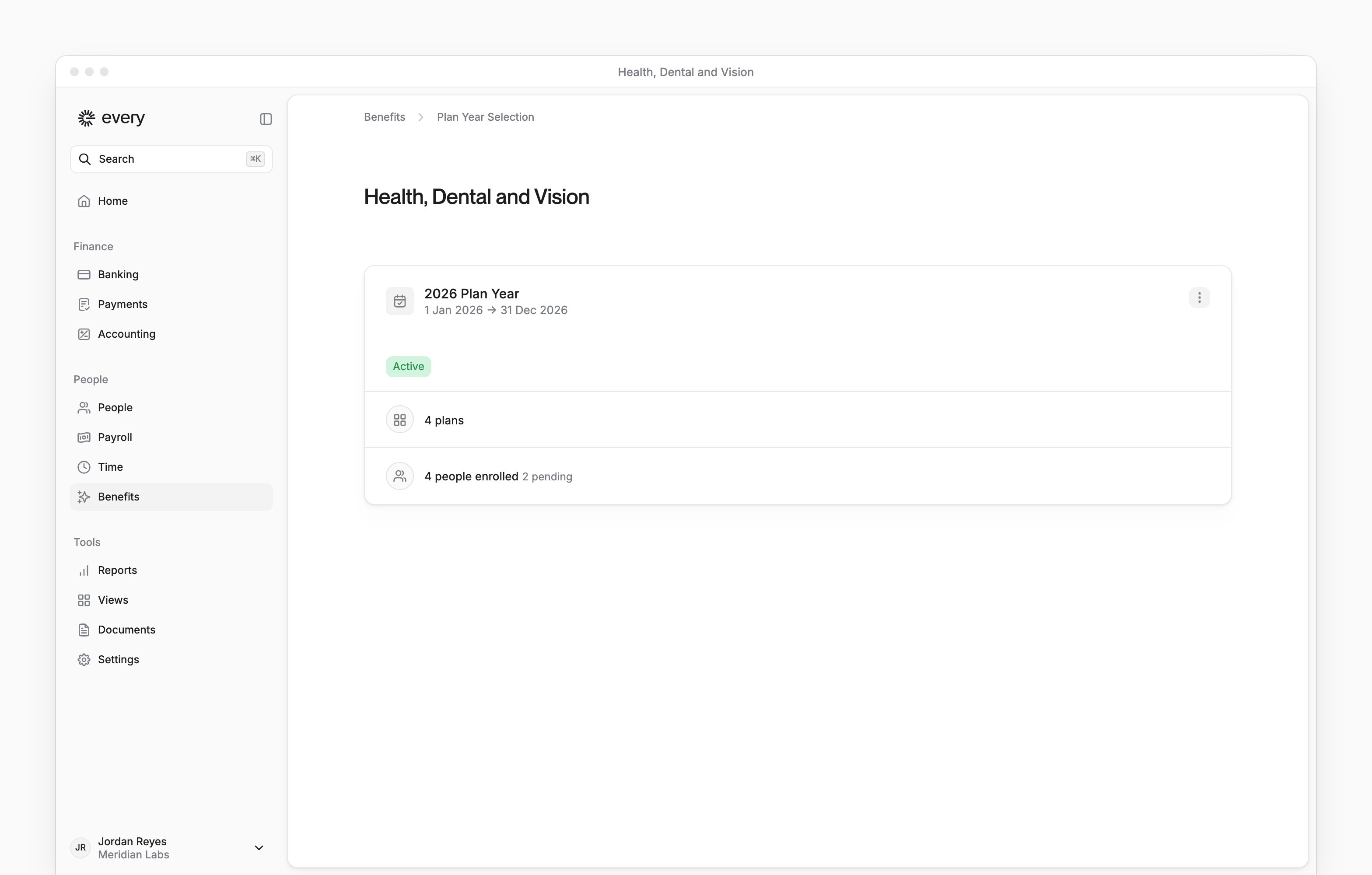
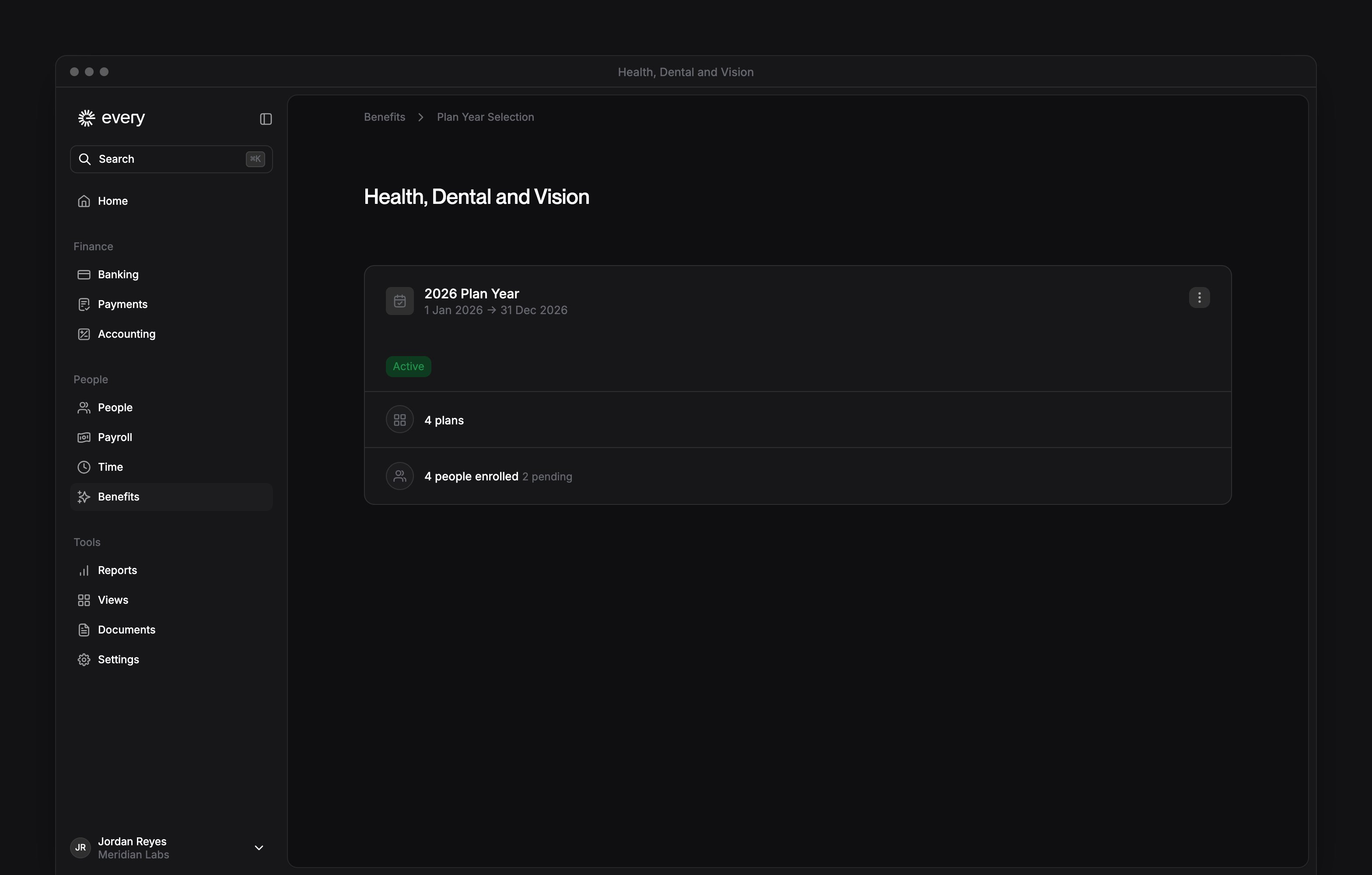
Open a health partner
- On Benefits, under Health, select your health partner’s row.
- For a new SimplyInsured connection, review the data-sharing message and select Connect to continue. To dismiss the dialog, select No, Thanks.
Shop for plans
Begin with Shop plans
Select Shop plans to start. Migrate existing is unavailable. Use Next to move between Get started, Plans and Review.1
Set the plan details
In Get started, choose a Start date and Primary workspace. Every uses the Primary workspace to calculate plan costs.
2
Review eligible employees
Select Eligible for benefits to review the roster before selecting plans.
3
Choose plans
In Plans, select plans for the benefit types you want to offer. Use Select plan for an individual plan or Choose for a plan group.
4
Complete the company details
In Review, choose the Company CEO and Waiting period. When you’ve chosen a health plan, Review also shows Worker’s compensation insurance carrier.
5
Choose the coverage type
In Review, choose a Coverage type for your health plans.
6
Set company contributions
Enter Company pays and Company pays for dependents. Employee pays shows the remainder. When you enter Company pays, its minimum is 50% of employee-only for health, dental and vision.
7
Set HRA budgets
For HRA-enabled plans, set the annual budgets before submitting (see Set annual budgets).
8
Complete the agreements
Enter the name of each and accept the agreements your package shows. Select Accept terms & conditions when it appears.
9
Submit the plans
Select Submit. Every submits the plans and returns you to the plan-year dashboard, where you publish them to open enrollment. To save your progress and return to Benefits instead, select Finish Later.
Set up plans with a meeting
Shop Benefit Plans starts with a meeting with Every’s team. Use Next to move between Shop Plans, Company Details and Coverage & Costs.1
Book the meeting
Select Book a time to open the meeting booking page.
2
Enter company details
In Company Details, choose the plan start date and CEO. Enter the carrier for your company’s , then choose the waiting period.
3
Set company contributions
In Coverage & Costs, choose how much the company contributes. California companies also see a field to upload their .
4
Complete setup
Select Complete Setup. Every saves the details and shows We’re setting up your benefits.
HRA-enabled plans
In Shop plans, look for the HRA Enabled Plans badge. Select the badge or See calculation, when offered, to review the comparison and estimated savings before choosing plans. If a calculation is unavailable, read the explanation shown.Set annual budgets
In Review, set the budgets for each HRA-enabled plan. When a plan has an HRA switch beside it, turn it on first. Turning it off hides that plan’s budget fields.
Both amounts must be greater than $0. Select Apply when offered to use the recommended budgets, or enter your own amounts.
Estimate annual spending
- In Review, under Estimated cost, select HRA budget when shown.
- In Estimate your annual HRA spend, adjust Expected employee utilization to compare the projections.
Review configured plans
On the plan-year dashboard, Plans shows HRA Enabled beside HRA-enabled plans. Select a plan to review its HRA contribution and effective individual and family deductibles.

Publish and close enrollment
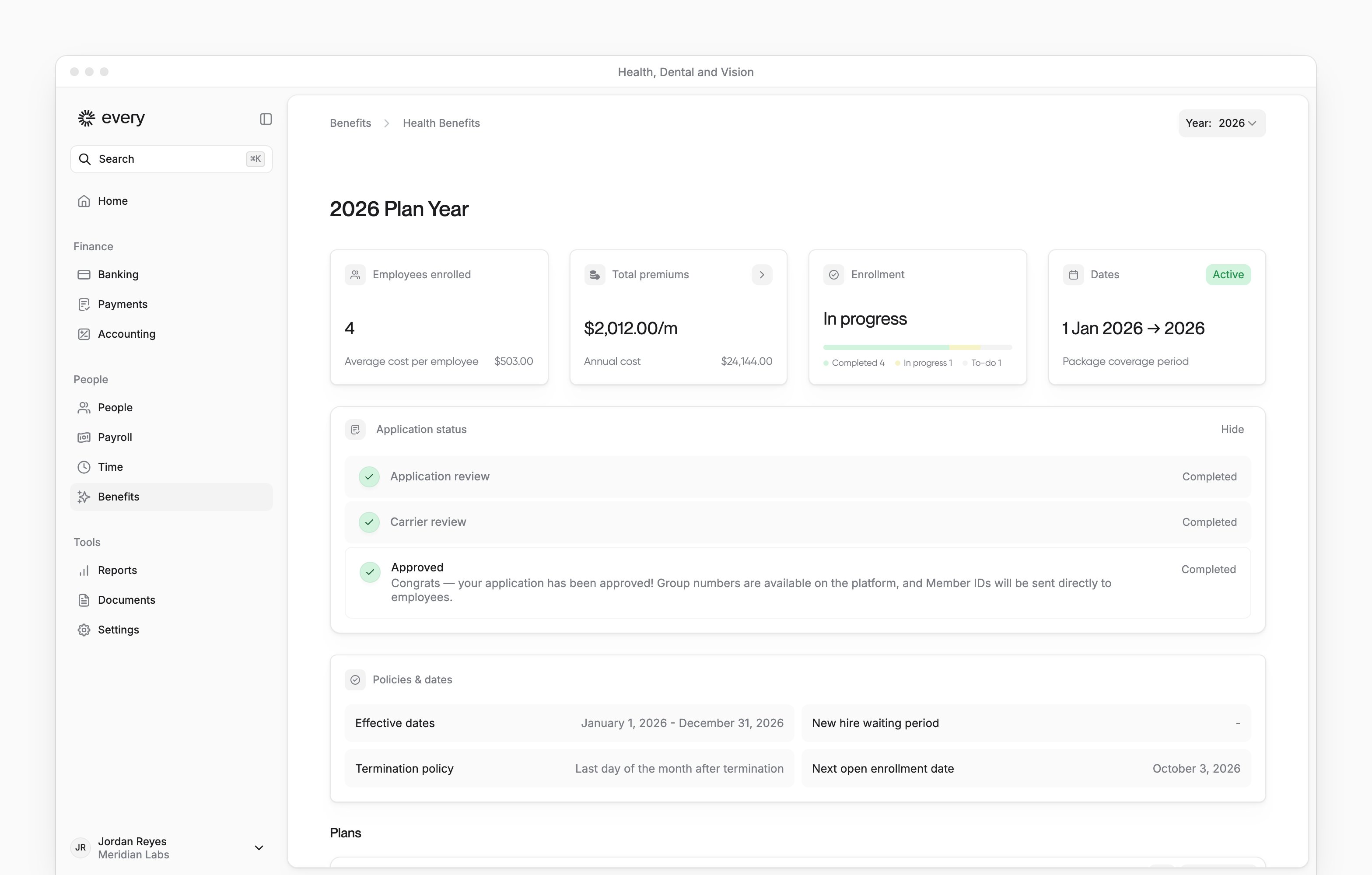
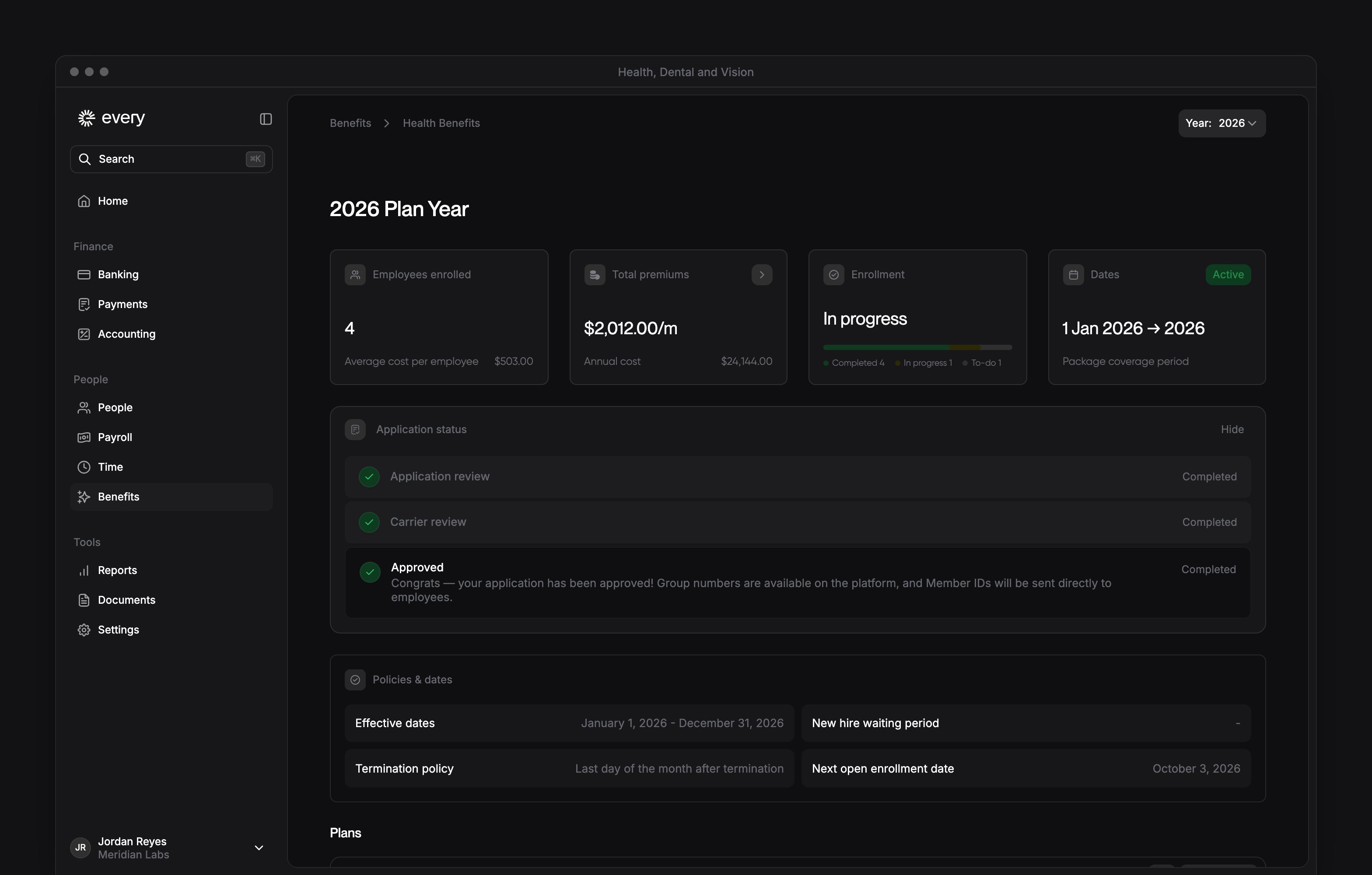
On the plan-year dashboard, What to-do next lists the open-enrollment steps in order. Use the year selector at the top to change plan years. When the dashboard shows an enrollment deadline, close enrollment by that date to keep your start date. The deadline message also gives the start date if you close later. If Publish the plans is already complete, start with Notify employees.1
Review the employees
Confirm that the eligible employees appear in the list.
2
Review and submit the plans
Check the selected plans and costs. When Review plans appears, select it to finish reviewing and submitting the plans.
3
Publish the plans
Select Set active to publish the submitted plans and start employee enrollment. The button stays unavailable until the plans are submitted.
4
Notify employees
Select Notify employees to mark this step done in this browser. The step doesn’t send email itself or confirm that employees received one.
5
Close enrollment
Once employees finish their selections, select Close enrollment. The year moves to Pending and shows an application tracker.
Approve benefit changes
On the plan-year dashboard, Pending actions lists requests about a .1
Open the request
Under Pending actions, select the request to open QLE Requests.
2
Review the change
Review the event, its dates and What’s changing. When Supporting Document has a document, download it. If the employee attested instead, it shows Attested, no document.
3
Approve or reject
Select Approve, then confirm the approval. To reject the request, select Reject, enter a Reason and confirm the rejection.