


 Banking → Checking account shows your Every business checking account: its balance, account details, statements and recent transactions. Company Admins and Bookkeepers can use it after your company finishes onboarding. If your Banking menu has no Credit card item, the sidebar calls this page Overview.
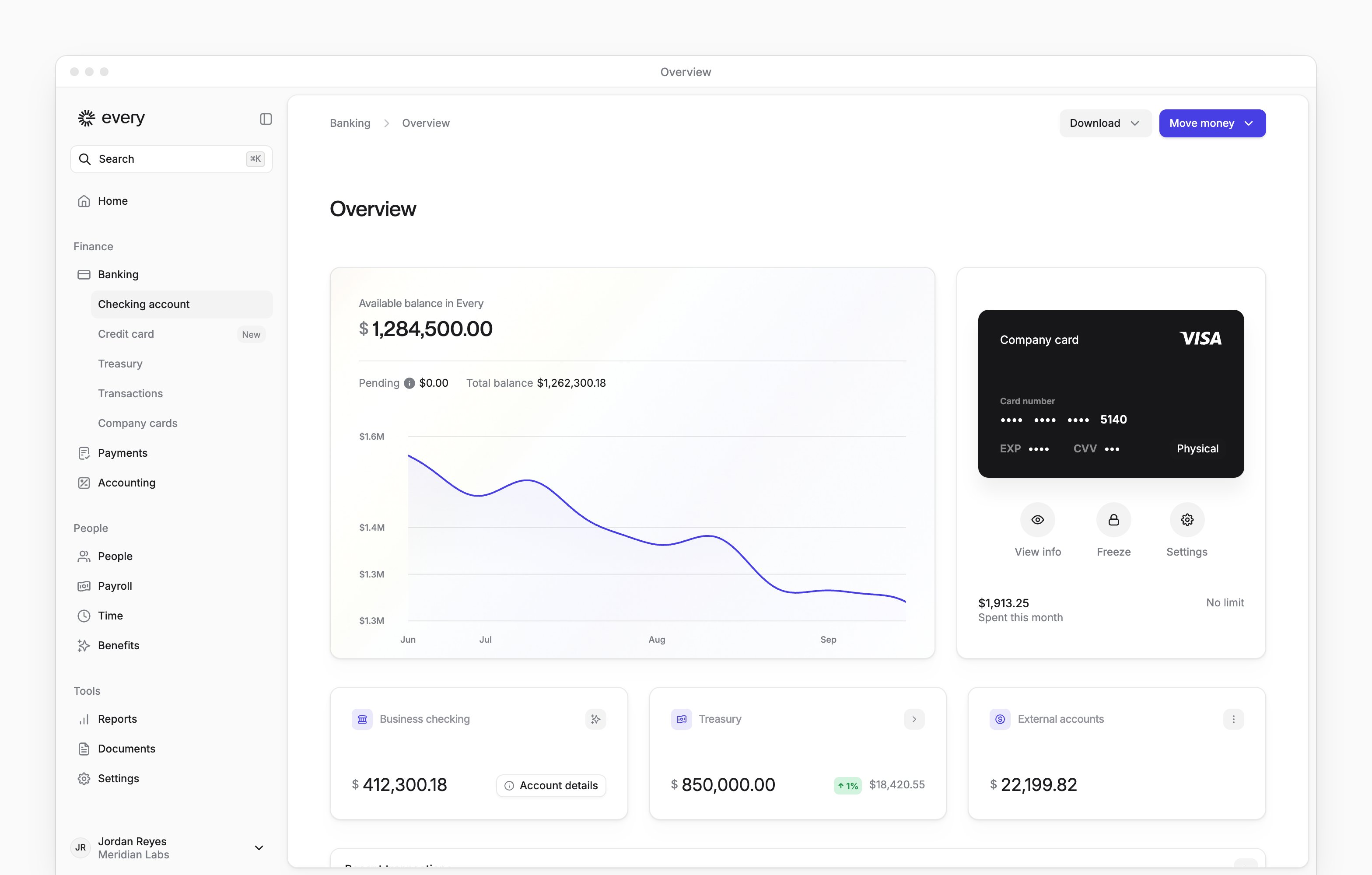
Your balance
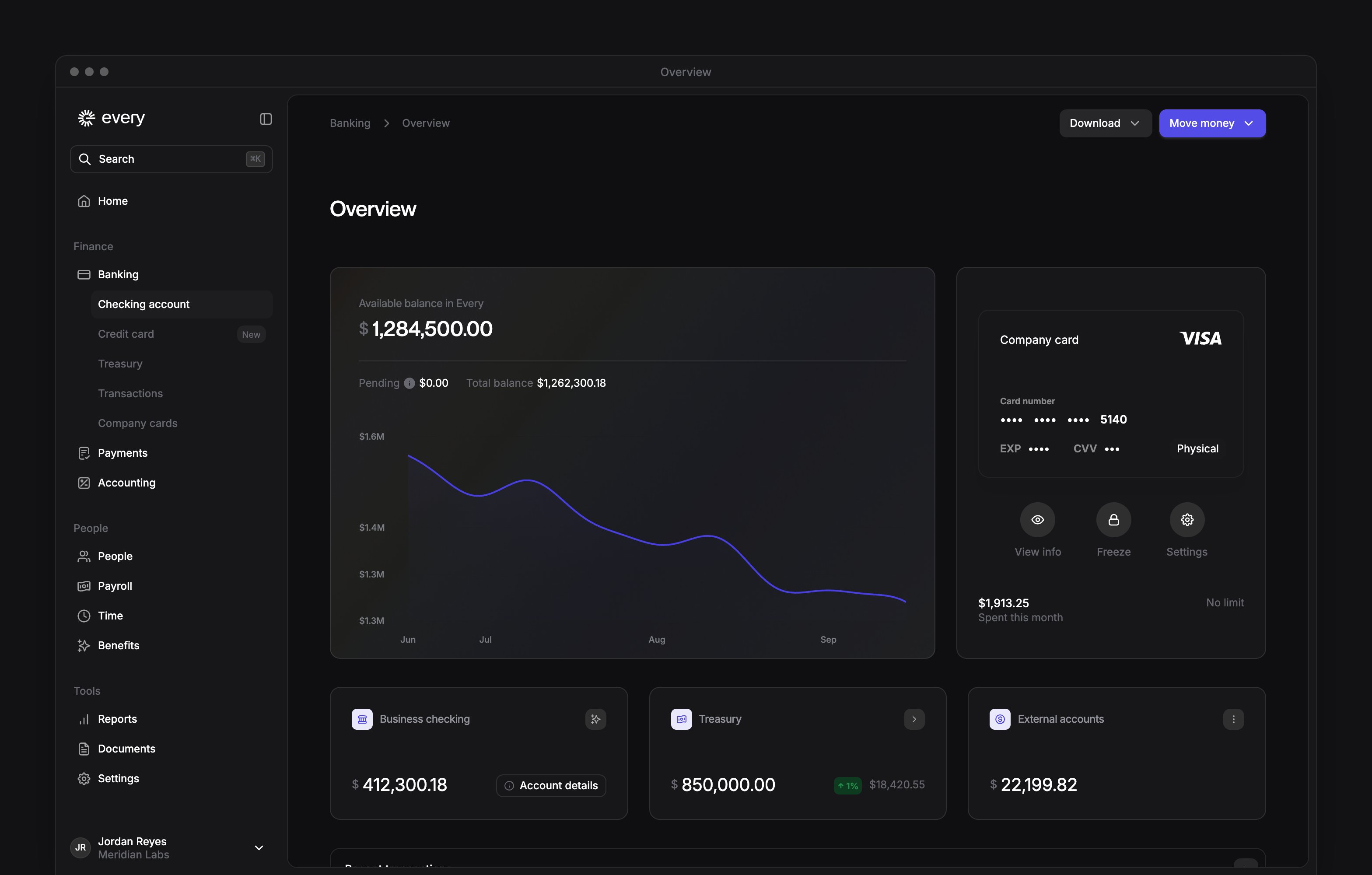
The chart at the top shows Available balance in Every: your checking and Treasury balances combined, after any holds. Under it, Pending is money on hold, such as pending transactions, and Total balance is your balance before those holds. If your checking account is a primary or backup account for your credit card, Pending includes your credit card balance too. If you have an active company card of your own, it sits next to the chart with what you’ve spent against its limit (see Company cards).Accounts
Three cards sit under the chart.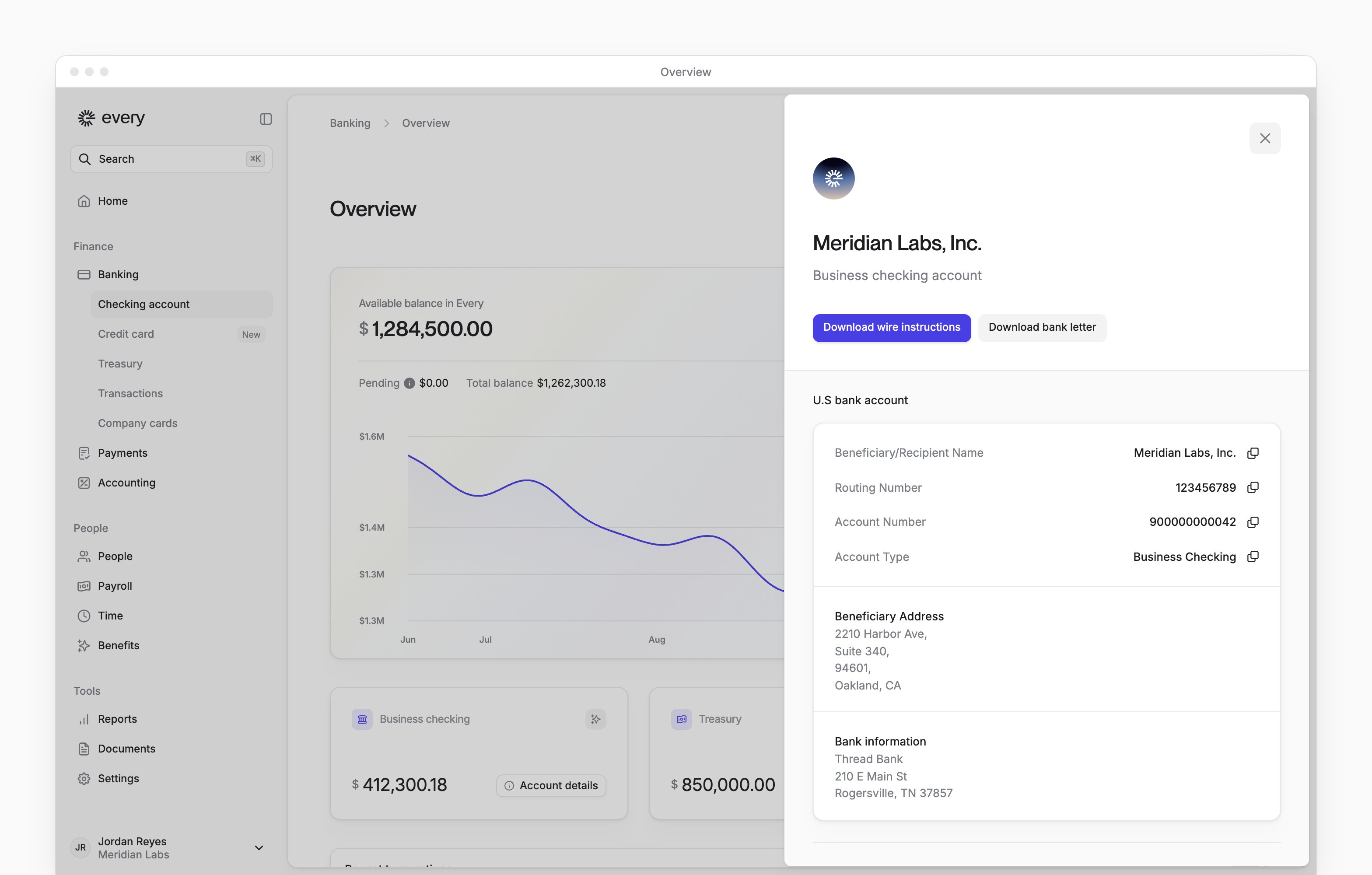
External accounts
The menu on External accounts has these items:Turn on checking autopilot
Autopilot keeps your checking balance above a minimum you choose, moving money in when the balance is below it. To turn it on:1
Open autopilot
On Business checking, select the autopilot button (the stars icon).
2
Turn it on
Under Autopilot status, choose Enabled.
3
Set the minimum
Enter a Minimum target balance.
4
Choose the backup
Choose a Backup fund account from your connected external accounts. If you have none, select Add backup account to connect one.
5
Save
Select Save.
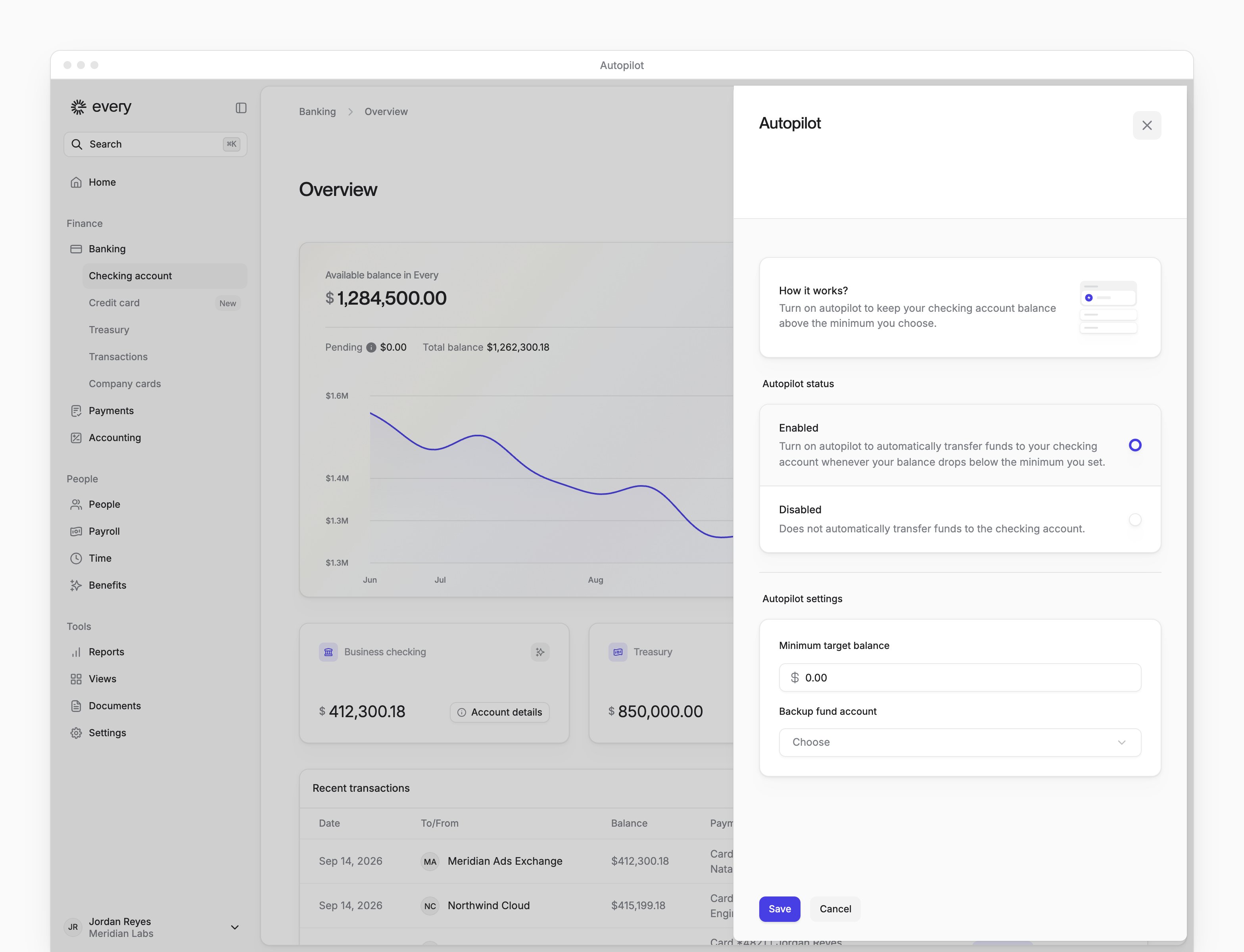
- In the autopilot sheet, change the Minimum target balance or Backup fund account, or choose Disabled under Autopilot status.
- Select Save.
Receive a customer payment
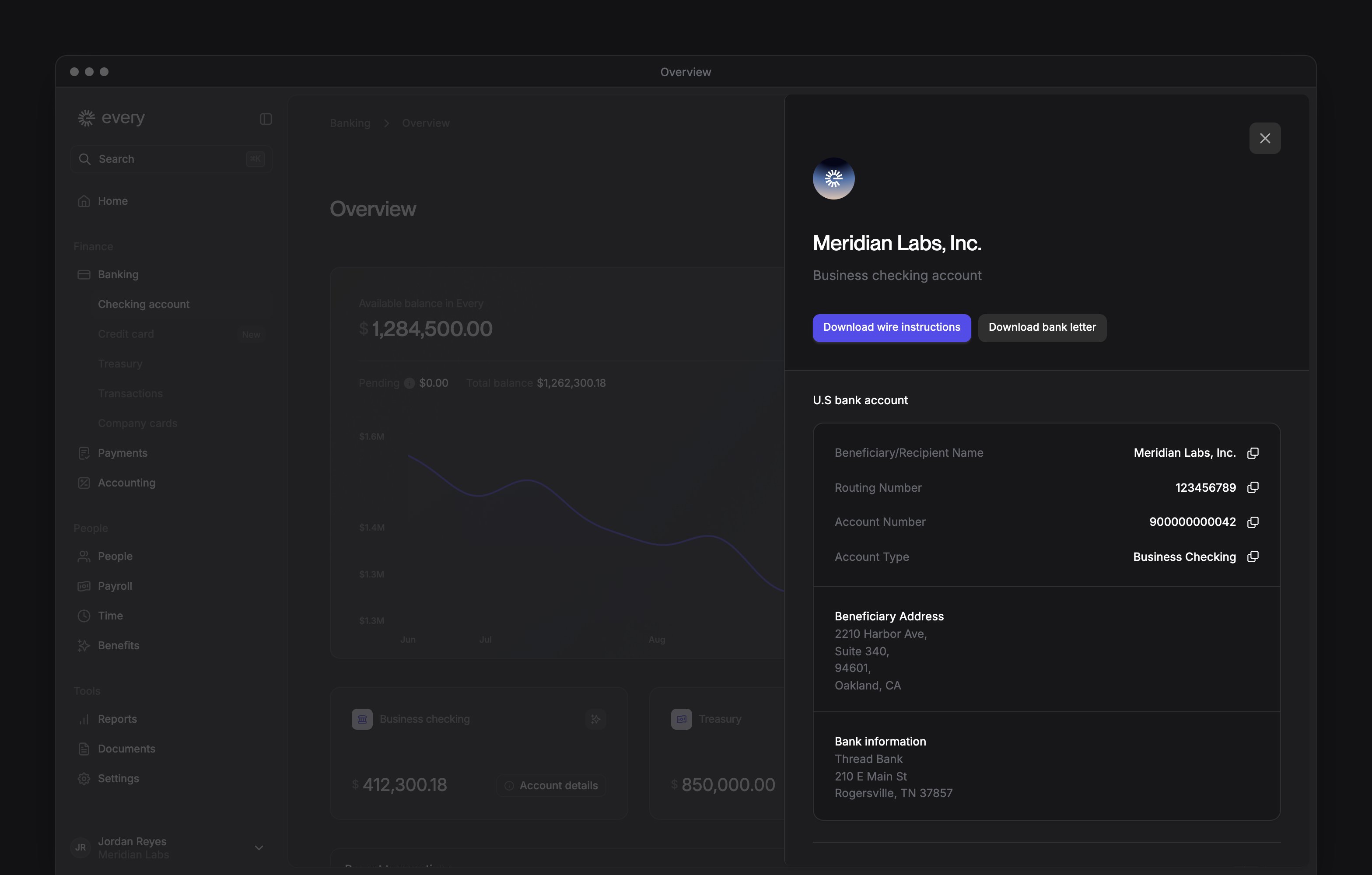
To get paid by a customer, give them the routing and account numbers from Account details on Business checking. For a wire, select Download → Wire instructions and send them the instructions. The item appears once your account has a routing number.Download
The Download menu has your Bank letter. Wire instructions appears once your account has a routing number. Checking statements, Credit statements and Treasury statements each appear once your company has statements of that type. Credit statements also needs Credit card in the Banking menu.1
Choose the statement type
In Download, choose Checking statements, Credit statements or Treasury statements.
2
Choose the year
Choose a year to see that year’s statements.
3
Download the statement
Select Download for the month you need.