


 Company Admins and HR Admins invite employees and contractors from People → Add people. To upload a CSV instead, see Import people.
Before you begin
- Company Admins and HR Admins can add people once payroll is set up and your company has finished onboarding.
- The hire needs a pay schedule. When no compatible schedule is listed, select Create pay schedule in the form.
- For Every to prepare the offer documents, your company needs a . In the form, select Configure signatory to set one up.
Invite a new hire
On People, select Add people. If a menu opens, select Create new hire.1
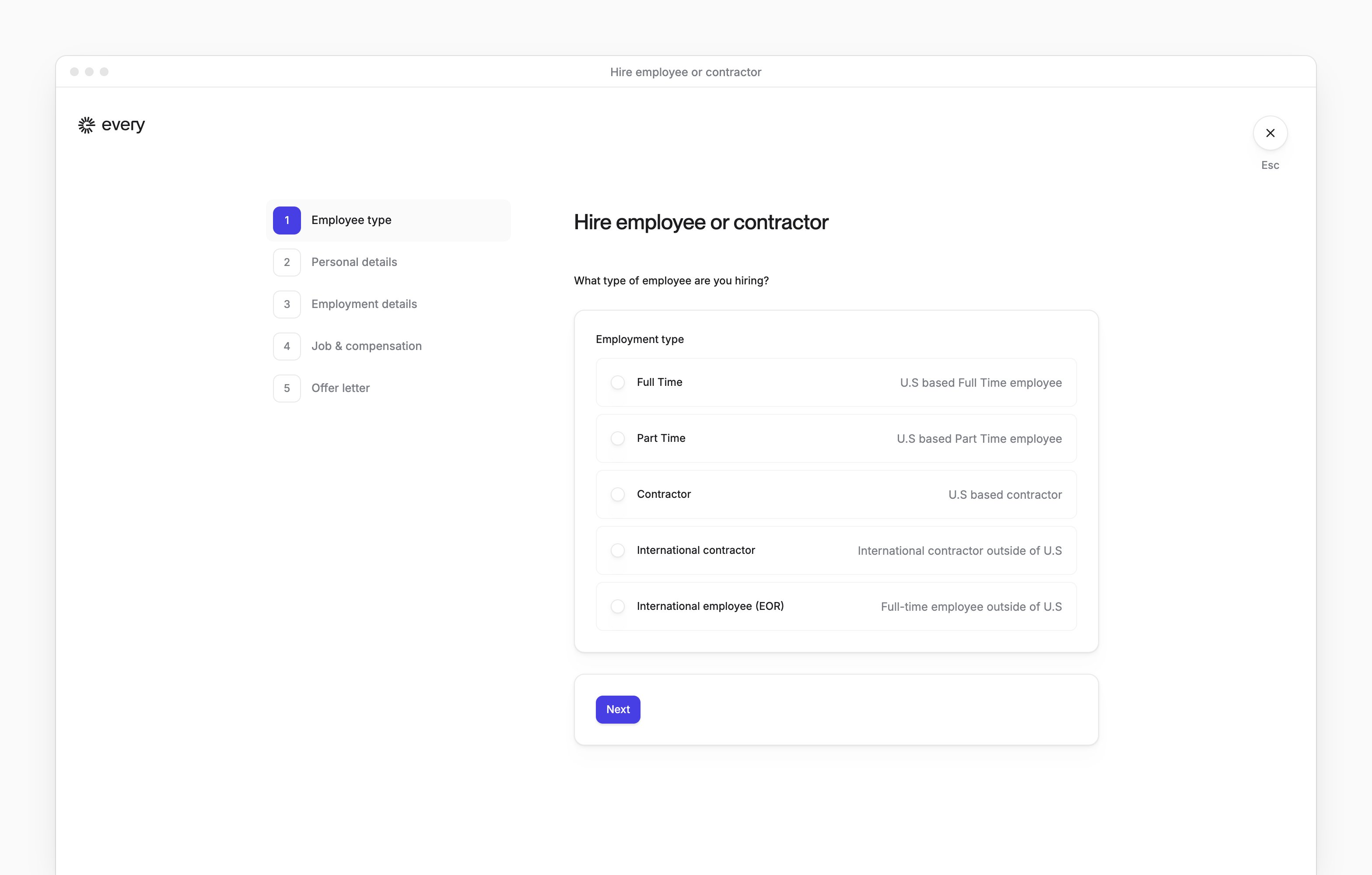
Choose the employment type
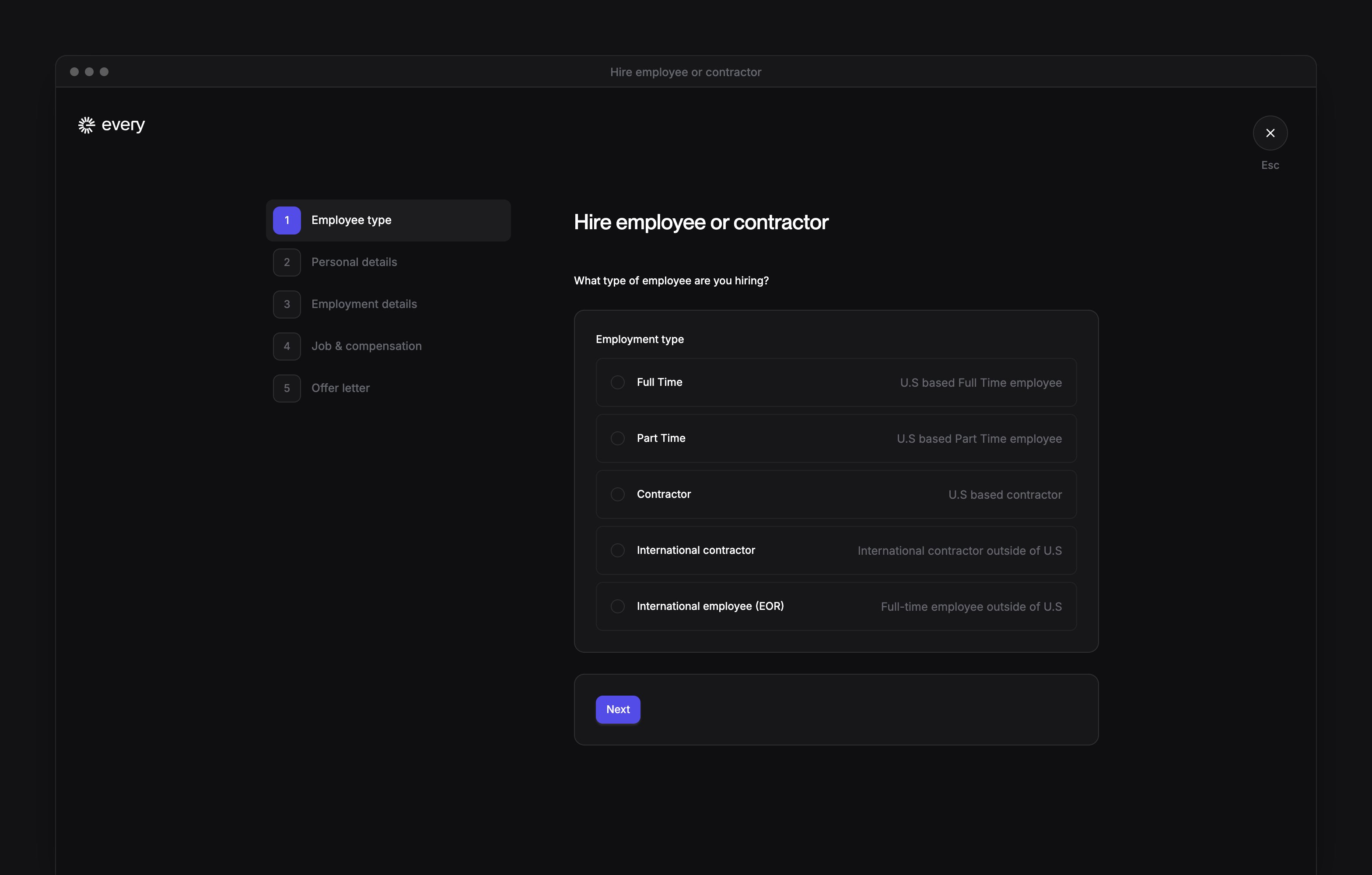
In Employee type, choose Full Time, Part Time or Contractor for a U.S. hire. For an international contractor, choose International contractor and a compliance package.For an international employee, choose International employee (EOR), then select Contact us. Every’s team handles that setup, so the form stops here.
2
Enter the person's details
In Personal details, enter their Legal first name, Legal last name and Email. Add a middle initial if needed.If the form asks for a personal email, enter it. Personal email is required when your company has connected Okta; otherwise the field is Personal email (optional) and you can leave it blank.
3
Set up their employment
In Employment details, choose their Manager and Department. Employee hires also need a Work location and a representative who meets the new hire in person to inspect their identification documents for the .Choose someone at the company, or have the new hire select a representative. For a company representative, choose the person under Employee.
4
Set the job and pay
In Job & compensation, choose the Job title, enter the Compensation amount and choose its frequency under Per. For an employee, set Eligible for overtime. Then choose the Pay schedule and Start date.For hourly pay, choose Timesheet input frequency. Add details about a when needed.
5
Prepare the offer documents
In Offer letter, choose Yes, please create for Every to prepare the employee’s offer letter and , or a contractor’s contract. Choose No, I’ll use my own to upload your own PDF, DOC or DOCX files. For an employee, you can also upload an Invention Assignment Agreement.Under This person will work on…, enter the service description for a generated contractor contract. If Offer letter shows Choose template, select it to start from one of your company’s published offer letter templates, then select Edit to change the offer’s content.
6
Review and invite
On Review and confirm details, check the hire and what happens next. Select Make changes to go back, or Confirm & Invite to save the hire and send the onboarding invitation.
What happens next
Follow up from the person’s row menu on People:- Send Invite sends another onboarding invitation.
- Onboard opens an unfinished hire so you can complete the details.
Follow up on I-9 verification
After onboarding is complete, an unfinished I-9 changes Send Invite to Nudge the person doing this verification. Select it to email the representative again. To replace the representative while verification is incomplete, open the person’s row menu on People and select Change I-9 Reviewer.1
Choose the representative type
Under I9 authorized representative type, choose Yes, someone at the company can meet them in person or No, I would like to select someone else.
2
Choose or enter the representative
For a company representative, choose the person under Employee. For someone else, enter their name and email.
3
Save the representative
Select Update.