


 Pay runs opened from Payroll → All pay runs show pay entry, review or a payroll summary, depending on status. Company Admins and HR Admins can run payroll. Each employee sees their own paystubs on My profile → Docs after your company finishes onboarding (see Paystubs and tax forms).
Every turns on pasting into earnings cells, Import hours and leaves of absence company by company. If you don’t see them, email support@every.io to ask about them.
Before you begin
To enter pay, you need the Company Admin or HR Admin role and a Draft or Failed run. Your company needs payroll turned on and payroll onboarding complete before its pay runs load. For a new run outside the regular schedule, first create an off-cycle or bonus pay run. For an employee’s last paycheck, use Run a termination payroll. Have enough money available in your Every checking account by the run’s Run by date. For your first payroll, send money to that account even if you selected Plaid during payroll funding setup.Adjust and submit a run
1
Open the run
On Payroll → All pay runs, select a Draft or Failed run.
2
Check the run
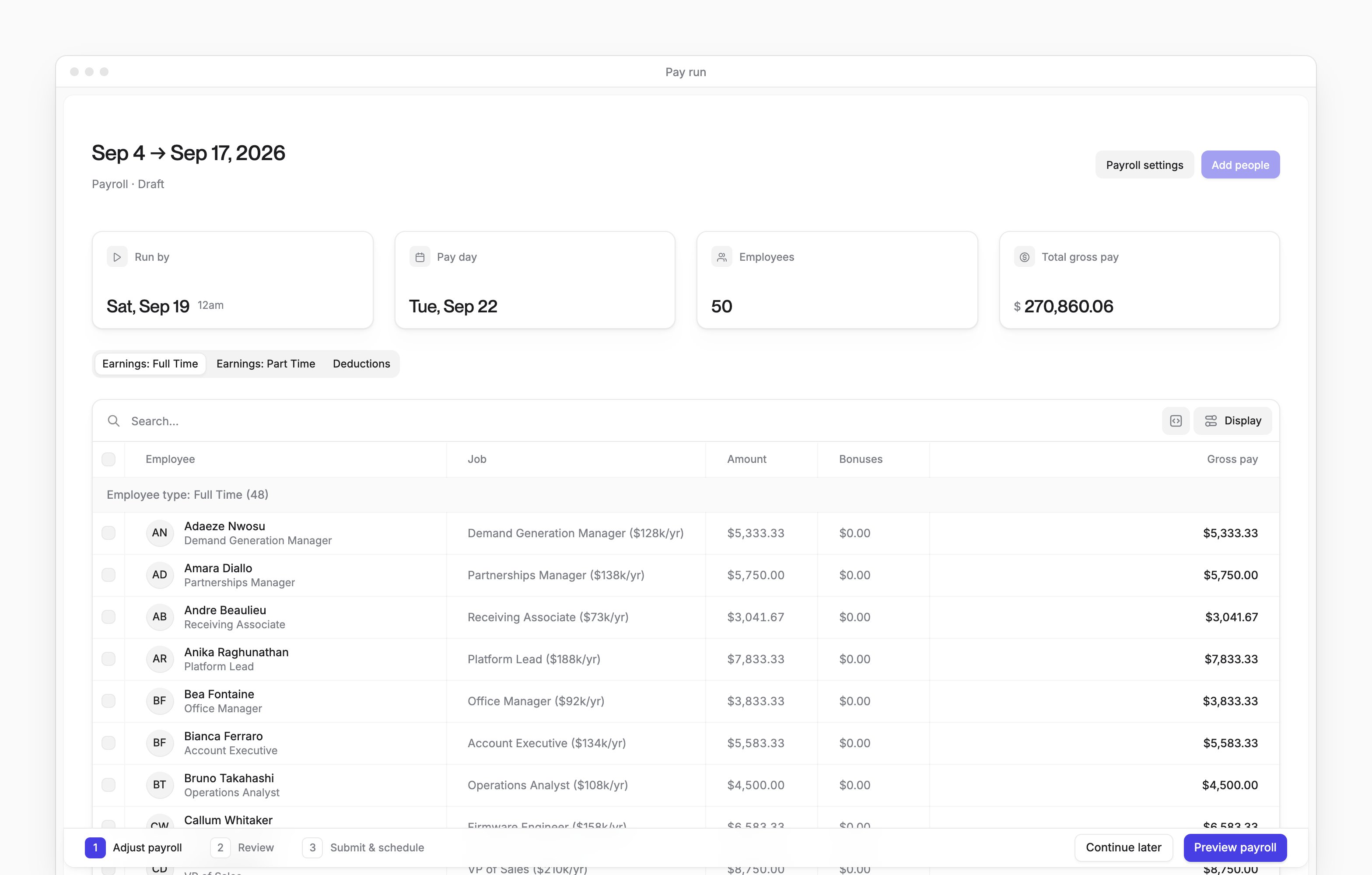
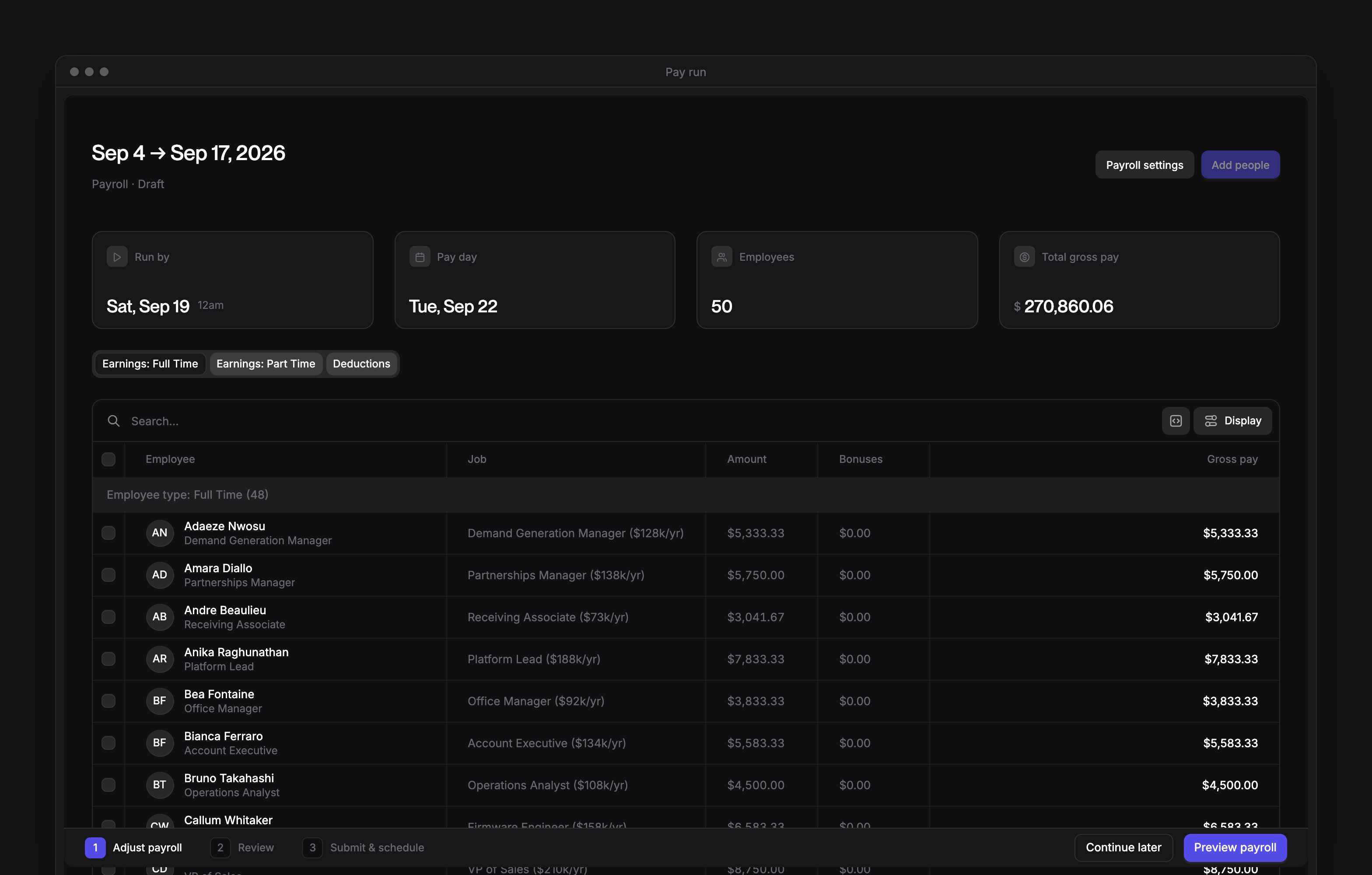
Review the run’s dates: Run by is the due date and Pay day is the payday. The page also shows the number of employees and their total .
3
Open a person's pay details
On Earnings: Full Time or Earnings: Part Time, select a person.The tabs follow compensation frequency: nonhourly people are on Earnings: Full Time, and hourly people are on Earnings: Part Time. Contractors are on the same tabs. For contractors, overtime entry is disabled and there’s no supplemental bonus entry.
4
Enter pay
In the pay details, enter the salary amount or hours for the run. On an earnings tab, you can also paste values into editable cells, or import hours for eligible hourly people from a CSV (see Import hourly pay).
5
Save the pay details
Select Save.
6
Check deductions
Review Deductions. Amounts are read-only. To manage company or individual deductions, see Deductions.
7
Preview payroll
Select Preview payroll. Without autopilot, the run shows Processing, then Pending once the preview succeeds.
8
Confirm a manual run
On an autopilot run, in the “Would you like to submit manually?” dialog, select Proceed to turn off autopilot for this run. The run shows Processing, then Pending once the preview succeeds.
9
Review the totals
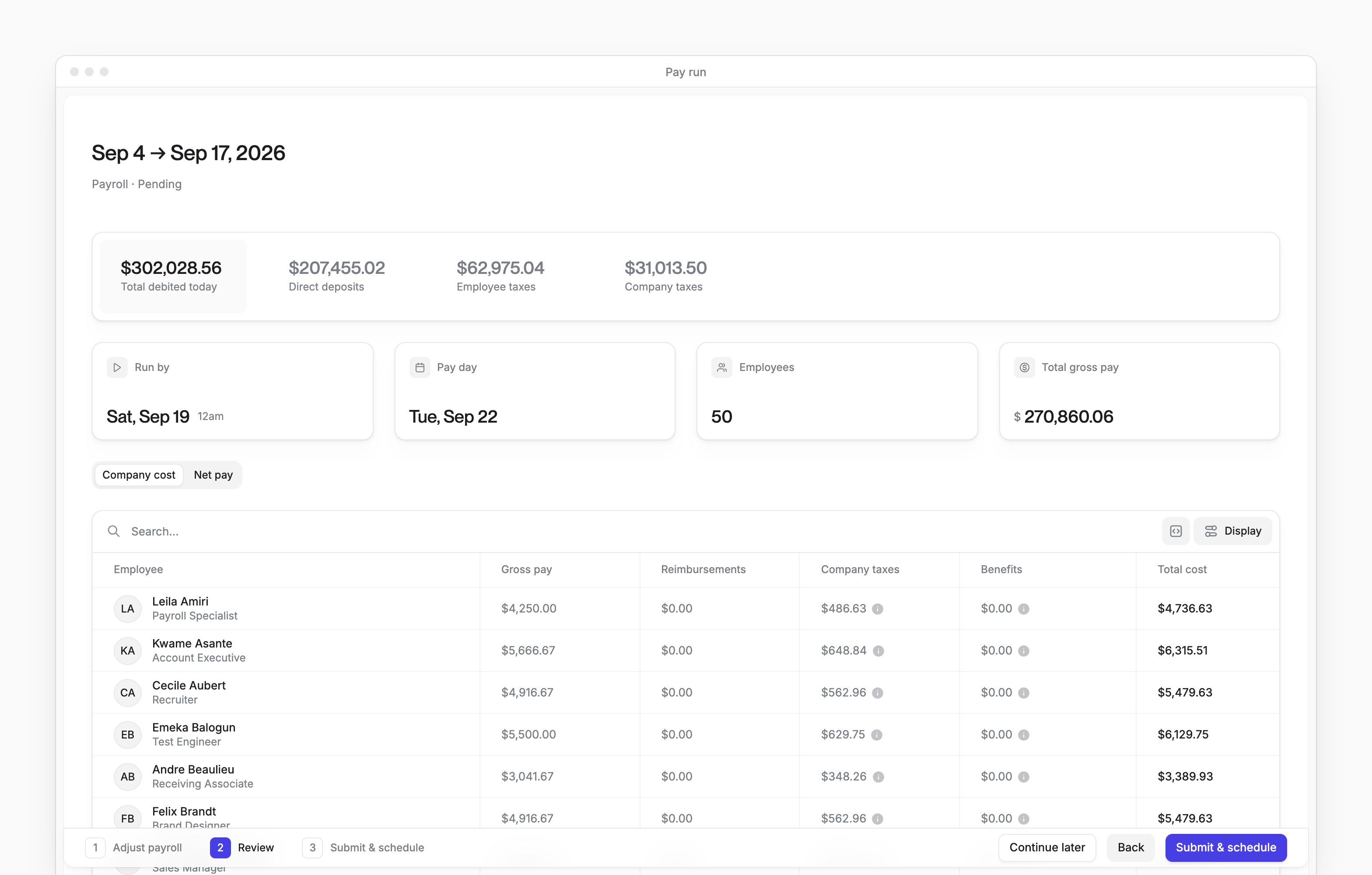
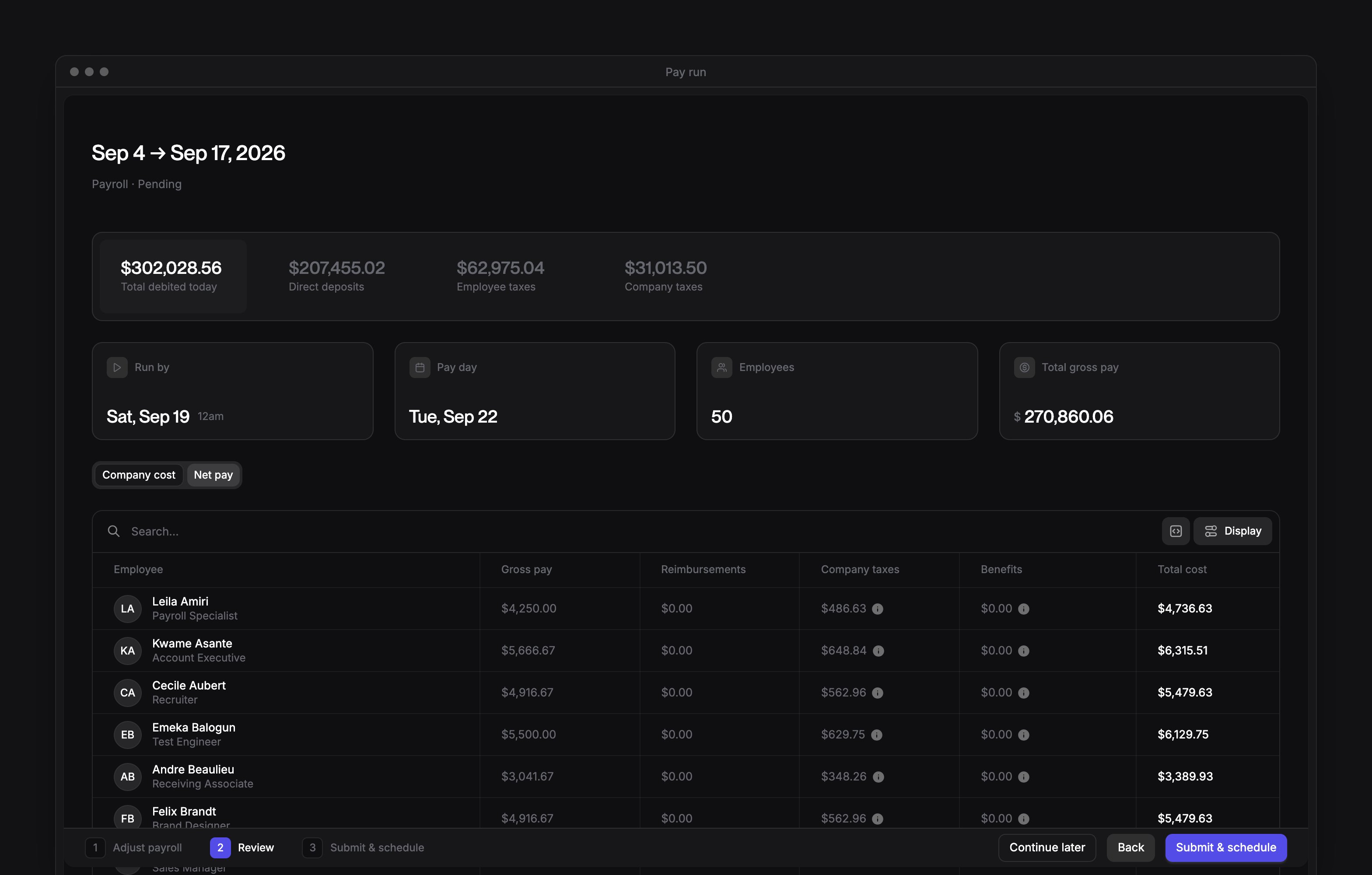
Review Total debited today, Direct deposits and the tax totals. Total debited today is the total company cost of the run’s paystubs. To ask when the debit posts, email support@every.io.
10
Inspect taxes
Optional: point to a nonzero Employee taxes or Company taxes total to see its breakdown.
11
Review each person's amounts
Select Company cost or Net pay to see each person’s amounts.Back returns a Pending run to Draft for changes.
12
Submit the run
Select Submit & schedule when the run is Pending and the amounts are ready. The run changes to Submitted and opens its summary.
Exclude a person
On a Draft run’s earnings tab, you can select only rows with pay entered, completed onboarding and required information.- Select the person’s row checkbox.
- Select Exclude.
Change pay run settings
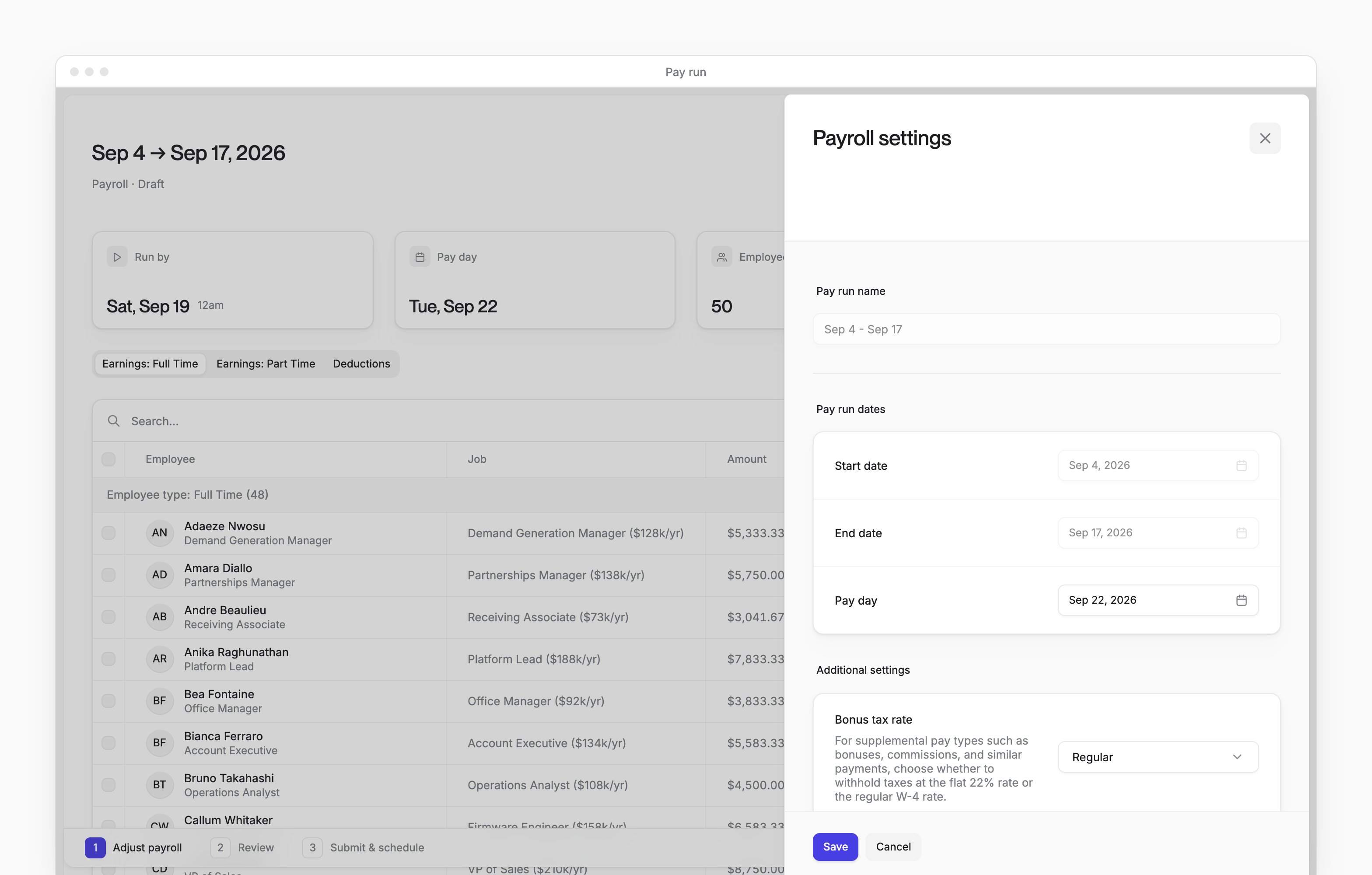
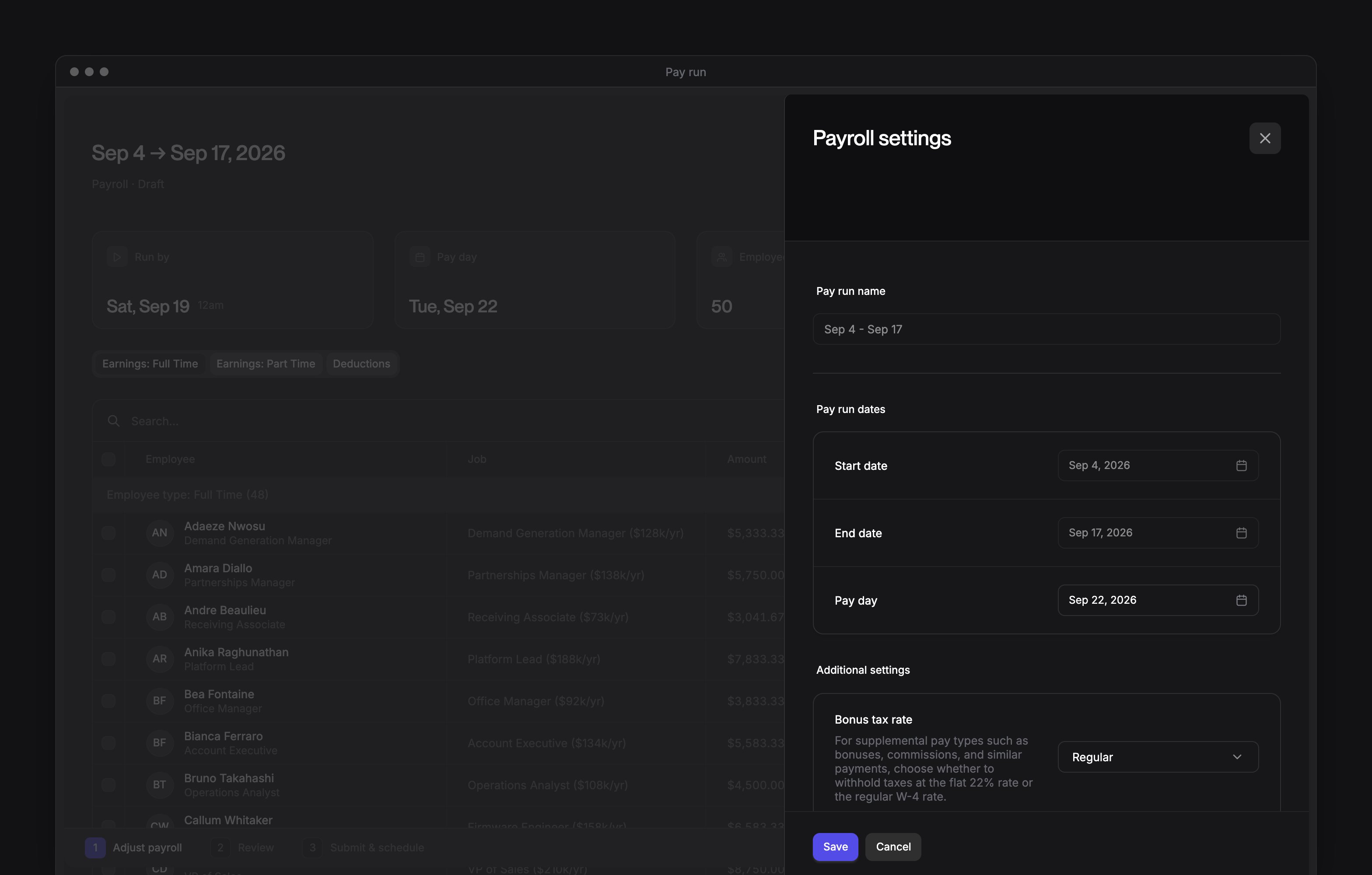
On a Draft or Failed run:1
Open the settings
Select Payroll settings.
2
Change the fields
Change any of these fields:
- On any run: Pay day, Bonus tax rate and Salary overtime exempt
- On runs other than regular runs, also: Pay run name, Start date and End date
3
Save the settings
Select Save.
New hires and partial-period pay
When a new hire finishes onboarding with a pay schedule, Every checks the regular run covering their start date. If that run is Draft, Every generates the new hire’s pay in that run. If the covering run is no longer Draft, Every creates a separate Draft catch-up run for that period. The catch-up run uses the new hire’s name and has autopilot turned off. Review and submit the catch-up run through the same steps as another pay run. Every prorates partial-period base salary by working days, whether or not the person is exempt from overtime: Normal pay for the period ÷ working days in the full period × the employee’s counted working days. Counted days are working days inside the , between the employee’s start and end dates, while their compensation is in effect. Days recorded as inactive are excluded. On regular runs, recorded leave-of-absence periods that overlap the run can reduce the counted working days. A canceled leave doesn’t reduce the count.Import hourly pay
You can import a CSV for hourly people using Single entry or Untracked timesheets. Hourly people with no timesheet type set are also included. People using Daily entry timesheets are excluded. The person’s hire must be approved and they must be included in the run.1
Open the import
On Earnings: Part Time, select Import hours.
2
Download the template
Select Download template.
3
Fill in the hours
Keep the employee IDs and names in the template, then enter each person’s hours. Use one row per employee and numeric, nonnegative hours.
4
Choose the file
Select the filled-in CSV file.
5
Open the review
Select Continue to upload the file and review the matches.
6
Review the matches
Review Potential issues and Successful match.
7
Inspect a row warning
Optional: point to the warning marker beside an employee ID to see that row’s message.
8
Submit hours
With at least one valid row, select Submit hours. The result shows successful imports, failed imports and imported hours. Skipped rows count as failed imports.
9
Return to the run
Select Back to payroll to inspect the run’s hours and totals.
What happens next
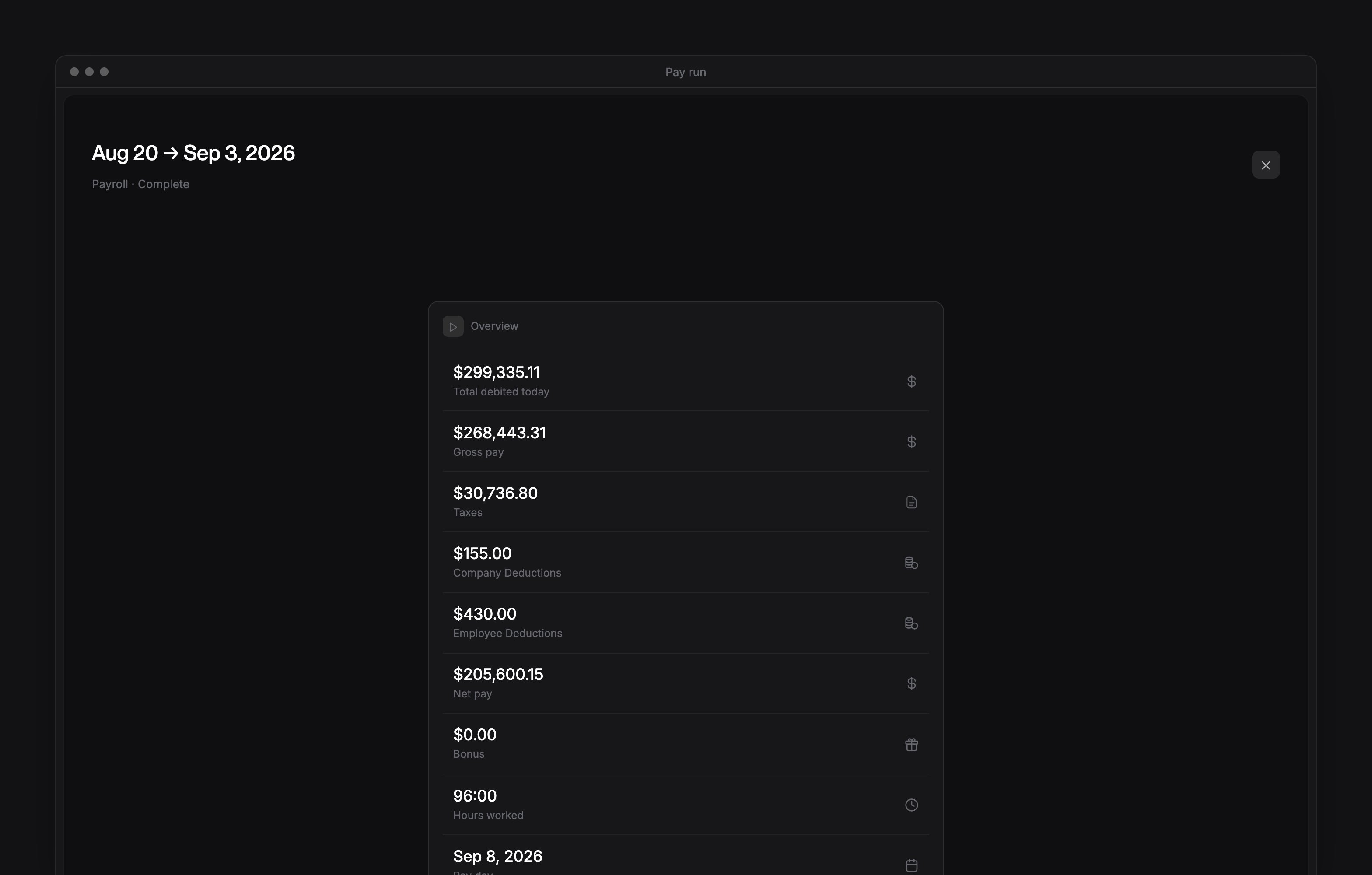
A Submitted or completed run shows its payroll summary. The header calls a completed run Complete; All pay runs labels the same state Paid. Select a person to inspect their paystub, including gross pay, taxes, deductions, company contributions and .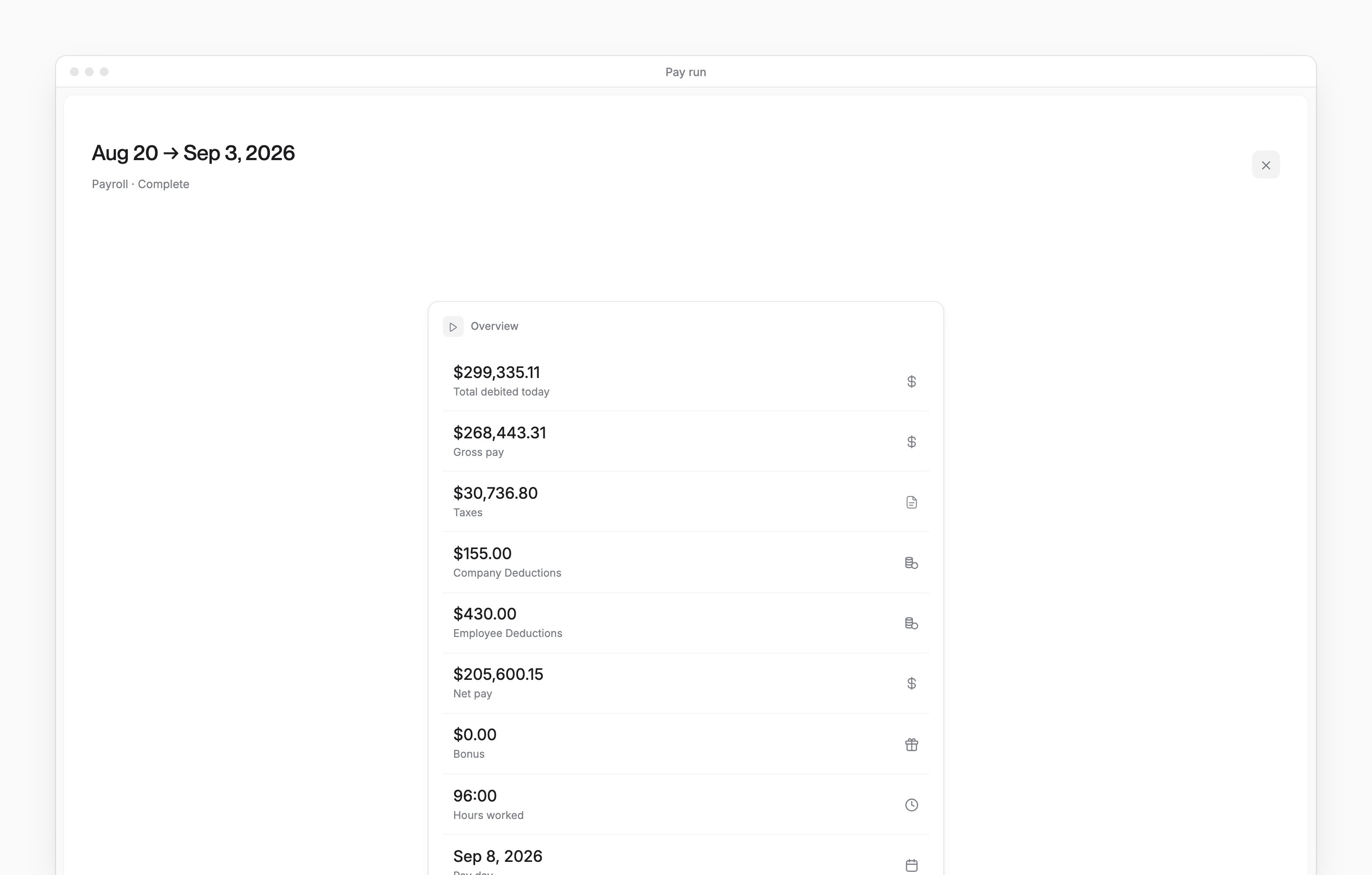
- On the run’s summary, select Make changes.
- On an autopilot run, in the “Disable autopilot to make changes” dialog, select Confirm.
Sync payroll to QuickBooks
Syncing a completed run requires QuickBooks to be connected with the Every Bank Account and Reimbursement defaults set. The required payroll categories must also be mapped (see Accounting settings). With the connection and defaults ready, Finish QuickBooks setup on the run’s summary appears if categories are missing. It opens Settings → Accounting. The HR Admin role on its own can’t open that page, so ask a Company Admin to finish the mappings. On the completed run’s summary, select Quickbooks Sync Now. If the sync fails, on the completed run’s summary, select Retry Quickbooks Sync.Troubleshoot a run
- For “Payroll run not found”, on Payroll → All pay runs, select an existing run. For “Error loading payroll run” or “Something went wrong loading this payroll.”, refresh the page.
- For “Pay day is too soon. Choose a pay day at least 3 business days from today.”, in the run’s Payroll settings sheet, select a Pay day at least 3 business days away.
- For “Import failed”, select Start over to begin another upload.