


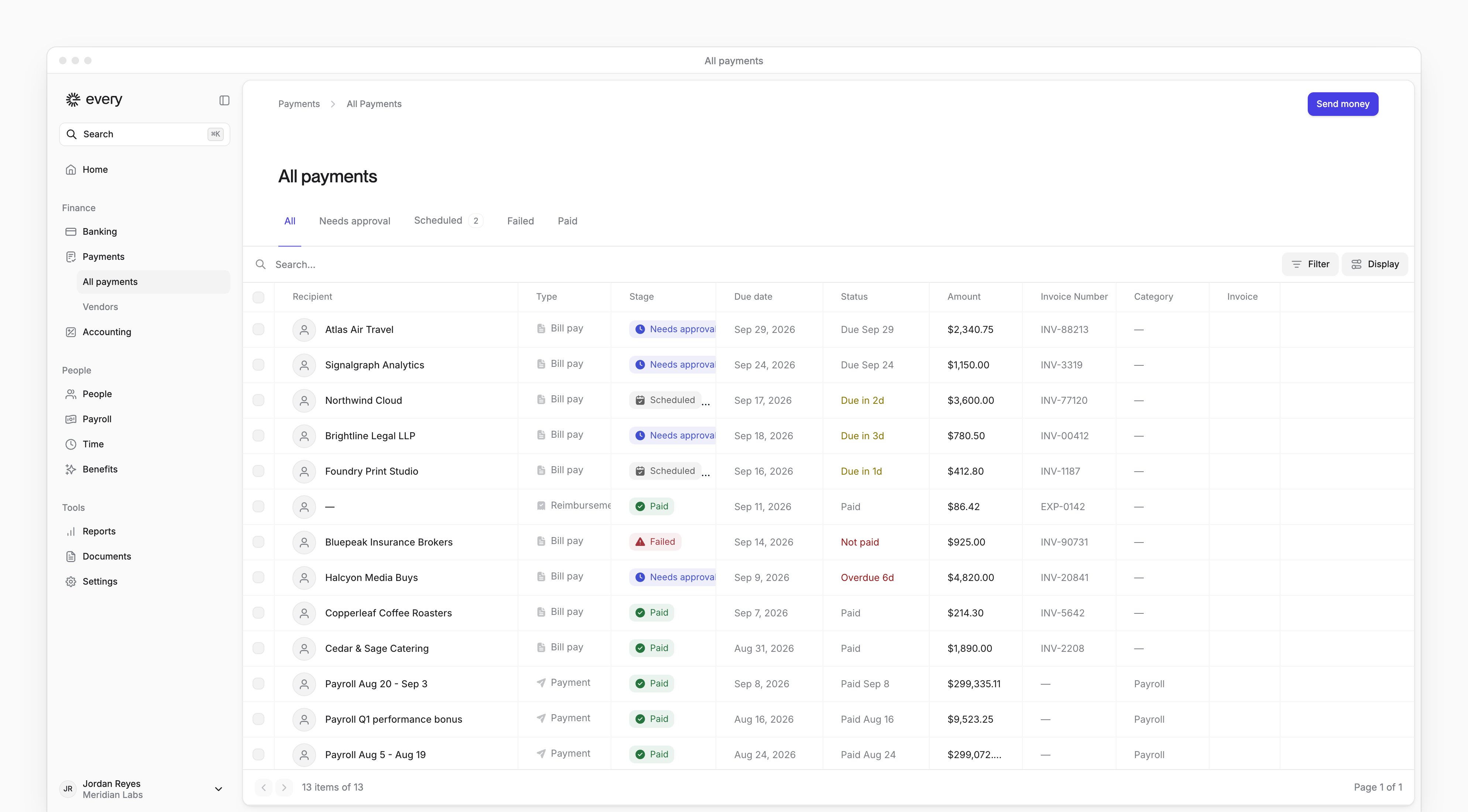
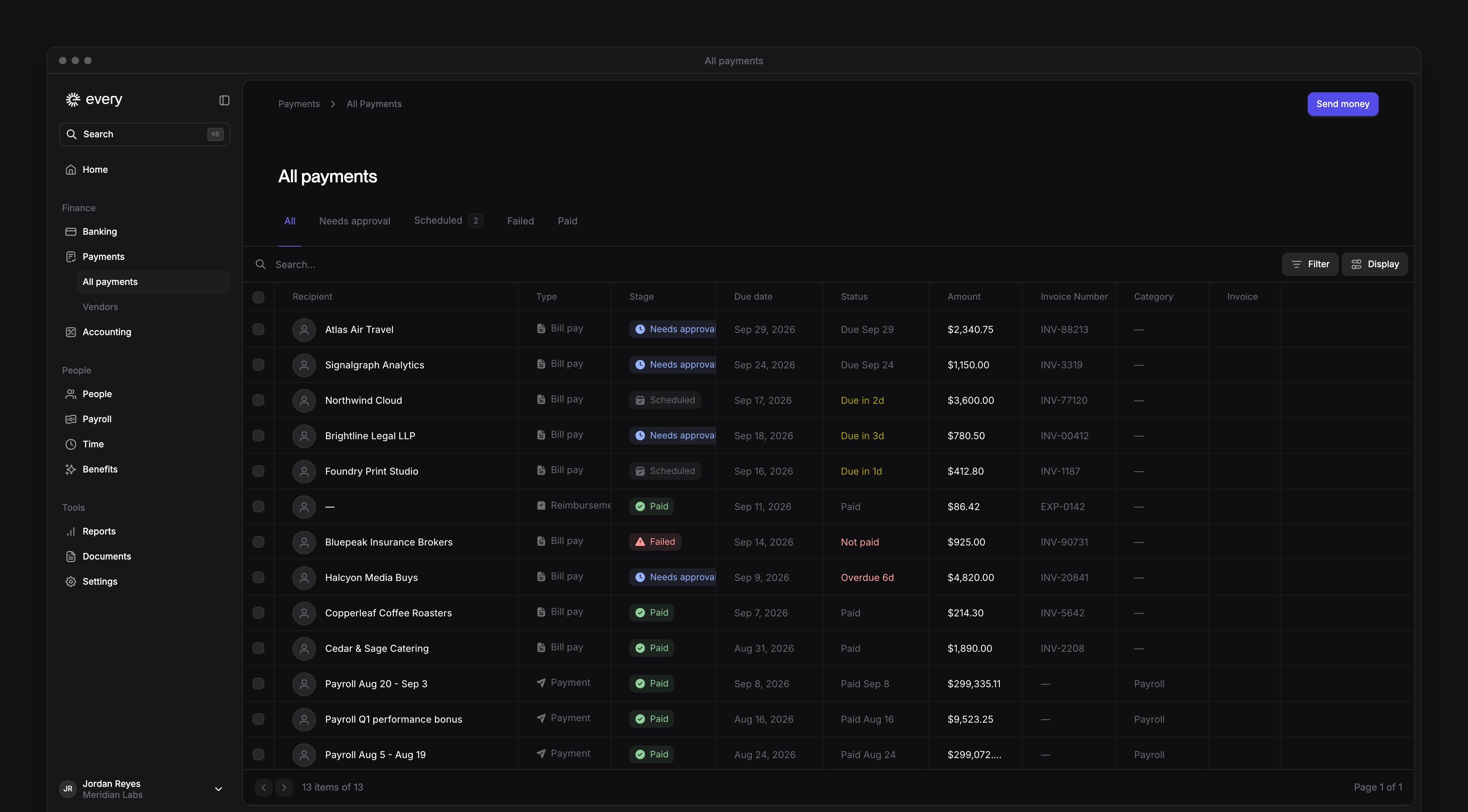
 Payments → All payments lists your company’s bills, vendor payments, reimbursements and payroll runs, from the moment a bill arrives until it’s paid.
Company Admins, Bookkeepers and Accounts Payable users can use it after your company finishes onboarding.
Payments → All payments lists your company’s bills, vendor payments, reimbursements and payroll runs, from the moment a bill arrives until it’s paid.
Company Admins, Bookkeepers and Accounts Payable users can use it after your company finishes onboarding.
Every turns on the All payments page, the bill inbox, failure reasons and the Accounts Payable role company by company. If you don’t see them, email support@every.io to ask about them.
Tabs
Needs attention, Inbox and Upload bill show when the Bill Pay Agent setting is on. In Settings → Accounting, under Bookkeeping agents, Company Admins and Bookkeepers can turn it on or off (see Accounting settings).
Find a payment
Each row on every tab except Inbox shows:
Inbox sorts its bills by Received, newest first.
Use the search box to find a payment by recipient, invoice number or, for a reimbursement, the employee’s name. Select Add filter to narrow payments by recipient, method or approver, and by stage on All and Failed. On Inbox, filter by recipient, vendor match or possible duplicate. Select Display to choose the columns. Each page lists 25 payments.
Act on payments
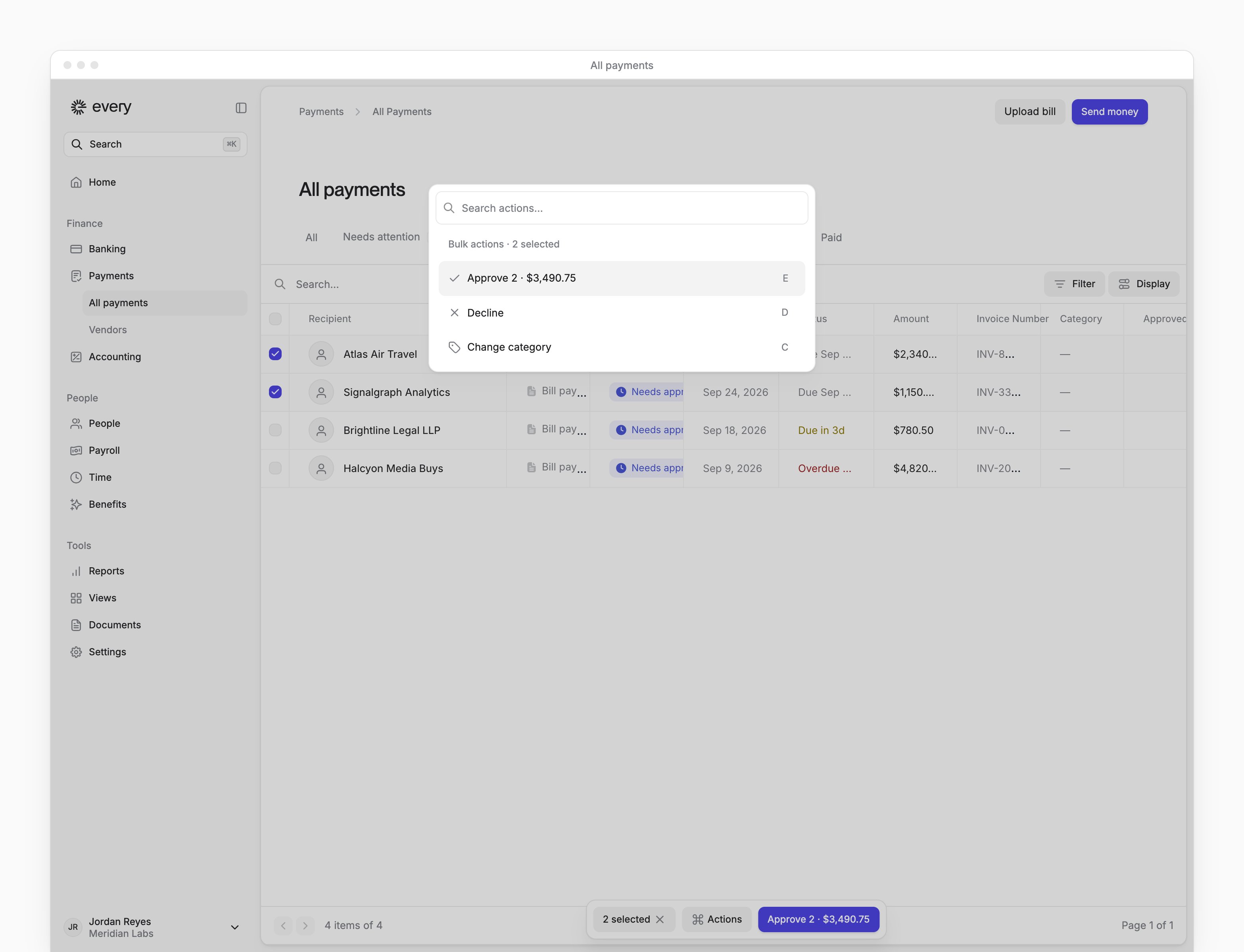
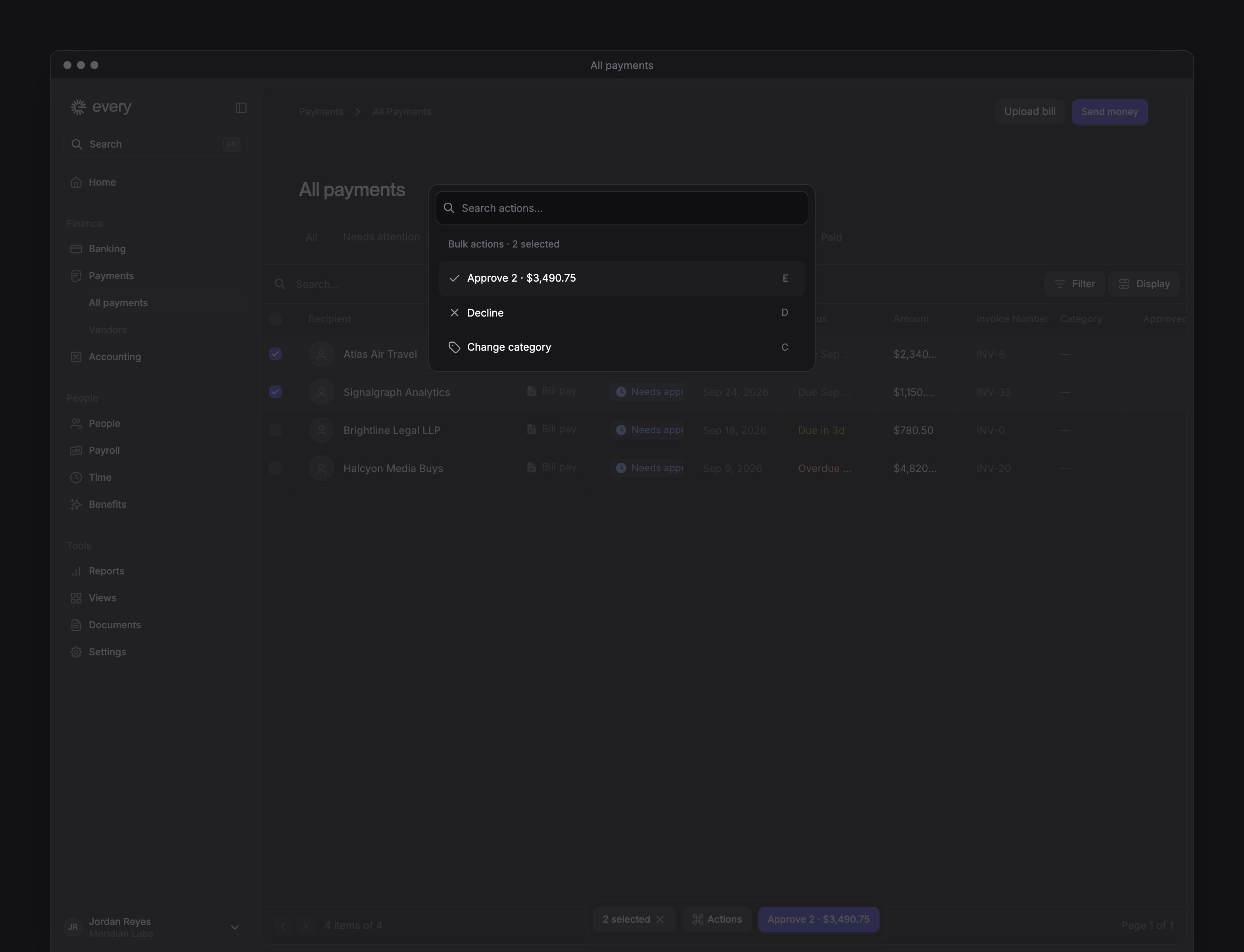
Hover over a row on All, Needs approval or Inbox to see its actions. Approve and Decline show on payments you can act on (see Approvals), and Open shows when either is missing.- Approve on a payment asks “Approve this payment?” and says “This will approve and schedule the payment.” On a bill in the inbox, it asks “Approve this bill?” and says “This bill will be paid immediately.”
- Decline on a payment asks “Decline this payment?”
- On the Inbox tab, Decline removes the bill right away. The message “Bill removed from the inbox” has an Undo action.
Open a payment
Select a row to open its details. When the page has an Inbox tab, a drawer opens for a payment, a reimbursement, a payroll run, a declined bill and a bill on Needs attention. Another bill in the inbox opens in its drawer, or in Send money with the bill filled in. In the drawer:- The invoice shows beside the details. A payroll run shows its payment record instead.
- Previous and Next move through the rows on the page, or through all of a tab’s bills on Inbox and Needs attention. Done closes the drawer.
- Approve reads Approve & next when another payment is waiting on you. Confirming it opens that payment.
- Decline on a payment asks for a “Reason for rejection”, then Reject. On a bill in the inbox, it removes the bill.
- When Every holds no bank details for the vendor, the drawer says Missing vendor details, hides Approve and offers Add vendor details.
Payroll runs and declined bills
- Each payroll run is one row, named like Payroll Mar 1 - Mar 15 for a regular run, on All, Scheduled, Paid and Failed. Amount shows for Company Admins and HR Admins and is blank for everyone else. In the drawer, a payroll run says “Payroll runs are approved in Payroll, so there is no decision to make here.” and has Open payroll.
- A bill you declined stays on All and Failed, with Declined in Stage and Called off in Status.
Track a payment
Stage reads:
A bill in the inbox can also read a more specific stage, such as Potential duplicate, Data mismatch or Missing information. Upload bills says what to do about each.
Status reads:
If the recipient hasn’t received a payment
Find the payment on All and check its Stage and Status (see Track a payment). If the recipient still hasn’t received it, email support@every.io. Give the recipient’s name, amount, payment method, date and the status you see. In your email, ask Every to check the existing payment before you send another one. Company Admins and Bookkeepers can also open the matching transaction on Banking → Transactions. An ACH payment can show a Trace number; a wire can show IMAD and OMAD. Include any identifiers shown when you email support@every.io to ask Every to investigate (see Transactions).If a payment failed or was returned
When the page has no Inbox tab, a failed payment’s sheet has a Failure reason row in its Bill details card. If a Failure code row shows too, email support@every.io and include the code. Company Admins and Bookkeepers can also look for a failure reason in the matching transaction’s details on Banking → Transactions. Do what the reason says before you try again:- If the recipient’s account was closed, confirm their current details and add a new payment method.
- If the recipient’s account is frozen, wait until the recipient resolves it with their bank.
- If the account being charged doesn’t have enough funds, ask a Company Admin to add funds to it (see Move money).
- If the payment was already submitted for processing, look for it on All before trying again. Email support@every.io if you need help.