


 When Custom templates appears under Documents, open it to build offer letter templates for employees or contractors. Company Admins and HR Admins can use it after your company finishes onboarding.
If you don’t see Custom templates, email support@every.io to ask about it.
When Custom templates appears under Documents, open it to build offer letter templates for employees or contractors. Company Admins and HR Admins can use it after your company finishes onboarding.
If you don’t see Custom templates, email support@every.io to ask about it.
Create a template
1
Open the creation form
Select Create template.
2
Choose the type
In Template type, select Offer letter (employee) or Offer letter (contractor) for the people who will receive it.
3
Name the template
Enter a Template name. You can leave Description (optional) empty.
4
Create the draft
Select Create template to open the editor. The draft starts with section headings and empty bodies for you to fill.
Write the template
The + control beside a paragraph opens the + menu on a new line below it.Add variables
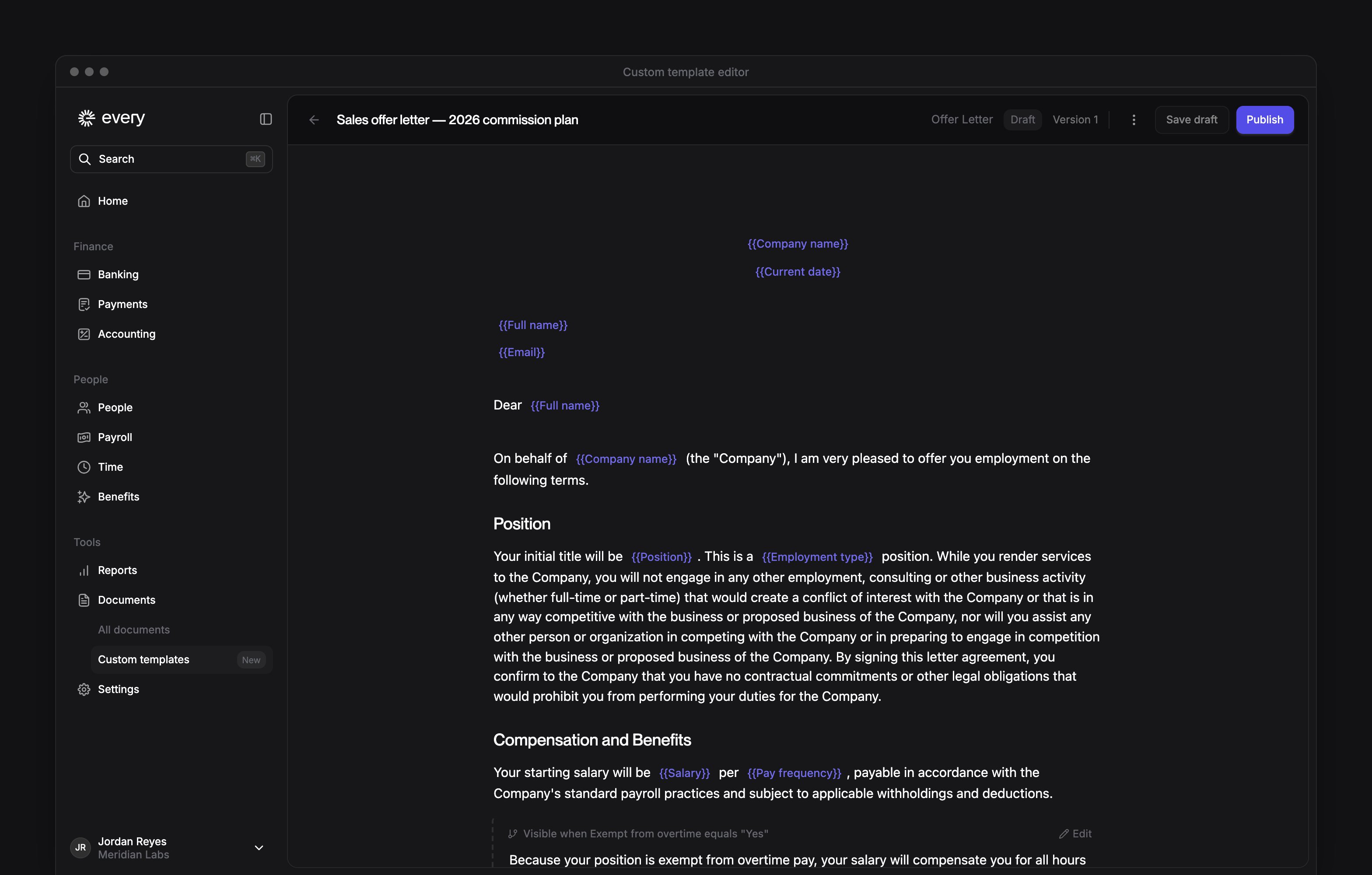
Type/ where a person’s details belong, such as their name or start date, and select a variable. The menu shows the variables for your employee or contractor template. Every fills them from the hiring details when you use the template.
Show a section conditionally
Select Conditional section in the + menu to add a section, then write its paragraphs inside it. The section appears in the resulting document when its rules match. To make existing paragraphs conditional:1
Select the paragraphs
Select their text.
2
Open the block menu
Select the drag handle beside one of the paragraphs.
3
Make them conditional
Select Make conditional.
1
Open the rules
In the section, select Edit.
2
Set the rule
Choose a variable, then select has a value, is empty or equals. For equals, enter a Value.
3
Add more rules
Optional: select Add condition, then select all conditions or any condition.
4
Save the rules
Select Apply.
Place the signatures
Select Signature block in the + menu where you want the signatures. The option is unavailable when the template already contains a signature block. You can move or remove the block while writing the template.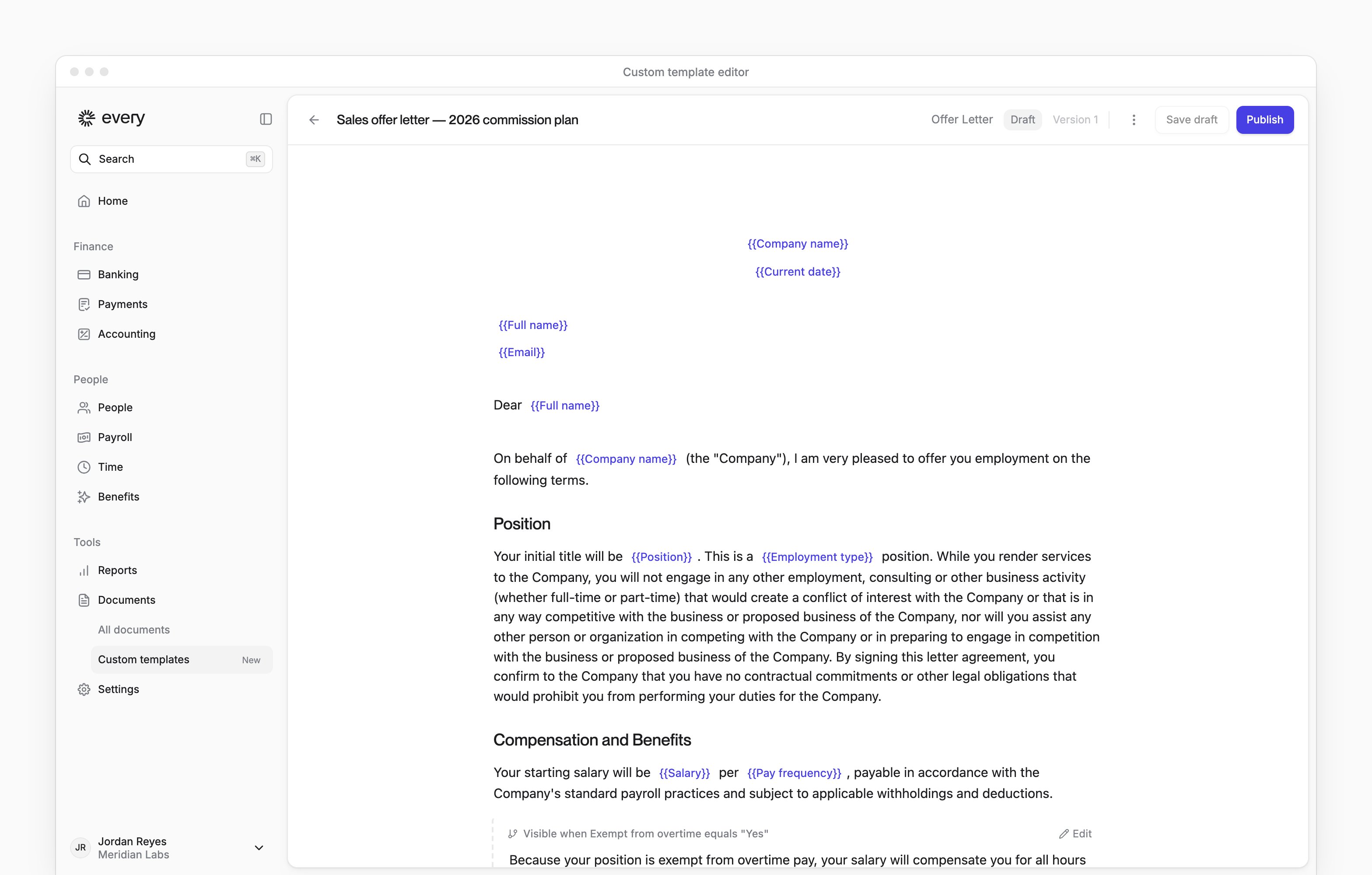
Import a Word document or PDF
Select More actions → Import from Word for a.docx file, or More actions → Import from PDF for a .pdf file. The limit is 5 MB.
PDF import preserves text only. Reapply tables, columns, lists and formatting in the editor. If Every reports that no text could be extracted from a scanned PDF, use a PDF with selectable text or a Word document.
After importing, Every looks for variables and adds matching ones to the draft. Review the result, including placeholders with a dashed red border. These suggestions have no matching variable: replace them with a variable, enter the intended wording or remove them before publishing. An unchanged suggestion stays as its original text in the resulting document.
If Every finds no variables, add them from the + menu. If variable analysis fails, the imported document is still ready to edit.
Review AI edits
On a draft with content, select Ask AI from the + menu to open AI Assist. Select Clean up structure to tidy the layout, or enter a change in Tell the AI what to change and select Apply change. Review the proposed changes. Accept changes applies and saves them; Discard leaves the draft unchanged. Instructions can rewrite wording, so review the result before publishing.Save and publish
Select Save draft before leaving the editor: ordinary edits do not save automatically. Publish saves outstanding edits and makes the template available for hiring. To undo unsaved edits back to the last save, select More actions → Reset. The same menu has Undo and Redo for individual edits.Edit or archive a template
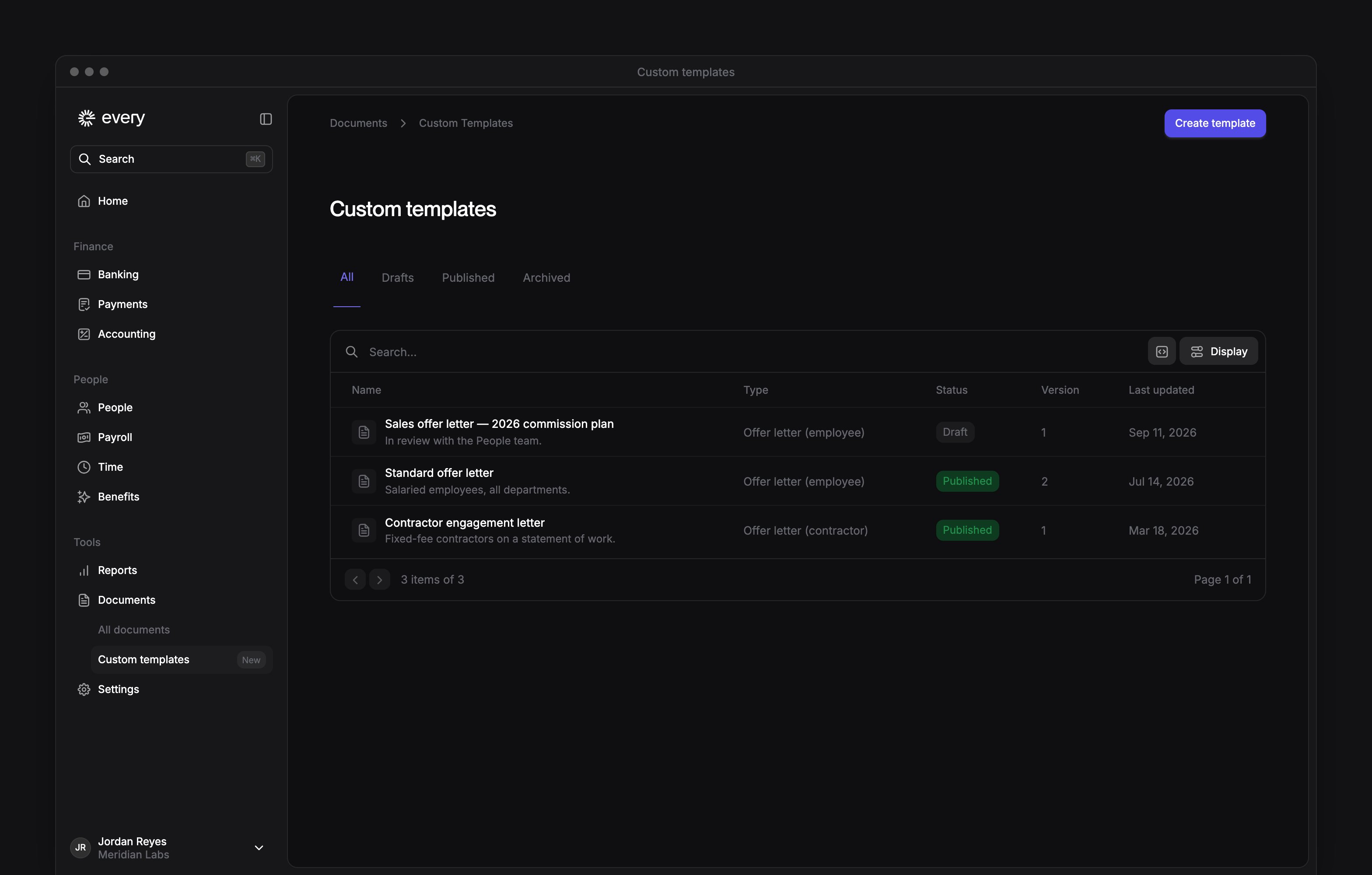
Select a row on Custom templates to open it. The tabs separate drafts, published templates and archived templates.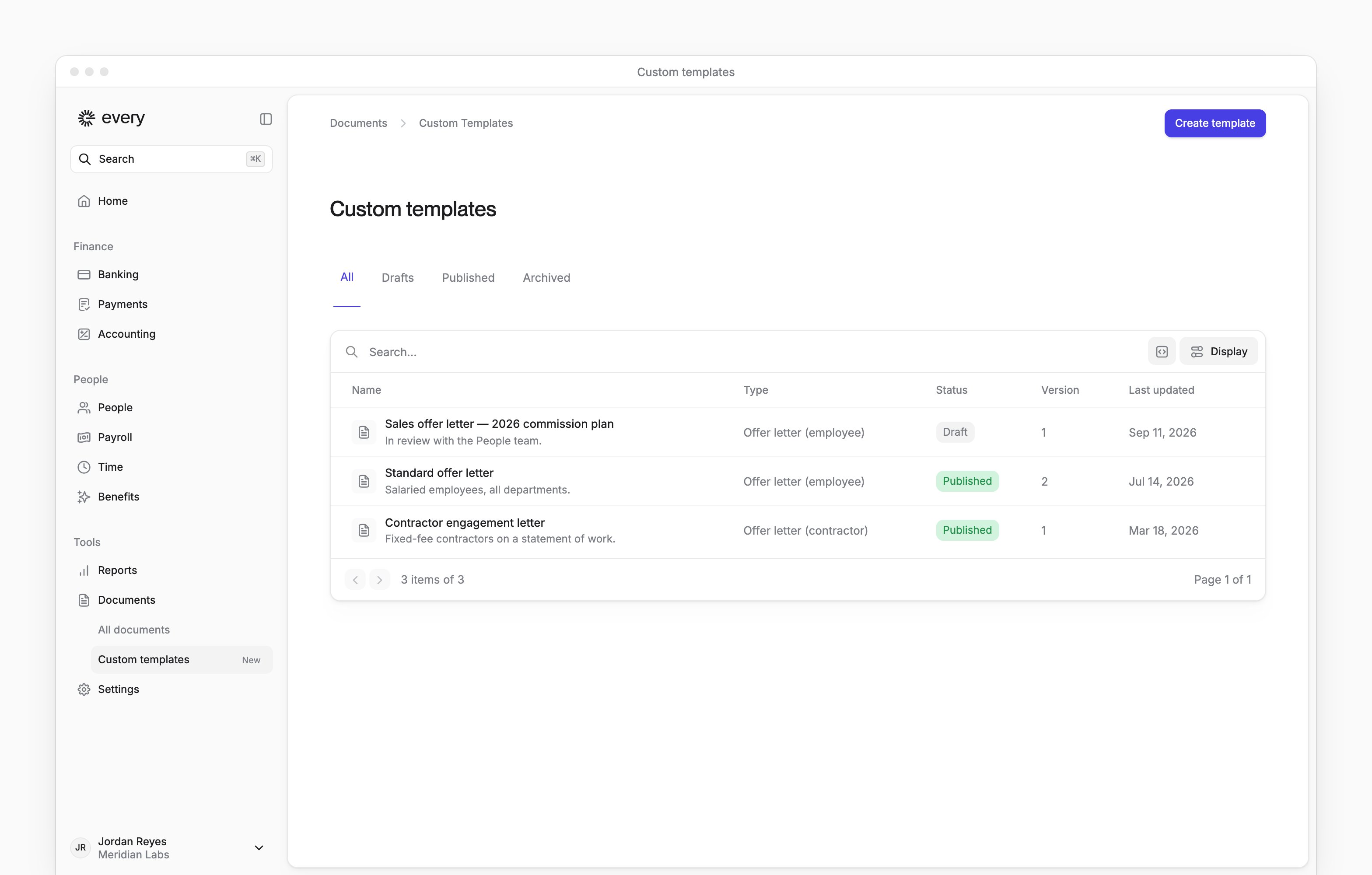
Use a template when hiring
When you add someone on People → Add people (see Add people for the hiring prerequisites), use the Offer letter step:1
Choose a generated letter
Select Yes, please create.
2
Open Choose a template
Select Choose template to open Choose a template. Choose template appears when a published template matches the person you’re hiring.
3
Choose the template
In Choose a template, select the template. It lists employee templates for employees and contractor templates for contractors.
4
Review the filled letter
Review the preview for the person you are hiring, including any highlighted values that still need attention.
- In the preview, select Edit to modify the letter.
- Select Save when you finish.