


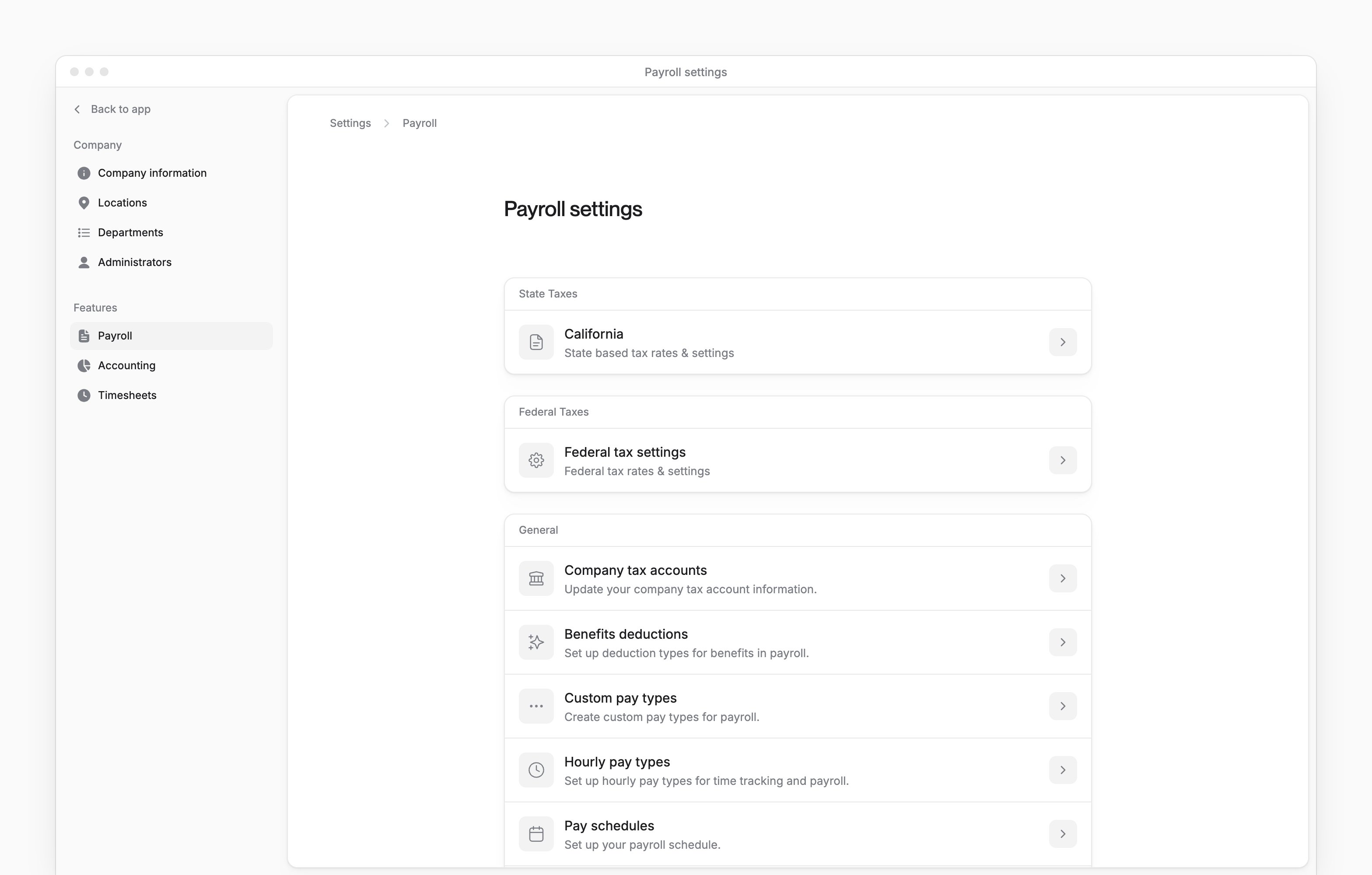
 Settings → Payroll holds your company’s payroll tax settings and agency account numbers. Company Admins and HR Admins update them after your company finishes payroll onboarding.
Each employee sees their own paystubs and tax forms on My profile → Docs after your company finishes onboarding (see Paystubs and tax forms).
Settings → Payroll holds your company’s payroll tax settings and agency account numbers. Company Admins and HR Admins update them after your company finishes payroll onboarding.
Each employee sees their own paystubs and tax forms on My profile → Docs after your company finishes onboarding (see Paystubs and tax forms).
Every turns on local company by company. If you don’t see it, email support@every.io to ask about it.
Update state or federal settings
After payroll onboarding, State Taxes lists the states your company has payroll tax settings for. Federal tax settings appears under Federal Taxes only when your company’s payroll tax profile includes federal forms.1
Open payroll settings
Go to Settings → Payroll.
2
Choose the state or federal settings
Under State Taxes, select a state, or under Federal Taxes, select Federal tax settings.
3
Change the settings
Change the fields you need for the selected state or for federal taxes.
4
Save the settings
Select Save. Every shows “Tax profile updated successfully”.
Enter account numbers
1
Open the account list
Go to Settings → Payroll → Company tax accounts.
2
Enter the account numbers
Enter the account number for each agency shown.
3
Save the accounts
Select Save. Every shows “Company tax accounts updated successfully”.
Complete a state tax setup task
Company Admins and HR Admins also see state tax setup tasks on Home after your company finishes payroll onboarding. Your company needs payroll turned on.1
Expand the tax setup task
On Home, select the Payroll tax setup needed for task, which shows the number of states. The state tasks expand.
2
Open the state task
Select the state’s Setup payroll taxes for task.
3
Enter the account numbers
When account fields are present, enter at least one of the account numbers requested for that state. Some states instead show “No tax accounts required for this state at this time.”
4
Submit the setup
Select Submit. Every saves the accounts and marks the task complete.
Manage local courtesy withholding
Company Admins and HR Admins can register local jurisdictions from Settings → Payroll → Local courtesy withholding after your company finishes payroll onboarding. Register a jurisdiction only when your company has a withholding account to remit to.1
Open the address search
On Local courtesy withholding, select Add jurisdiction.
2
Enter the address
Enter Street address, City, the 2-letter State code and ZIP.
3
Find the jurisdiction
Select Find jurisdictions.
4
Choose the result
Select the jurisdiction you want to register.
5
Register the jurisdiction
Select Register. Every shows “Jurisdiction registered” and returns to the registered list.